


How to configure system backup schedules in AMIZcloud
Applicable Products
- AMIZcloud
- QNAP devices running one of the following OS versions:
- QTS 5.2.0 or later
- QuTS hero h5.2.0 or later
Introduction
AMIZcloud allows you to configure automatic schedules for system backups on supported devices that are registered to the cloud platform.
System backup and restore features are supported on devices running QTS 5.2.0 and later and QuTS hero h5.2.0 and later. They allow you to back up and restore your system settings in the event of system failure, transfer your system settings to a new device, or reset your system to factory default settings. For details, see the "System backup and restore" section in the QTS User Guide or QuTS hero User Guide.
Besides configuring backup schedules, AMIZcloud also allows you to enable or disable a schedule, edit a schedule, back up now, or view backup history. You can perform all backup schedule actions in Schedule Tasks > Backup Settings.
- Each device has a maximum backup capacity of 20 files. When the maximum is reached, each new backup file replaces the oldest backup file.
- If you unregister a device from AMIZcloud, its system backup files will be automatically removed after 6 months.
- AMIZcloud cannot back up offline devices.
Configuring a System Backup Schedule in AMIZcloud
- Log in to AMIZcloud.
- Select one of the device management modes.
 : QNAP ID device management mode
In this mode, you can only manage QNAP devices that you have registered with your QNAP ID. : QNAP organization device management mode
- Go to Schedule Tasks > Backup Settings.
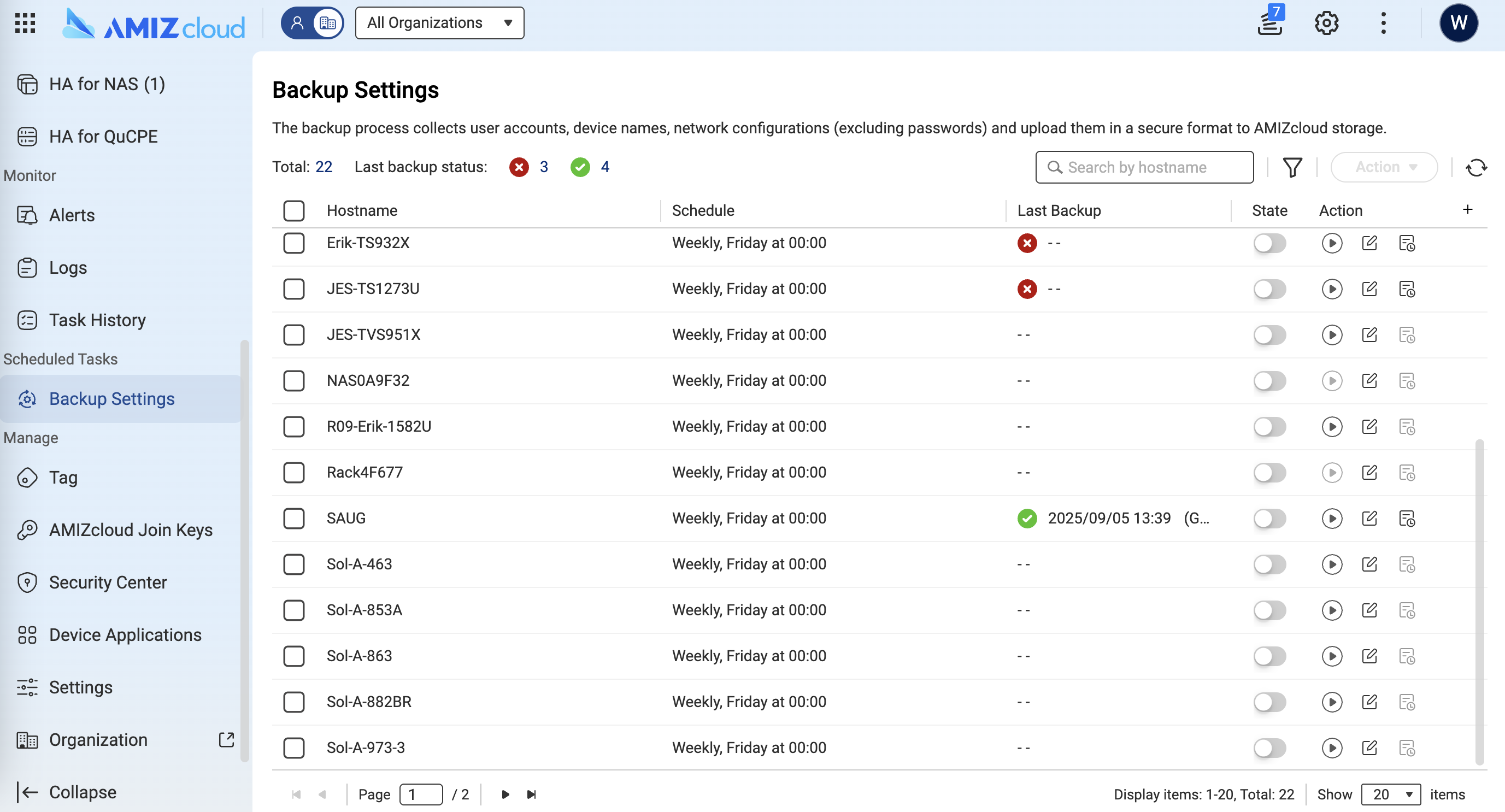
- Identify a device.
- Under Action, click
 .
.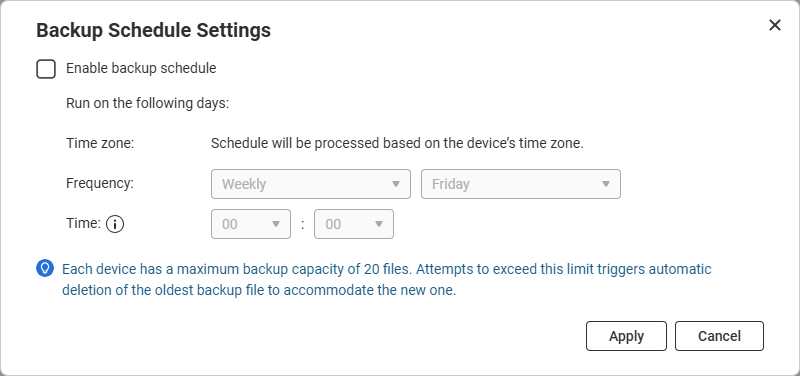
- Select Enable backup schedule.
- Select a backup frequency and day.
- Specify a time.NoteSchedules are processed according to each device's own time zone.
- Click Apply.
AMIZcloud saves and applies the system backup schedule.
Managing System Backup Schedules in AMIZcloud
Besides configuring system backup schedules, AMIZcloud also allows you to perform the following actions:
- Enable or disable a schedule
- Edit a schedule
- Back up now
- View backup history
To perform any of these actions, follow these steps:
- Log in to AMIZcloud.
- Select one of the device management modes.
- : QNAP ID device management mode
In this mode, you can only manage QNAP devices that you have registered with your QNAP ID. - : QNAP organization device management mode
- Go to Schedule > Backup Settings.
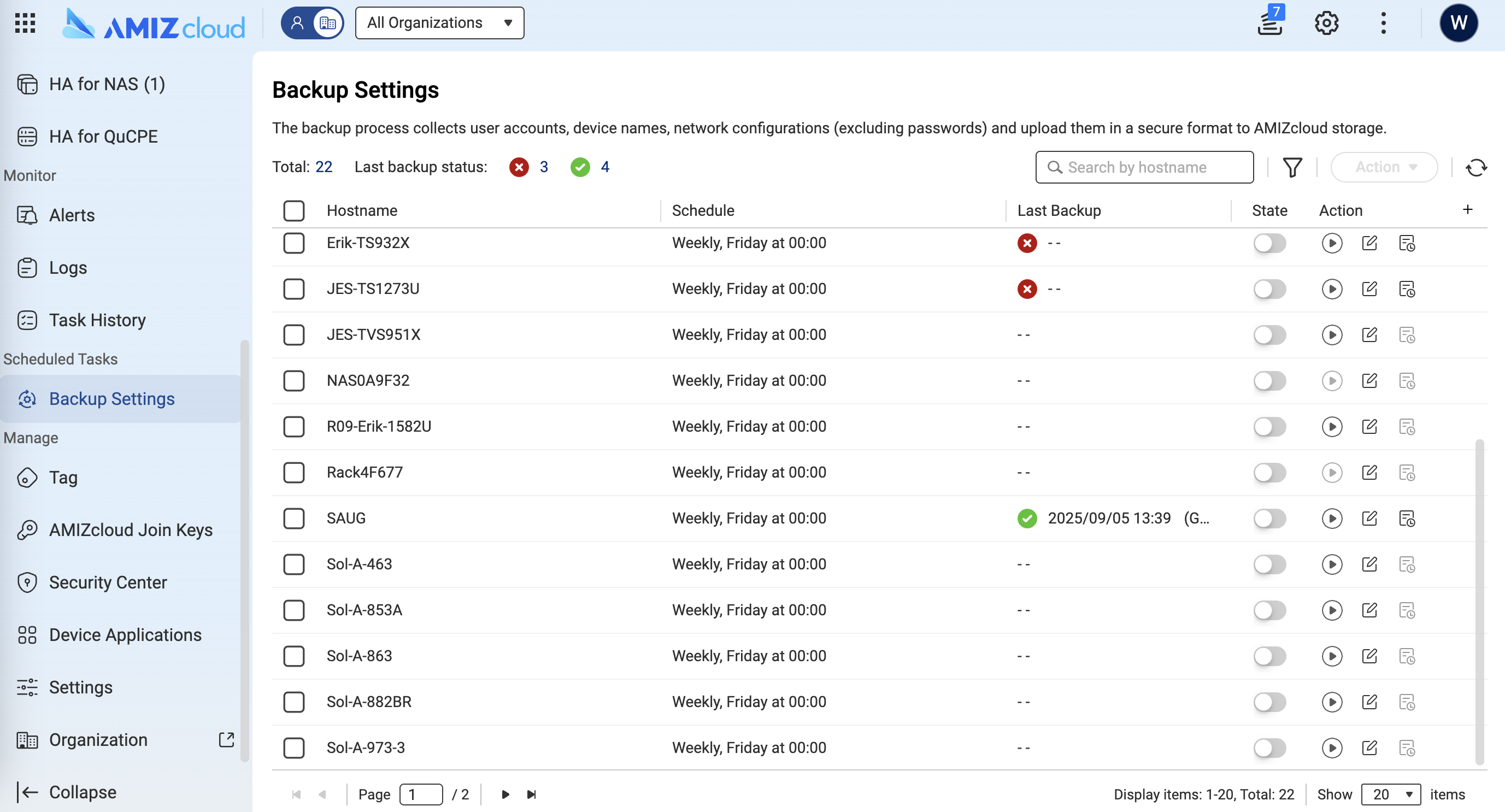
- Identify a device.
- Perform any of the following schedule actions:
Action User Action Enable Under Enable, click  .
.Disable Under Enable, click  .
.Edit Under Action, click  .
.
You can edit and apply a single schedule on multiple devices at the same time. Select two or more devices, click Action, and then click Backup Schedule Settings.Back up now Under Action, click  .
.
You can back up multiple devices at the same time. Select two or more devices, click Action, and then click Back Up Now.View backup history Under Action, click  .
.


