


Why do disconnected WireGuard clients appear on the QVPN Service Overview page?
Last modified date:
2024-12-04
Applicable Products
QVPN Service 3.2.1083 and later
Scenario
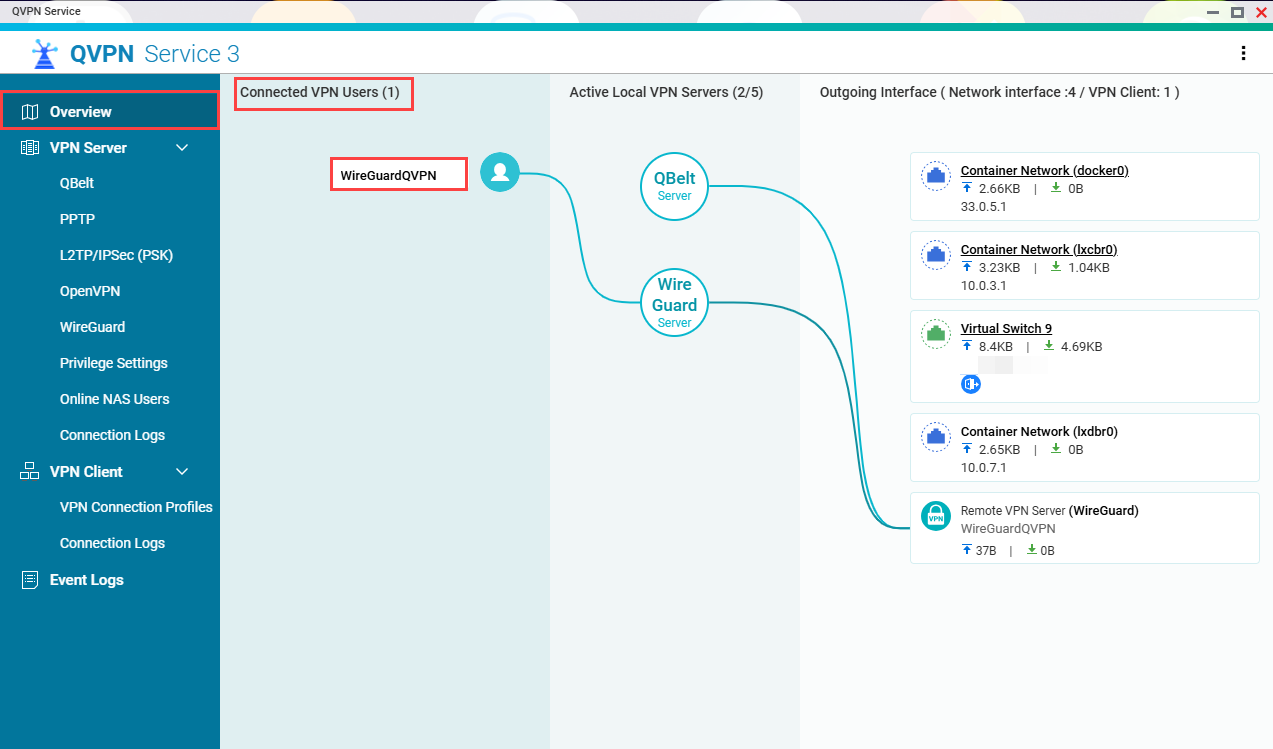
QVPN Service now provides details of configured WireGuard settings in its Overview page, including details of the active Wireuard server and added peers. However, disconnected WireGuard clients are still visible on the Overview page.
Details
- Disconnected WireGuard clients: QVPN Service cannot determine the connection status of WireGuard clients due to the unique connection management model of WireGuard. Consequently, all added peers, whether connected or disconnected, will appear in the Peer Table on the VPN Server > WireGuard page.
- WireGuard connection logs: Connection logs for WireGuard clients are not available, as WireGuard's design does not include built-in logging for connection events. This is due to WireGuard’s lightweight and privacy-focused architecture, which minimizes the collection of such data.
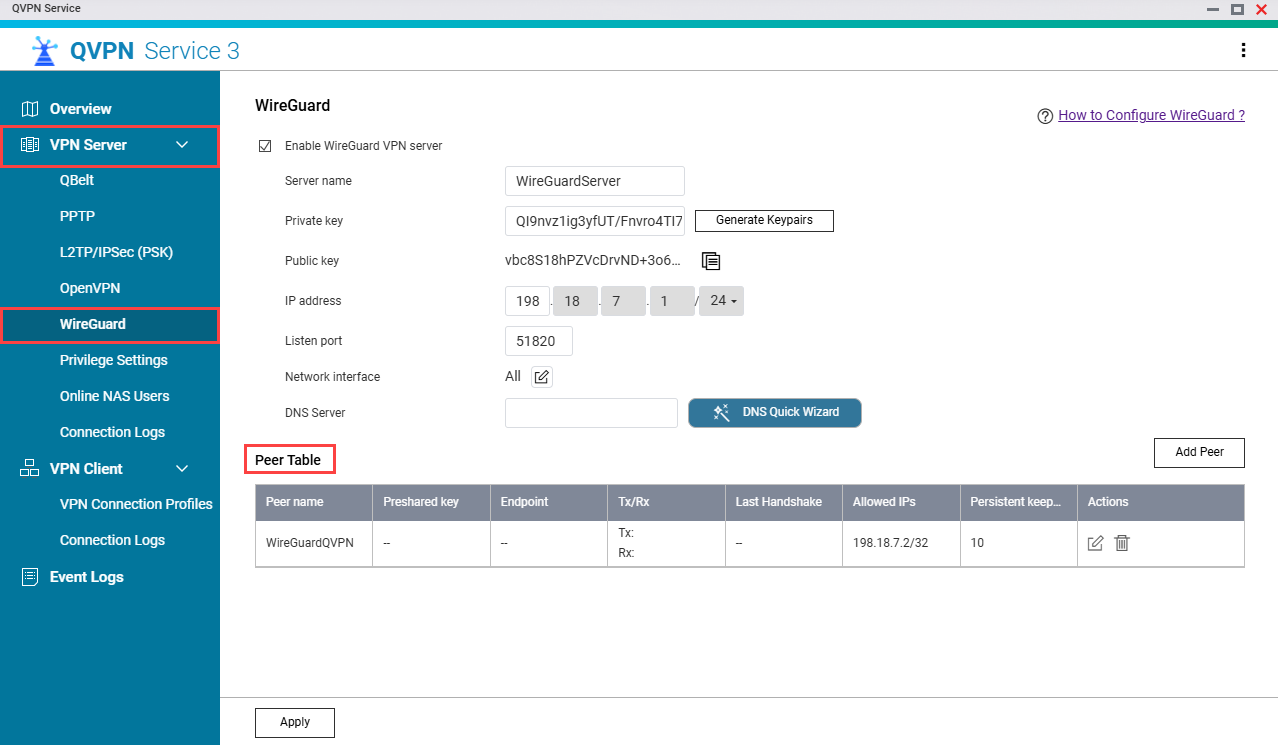
To assess the connection status of WireGuard peers on your QNAP device, perform the following steps.
- Log in to your QNAP device.
- Open QVPN Service.
- Go to VPN Server > WireGuard.
- Examine the Last Handshake time for each peer.NoteRegular handshakes (occurring every few minutes) indicate an active connection. A prolonged period without a handshake suggests a potential connection loss.
Further Reading


