


How do I configure my NAS shared folder for NFS access from Linux clients?
Last modified date:
2025-12-23
Applicable Products
- All NAS running QTS or QuTS hero
Overview
Network File System (NFS) is a protocol that enables Linux and FreeBSD users to access shared folders on a QNAP NAS. To ensure a shared folder is accessible via NFS, verify that the NFS service is enabled and the appropriate folder permissions are configured.
Note: Ensure that your NAS and client device are on the same network to allow NFS access.
Procedure
Step 1: Enable NFS service on your QNAP NAS
- Log in to QTS or QuTS hero as an administrator.
- Open Control Panel.
- Go to Network & File Services > Win/Mac/NFS/WebDAV > NFS Service.
- Select Enable Network File System (NFS) service.
- Select the desired NFS versions, such as NFSv4 and NFSv4.1.
- Click Apply.
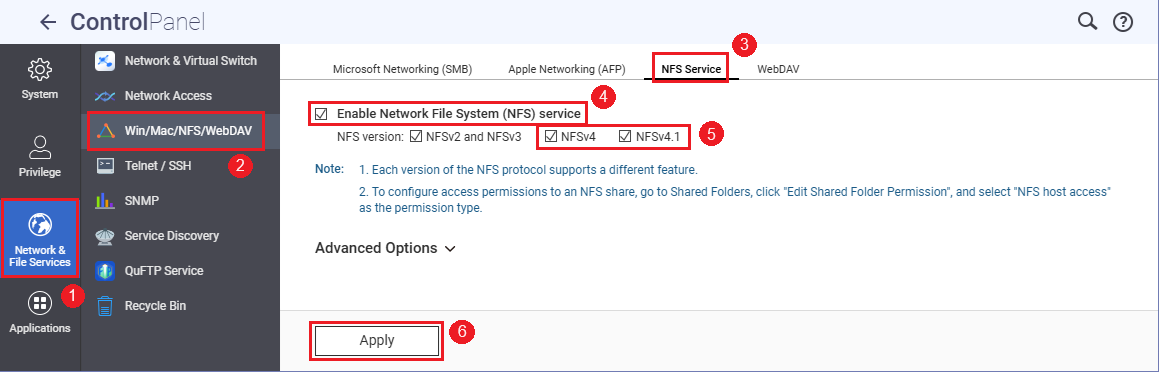
Screenshot: Enabling NFS service
Step 2: Configure NFS access permissions for a shared folder
- In Control Panel, go to Privilege > Shared Folders > Shared Folder.
- Identify the shared folder you want to grant NFS access.
- Click the Edit Shared Folder Permission icon.
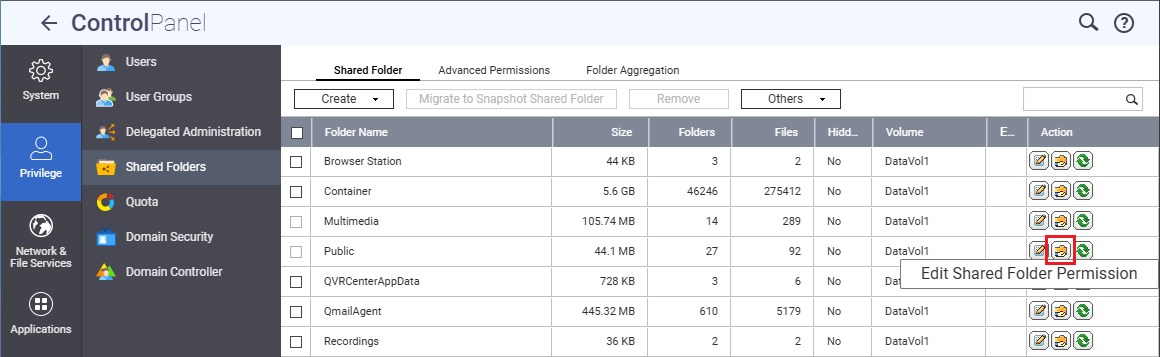
Screenshot: Edit Shared Folder Permission window - In the permission window, select NFS host access.
- Click Add to create a new access rule.
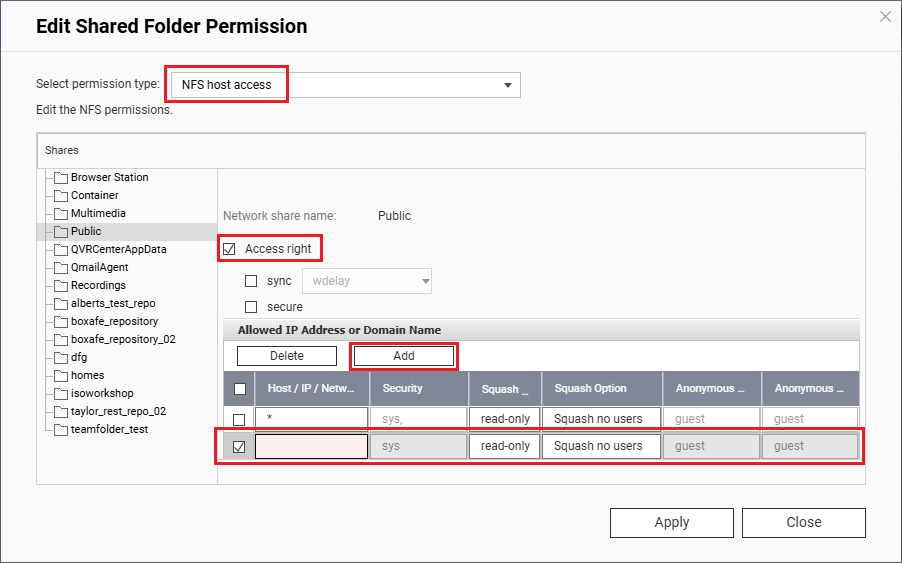
Screenshot: Adding NFS host access rule - For Host / IP / Network, enter the IP address of the client device that will access the shared folder.
- Select the desired Access right (Read Only, Read/Write, etc.).
- Configure other settings as needed.
- Click Apply, then Close.
Step 3: Verify NFS access from a Linux client
- On your Linux client device, open a terminal.
- Run the following command to display the shared folders accessible via NFS:
showmount -e [NAS_IP]
Replace[NAS_IP]with the IP address of your NAS. For example:showmount -e 10.32.72.25 - If your shared folder appears in the output, it is accessible via NFS.

Screenshot: Example output ofshowmount -ecommand
Note: If the folder does not appear, review NFS permission settings on your NAS and verify network connectivity.


