


How do I resolve the firmware version mismatch error when moving disk drives between NAS?
Applicable Products
- QTS / QuTS hero
Symptom
When inserting a drive into a QNAP device, especially while migrating drives from an old NAS to a new NAS, you may encounter an error message similar to the following:
"[Firmware Update] The drive has come from a device with firmware version 5.2.4 Build 20250321 but this device's firmware version is 5.2.6 Build 20250715. The firmware versions must be the same to use this drive. You can update or re-install this device's firmware to synchronize the firmware versions of this device and drive." 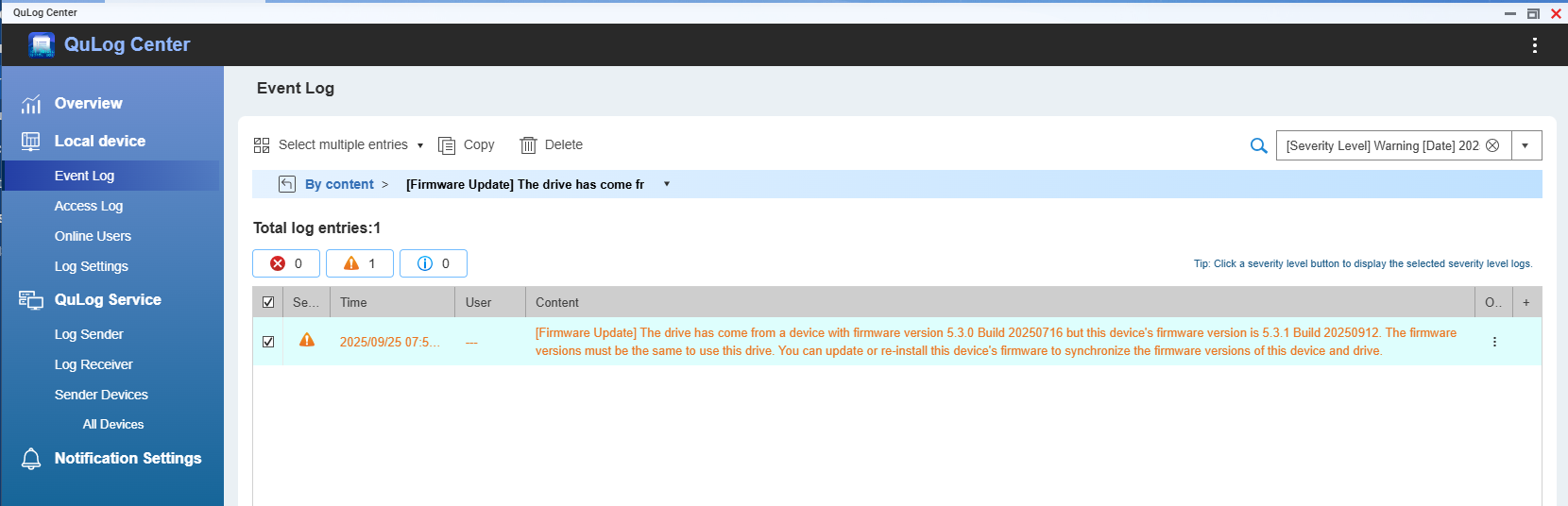
This message indicates that the firmware version on the drive does not match the firmware version on the current device. In some cases, when attempting to update the firmware using the online update feature, you may be informed that your firmware is already up-to-date. However, the system log may continue to report that the firmware versions on the device and the drive are inconsistent.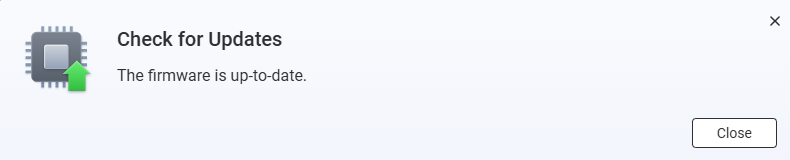
Solution
To resolve this issue, you must manually re-install the same firmware version that is currently running on your device. This process will synchronize the firmware version on both the device and the drive, even if your device reports that it is already up-to-date.
Manually re-install the current firmware version
- Go to the QNAP Download Center and download the exact firmware version that matches your device's current firmware.
- Ensure you select the correct model and firmware version.
- Extract the downloaded firmware package file.
- Go to Control Panel > System > Firmware Update > Manual Installation.
- Click Browse and select the extracted firmware package file.
- Click Update System and confirm when prompted.
- The device will restart automatically after the update.
- After the update, verify that the firmware version mismatch message no longer appears in the system log.
Warning: Do not power off your device during the firmware update process. QNAP recommends backing up all data and stopping all device operations before updating the firmware.
Note: You can check if the firmware installation was successful by going to Control Panel > QuLog Center > Local Device > Event Log.


