


Frequently asked questions about QuWakeUp
Applicable Products
QuWakeUp
What is the default username and password?
The default username is admin.
The default password is the MAC address of your device. You can find the MAC address on the sticker on the rear of the device. You can also use Qfinder Pro to view the device's MAC address.
The default MAC address for version 1.2.1 build 0001 is MAC 2 which equals the MAC address displayed in Qfinder Pro.
How do I change the device name, username, or password?
If you are logging in for first time, you will be prompted to set a Device name, and enter a new Username and Password.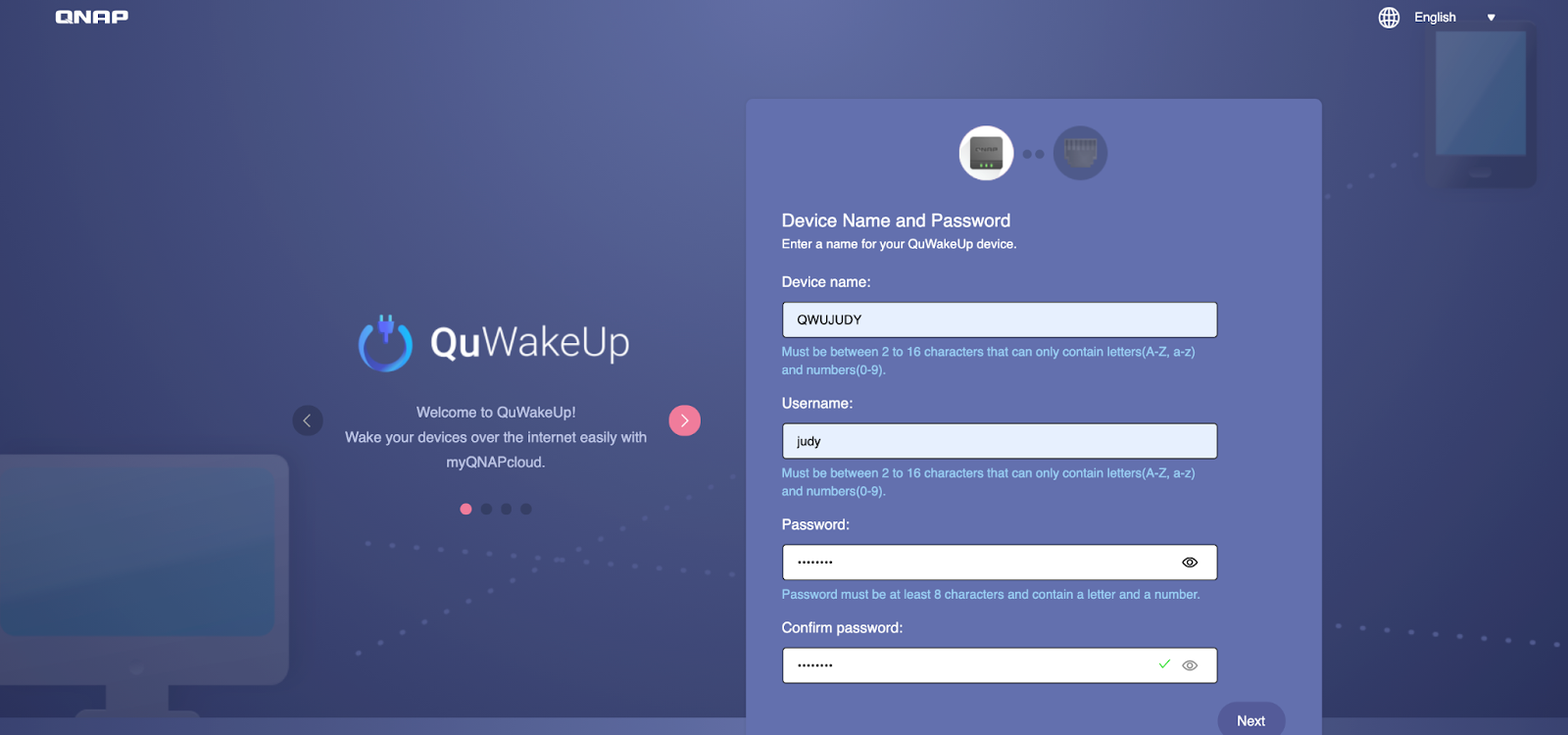
- Log in to the device.
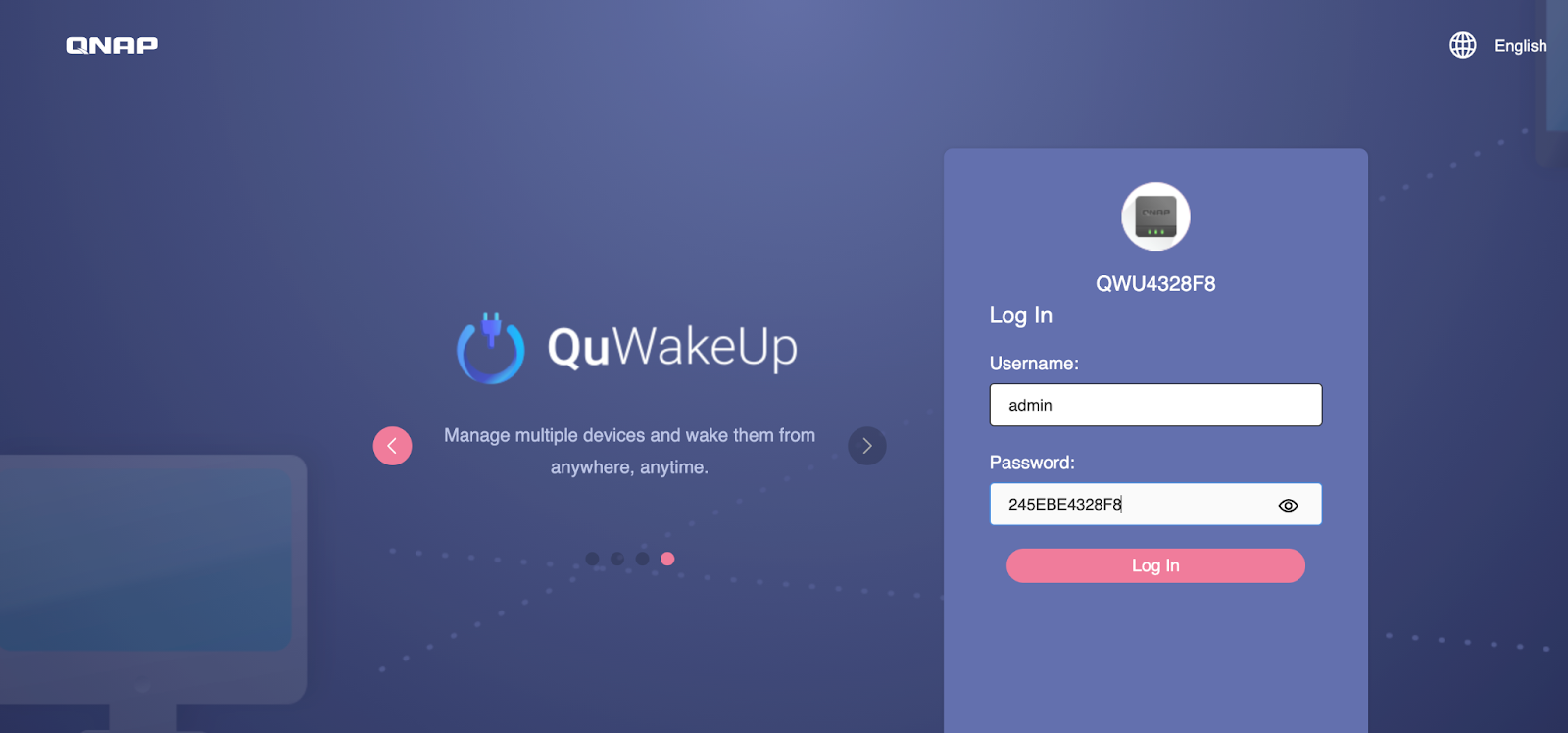
- Open Settings.
- Go to the System Administration tab to change the device name and/or username.
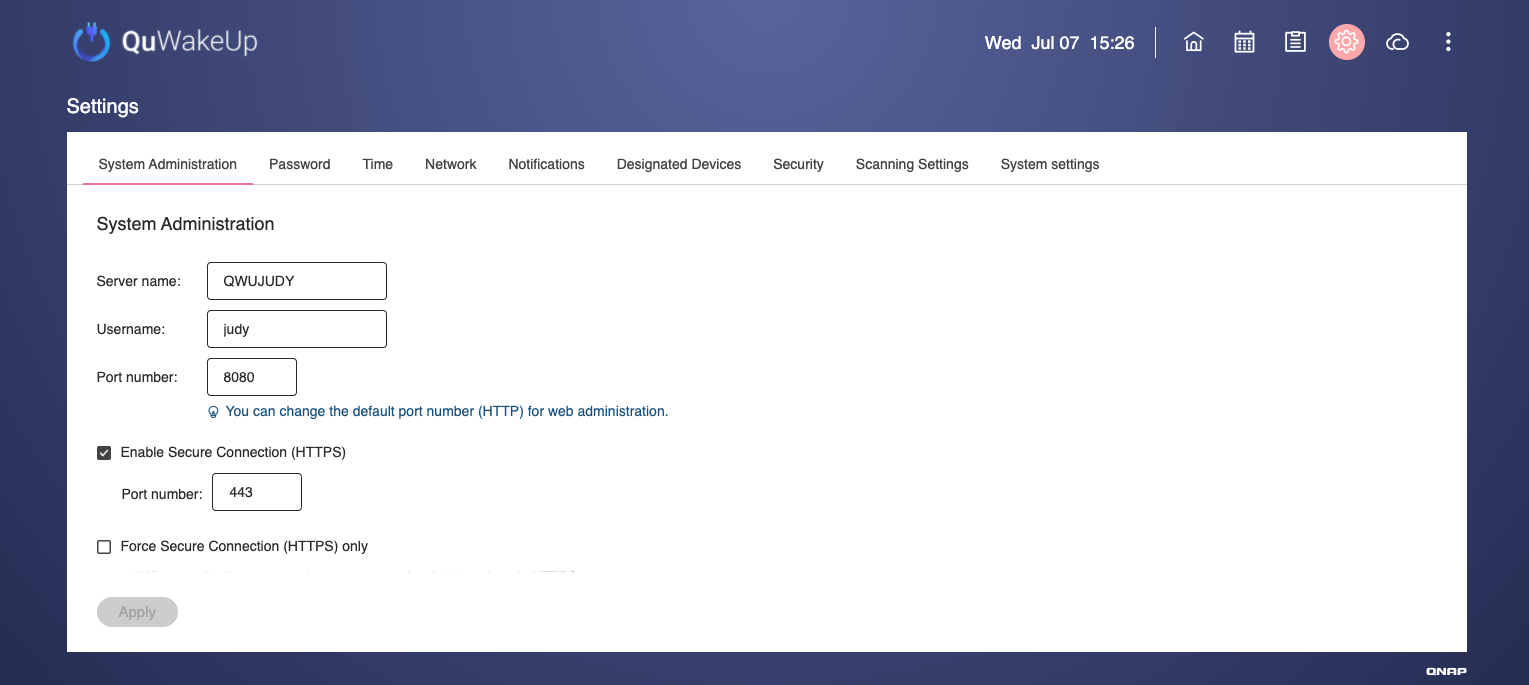
- Go to the Password tab to change the password.
How often does QuWakeUp update the status of listed devices?
QuWakeUp attempts to update the status of devices every 60 seconds. The time of the previous update and time until the next update are displayed on the bottom right of the home page. You can also refresh the device status by clicking the Refresh button in the top panel.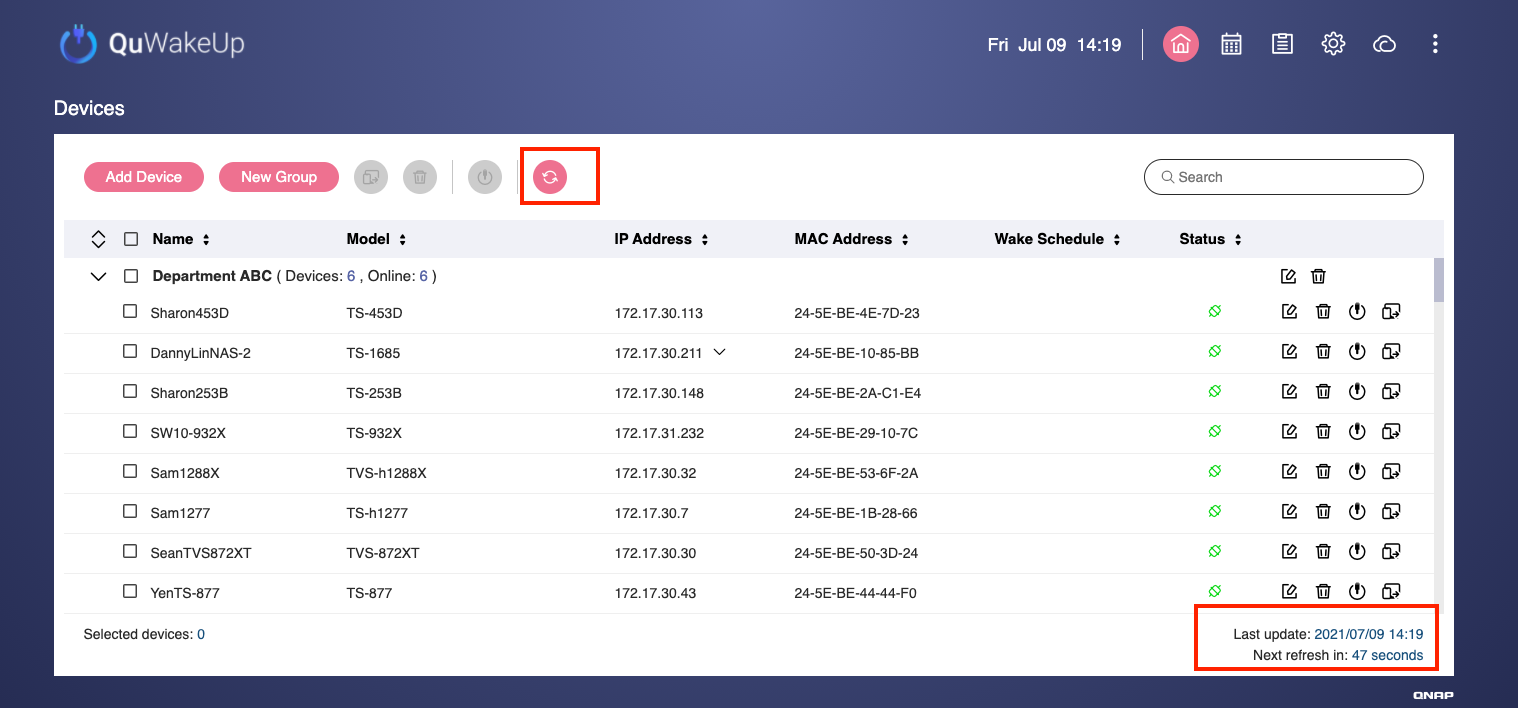
How many concurrent users can log in to QuWakeUp?
Only one user can log in to QuWakeUp. If another user logs in, the initial user will be logged out. The behavior is the same in the local network and remote network.
How can I find offline devices on the QuWakeUp Devices screen?
Offline devices are indicated by a  icon. The IP Address column displays the last IP address used to connect from that device. You can find information on when the device was last connected by hovering over the
  icon.
icon.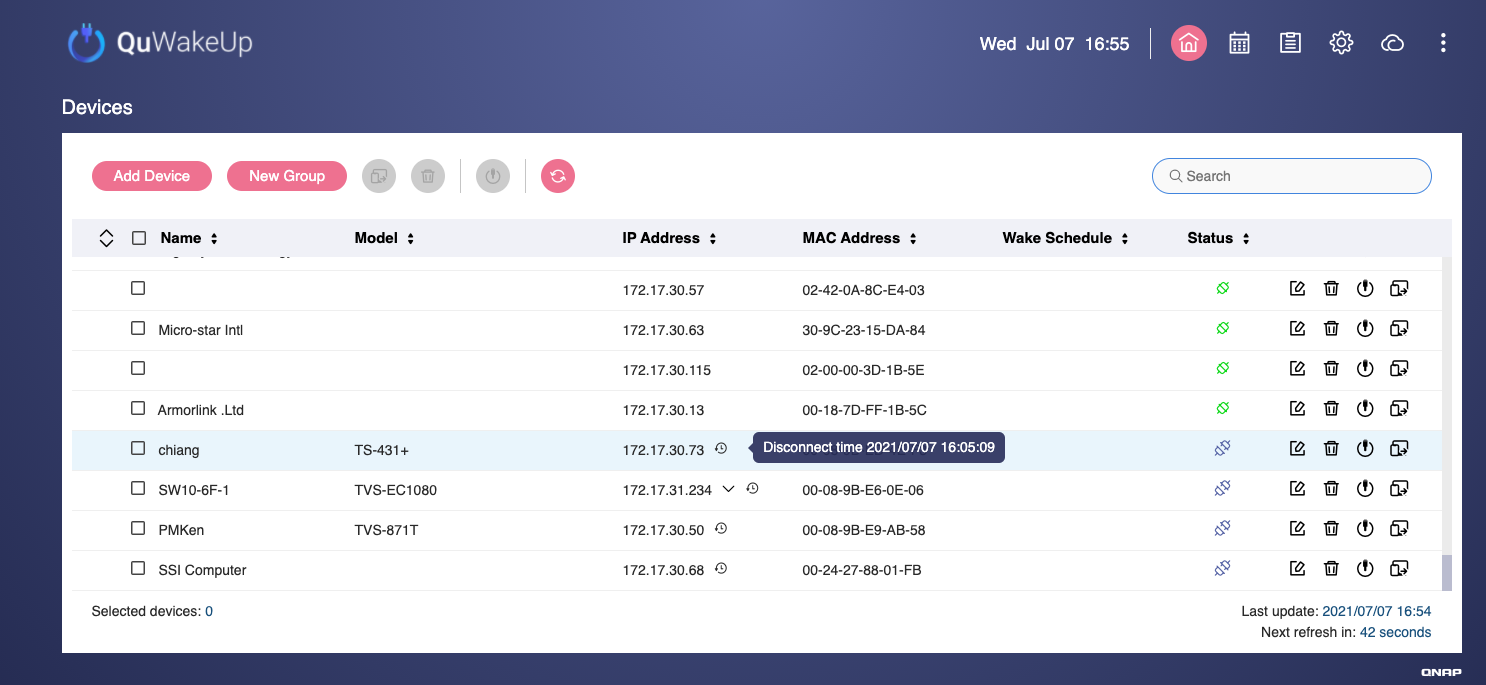
How can I define a specific IP range to scan for devices?
- Log in to the device.
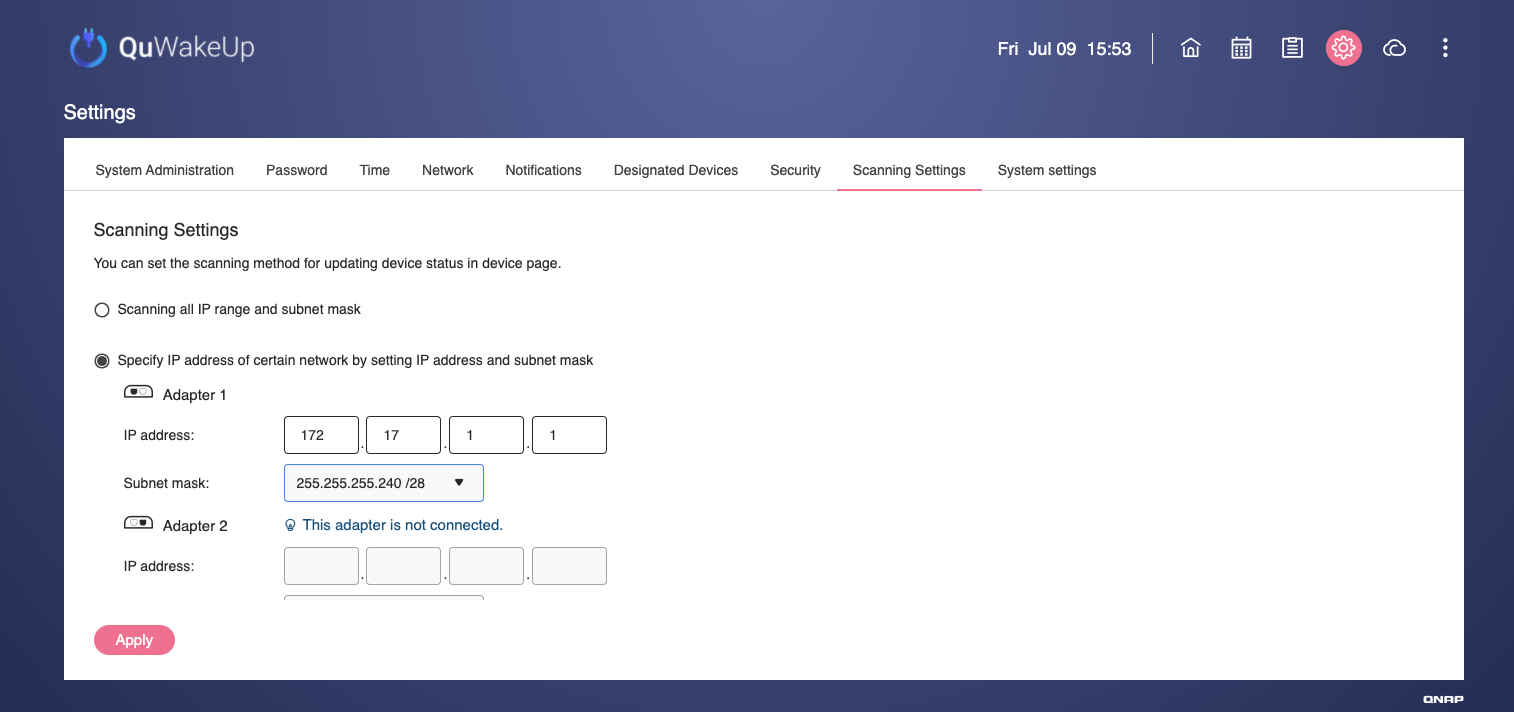
- Go to Settings > Scanning Settings
- Configure the IP range.
- Select Specify IP address.
- Enter an IP address.
- Select a subnet mask.
- Click Apply
- QuWakeUp scans for devices on the specified IP subnet.
How do I back up settings for QuWakeUp?
Backup files do not include QNAP ID or myQNAPcloud settings.
- Log in to the device.
- Go to Settings > System settings.
- Click Backup.
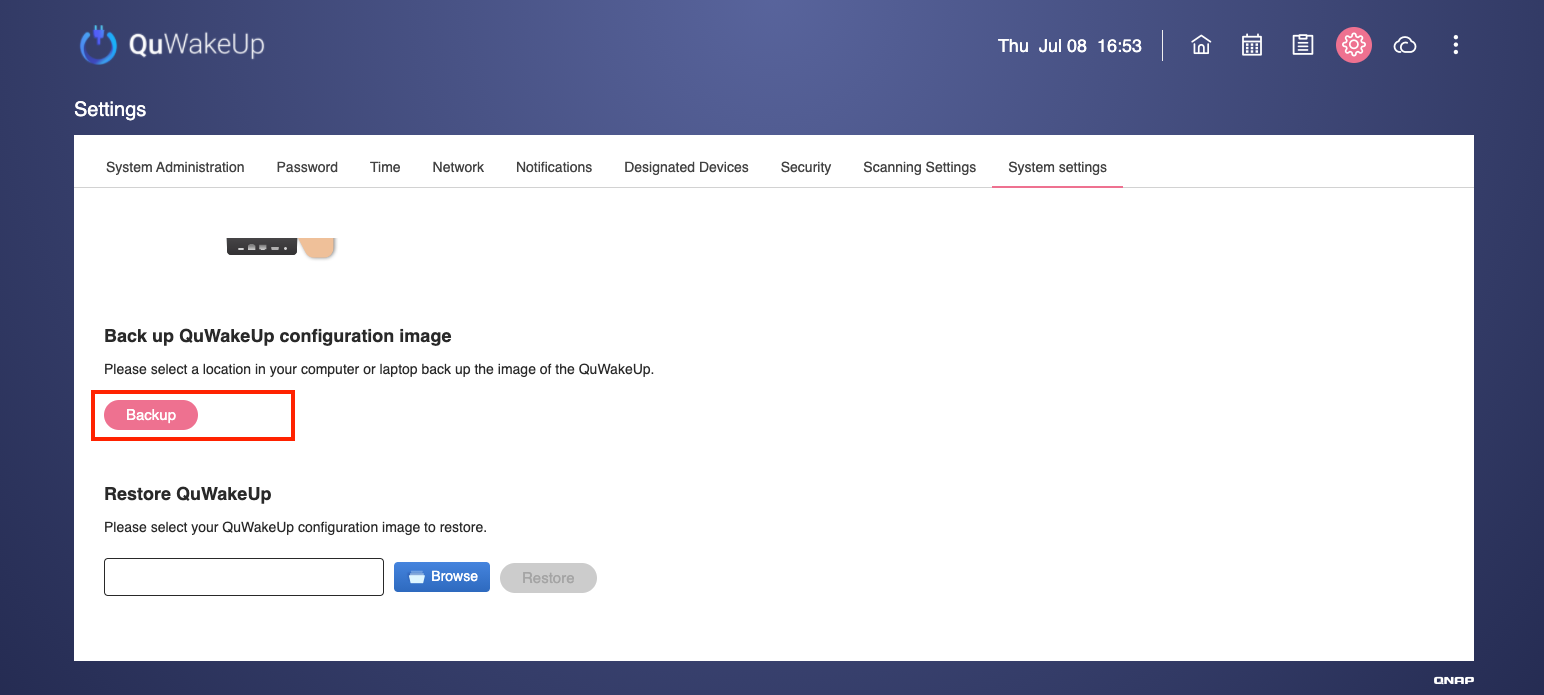
- The system creates a backup file containing the Device name, the user credentials, Wake Up schedules, notifications, and all previously added & scanned devices. The file name is formatted as Hostname_Firmware Version_Date.bin.
How do I restore settings for QuWakeUp?
- Log in to the device.
- Go Settings > System settings.
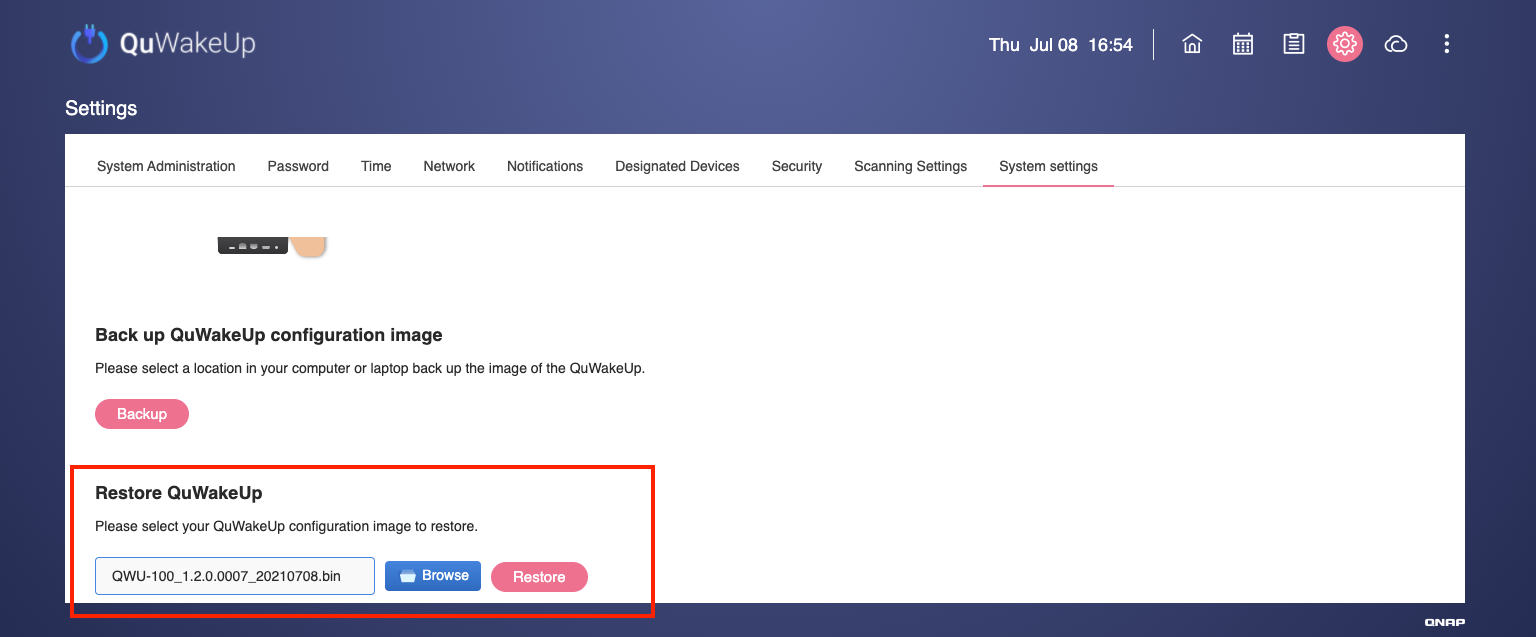
- Under Restore QuWakeUp, click Browse.
- Select a backup file.
- Click Restore.
QWU-100 devices can only restore settings files if the firmware version of the backup file matches or exceeds the firmware version of the device.


