


How do I find and install the correct M.2 SSD in my NAS?
Last modified date:
2025-12-01
Applicable Products
- NAS models with onboard M.2 slots
- QM2 expansion cards
Overview
QNAP NAS models support various types of M.2 SSDs, which differ in interface and connector type. To ensure compatibility and optimal performance, identify the type of M.2 slot available (B key, M key, or B+M key), then choose a compatible SSD. This FAQ explains how to find the correct M.2 SSD and install it safely.
Procedure
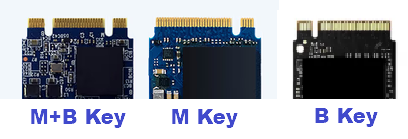
- Identify the M.2 slot type on your NAS:
- M key: Supports most NVMe (PCIe) SSDs.
- B key: Supports most SATA SSDs.
- B+M key: May support both SATA SSDs and entry-level NVMe SSDs (check your model for details).
- M.2 SSDs have notches or "keys" that must match the slot. Inspect both your SSD and slot, or refer to your NAS manual.
Key Type Notch Position Supported Interface Main Usage B key Left side (6 pins) PCIe x2, SATA M.2 SATA SSD, WWAN M key Right side (5 pins) PCIe x4, SATA M.2 NVMe SSD B+M key Both sides PCIe x2, SATA M.2 SATA SSD, entry-level NVMe SSD Note: The notch positions (keys) must match between the slot and the SSD.
- Check your NAS specifications:
- Visit the QNAP product page or your device manual, and locate the "Specifications" or "Hardware" section to confirm which M.2 SSD types (NVMe or SATA) are supported.
- Select a compatible M.2 SSD:
- For M key slots, use an M.2 NVMe SSD.
- For B key slots, use an M.2 SATA SSD.
- For B+M key slots, refer to your NAS documentation for supported SSD types.
- Prepare for installation:
- Power off and unplug your NAS before installing the SSD.
- Use an anti-static wrist strap if available to prevent static discharge.
- Install the M.2 SSD:
- Insert the SSD into the slot at a slight angle (about 30 degrees), align the notch with the key, and gently push it in.
- Secure the SSD using the provided screw.


