


How to setup Plex Media Server to play movie files stored on my NAS?
Last modified date:
2026-05-07
Applicable Products
- QNAP NAS running QTS 5.x or QuTS hero 5.x
- Plex Media Server
Scenaro
A user had a few home movies stored on the NAS and wanted to play them using Plex. He would like to figure out how to point Plex to the correct folder on the NAS so it could index the videos.
Solution
Below is a step-by-step instruction to setup Plex Media Server on QNAP NAS.
Step 1: Organize Your Videos on the NAS
- Log into QTS via a web browser.
- Open File Station.
- Ensure your movie files are in a shared folder, e.g.:
/Multimedia//Multimedia/Videos/- Or any shared folder you created.
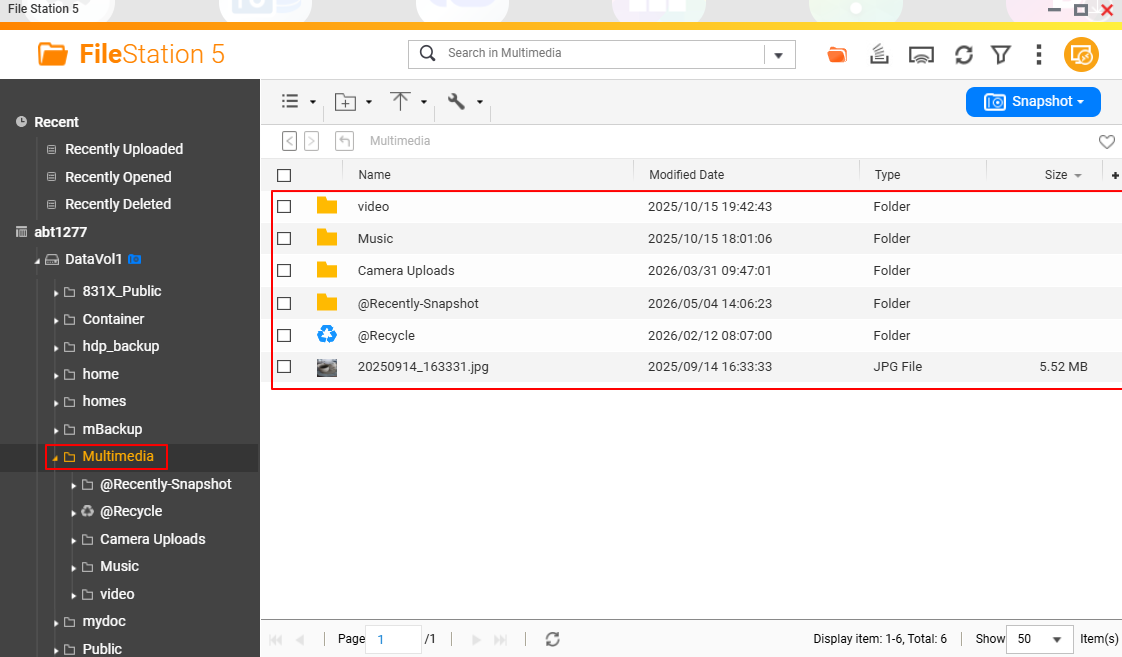
- Note the folder name — you will need it in Step 3.
Step 2: Install Plex Media Server
- Open App Center in QTS/QuTS Hero.
- Search for Plex Media Server.
- Click Install.
- Wait for the installation to complete.
- Once installed, click Open to launch the Plex Web UI.
- Alternatively, access Plex at:
http://<NAS-IP>:32400/web
- Alternatively, access Plex at:
Step 3: Create a Plex Account and Add Your Library
- On the Plex Web UI, sign in with your Plex account (create one for free at plex.tv if you don't have one).
- Plex will prompt you to set up your server. Give it a name.
- Go to Setup > Library.
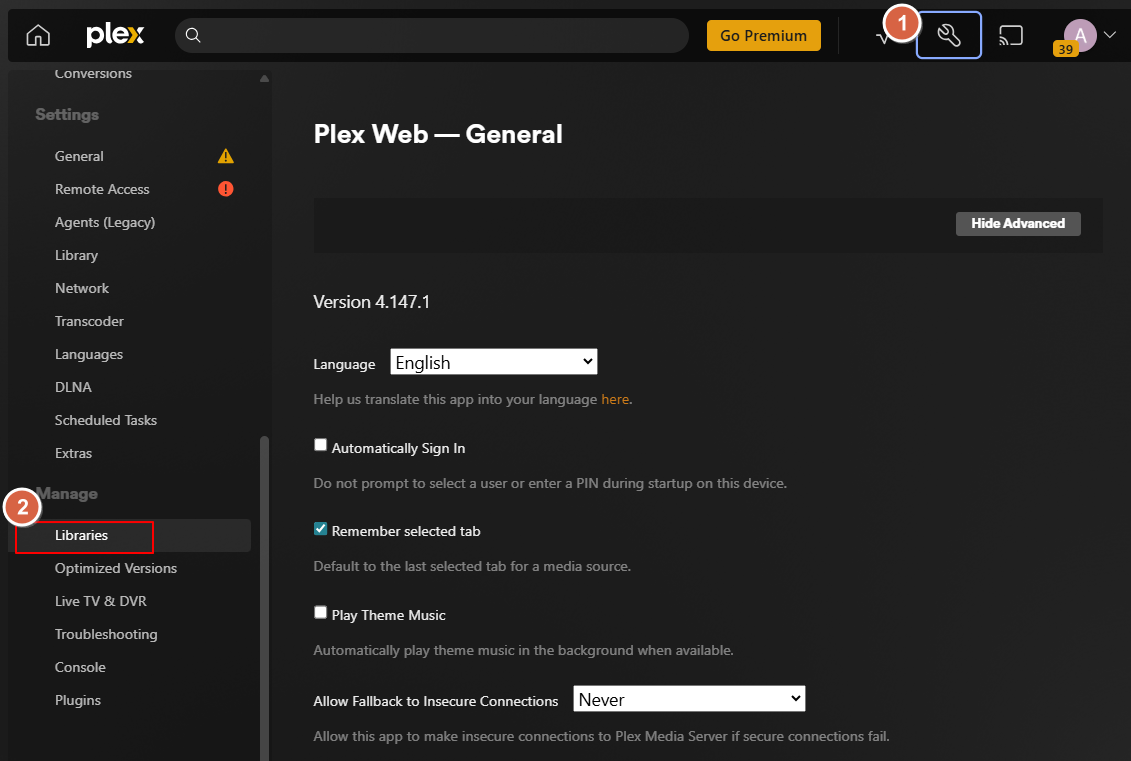
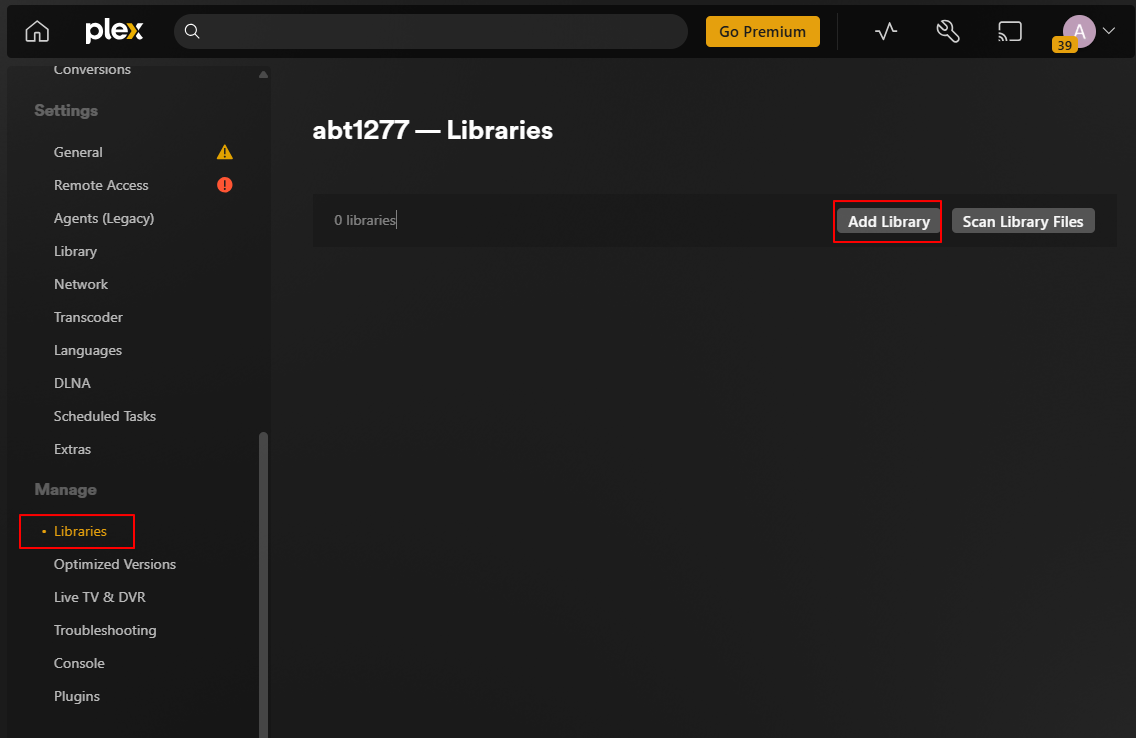
- Click Add Library.
- Choose the library type:
- Movies — for feature films with metadata matching
- Home Videos (under "Other Videos") — best for personal recordings that won't match online databases
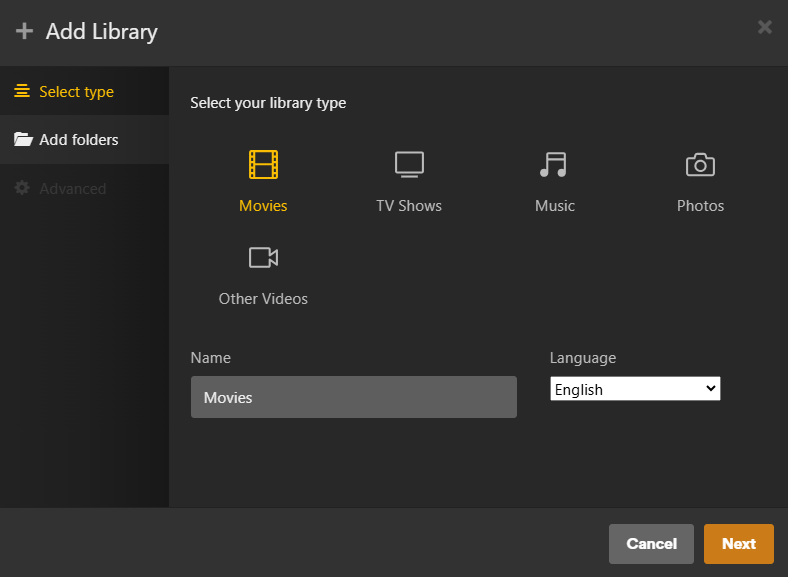
- Click Add Folder and browse to the folder containing your videos.
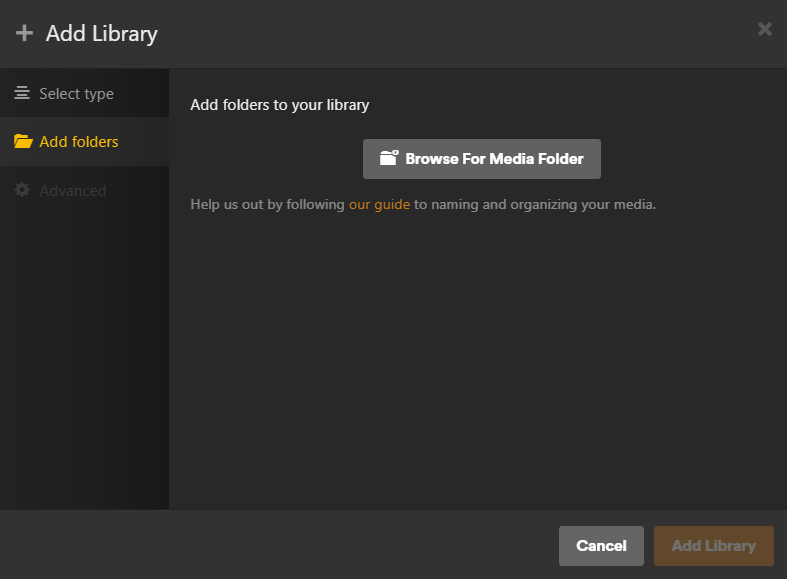
- The path will appear as:
/share/CACHEDEV1_DATAor similar. - If you don't see your folder, try navigating from
/share/which is the root for all QNAP shared folders.
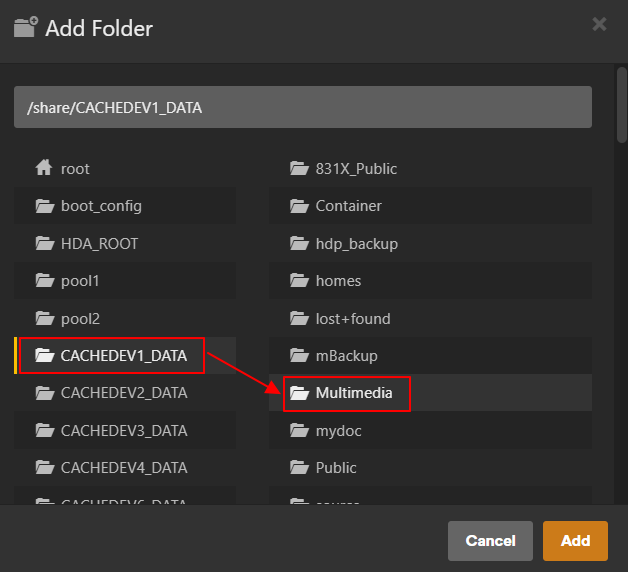
- The path will appear as:
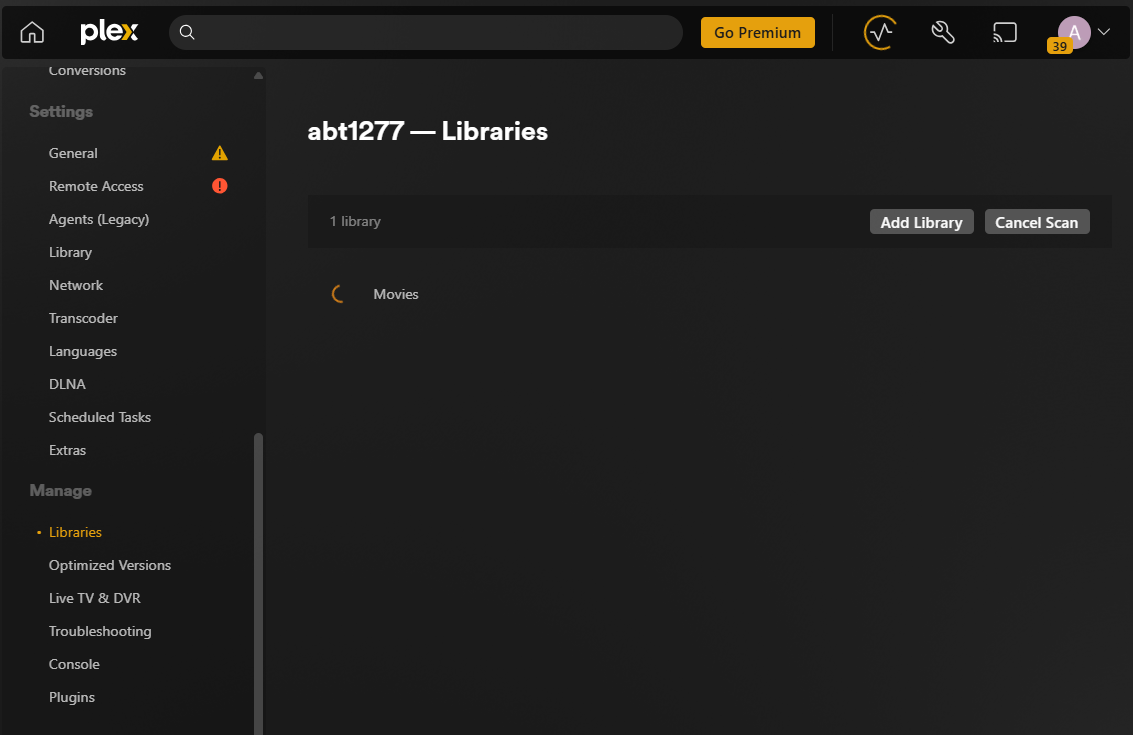
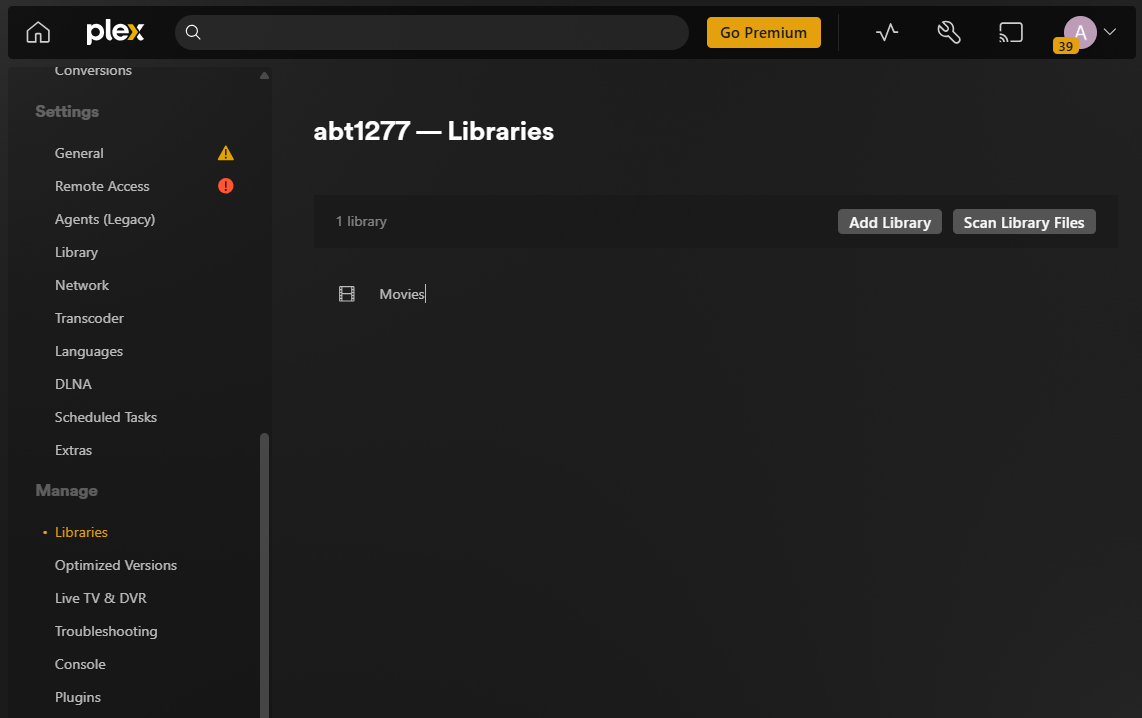
- Plex will begin scanning and indexing the folder. This may take several minutes depending on the number of files.
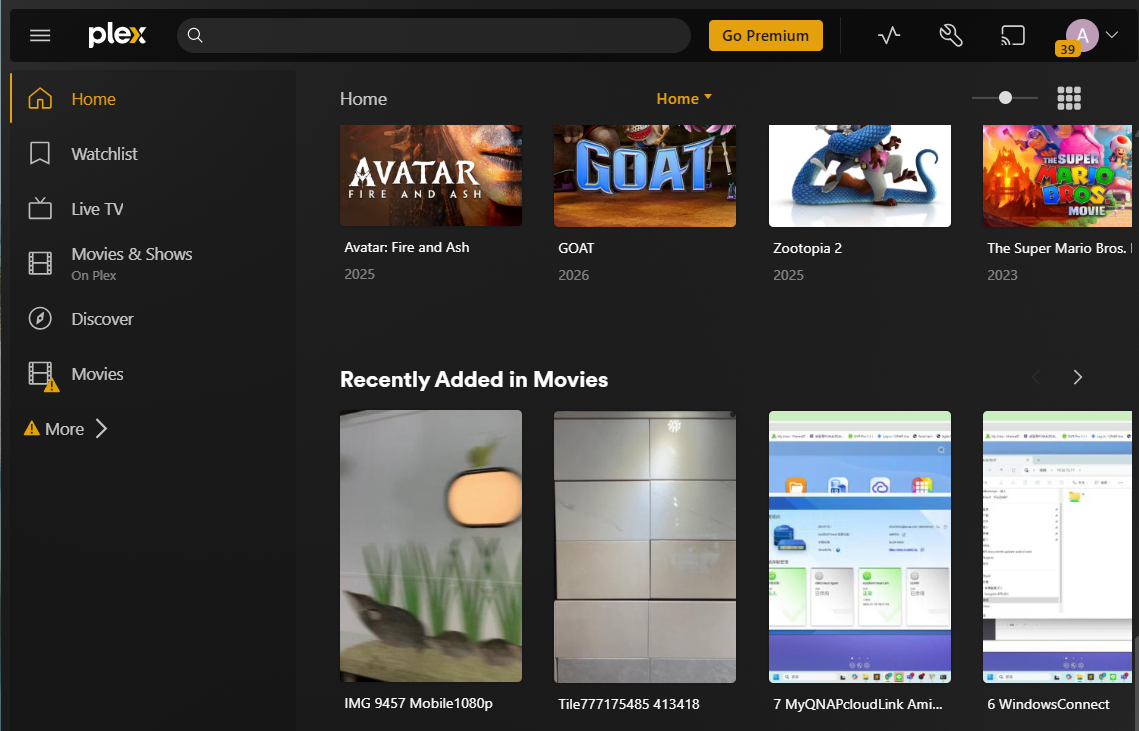
Step 4: Verify Playback
- Select a video and press Play.
For further assistance, ask other users and QNAP experts in the community. Go to QNAP Community


