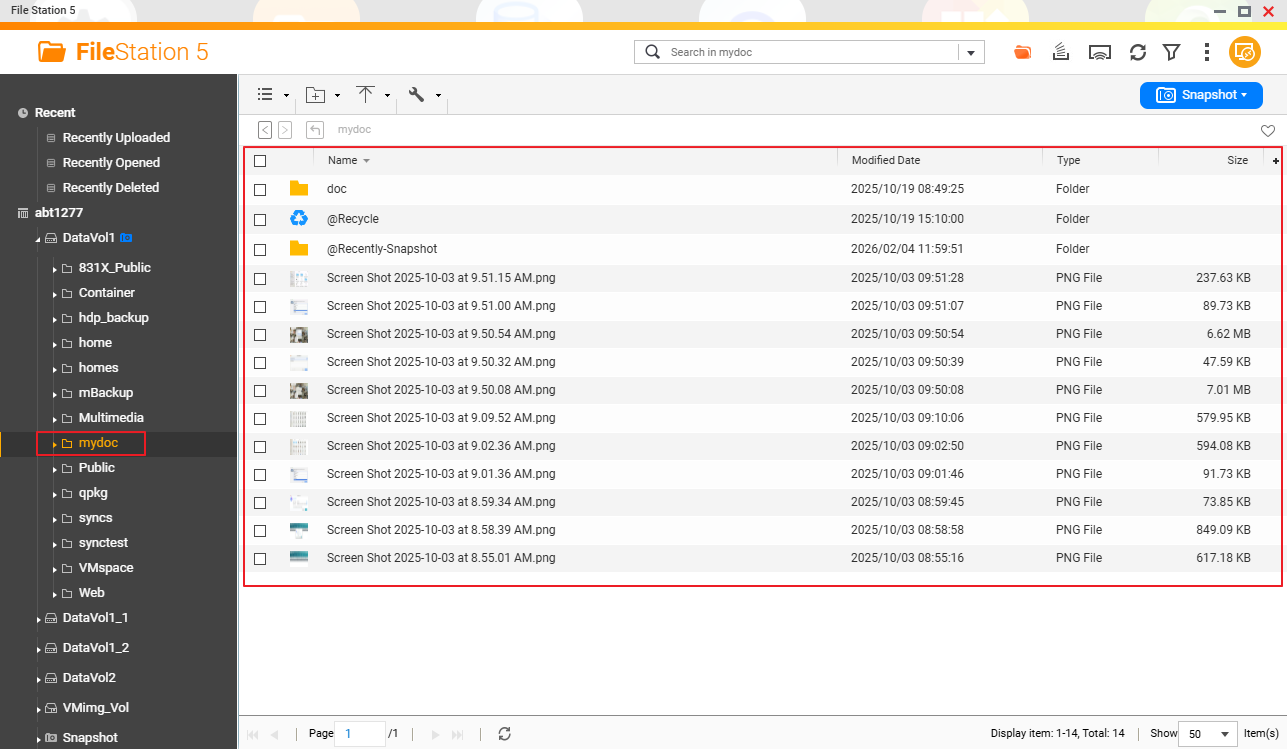
How do I recreate a shared folder to link to my data stored in the NAS?
Last modified date:
2026-02-05
Applicable Products
- QTS
Overview
On QNAP NAS systems, user data is stored on disks that are organized into storage pools, and then exposed to users through volumes and shared folders. If a shared folder is deleted or not attached, the underlying data on the disks may still exist, but it is not accessible through the usual network paths.
Solution
To create a shared folder and link it to the data folder, follow these steps:
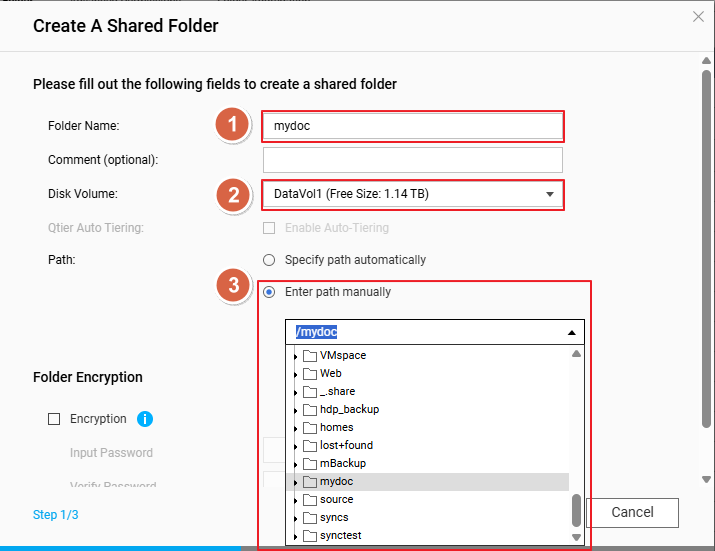
- Go to Control Panel > Privilege > Shared Folders > Shared Folder and select Create.
- Enter a Folder name.
- Select Disk Volume.
- Select Enter path manually and then browse and select the data folder to link.
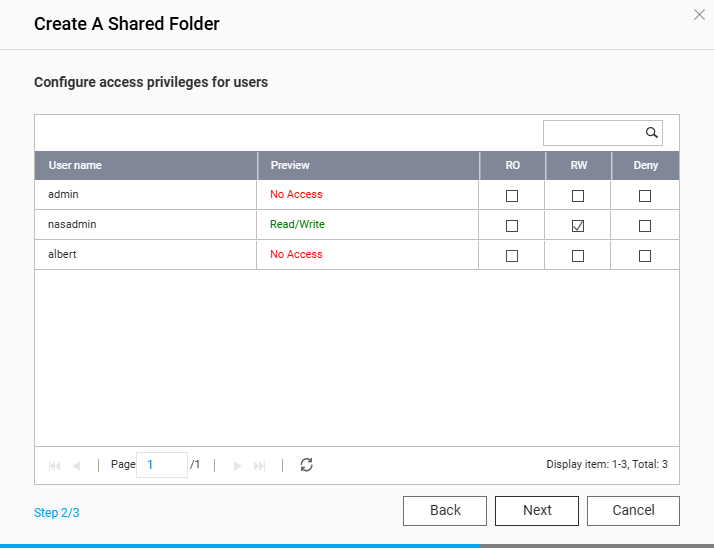
- Configure access privileges for users.
After the shared folder is created, you can quickly access its contents in File Station or via Samba. Done.