


How do I collect a debug report from HDP PC Agent?
Last modified date:
2026-01-16
Applicable Products
HDP PC Agent
Starting from version 1.3.0, the product previously known as NetBak PC Agent has been renamed to HDP PC Agent.
Overview
If you experience issues with HDP PC Agent, such as failure to back up data to your NAS or problems creating backup jobs, you can collect a debug report to help QNAP Technical Support analyze the issue. You can either generate the report from the HDP PC Agent interface or manually from your Windows computer.
Procedure
Method 1: Download the debug report from the HDP PC Agent interface
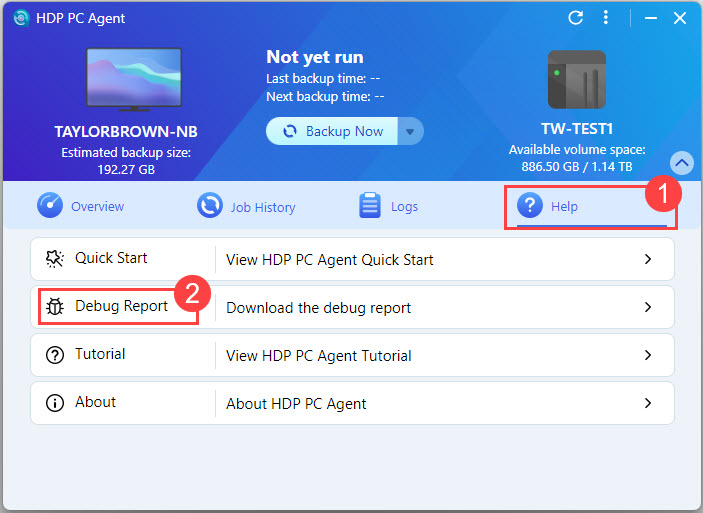
- Open the HDP PC Agent application on your Windows PC.
- Click the Help tab.
- Select Download the debug report.
- The debug report will be automatically generated and saved to your computer's default location (usually the Downloads folder).
- Attach the downloaded report file when submitting a support request to QNAP Technical Support.
Method 2: Manually collect the debug log (if the application cannot open)
- Open Windows File Explorer.
- Navigate to:
C:\Program Files\QNAP\NetBakPCAgent\ - Right-click
report.batand select Run as administrator. - The debug log files will be exported to:
C:\QNAP_Support - Locate the log files in the folder above and attach them when submitting your support request.


