


How do I back up and restore data to Google Drive using HBS3?
Last modified date:
2025-12-04
Applicable Products
- Hybrid Backup Sync 3 (HBS3)
Overview
Hybrid Backup Sync 3 (HBS3) allows you to back up data from your QNAP NAS to Google Drive and restore it when needed. This FAQ explains how to configure Google Drive as a backup destination, create backup jobs, and restore your data using HBS3.
Procedure
Step 1: Add Google Drive as a cloud storage destination
- Open HBS3 from the App Center.
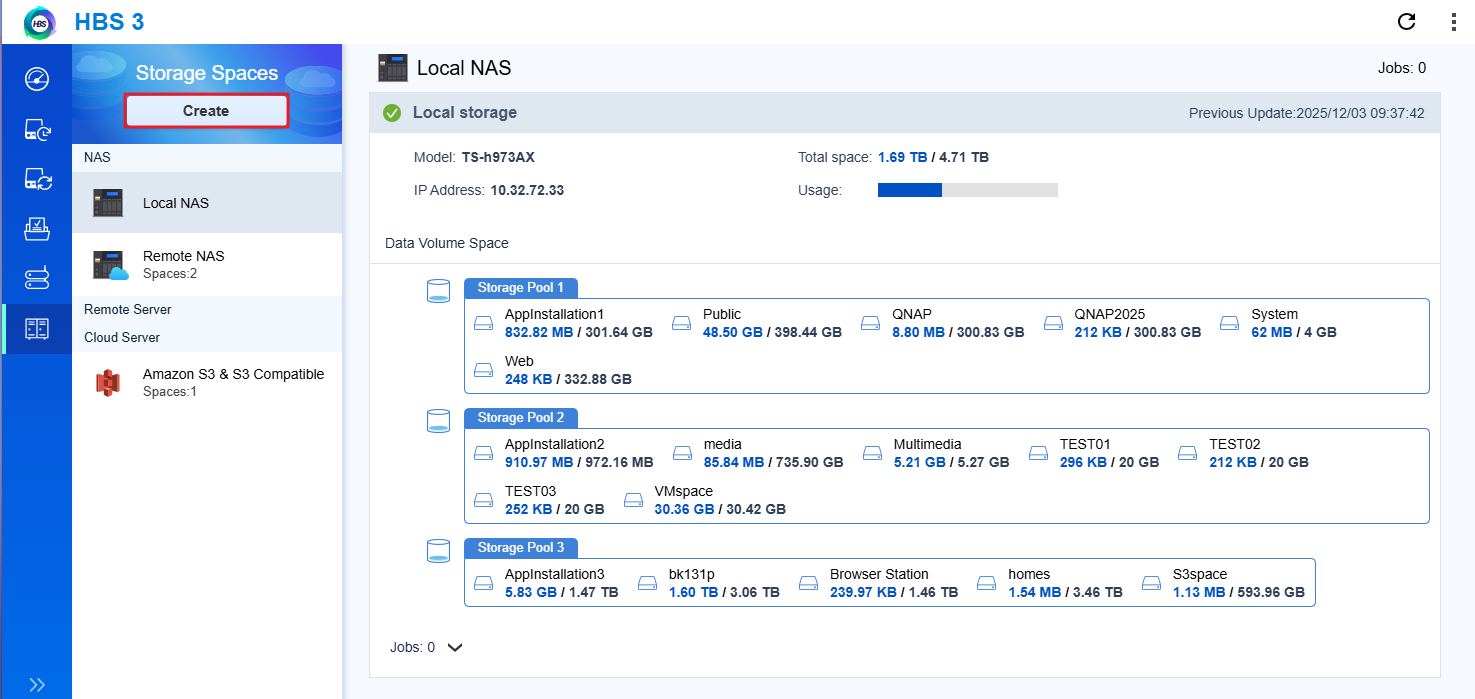
- Go to Storage Spaces.
- Click Create to add a new storage space.
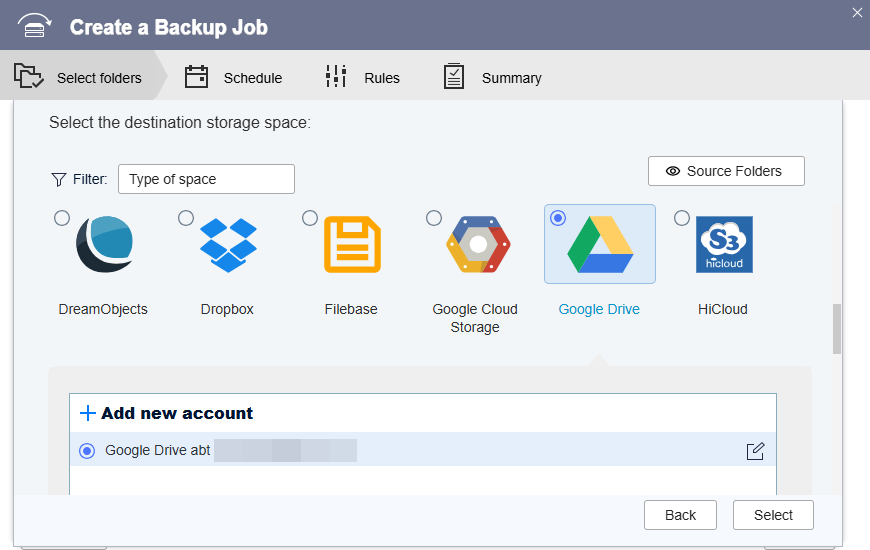
- Select Google Drive from the list of supported cloud services.
- Follow the prompts to sign in to your Google account and authorize HBS3 to access your Google Drive.
- After authorization, click Finish to complete the setup.
Tip: Ensure you have a stable internet connection and appropriate permissions to access Google Drive.
Step 2: Create a backup job to Google Drive
- In HBS3, go to Backup & Restore > Back Up Now.
- Click New backup job.
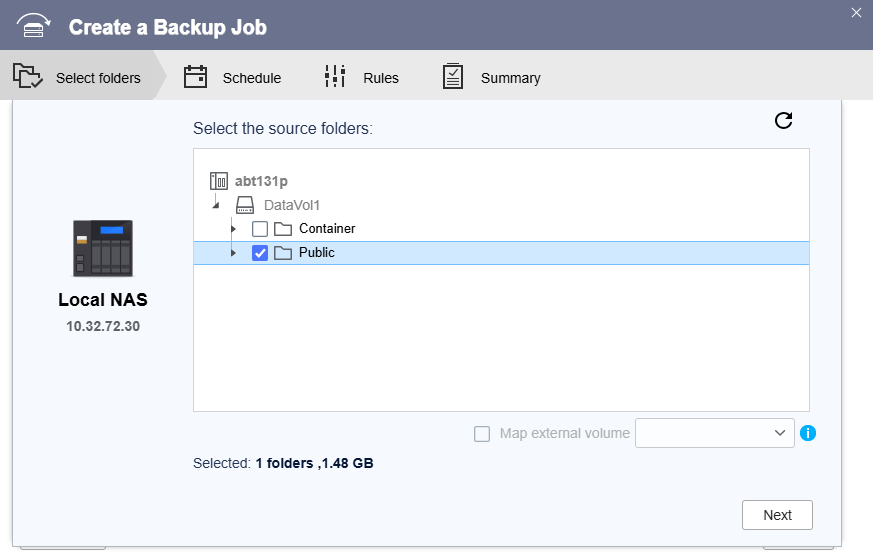
- Select the source folders or files on your NAS that you want to back up.
- Choose the Google Drive storage space as the backup destination.
- Configure backup options such as:
- Schedule: Set how often backups occur.
- File versioning: Keep multiple versions of files as needed.
- Filters: Exclude or include specific files.
- Review your settings and click Create to create the backup job.
Step 3: Restore data from Google Drive
- In HBS3, go to Backup & Restore.
- Click Create and select Restore job.
- Select Google Drive as the source storage space.
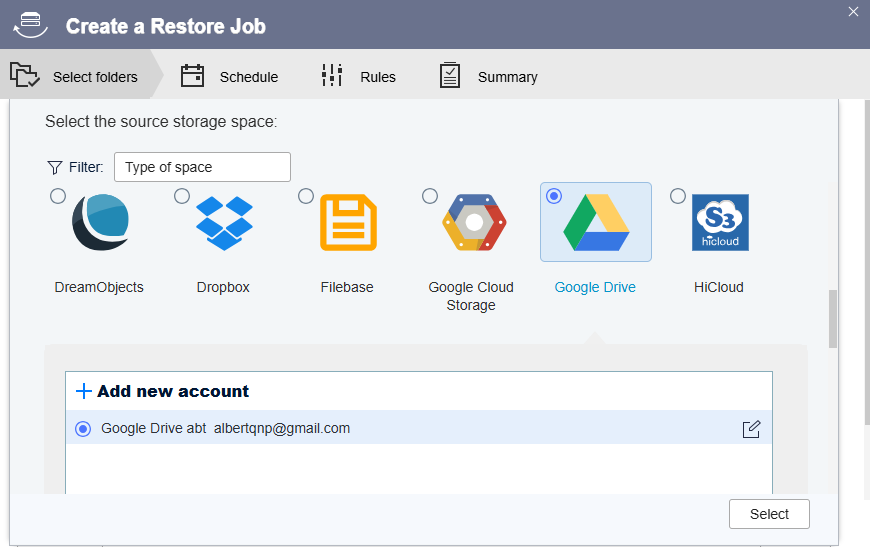
- Browse and select the backup data or specific files/folders to restore.
- Choose the destination folder on your NAS for the restored data.
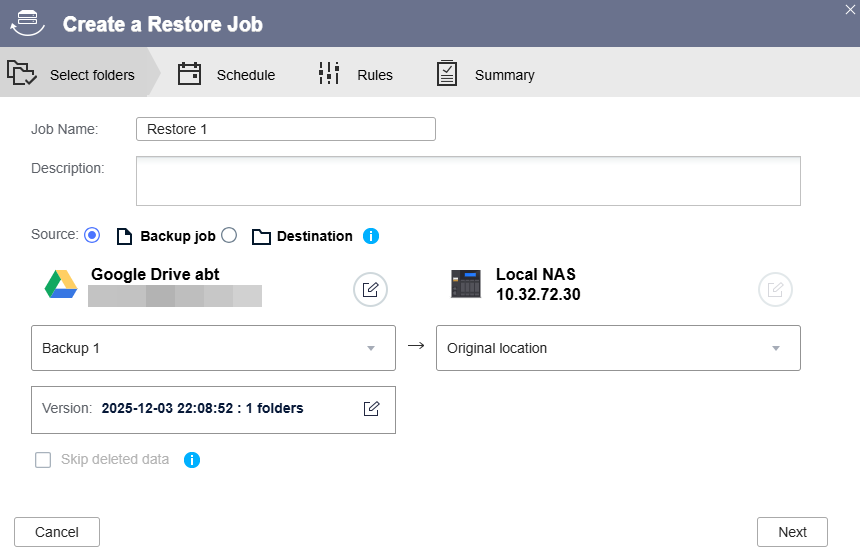
- Configure restore options if needed.
- Review your settings and click Restore to start the process.
Note: Restoring data may overwrite existing files. Ensure you have backed up important data before restoring.
Your selected data will be restored from Google Drive to your NAS based on your specified settings.


