Applicable products
- myQNAPcloud Surveillance
- QVR Surveillance 3.0.0 or later version
Details
You can change the license of the channel by removing the license first, and then assign it to another license; or you can upgrade the license.
Method 1: Remove the Backup Channel & Type and Re-assign
1. Go to Recording Storage > Channel Management > myQNAPcloud Surveillance
2. Locate the Backup channel & type and click the trash bin icon.
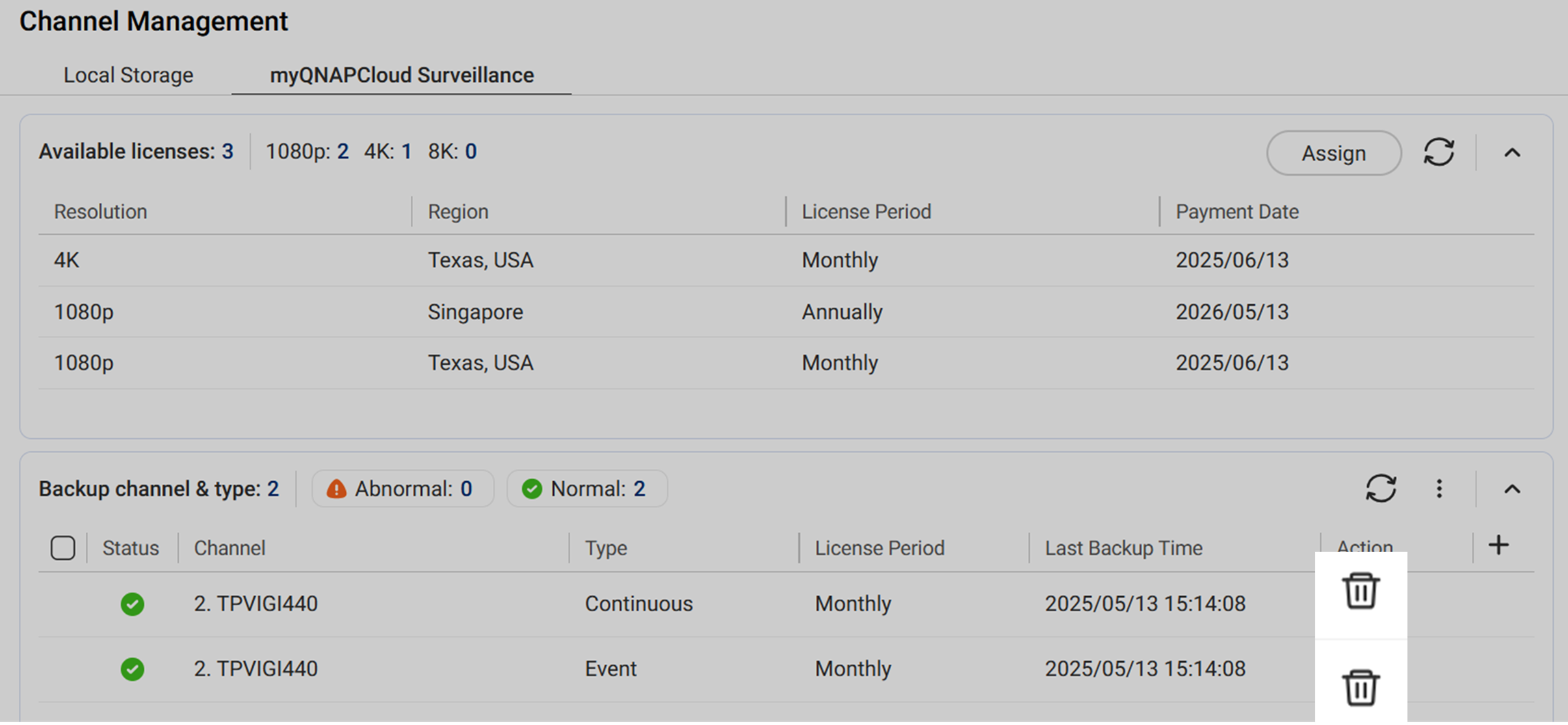
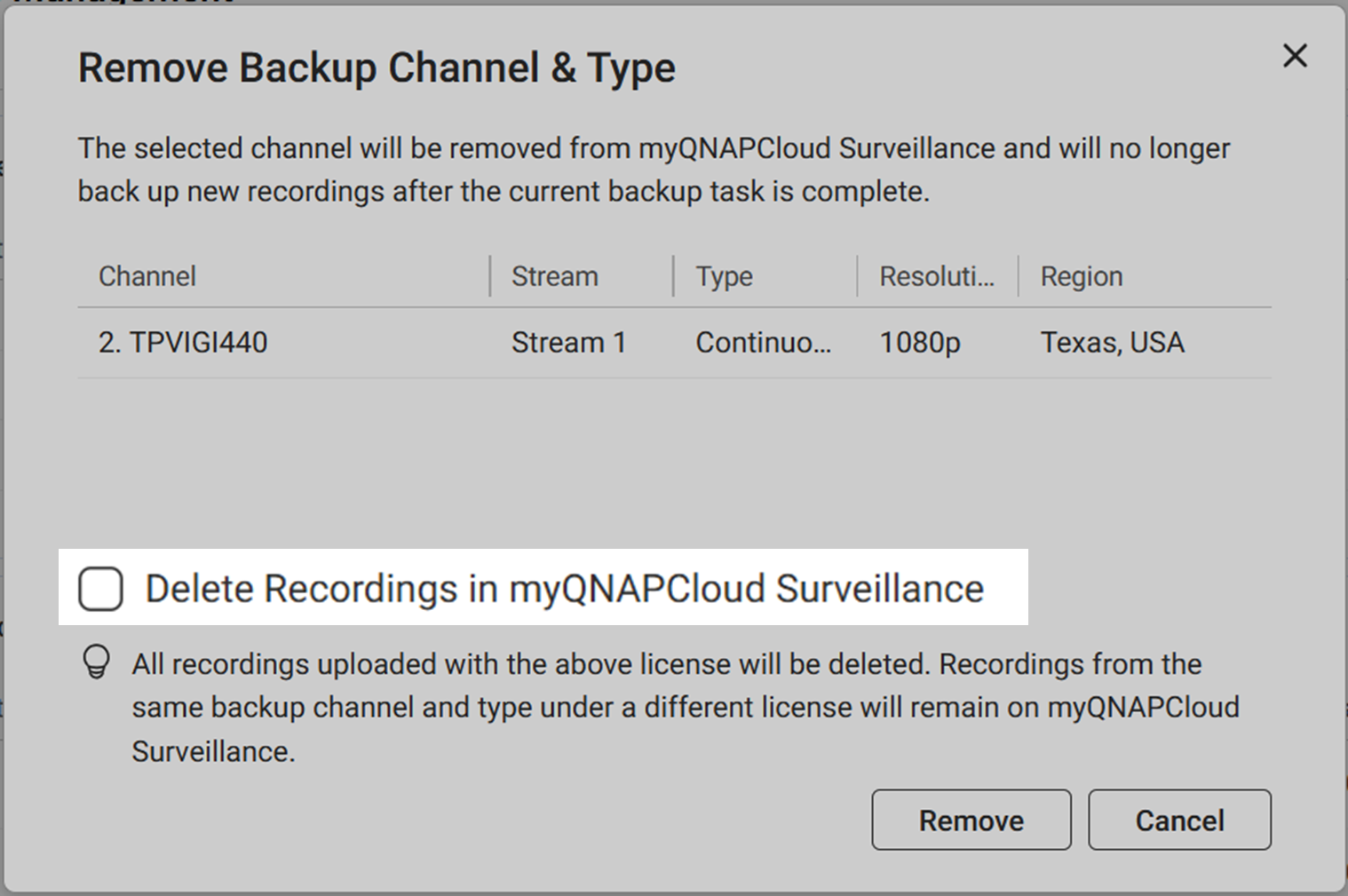
3. (Optional) Delete recordings in myQNAPcloud Surveillance.
Note
Removing the backup channel & type from myQNAPcloud Surveillance without deleting the recording have the following implications:
- The recordings are related to the license. The recording can be viewed, downloaded, or deleted after removing the license to a channel.
- When the removed license is assigned to another channel and starts uploading recordings, the recordings related to the previous channel(s) will be deleted after the total backup days uploaded with the license has reached the license criteria (i.e. 30 days or 360 days)
4. Click Remove. The backup channel & type is removed from myQNAPcloud Surveillance and the license is now available for other channel. The recordings will be deleted from myQNAPcloud Surveillance if you check the "Delete Recordings in myQNAPcloud Surveillance" option.
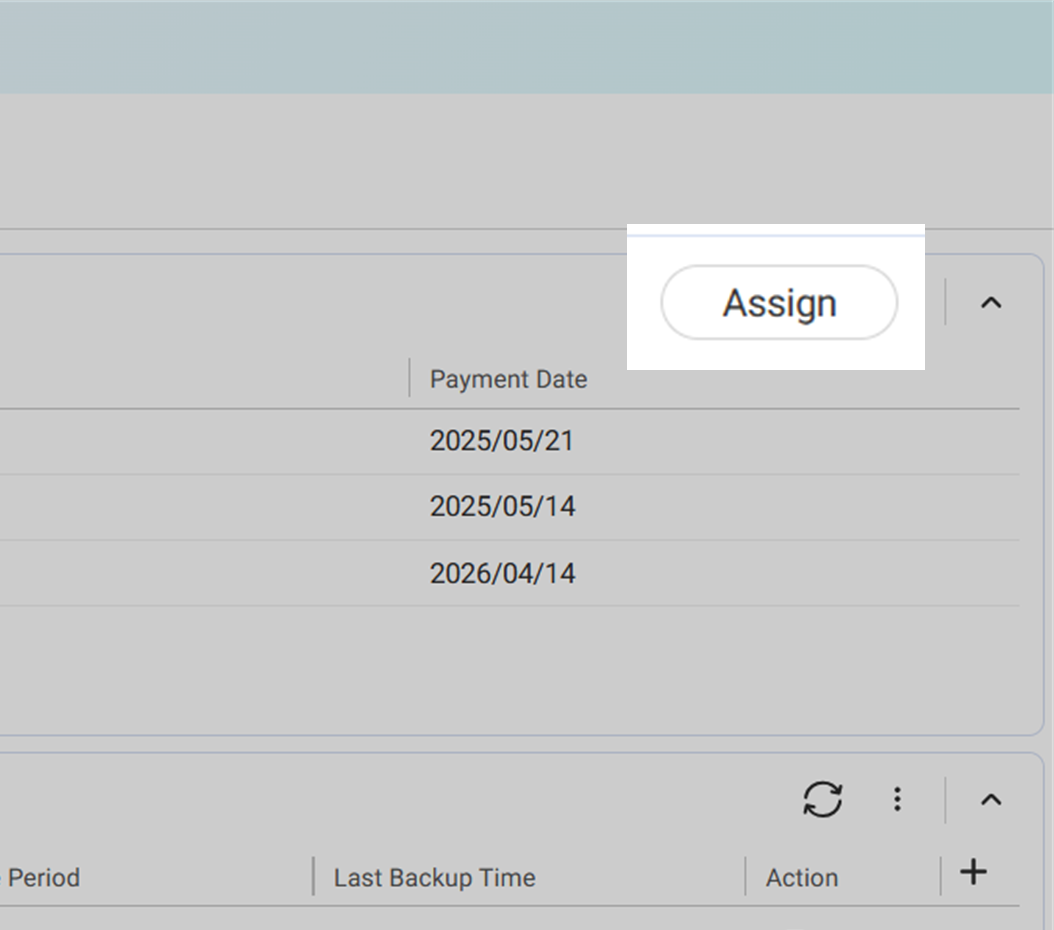
5. Click Assign on the top right corner.
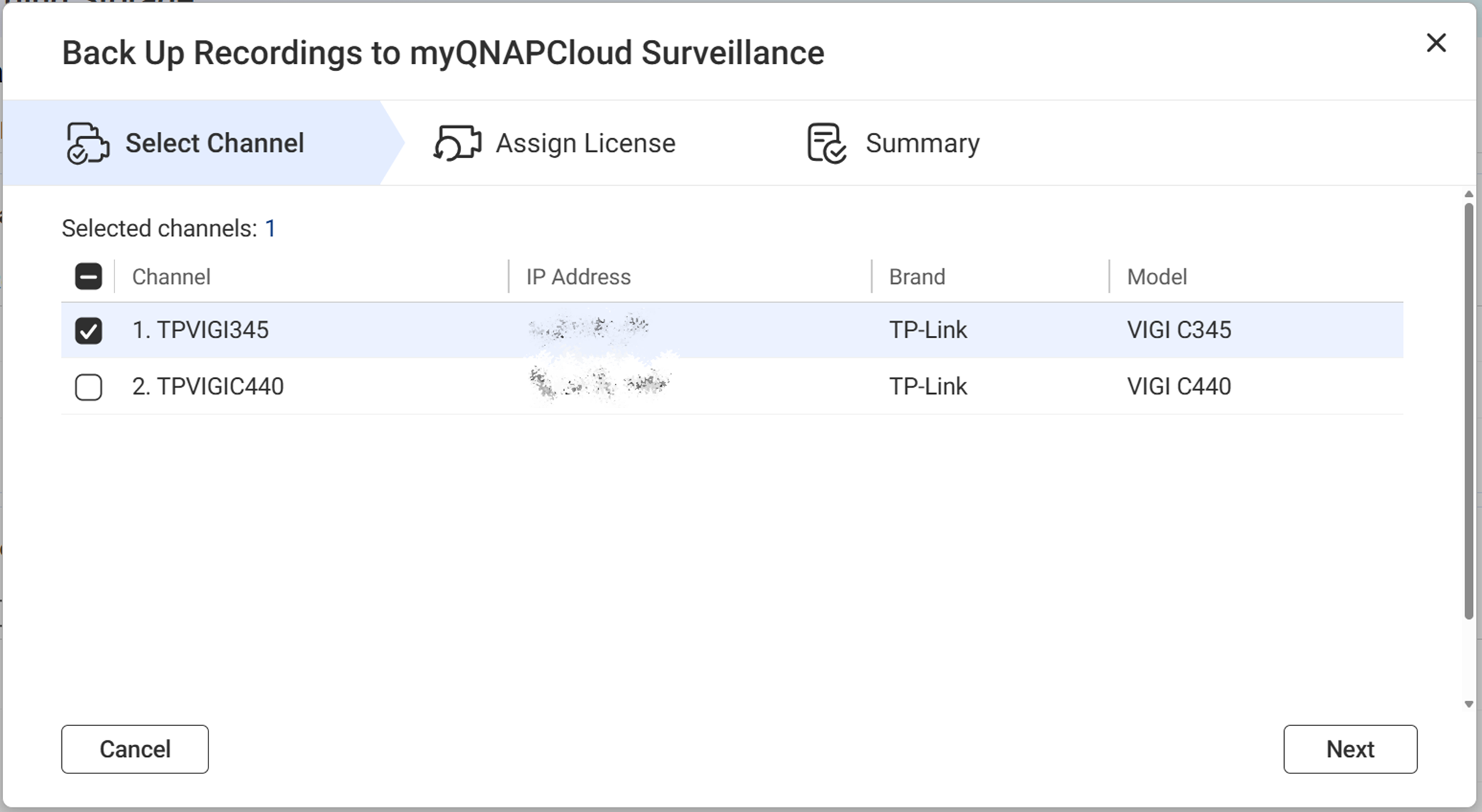
6. Select the channel from the list.
7. Confirm stream and the recording type, review the selected license, and then click Next.
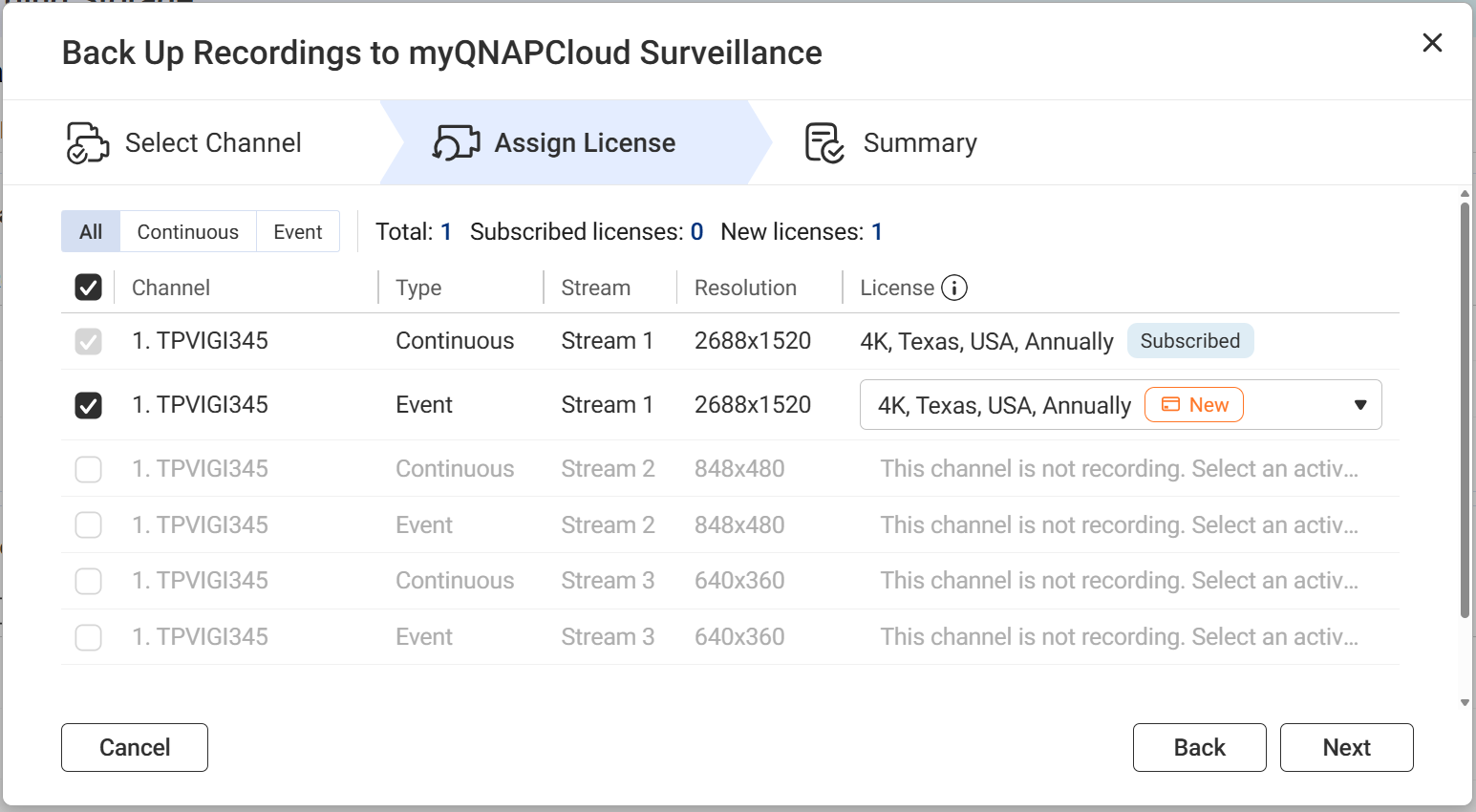
Note- Subscribed:
- This means you have already purchased this license.
- If you cannot select your purchased license, the stream's resolution may not meet the license criteria. Adjust your stream's settings to match the license resolution in Camera Settings, then restart the process.
- For more details, see What license should I prepare for myQNAPcloud Surveillance.
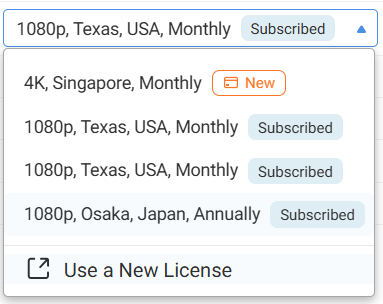
- New:
- This means you need to purchase the license after clicking Assign on the final step.
- You can change the resolution, region, or the subscription period of the pre-assigned license by selecting Use a New License from the drop-down menu.
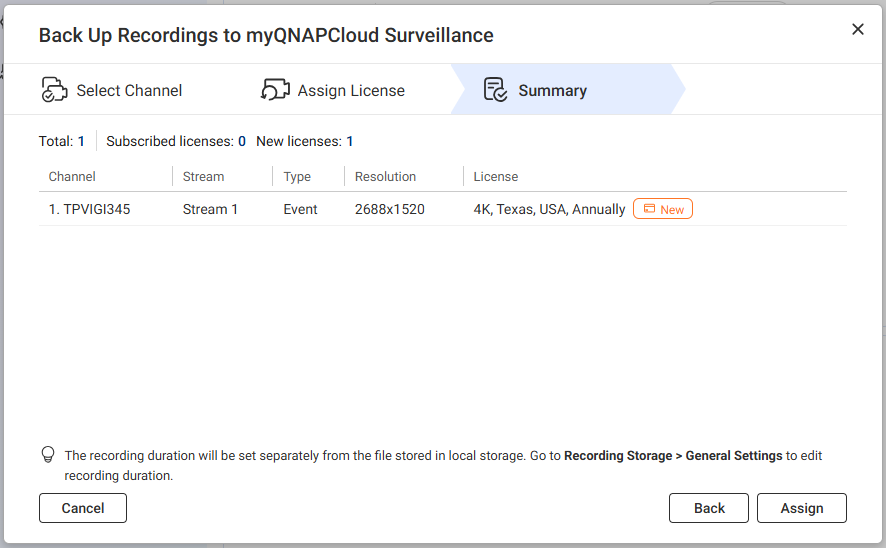
7. Review the summary, then click Assign.
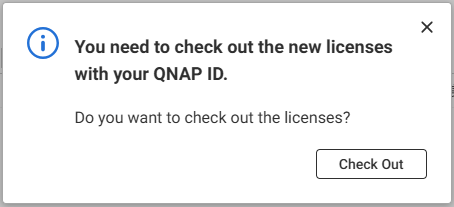
Important
If you select a new license, you will be asked to check out the license here with your QNAP ID.
8. (Optional) Click Check Out to start the checkout process for the new license(s) used in this assignment.
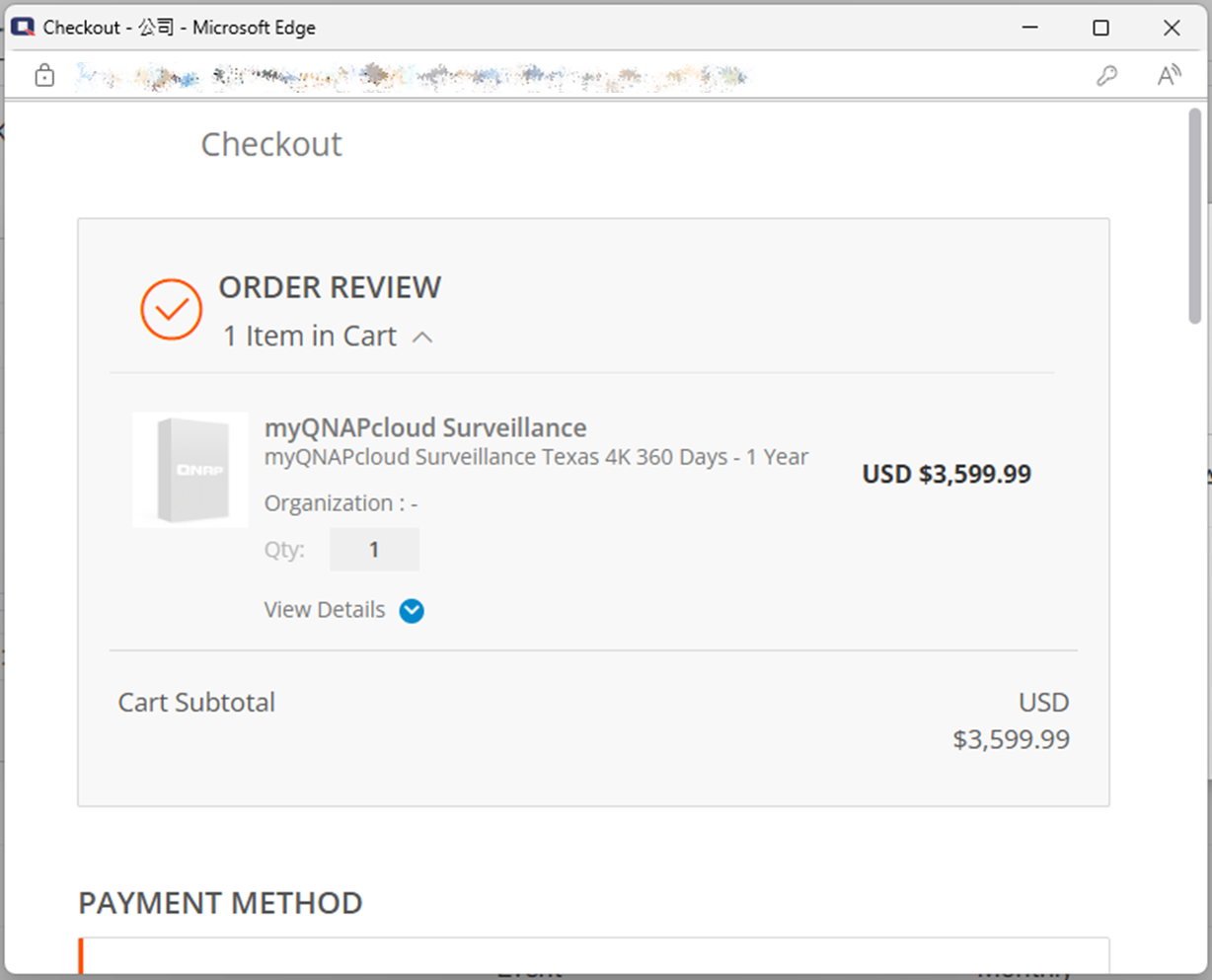
9. Confirm the assignment status.
Method 2: Upgrade license
1. Go to QNAP Software Store > My account > Upgrade Plans.
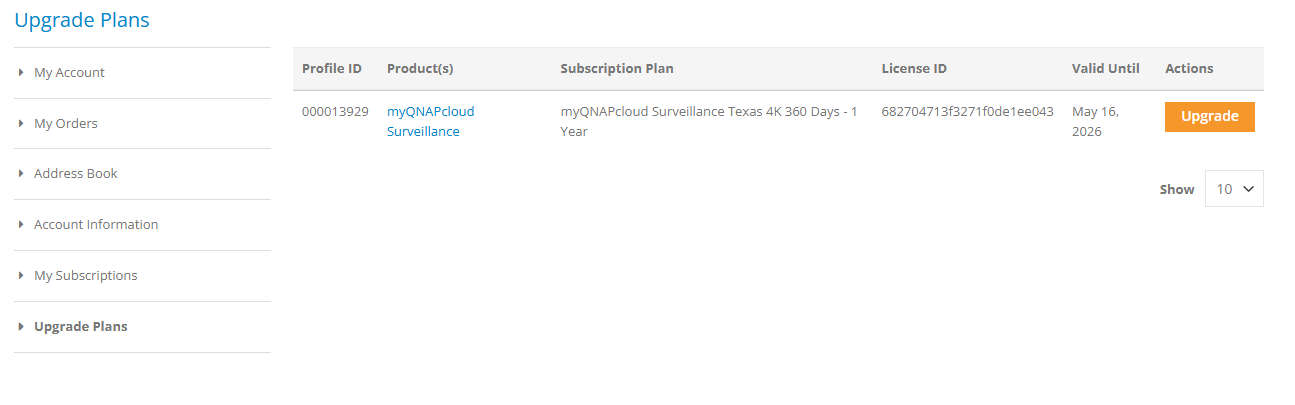
2. Locate the license to upgrade and click Upgrade.
Note
- myQNAPcloud Surveillance currently supports upgrading the license to a higher resolution. To upgrade subscription period/retention days, simply subscribe to a new license after your license expires.
- Subscribing to a new license, then assigning it to the same channel does not keep the recordings uploaded with the original license in myQNAPcloud Surveillance. The recordings will be erased after the grace period when original license expires.
Further reading
적용되는 제품
- myQNAPcloud Surveillance
- QVR Surveillance 3.0.0 이상의 버전
상세 정보
채널의라이선스을 변경하려면 먼저라이선스을 제거한 다음 다른라이선스에 할당하거나라이선스을 업그레이드할 수 있습니다.
방법 1: 백업 채널 및 유형 제거 후 재할당
1. 이동: 녹화스토리지 > 채널 관리 > myQNAPcloud Surveillance
2. 백업 채널 및 유형을 찾아 휴지통 아이콘을 클릭합니다.
3. (선택 사항) myQNAPcloud Surveillance에서 녹화를 삭제합니다.
참고
녹화를 삭제하지 않고 myQNAPcloud Surveillance에서 백업 채널 및 유형을 제거하면 다음과 같은 영향을 미칩니다:
- 녹화는라이선스과 관련이 있습니다. 라이선스을 채널에 제거한 후 녹화를 보고, 다운로드하거나 삭제할 수 있습니다.
- 제거된라이선스이 다른 채널에 할당되어 녹화를 업로드하기 시작하면, 라이선스기준(예: 30일 또는 360일)에 도달한 후 이전 채널과 관련된 녹화는 삭제됩니다.
4. 클릭: 제거. 백업 채널 및 유형이 myQNAPcloud Surveillance에서 제거되며라이선스이 다른 채널에 사용할 수 있게 됩니다. "myQNAPcloud Surveillance에서 녹화 삭제" 옵션을 선택하면 녹화가 myQNAPcloud Surveillance에서 삭제됩니다.
5. 클릭: 할당 오른쪽 상단 모서리에서.
6. 목록에서 채널을 선택합니다.
7. 스트림과 녹화 유형을 확인하고, 선택한라이선스을 검토한 후 클릭: 다음.
참고- 구독됨:
- 새로운:
- 이것은 당신이 구매해야 함을 의미합니다 라이선스를 클릭한 후 할당 마지막 단계에서.
- 미리 할당된라이선스의 해상도, 지역 또는 구독 기간을 변경하려면 새라이선스사용 드롭다운 메뉴에서 선택합니다.
7. 요약을 검토한 후, 할당을 클릭합니다.
중요
새라이선스를 선택하면 QNAP ID로 여기서라이선스를 체크아웃하라는 요청을 받게 됩니다.
8. (선택 사항) 클릭 체크아웃 이 할당에 사용된 새라이선스의 체크아웃 프로세스를 시작합니다.
9. 할당 상태를 확인합니다.
방법 2: 라이선스업그레이드
1. QNAP Software Store > 내 계정 > 업그레이드 계획으로 이동합니다.
2. 업그레이드할라이선스를 찾아 클릭합니다 업그레이드.
참고
- myQNAPcloud Surveillance는 현재라이선스를 더 높은 해상도로 업그레이드하는 것을 지원합니다. 구독 기간/보존 일수를 업그레이드하려면, 라이선스가 만료된 후 새라이선스를 구독하십시오.
- 새라이선스를 구독한 후 동일한 채널에 할당하면 myQNAPcloud Surveillance에 원래라이선스로 업로드된 녹화가 유지되지 않습니다. 녹화는 지연 기간 후에 지워집니다 원래라이선스가 만료된 후.
추가 읽기


