


How to install and run OpenClaw (formerly Clawdbot and Moltbot) on QNAP Ubuntu Linux Station
OpenClaw (formerly Clawdbot / Moltbot) is a powerful automation tool that can access local files, execute commands, and use credentials such as API keys or tokens, depending on configuration. Users must therefore configure it with caution and assume full responsibility for its use.
- Access control: Do not expose the OpenClaw web interface directly to the public Internet. If remote access is required, use a VPN, IP allowlist, or strong authentication mechanisms.
- Third-party extensions: Only install skills or extensions from trusted sources. Security research has shown that malicious extensions may attempt to steal data or credentials.
- Isolation and permissions: Run OpenClaw in an isolated environment (such as Ubuntu Linux Station) and avoid granting unnecessary system or root privileges.
- Credential protection: Protect API keys and tokens carefully and rotate them if exposure is suspected.
Best Practice: OpenClaw is intended for advanced or experimental use. We recommend always reviewing security implications before enabling long-running or unattended operation. Learn how QNAP ensures user data security in Ubuntu Linux Station and how you can further enhance data security.
The developer has renamed the project multiple times (Clawdbot → Moltbot → OpenClaw). Older documents may still reference “Clawdbot” or “Moltbot,” but they refer to the same tool.
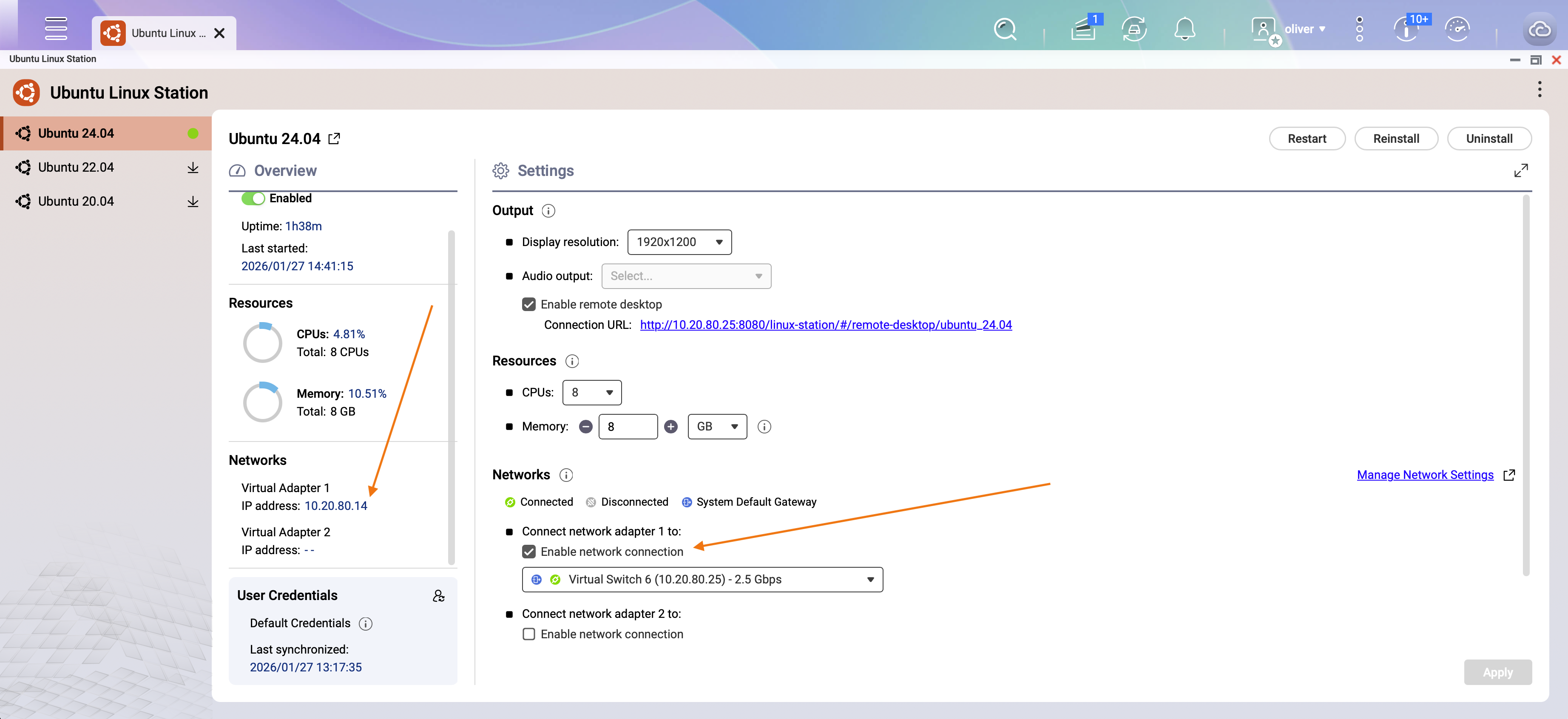
If you want devices other than the NAS to connect to the web interface, you can add a network adapter in Ubuntu Linux Station network settings and obtain an external IP address for the Ubuntu environment. Do not expose the web interface directly to the public Internet. Refer to the Security & Risk Considerations section above for recommended access controls.
Applicable Products
- QNAP NAS models that support Ubuntu Linux Station
- Ubuntu Linux Station
- Internet connection for downloading Ubuntu images and installation resources
Overview
OpenClaw (previously known as Clawdbot and Moltbot) is a third-party automation and productivity tool designed to run as a long-running “agent” that can execute tasks on your behalf (for example, managing messages, emails, calendars, and running local commands depending on configuration). The official project positioning emphasizes “an AI that actually does things,” typically by connecting chat channels to a local runtime that can interact with your system.
Scenario
You want to deploy an Ubuntu desktop environment on a QNAP NAS to test or operate OpenClaw 24/7. This example uses Ubuntu 24.04, but other supported Ubuntu versions may also be used.
Screenshot: Ubuntu Linux Station desktop environment running on QNAP NAS
Procedure
Step 1: Install Ubuntu Linux Station
- Log in to QNAP QTS.
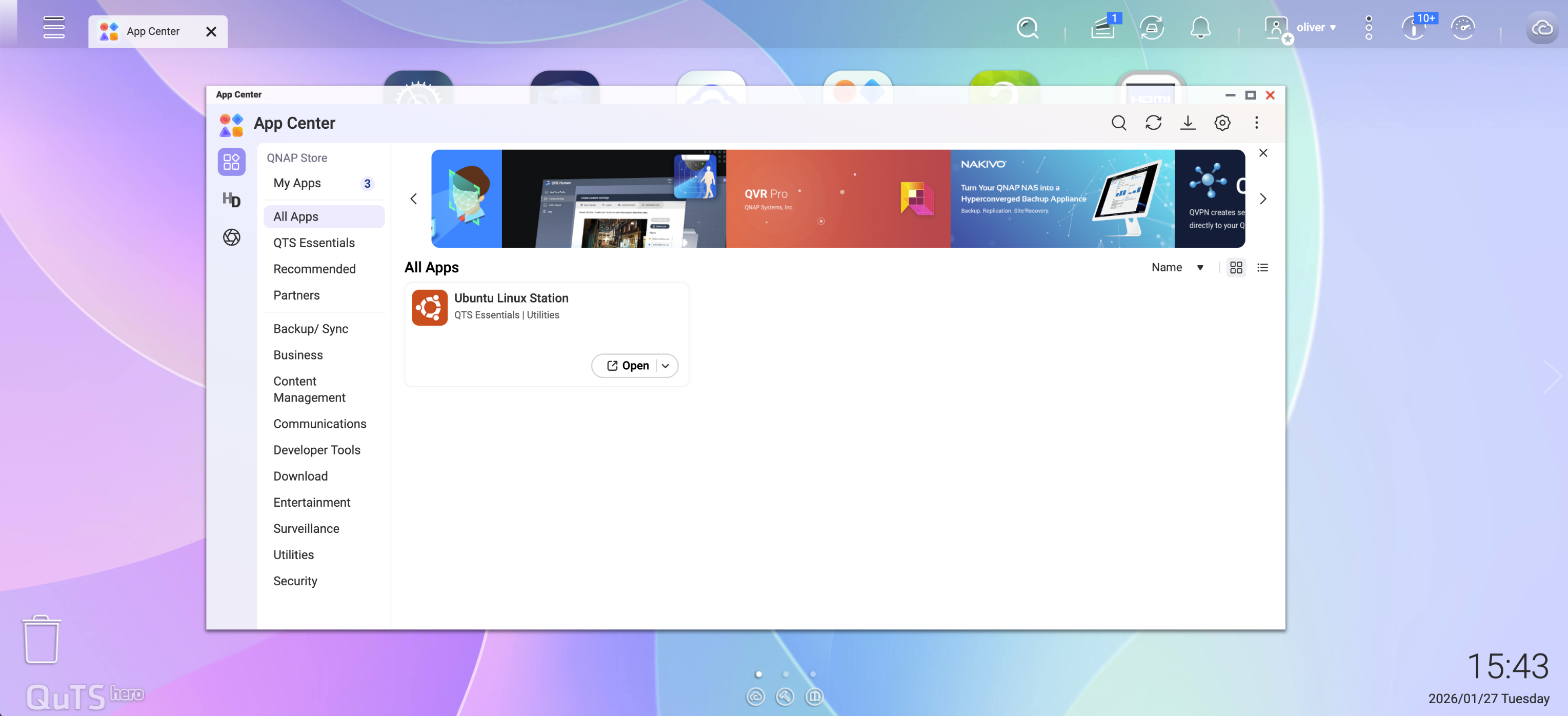
- Open App Center.
- Search and install Ubuntu Linux Station.
Step 2: Download and Install Ubuntu
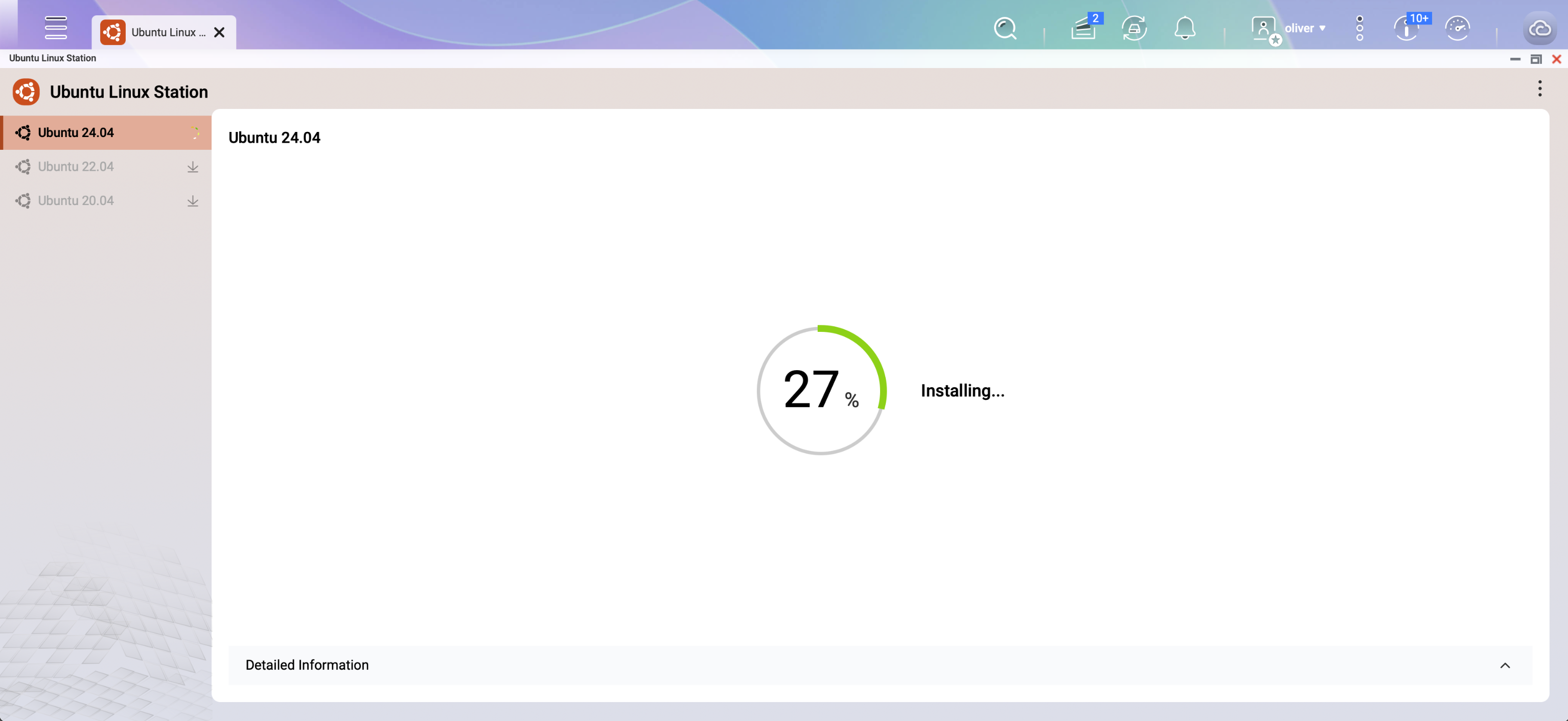
- Launch Ubuntu Linux Station.
- Select the Ubuntu version to install.
- In this example, choose Ubuntu 24.04.
- Wait for the image download and installation to complete.
Step 3: Connect via VNC
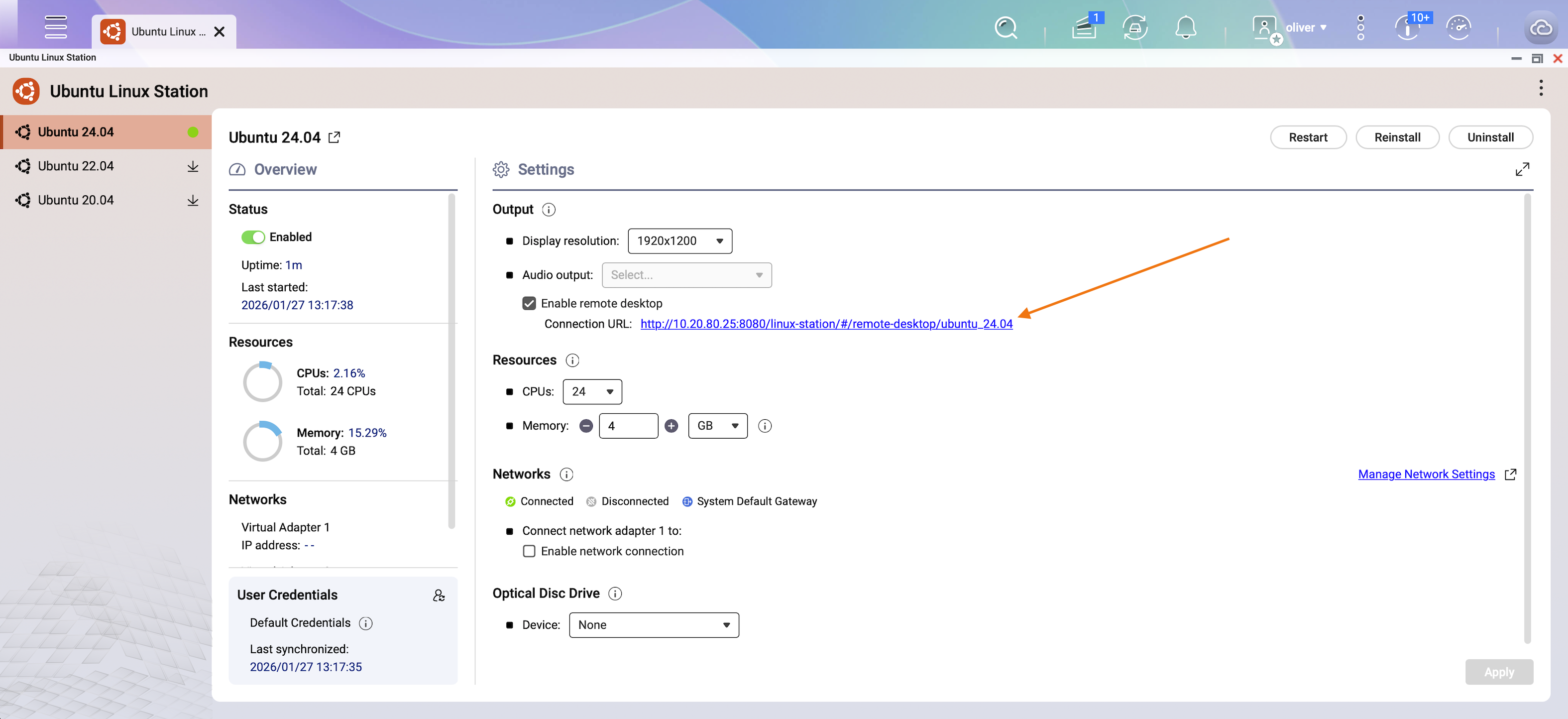
- After installation, a VNC remote access link will be displayed.
- Click the link to open the Ubuntu desktop.
Step 4: Log in to Ubuntu
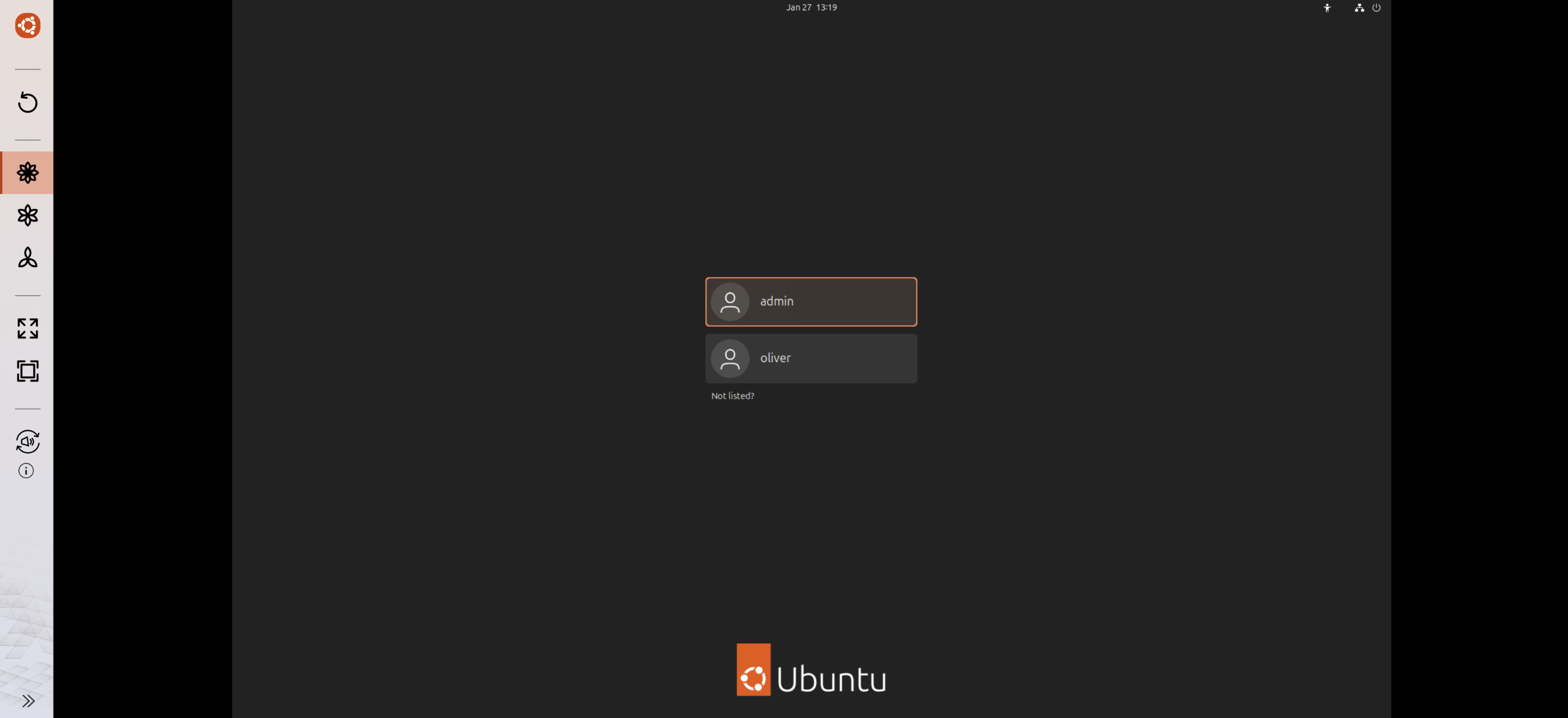
At the Ubuntu login screen, sign in using your NAS account credentials.
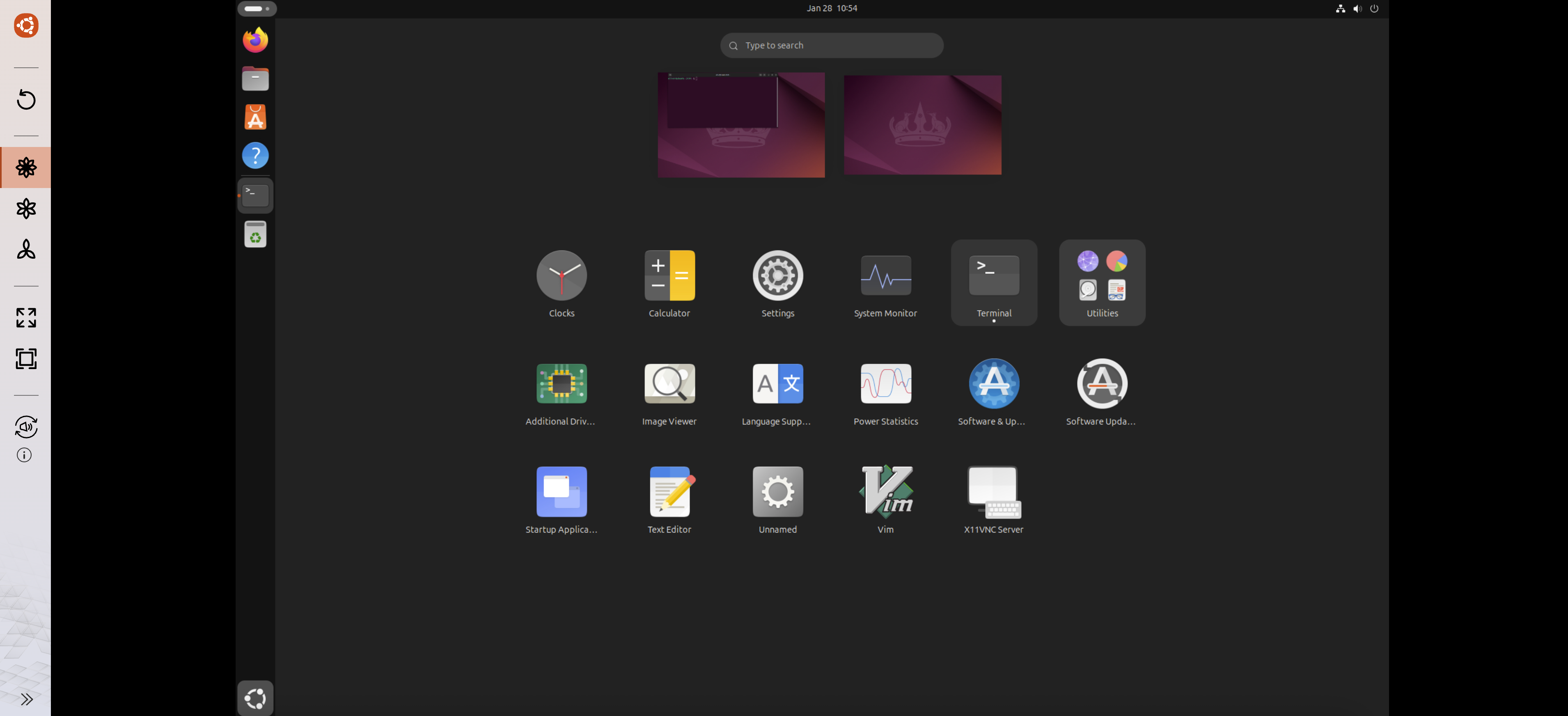
Step 5: Open Terminal
Once logged in to the Ubuntu desktop, open Terminal.
Step 6: Install OpenClaw (Clawdbot / Moltbot)
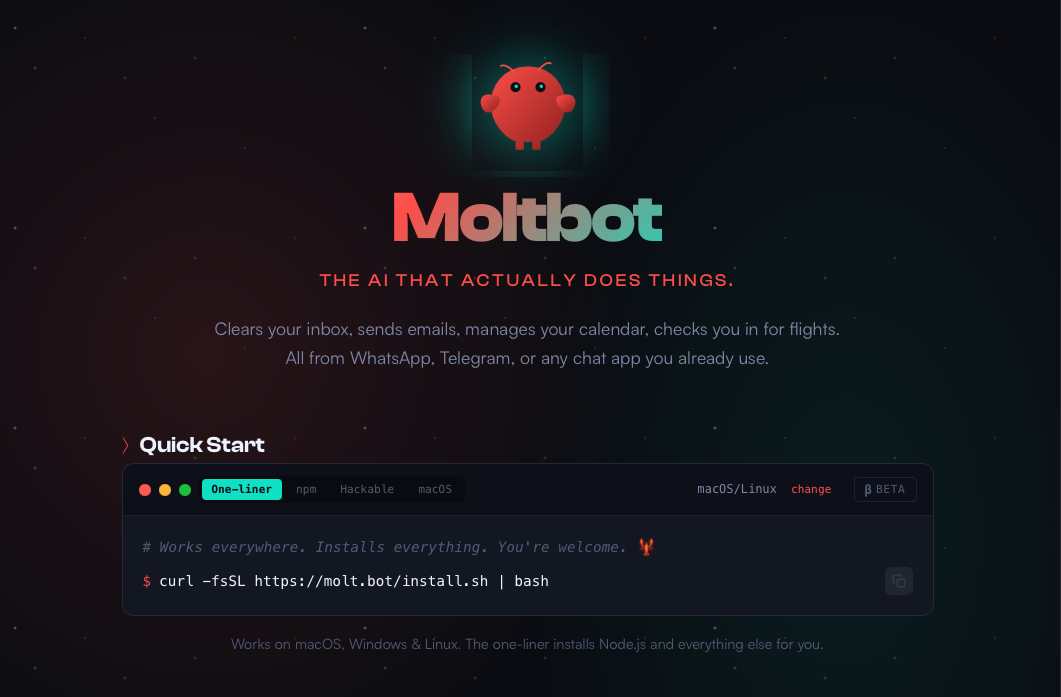
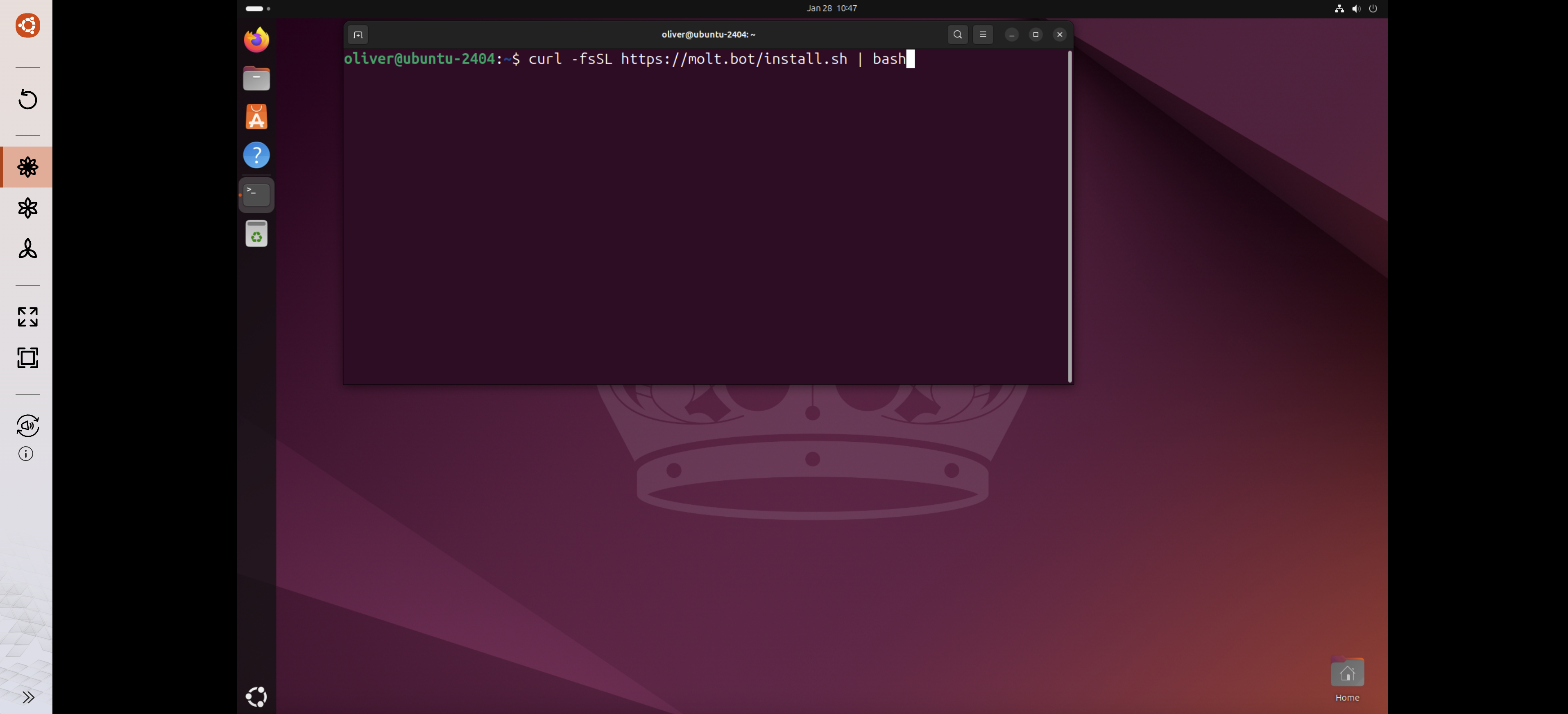
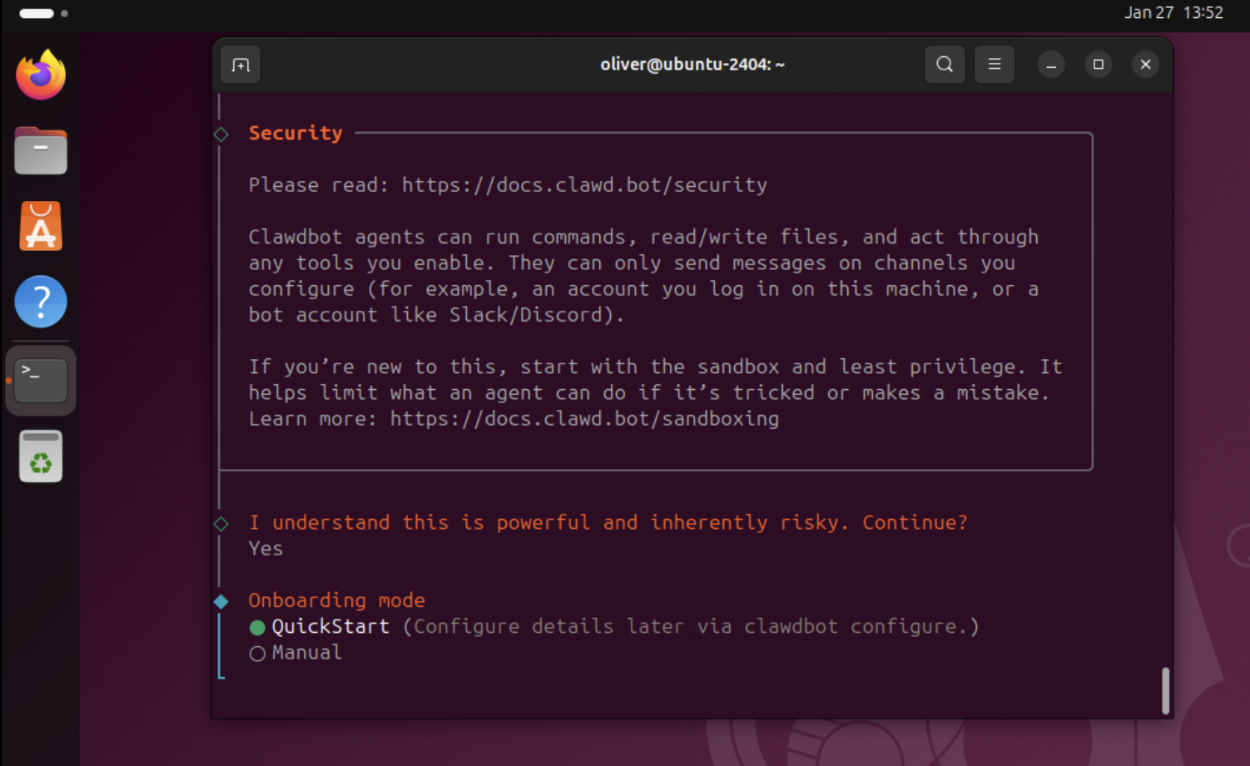
In the terminal, enter the installation command provided on the OpenClaw website:
Step 7: Complete OpenClaw Setup
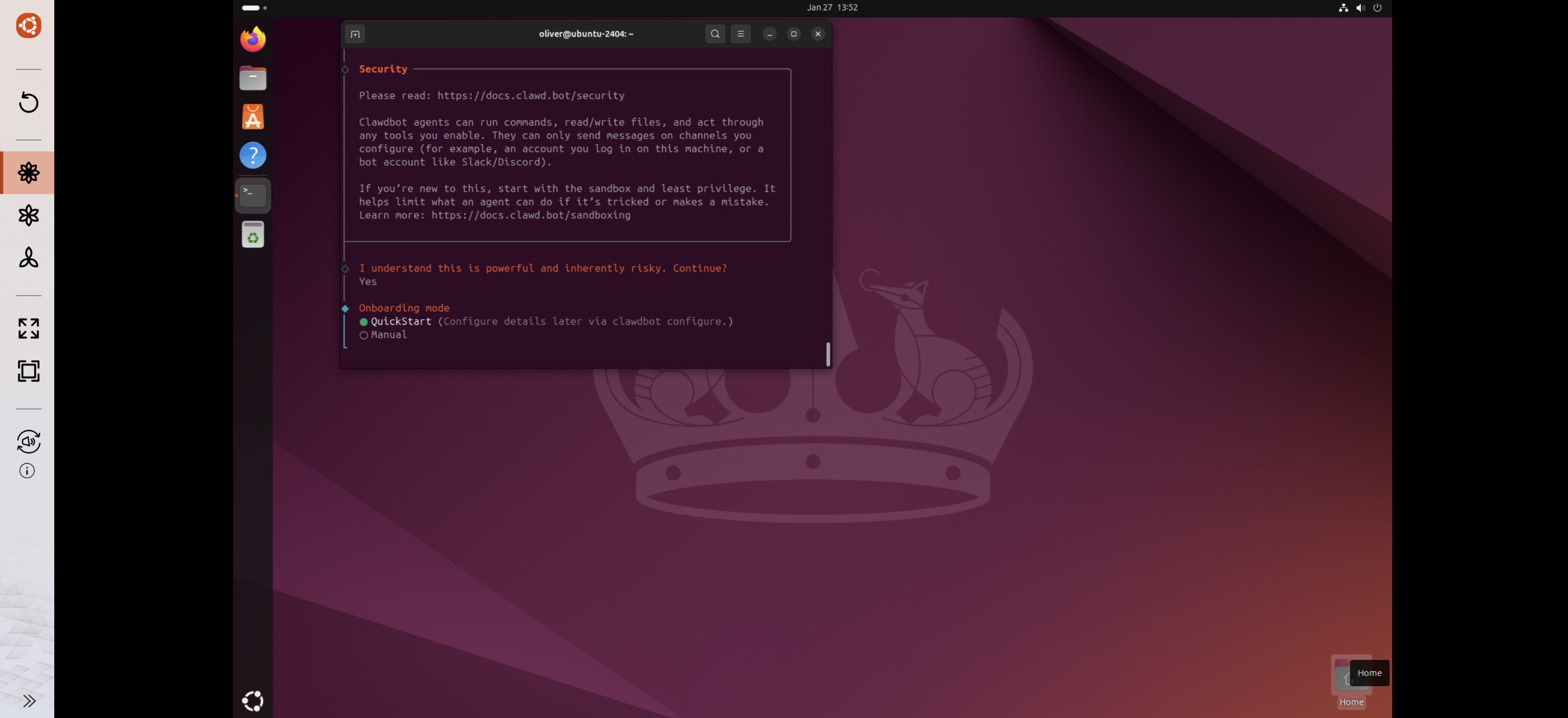
Follow the on-screen instructions provided by OpenClaw to complete the configuration and installation.
Result
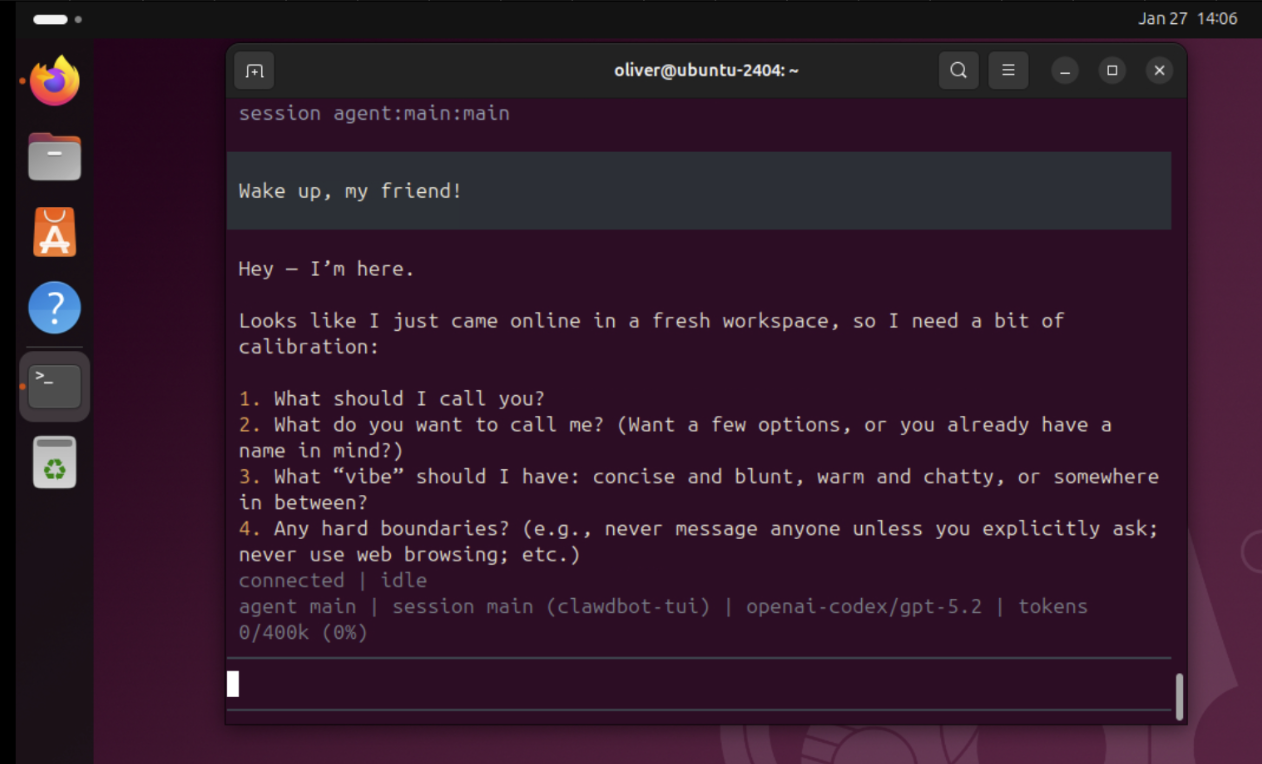
After completing the above steps, OpenClaw should be successfully installed and running within the Ubuntu Linux Station environment on your QNAP NAS.
Removal / Uninstallation
OpenClaw is installed and operated entirely within the Ubuntu environment provided by Ubuntu Linux Station. QNAP does not provide a separate uninstallation procedure for OpenClaw itself.
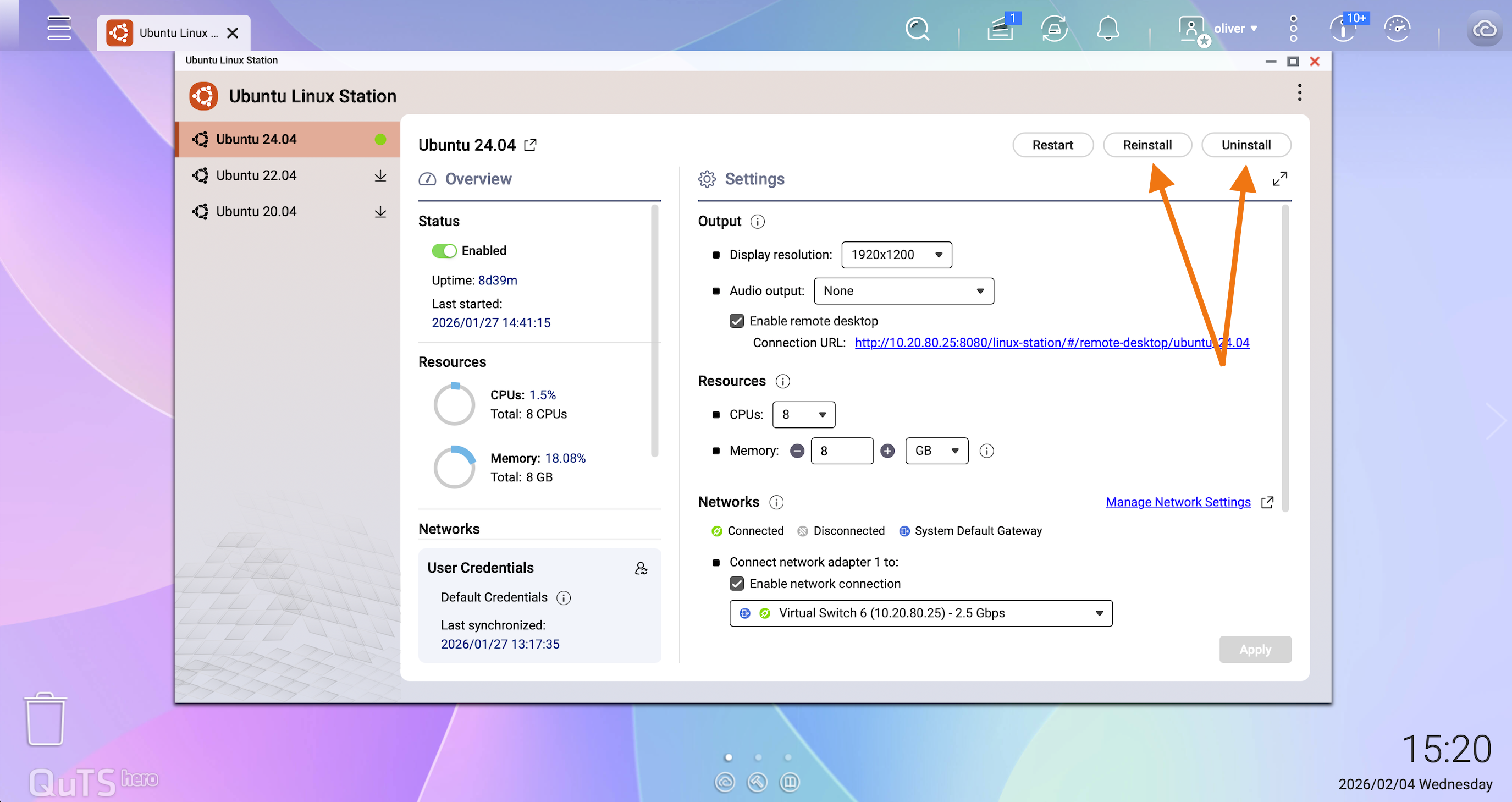
To completely remove OpenClaw and any related data or configuration, the recommended approach is to reinstall the Ubuntu operating system within Ubuntu Linux Station. Reinstalling the OS resets the Ubuntu environment to a clean state and ensures that all installed third-party applications, services, and credentials are removed.
Before reinstalling, make sure to back up any data in the Ubuntu environment that you want to keep.
- Ubuntu Linux Station is deployed using container technology. As a result, the operating environment and application data may be removed if the Ubuntu instance is reinstalled or reset.
- If long-term data persistence is required, consider deploying OpenClaw (Clawdbot / Moltbot) using Virtualization Station with a full virtual machine instead.
- Alternatively, we recommend backing up the OpenClaw (Clawdbot / Moltbot) installation directory and related data to a persistent NAS shared folder.
- OpenClaw (Clawdbot / Moltbot) is a third-party application not developed or maintained by QNAP. Before installation, please review the tool’s documentation and usage policies carefully.
- When using third-party tools, always evaluate potential data security and privacy risks.
Further Reading
How does QNAP enhance user data security in Ubuntu Linux Station?


