


How to debug and fix common container issues in Container Station?
Container Station allows you to deploy applications and containers developed by third-party developers on your QNAP device. It is possible that the open-source images used to create these application and containers may cause issues during deployment.
QNAP does not provide technical support for third-party images. You can use the following tutorial to troubleshoot common container-related issues.
- Checking the Container Configuration
- Verifying Image Compatibility
- Checking the QNAP System Configuration
- Referring to Online Help and Documentation
Checking the Container Configuration
Containers created from images inherit all the image characteristics. Make sure you scan the image file in order to detect security issues, incorrect configurations, and backdoor vulnerabilities before deploying the container from the image.
If you detect issues with the container after deployment, you can check the container logs to identify and rectify the image file.
Examining the Image Information
Check the image prerequisites and perform any necessary steps before installing the container.
If you are using an image from the Docker registry, you can find image information by clicking the image name after searching the image in in Container Station. Alternatively, go to https://hub.docker.com/search and search the image.
For example, when deploying a PostgreSQL container using the postgres image, the POSTGRES_PASSWORD environment variable is required. The container cannot be deployed properly without this essential variable.
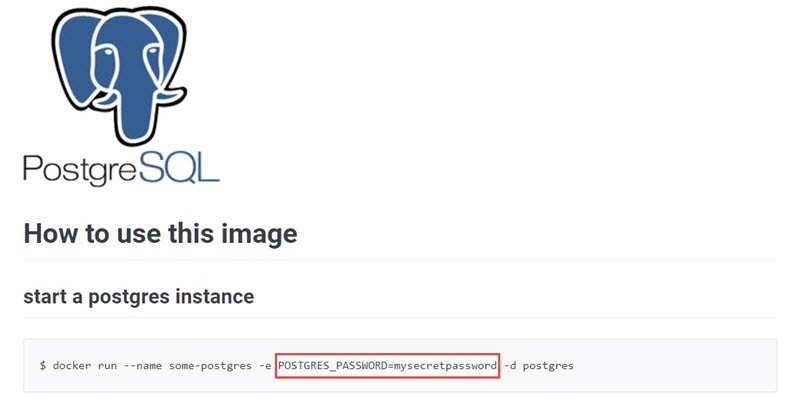
When deploying a postgres container in Container Station, make sure that you specify the POSTGRES_PASSWORD environment variable in the Environment section.
Analyzing Container Station Event Logs
Review information logged by Container Station for all applications and containers. Failure logs return explicit error messages that you can examine in the contents of the logged data. Failure and warning logs cover the application or container name, error code, and error message.
- Check for failure logs.
In the following example, the application encountered a startup failure because the defined ports were occupied by other services.

In another example, the container encountered a startup failure because the entrypoint command was misconfigured.

Checking Individual Container Logs
You can inspect individual logs for error and warning messages related to application and container failures. Container Station catalogues detailed log entries that specify error states including missing environmental variables, invalid name formats, failed image retrievals, and other initialization errors.
- Check for error and warning messages.
In the following example, the MYSQL_ROOT_PASSWORD environmental variable was not configured before deploying a MySQL container using the mysql image, causing the container to stop immediately after starting it.

In another instance, a Rancher container was deployed using a rancher/rancher image without enabling privileged mode. Without the --privileged flag, the container fails to start.

Verifying Image Compatibility
Images do not guarantee compatibility with the processor architecture and operating system version of the host device. There are limitations to image portability and containers are inoperative unless the correct image size and version are used for deployment.
Checking the Platform Compatibility of the Image
Make sure that the image platform is compatible with the processor architecture of the QNAP device.
If the image is exported from another QNAP device, make sure that the CPU architecture is same between and the source and target machines.
You cannot run images exported from 64-bit x86 machines on a 64-bit or 32-bit ARM model. Conversely, ARM containers cannot run on 64-bit x86 devices.
Docker
The Docker image webpage provides a list of supported architecture and operating systems for each image version.
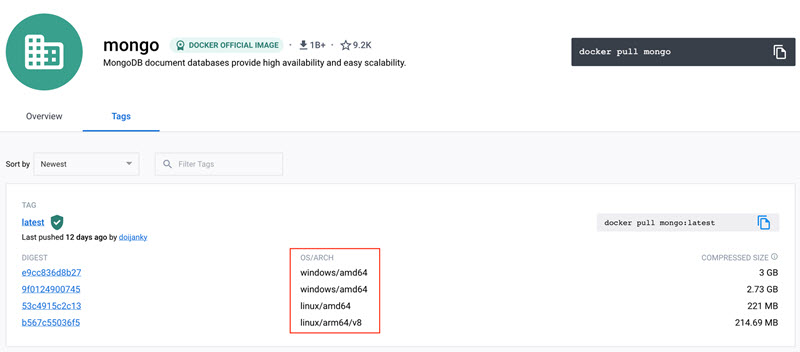
In general, linux/arm/v7 images are compatible with 32-bit ARM machines, linux/arm64/v8 images are compatible with 64-bit ARM machines, and linux/amd64 images are compatible with 64-bit x86 machines.
LXD
For details on compatibility and supported list, go to https://images.linuxcontainers.org/.

armhf containers are compatible with 32-bit ARM machines, arm64 containers are compatible with 64-bit ARM machines, and amd64 containers are compatible with 64-bit x86 machines.
Viewing Container Incompatibility on Container Station
Certain Docker containers may record logs related to container image incompatibility with the message exec format error.

When incompatible LXD containers are deployed, Container Station may record failure logs in the Event Logs page.

Checking the Page Size Compatibility
QNAP updated the system page size from 4K to 32K for better performance and user experience on the following 32-bit ARM devices. This change in the compute environment could limit the container's access to memory resources. To avoid segmentation faults in containers, make sure that you verify third-party container page size compatibility before container deployment.
|
Series |
Models |
|---|---|
|
TS-x31P |
TS-531P |
|
TS-x31P3 |
TS-231P3, TS431P3 |
|
TS-x31X |
TS-231X, TS-431X, TS-531X, TS-831X, TS-431X2, TS-431X3 |
|
TS-x31KX |
TS-431KX |
|
TS-x31XU |
TS-431XU, TS-431XU-RP, TS-831XU, TS-831XU-RP, TS-1231XU, TS-1231XU-RP |
|
TS-x31XeU |
TS-431XeU |
|
TS-x35 |
TS-1635 |
Checking the QNAP System Configuration
Make sure that the host device is configured for container deployment and orchestration.
- Check if the Container Station networks are added to the the allow list.
- Go to and check which network segments are used by the container network.
- Check which network segments are used by the container network.
- Go to .
- Check whether the container network segments are added to the allow list.
Important:QNAP recommends adding the following IP address to the allowed IP list: 10.0.3.0/24, 10.0.5.0/24, 10.0.7.0/24. If Kubernetes service is enabled in Container Station, ensure that you add 10.42.0.0/24 (Kubernetes Pod Network CIDR) to the list.

- Check the storage capacity and status.
- Check the storage space status.
Tip:
If the status is Check File Status, click the status message to check for storage errors.

- Check the storage space status.
Referring to Online Help and Documentation
Several images are open source allowing users to modify the source code. In case none of the aforementioned troubleshooting methods work, there is a possibility that the source image is incompatible or corrupt. In such situations, QNAP recommends visiting the image website to find more information about the image, or using other images in the same category.
If the image belongs to the Docker registry, you can find more details about the image on their Overview page. For example, the ubuntu image in Docker provides quick reference links for further information.


