Security & Risk Considerations
OpenClaw (formerly Clawdbot / Moltbot) is a powerful automation tool that can access local files, execute commands, and use credentials such as API keys or tokens, depending on configuration. Users must therefore configure it with caution and assume full responsibility for its use.
- Access control: Do not expose the OpenClaw web interface directly to the public Internet. If remote access is required, use a VPN, IP allowlist, or strong authentication mechanisms.
- Third-party extensions: Only install skills or extensions from trusted sources. Security research has shown that malicious extensions may attempt to steal data or credentials.
- Isolation and permissions: Run OpenClaw in an isolated environment (such as Ubuntu Linux Station) and avoid granting unnecessary system or root privileges.
- Credential protection: Protect API keys and tokens carefully and rotate them if exposure is suspected.
Best Practice: OpenClaw is intended for advanced or experimental use. We recommend always reviewing security implications before enabling long-running or unattended operation. Learn how QNAP ensures user data security in Ubuntu Linux Station and how you can further enhance data security.
Note
The developer has renamed the project multiple times (Clawdbot → Moltbot → OpenClaw). Older documents may still reference “Clawdbot” or “Moltbot,” but they refer to the same tool.
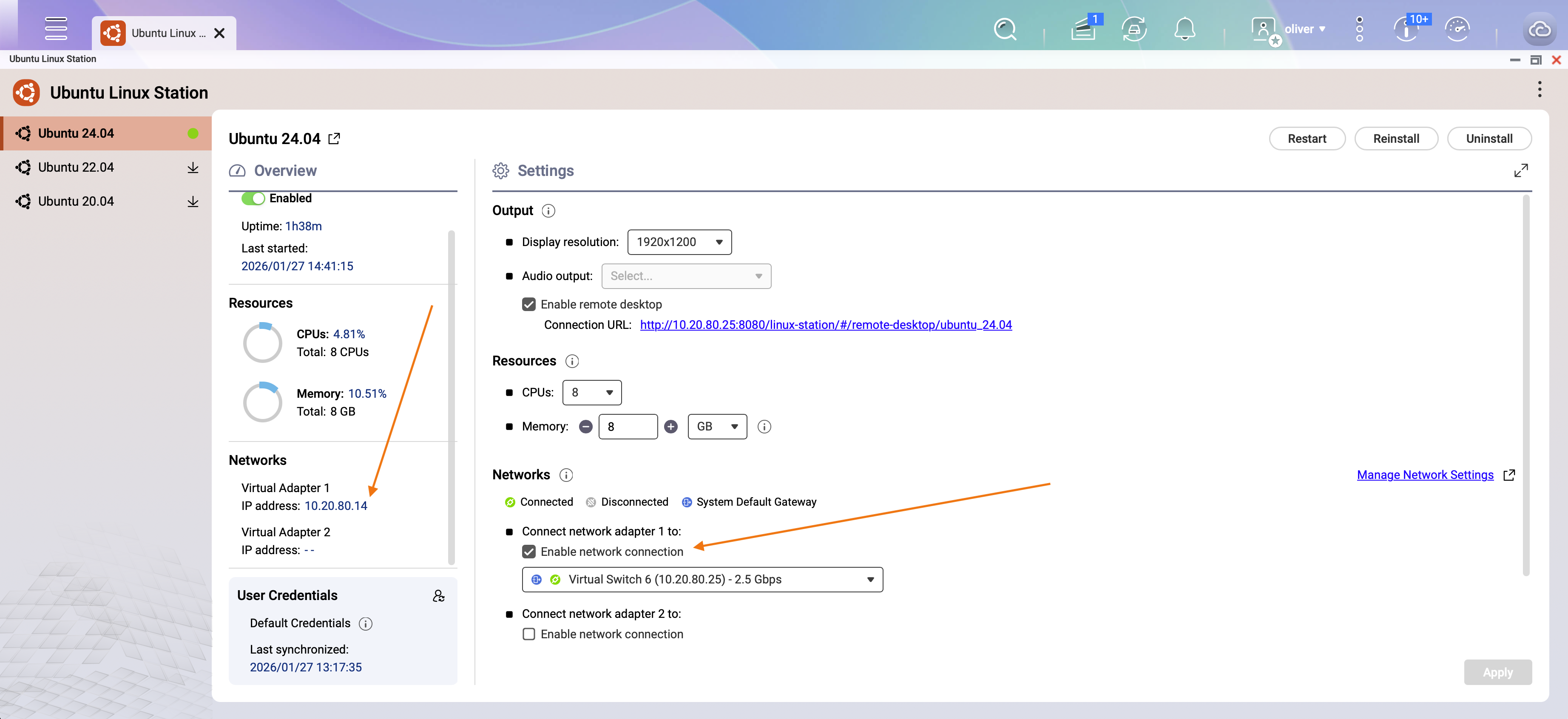
If you want devices other than the NAS to connect to the web interface, you can add a network adapter in Ubuntu Linux Station network settings and obtain an external IP address for the Ubuntu environment. Do not expose the web interface directly to the public Internet. Refer to the Security & Risk Considerations section above for recommended access controls.
Applicable Products
- QNAP NAS models that support Ubuntu Linux Station
- Ubuntu Linux Station
- Internet connection for downloading Ubuntu images and installation resources
Overview
OpenClaw (previously known as Clawdbot and Moltbot) is a third-party automation and productivity tool designed to run as a long-running “agent” that can execute tasks on your behalf (for example, managing messages, emails, calendars, and running local commands depending on configuration). The official project positioning emphasizes “an AI that actually does things,” typically by connecting chat channels to a local runtime that can interact with your system.
Scenario
You want to deploy an Ubuntu desktop environment on a QNAP NAS to test or operate OpenClaw 24/7. This example uses Ubuntu 24.04, but other supported Ubuntu versions may also be used.
Screenshot: Ubuntu Linux Station desktop environment running on QNAP NAS
Procedure
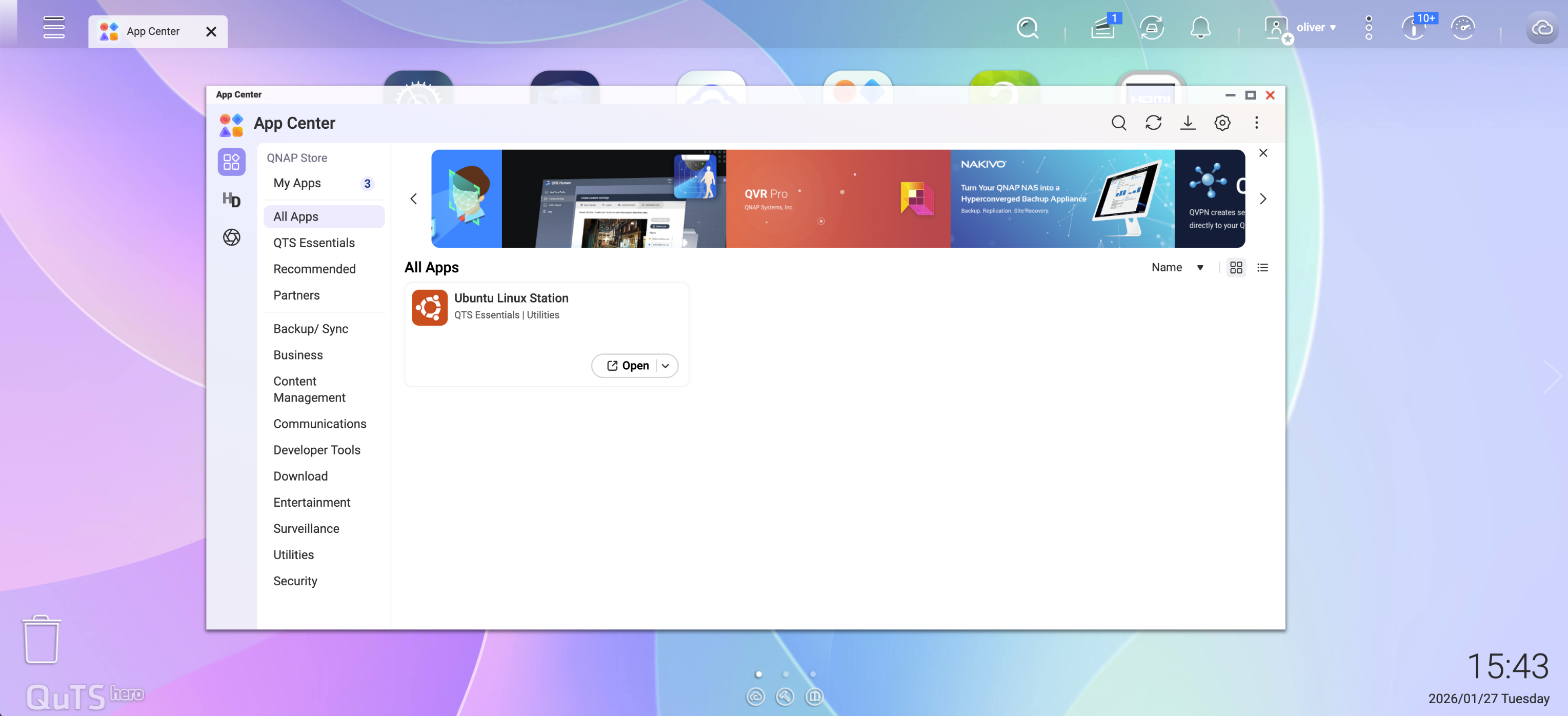
Step 1: Install Ubuntu Linux Station
- Log in to QNAP QTS.
- Open App Center.
- Search and install Ubuntu Linux Station.
Step 2: Download and Install Ubuntu
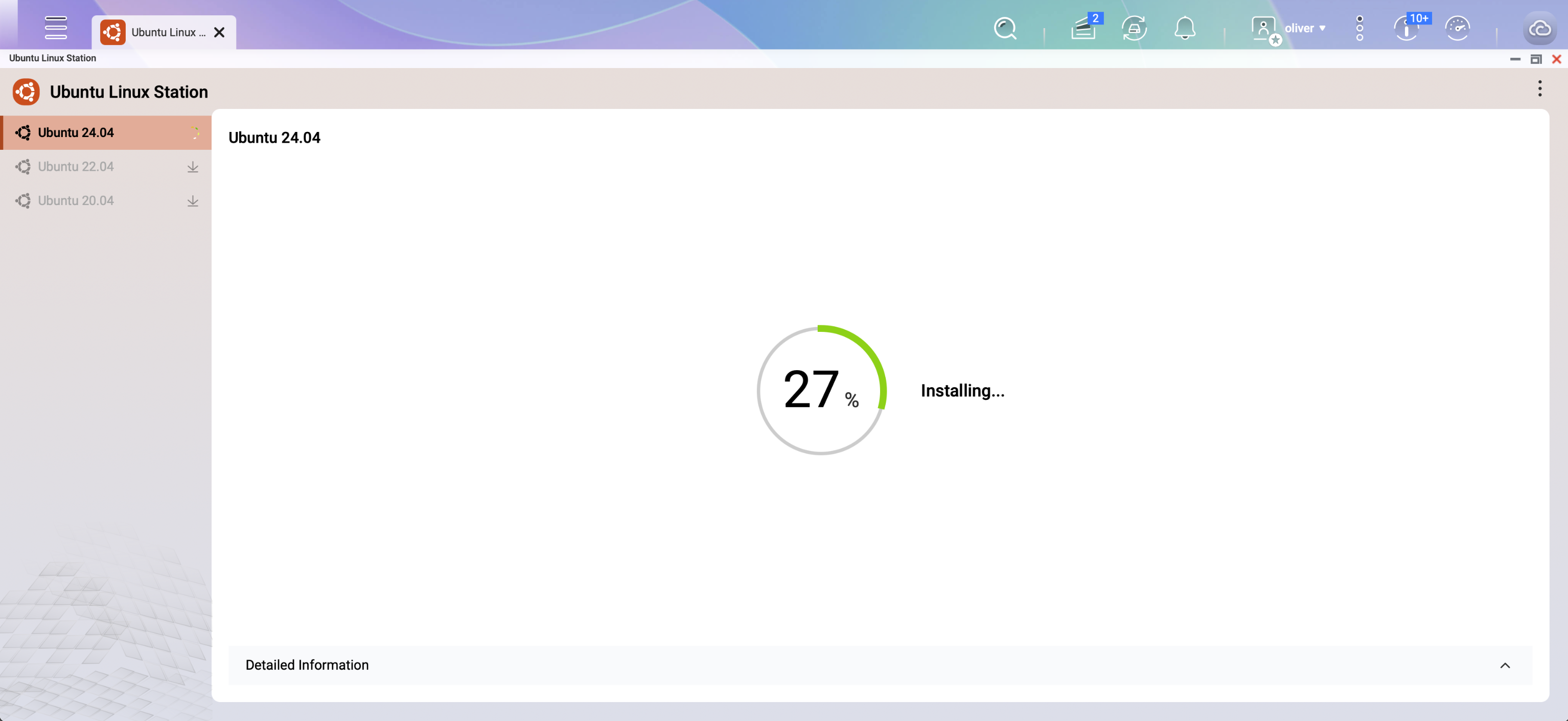
- Launch Ubuntu Linux Station.
- Select the Ubuntu version to install.
- In this example, choose Ubuntu 24.04.
- Wait for the image download and installation to complete.
Step 3: Connect via VNC
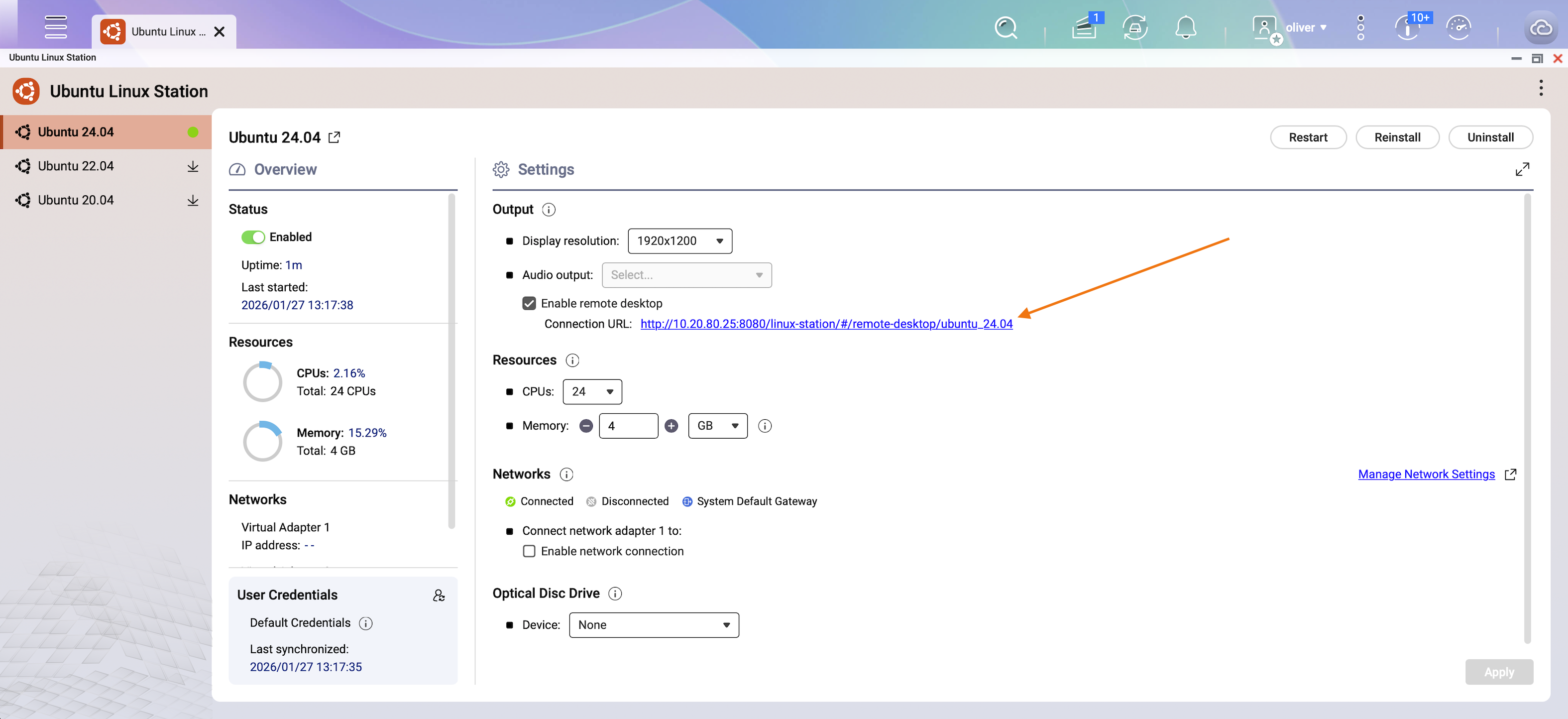
- After installation, a VNC remote access link will be displayed.
- Click the link to open the Ubuntu desktop.
Step 4: Log in to Ubuntu
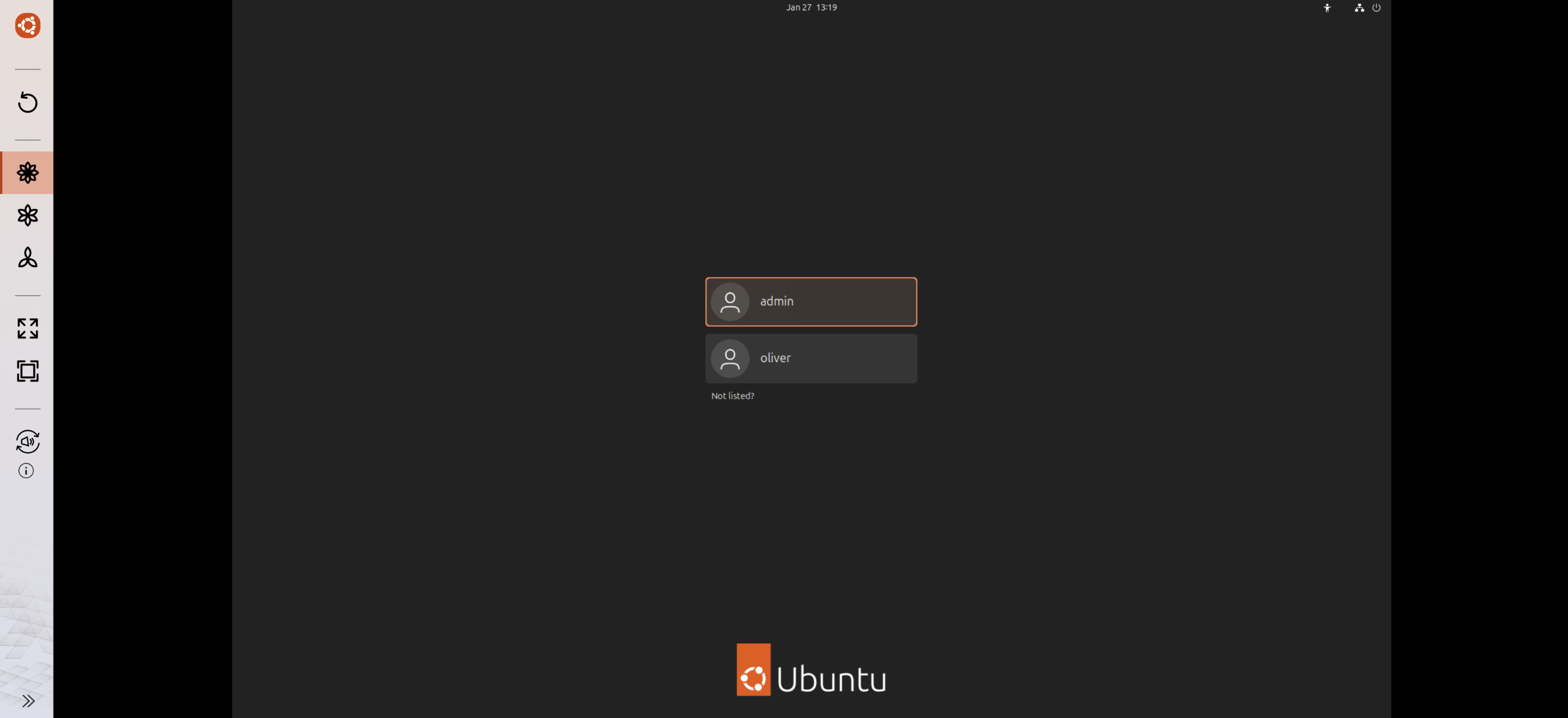
At the Ubuntu login screen, sign in using your NAS account credentials.
Step 5: Open Terminal
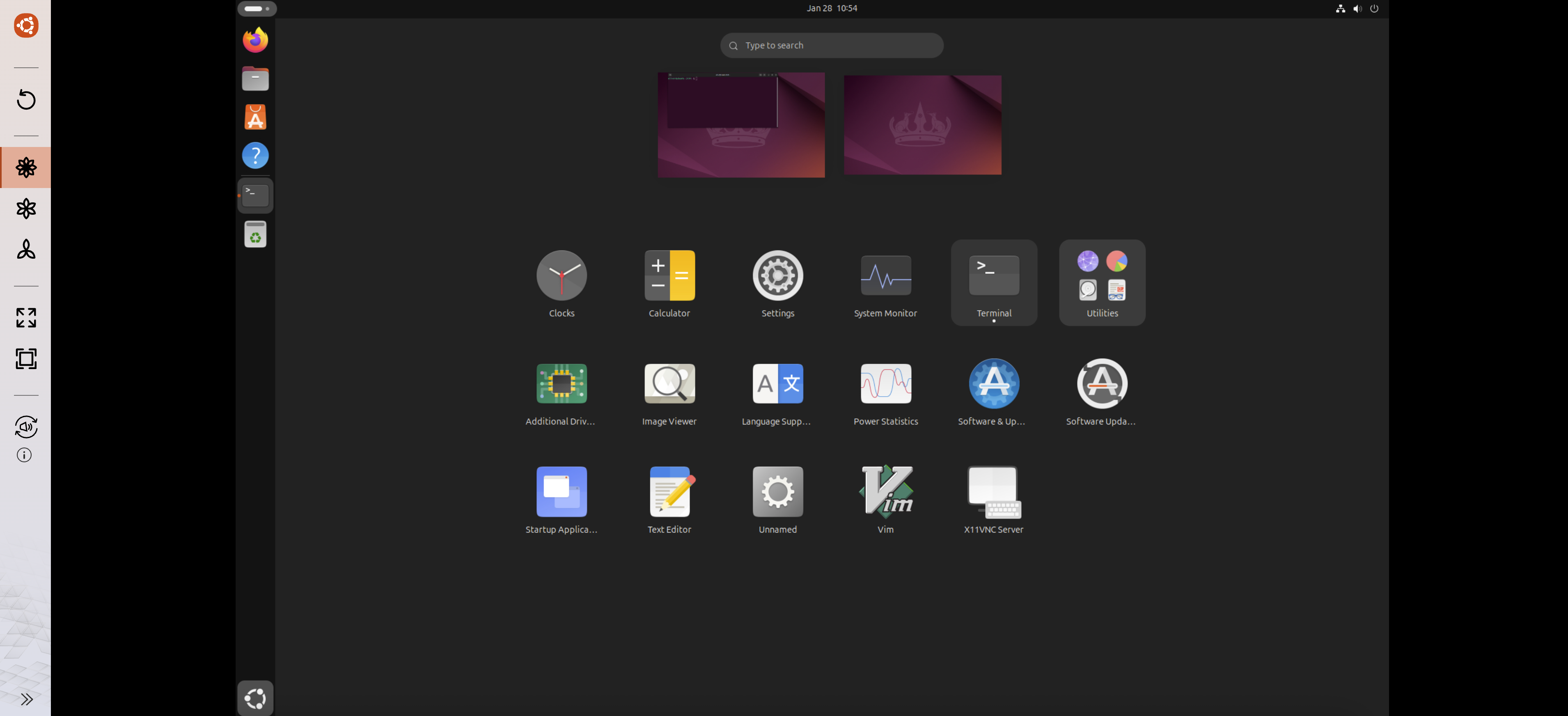
Once logged in to the Ubuntu desktop, open Terminal.
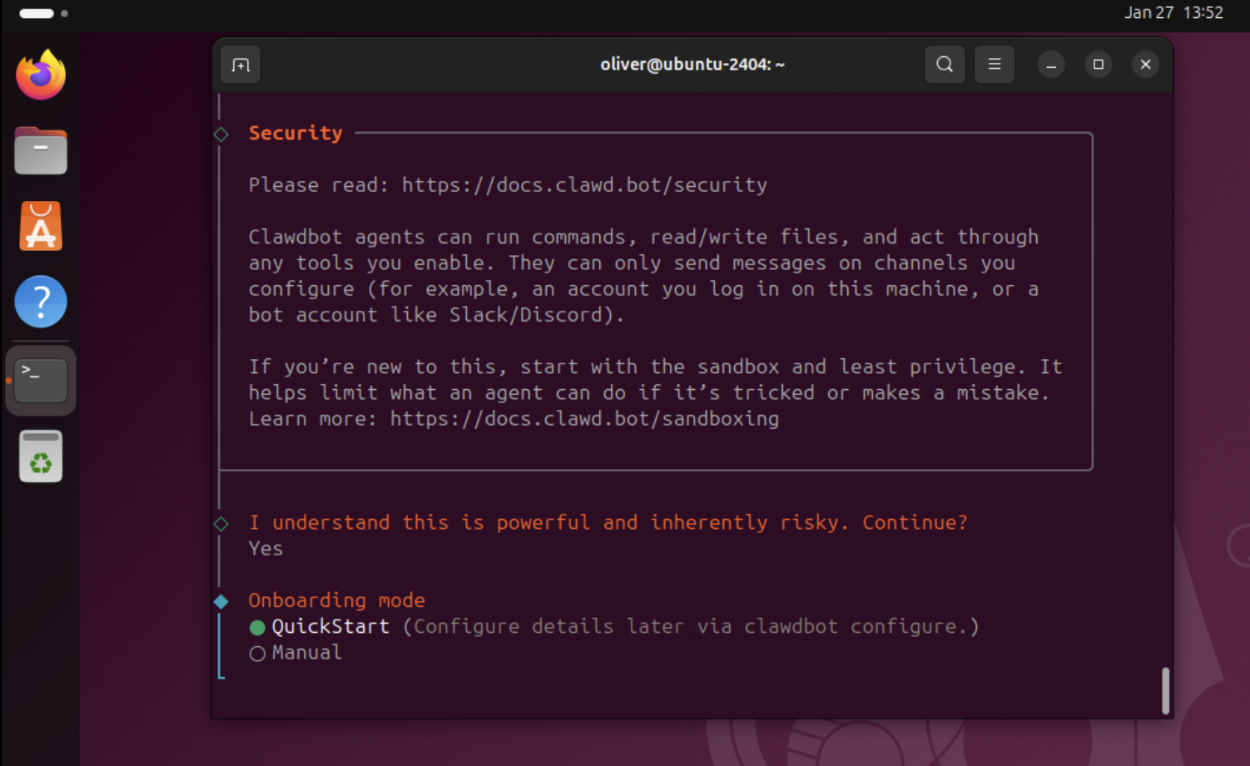
Step 6: Install OpenClaw (Clawdbot / Moltbot)
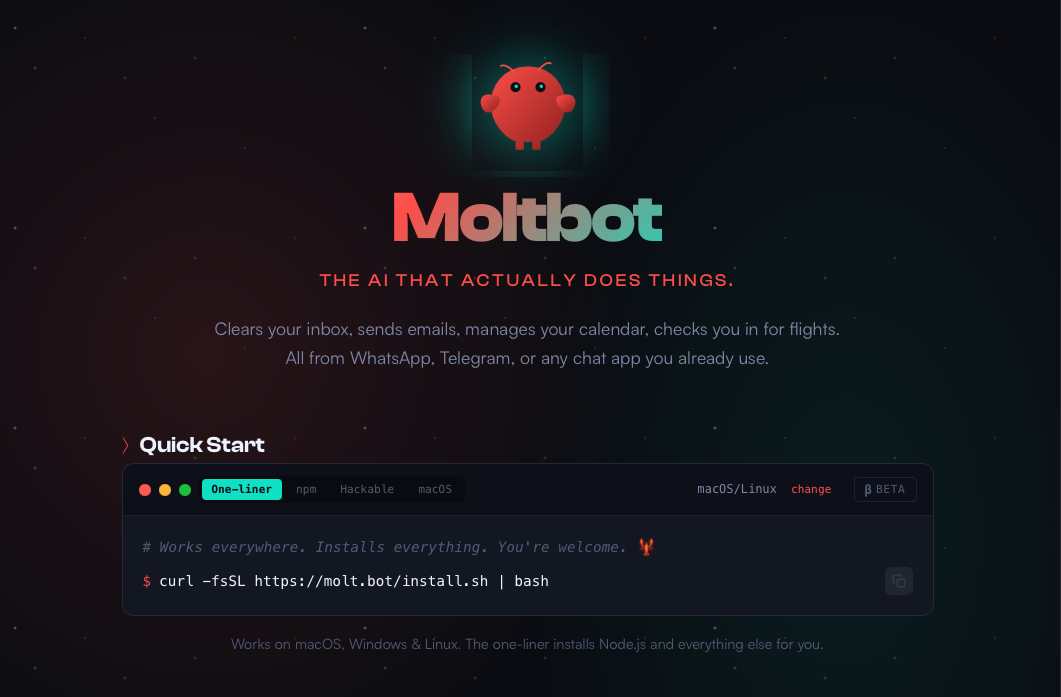
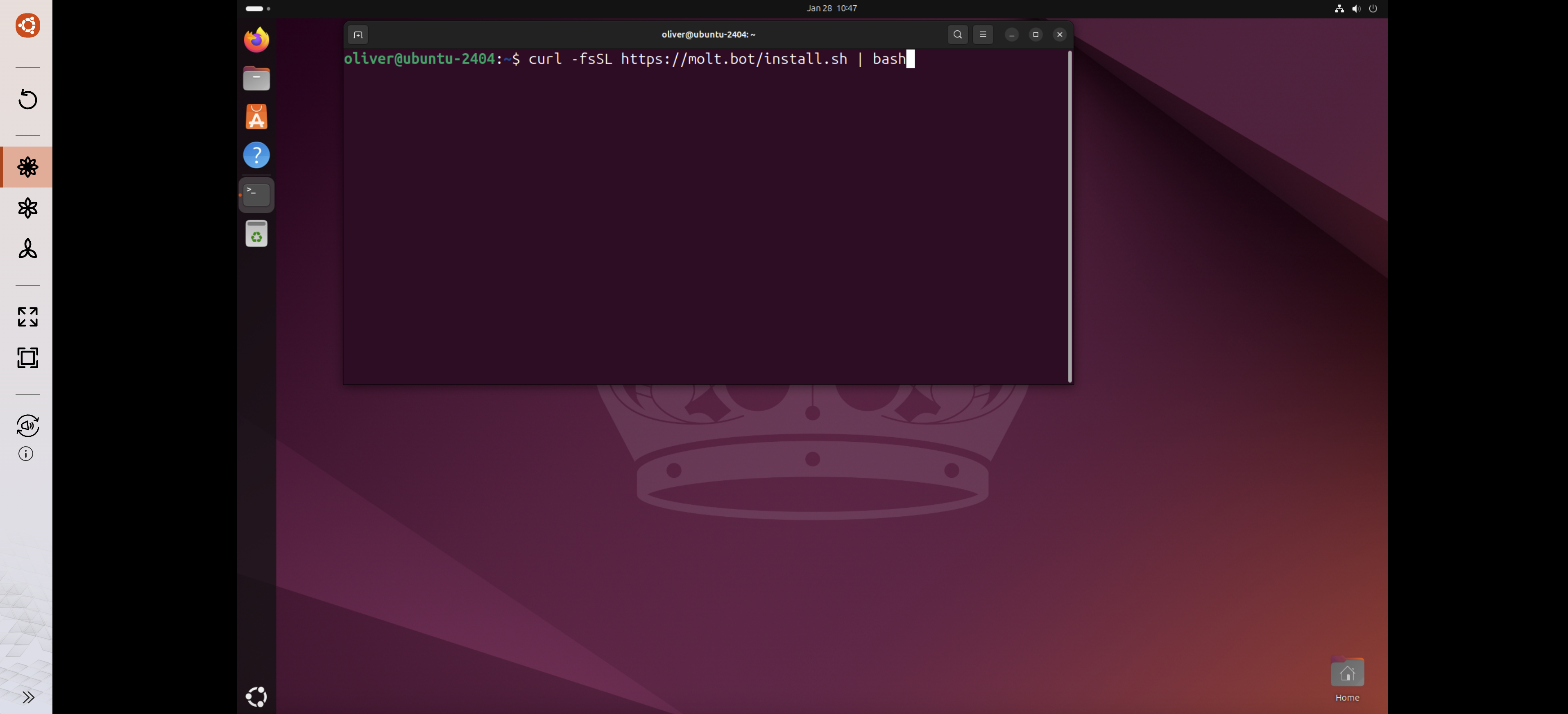
In the terminal, enter the installation command provided on the OpenClaw website:
Step 7: Complete OpenClaw Setup
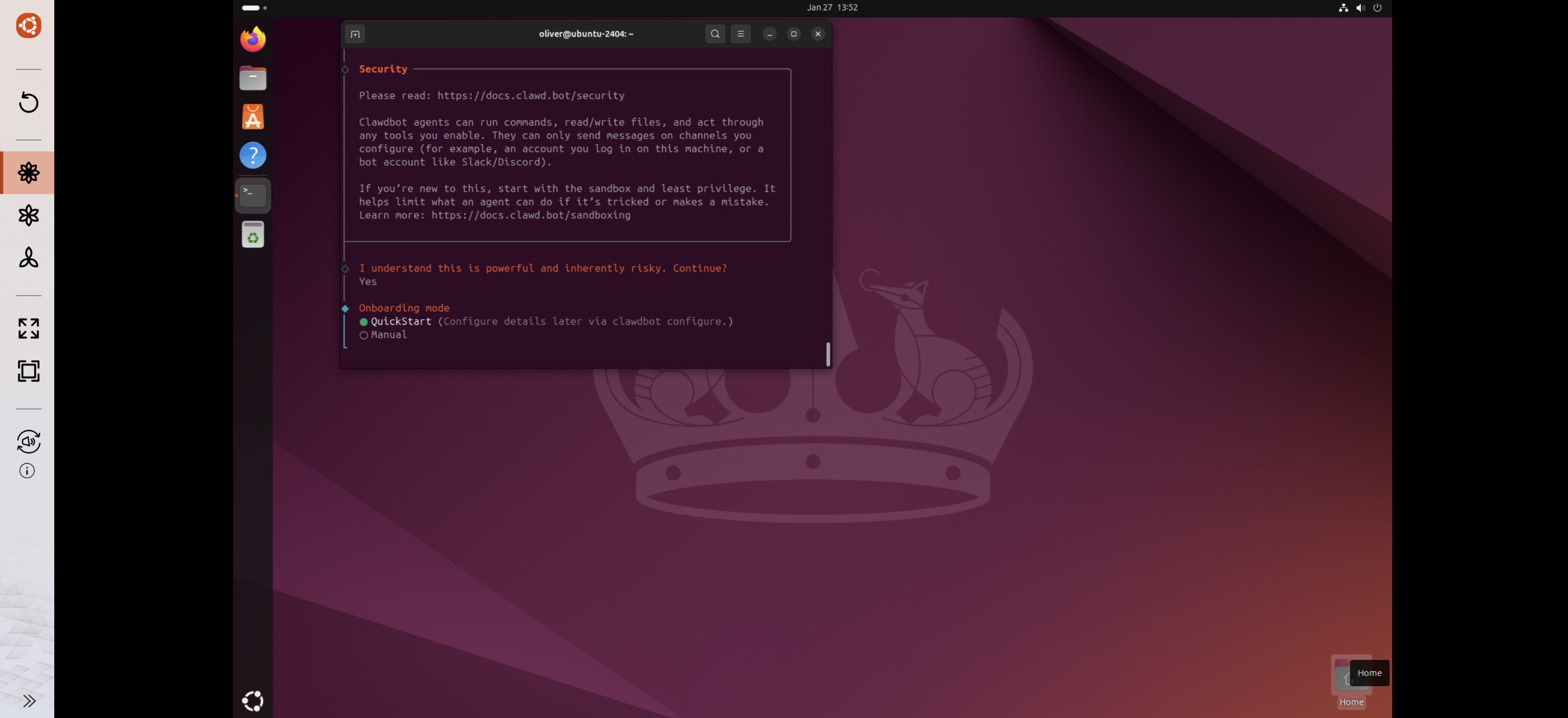
Follow the on-screen instructions provided by OpenClaw to complete the configuration and installation.
Result
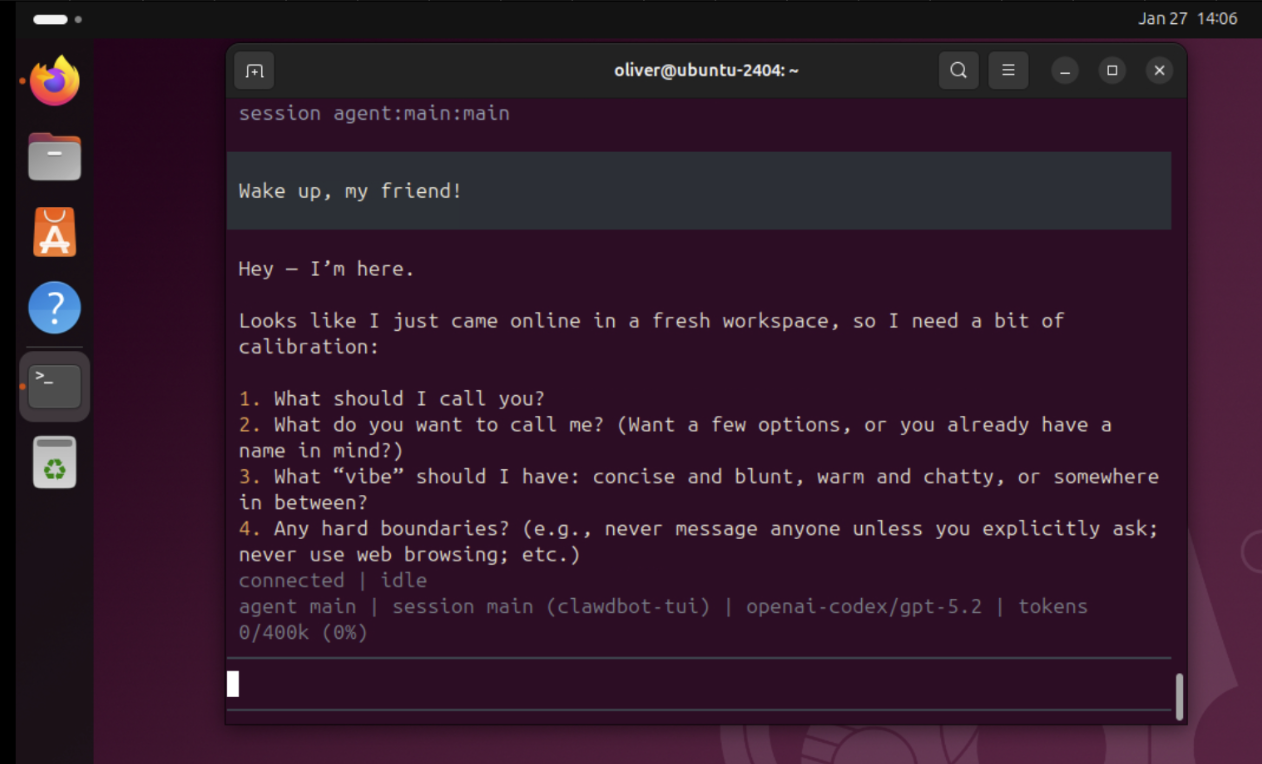
After completing the above steps, OpenClaw should be successfully installed and running within the Ubuntu Linux Station environment on your QNAP NAS.
Tip
To allow devices other than the NAS to connect to the OpenClaw web interface, you can add a network card through Ubuntu Linux Station network settings and have the Ubuntu environment obtain an external IP address. Then, you can use that IP address to connect other devices.
Removal / Uninstallation
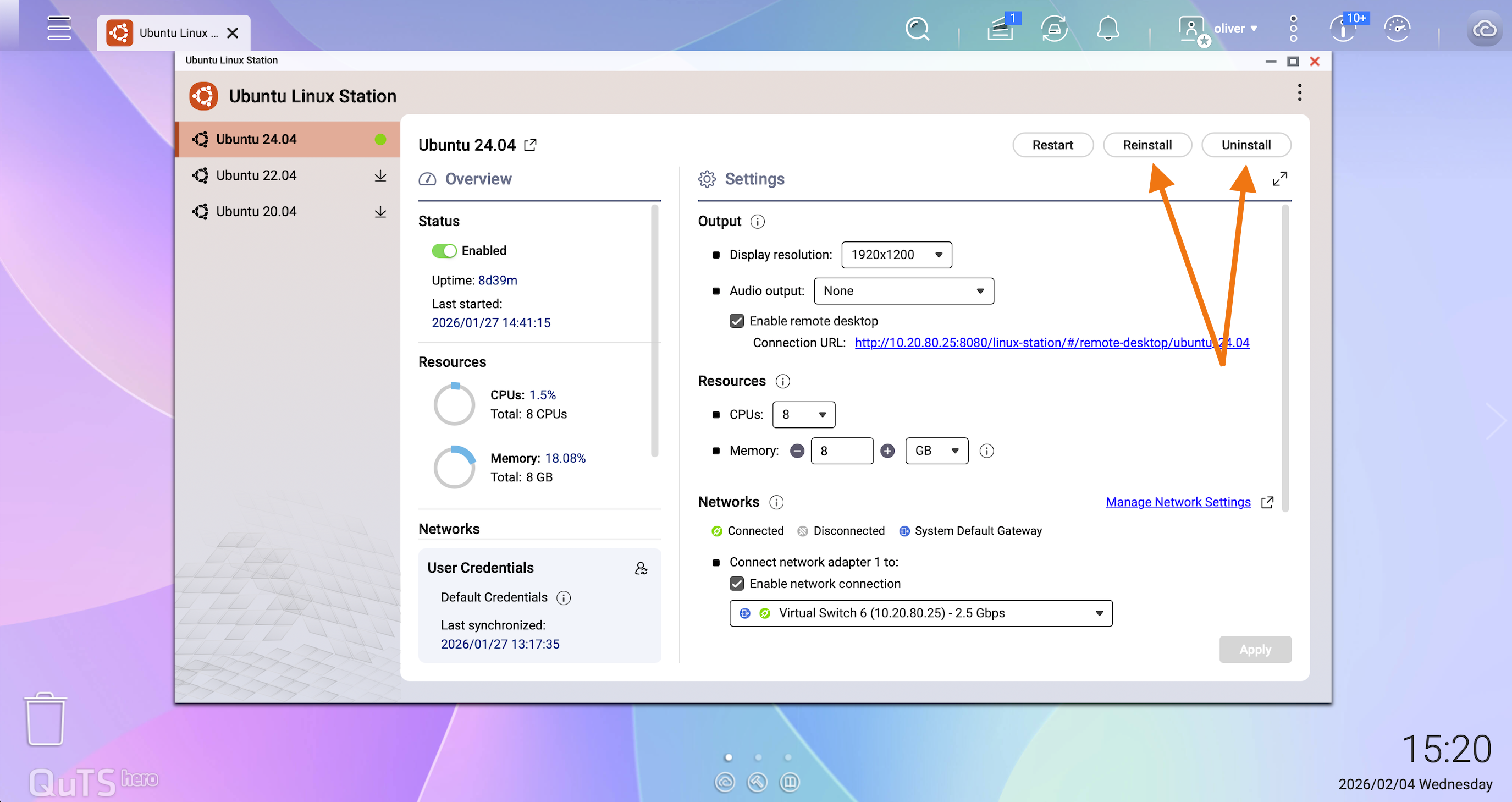
OpenClaw is installed and operated entirely within the Ubuntu environment provided by Ubuntu Linux Station. QNAP does not provide a separate uninstallation procedure for OpenClaw itself.
To completely remove OpenClaw and any related data or configuration, the recommended approach is to reinstall the Ubuntu operating system within Ubuntu Linux Station. Reinstalling the OS resets the Ubuntu environment to a clean state and ensures that all installed third-party applications, services, and credentials are removed.
Before reinstalling, make sure to back up any data in the Ubuntu environment that you want to keep.
Important Notes
- Ubuntu Linux Station is deployed using container technology. As a result, the operating environment and application data may be removed if the Ubuntu instance is reinstalled or reset.
- If long-term data persistence is required, consider deploying OpenClaw (Clawdbot / Moltbot) using Virtualization Station with a full virtual machine instead.
- Alternatively, we recommend backing up the OpenClaw (Clawdbot / Moltbot) installation directory and related data to a persistent NAS shared folder.
- OpenClaw (Clawdbot / Moltbot) is a third-party application not developed or maintained by QNAP. Before installation, please review the tool’s documentation and usage policies carefully.
- When using third-party tools, always evaluate potential data security and privacy risks.
Further Reading
How does QNAP enhance user data security in Ubuntu Linux Station?
安全與風險考量
OpenClaw(前稱 Clawdbot / Moltbot)是一個強大的自動化工具,可以存取本地檔案、執行命令,並根據配置使用 API 金鑰或令牌等憑證。因此,使用者必須謹慎配置並承擔其使用的全部責任。
- 存取控制:請勿直接將 OpenClaw 網頁介面暴露於公共網路。如需遠端存取,請使用 VPN、IP 允許清單或強身份驗證機制。
- 第三方擴充功能:僅安裝來自可信來源的技能或擴充功能。安全研究顯示,惡意擴充功能可能試圖竊取資料或憑證。
- 隔離與許可權:在隔離環境中運行 OpenClaw(例如 Ubuntu Linux 工作站),並避免授予不必要的系統或 root 權限。
- 憑證保護:仔細保護 API 金鑰和令牌,若懷疑暴露則進行輪替。
最佳實踐: OpenClaw 旨在用於進階或實驗性用途。我們建議在啟用長時間運行或無人值守操作之前,始終審查安全影響。了解 QNAP 如何在 Ubuntu Linux Station 中確保使用者資料安全性,以及您如何進一步增強資料安全性。
註
開發者已多次重新命名該專案(Clawdbot → Moltbot → OpenClaw)。舊檔案可能仍然引用“Clawdbot”或“Moltbot”,但它們指的是同一工具。
如果您希望 NAS 以外的設備連接到網頁介面,可以在 Ubuntu Linux 工作站網路設定中添加網路適配器,並為 Ubuntu 環境獲取外部 IP 位址。請勿直接將網頁介面暴露於公共網路。請參閱上方的安全與風險考量部分以獲得建議的存取控制。
適用產品
- QNAP NAS models that support Ubuntu Linux Station
- Ubuntu Linux Station
- Internet connection for downloading Ubuntu images and installation resources
概述
OpenClaw(先前稱為 Clawdbot 和 Moltbot)是一個第三方自動化和生產力工具,旨在作為長時間執行的“代理”來執行任務(例如,管理訊息、電子郵件、日曆,並根據配置執行本地命令)。官方專案定位強調“真正能做事的 AI”,通常透過將聊天頻道連線到本地執行時來與您的系統互動。
情境
您希望在 QNAP NAS 上部署 Ubuntu 桌面環境,以便全天候測試或操作 OpenClaw。本範例使用 Ubuntu 24.04,但也可以使用其他支援的 Ubuntu 版本。
螢幕截圖:在 QNAP NAS 上執行的 Ubuntu Linux 工作站桌面環境
程式
步驟 1:安裝 Ubuntu Linux 工作站
- 登入 QNAP QTS。
- 開啟 App Center。
- 搜尋並安裝 Ubuntu Linux 工作站。
步驟 2:下載並安裝 Ubuntu
- 啟動 Ubuntu Linux 工作站。
- 選擇要安裝的 Ubuntu 版本。
- 在此範例中,選擇 Ubuntu 24.04。
- 等待映像檔下載和安裝完成。
步驟 3:透過 VNC 連線
- 安裝完成後,將顯示 VNC 遠端存取連結。
- 點選連結以開啟 Ubuntu 桌面。
步驟 4:登入 Ubuntu
在 Ubuntu 登入畫面,使用您的 NAS 帳戶憑證登入。
步驟 5:開啟終端機
登入 Ubuntu 桌面後,開啟 終端機。
步驟 6:安裝 OpenClaw (Clawdbot / Moltbot)
在終端機中,輸入 OpenClaw 提供的安裝指令 網站:
步驟 7:完成 OpenClaw 設定
按照 OpenClaw 提供的螢幕指示 完成配置和安裝。
結果
完成上述步驟後,OpenClaw 應已成功安裝並在您的 QNAP NAS 上的 Ubuntu Linux 工作站環境中運行。
提示
若要允許 NAS 以外的設備連接到 OpenClaw 網頁介面,您可以透過 Ubuntu Linux 工作站網路設定新增網路卡,讓 Ubuntu 環境獲得外部 IP 位址。然後,您可以使用該 IP 位址連接其他設備。
移除 / 解除安裝
OpenClaw 完全安裝並運行於 Ubuntu Linux 工作站提供的 Ubuntu 環境中。QNAP 不提供 OpenClaw 本身的單獨卸載程序。
若要完全移除 OpenClaw 及任何相關資料或配置,建議的方法是重新安裝 Ubuntu Linux 工作站中的 Ubuntu 作業系統。重新安裝作業系統會將 Ubuntu 環境重置為乾淨狀態,並確保所有已安裝的第三方應用程式、服務和憑證被移除。
在重新安裝之前,請確保備份您希望保留的 Ubuntu 環境中的任何資料。
重要事項
- Ubuntu Linux 工作站是使用容器技術部署的。因此,如果重新安裝或重置 Ubuntu 實例,操作環境和應用程式資料可能會被移除。
- 如果需要長期資料永續性,請考慮使用Virtualization Station來部署完整的虛擬機器。
- 或者,我們建議將 OpenClaw (Clawdbot / Moltbot) 安裝目錄和相關資料備份到持久的 NAS 共用資料夾。
- OpenClaw (Clawdbot / Moltbot) 是第三方應用程式,非由 QNAP 開發或維護。在安裝之前,請仔細檢視工具的檔案和使用政策。
- 使用第三方工具時,請始終評估潛在的資料安全和隱私風險。
進一步閱讀
QNAP 如何在 Ubuntu Linux 工作站中增強使用者資料安全性?


