


Creating Share Links on File Station
Last modified date:
2026-09-09
Applicable Product
- QNAP NAS running with QTS / QuTS system
Overview
File Station makes it easy to share files from your NAS. In just a few clicks, you can create a share link that gives other users direct access to your files. Recipients can then choose to view or download your file without needing to log on to your NAS.
Solution
- Select the file or folder that you want to share.
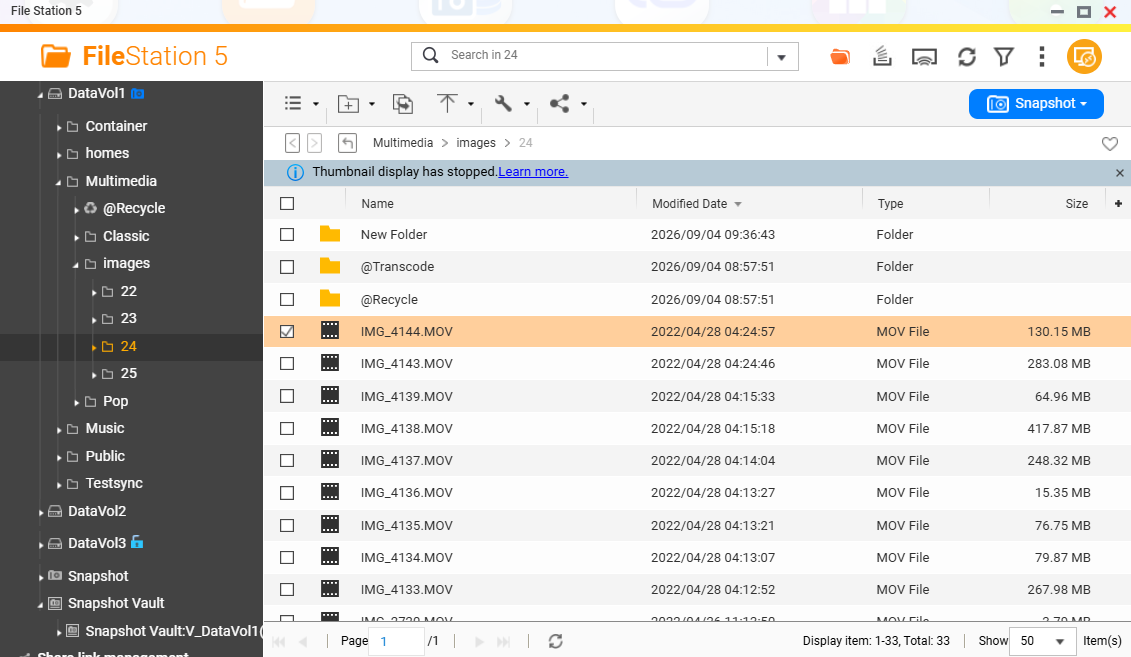
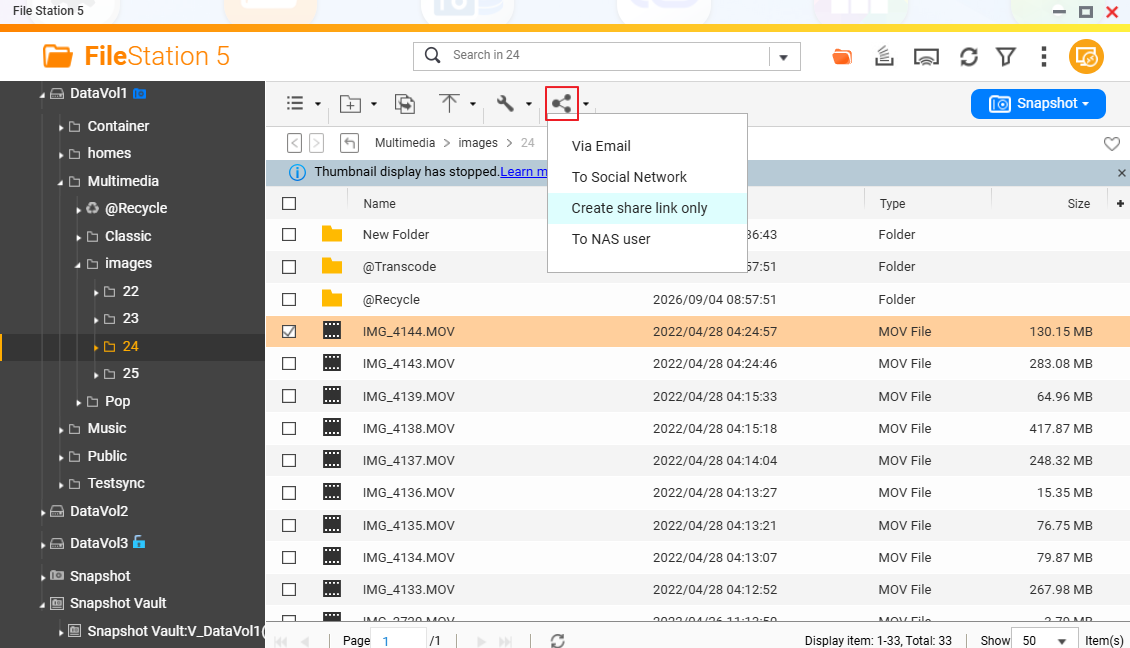
- On the toolbar, click Share (
 ) and then select Create share link only.
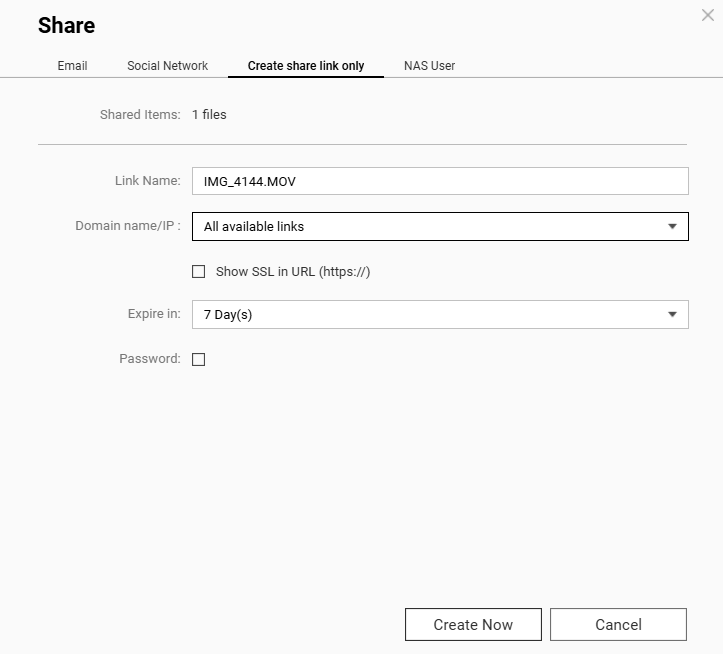
The Share screen appears.
- Change the Link Name if you need. Choose All availabe links. Select the expiration period you want.
The link is created and ready for use.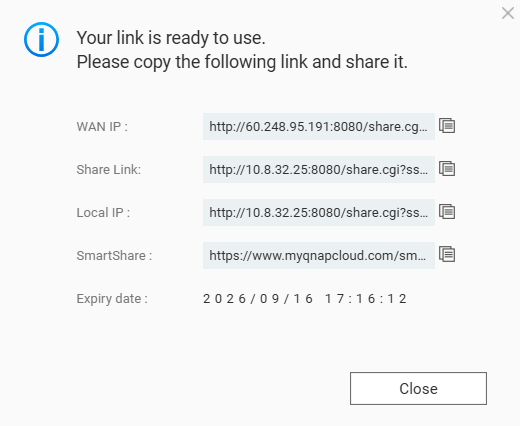
For example, copy and send the SmartShare link to the person you'd like to share. The person should be able to see what you share in the web browser when he click the link.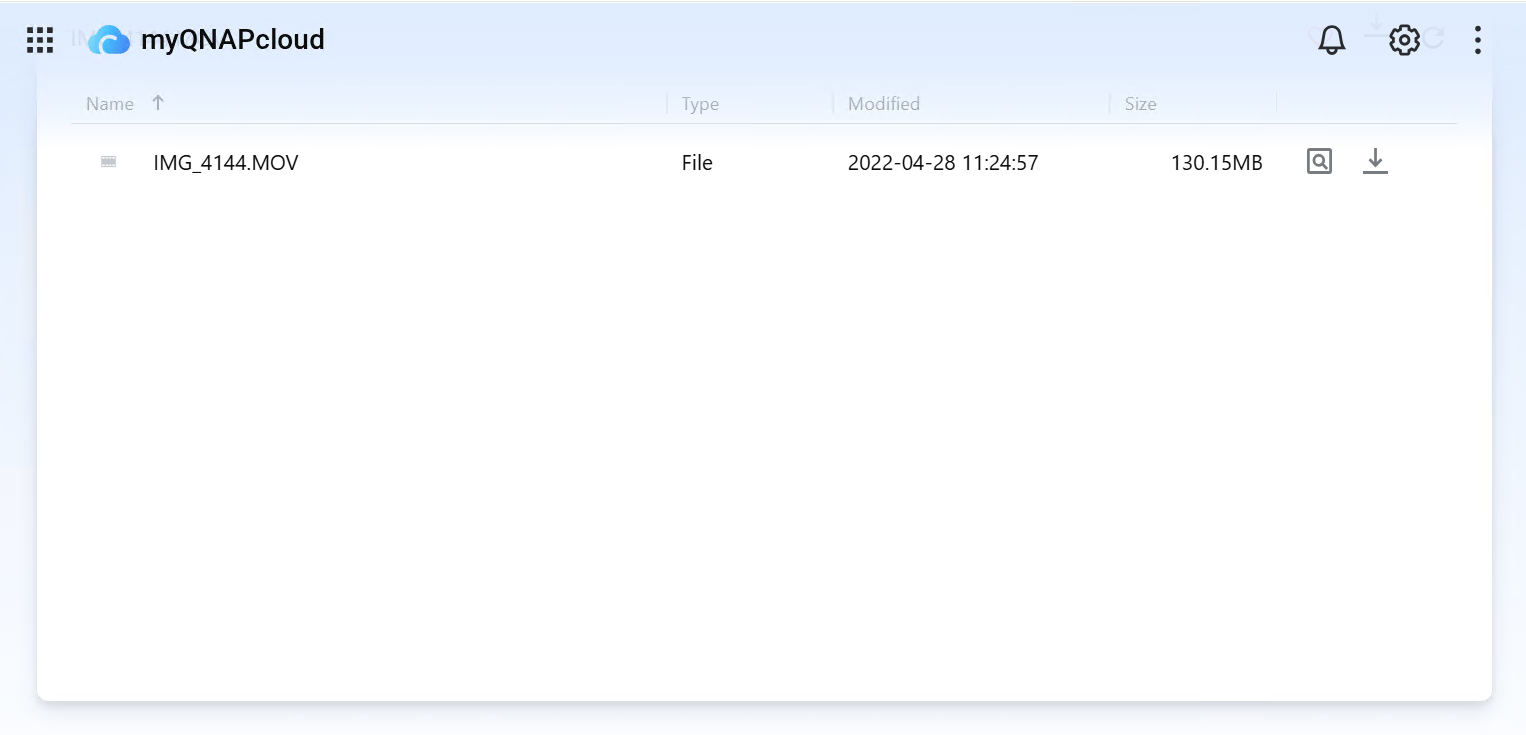
Further Reading
ยังต้องการความช่วยเหลือหรือไม่
โพสต์คำถามของคุณใน QNAP Community เจ้าหน้าที่ QNAP และผู้ใช้ที่มีประสบการณ์จะตอบกลับ


