Security & Risk Considerations
Hermes Agent is a powerful automation tool that can access local files, execute commands, and use credentials such as API keys or tokens, depending on configuration. Users must therefore configure it with caution and assume full responsibility for its use.
- Access control: Do not expose the Hermes Agent or service port directly to the public Internet. If remote access is required, use a VPN, IP allowlist, or strong authentication mechanisms.
- Third-party extensions: Only install skills or extensions from trusted sources. Security research has shown that malicious extensions may attempt to steal data or credentials.
- Isolation and permissions: Run Hermes Agent in an isolated environment (such as Container Station) and avoid granting unnecessary system or root privileges.
- Credential protection: Protect API keys and tokens carefully and rotate them if exposure is suspected.
Applicable Products
This guide applies to QNAP x86 NAS devices (INTEL / AMD Platform) running Container Station 3.x or later with Docker support enabled.
Scenario
Hermes Agent is an open-source, self-hosted AI agent developed by Nous Research. It runs persistently, retains memory across sessions, supports scheduling, and integrates with messaging platforms such as Telegram and Discord. This guide covers deploying Hermes Agent on a QNAP NAS via Container Station using Docker Compose, and configuring it for ongoing use.
Prerequisites
- QNAP x86 NAS devices (such as INTEL / AMD CPU Platform)
- Container Station 3.x or later installed and running
- At least one LLM API key (Anthropic, OpenAI, or OpenAI Codex)
- Optional: A Telegram Bot Token if using the Telegram messaging gateway
Procedure
Initial Deployment & Setup
Follow these steps to launch the Hermes Agent container and configure your essential API keys and messaging integrations for the first time.
Step 1: Deploy via Docker Compose in Container Station
Container Station will automatically create the hermes-data folder on first run when the volume path is declared in the Compose file. No prior folder creation or SSH access is required. Alternatively, the folder can be created in advance via File Station.
- Open Container Station in the QNAP web interface.
- Navigate to Applications and click Create.
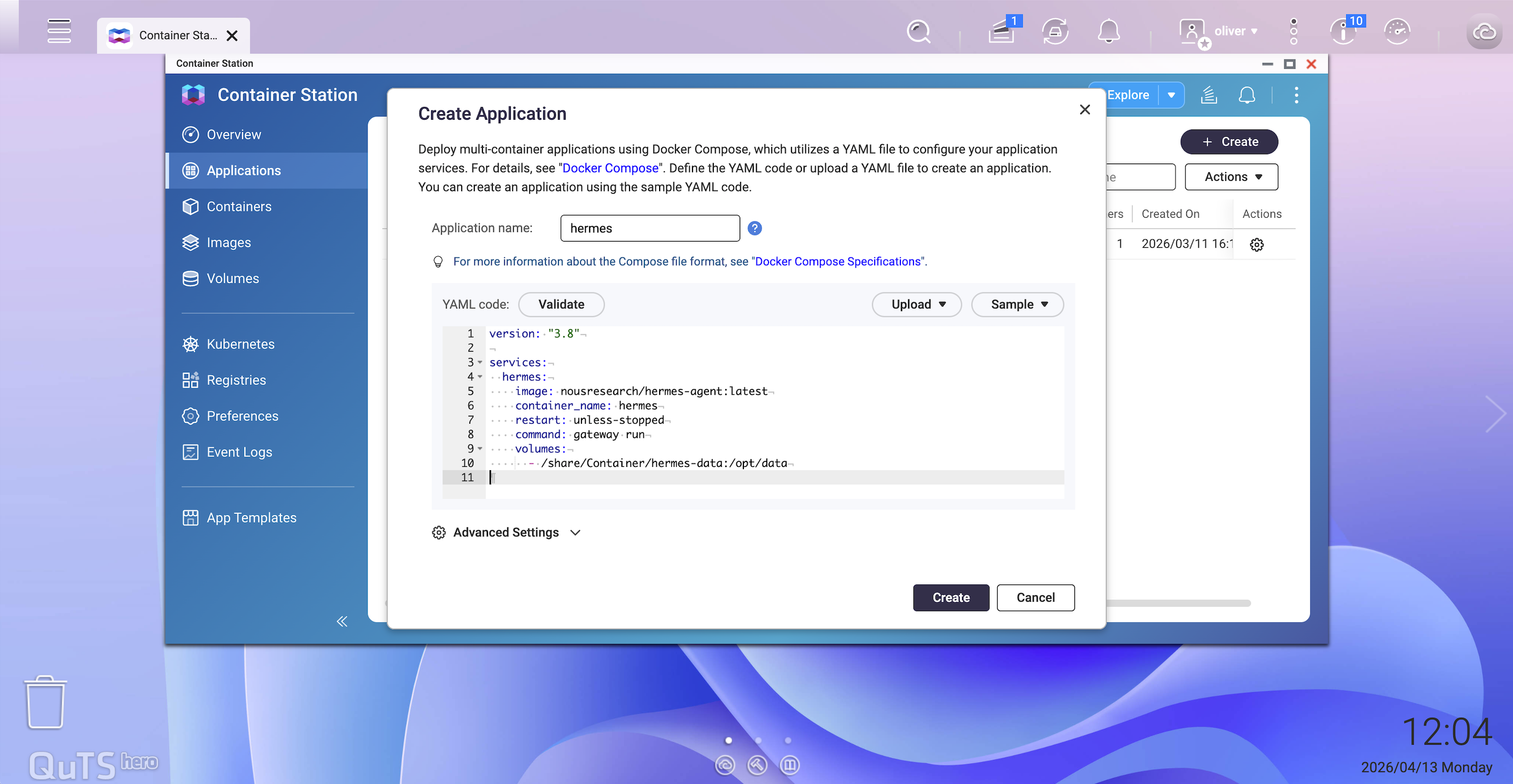
- Select Create Application and paste the following Docker Compose YAML:
version: "3.8"

services:
  hermes:
    image: nousresearch/hermes-agent:latest
    container_name: hermes
    restart: unless-stopped
    command: gateway run
    volumes:
      - /share/Container/hermes-data:/opt/data
- Click Create. Container Station will pull the image and start the container. The
hermes-data folder will be created automatically at /share/Container/hermes-data. - Verify the container is running by checking the Containers list. The status should show Running.
Note: All credentials are managed by the setup wizard in Step 2 and stored in the data volume.
Step 2: Run the Initial Setup Wizard
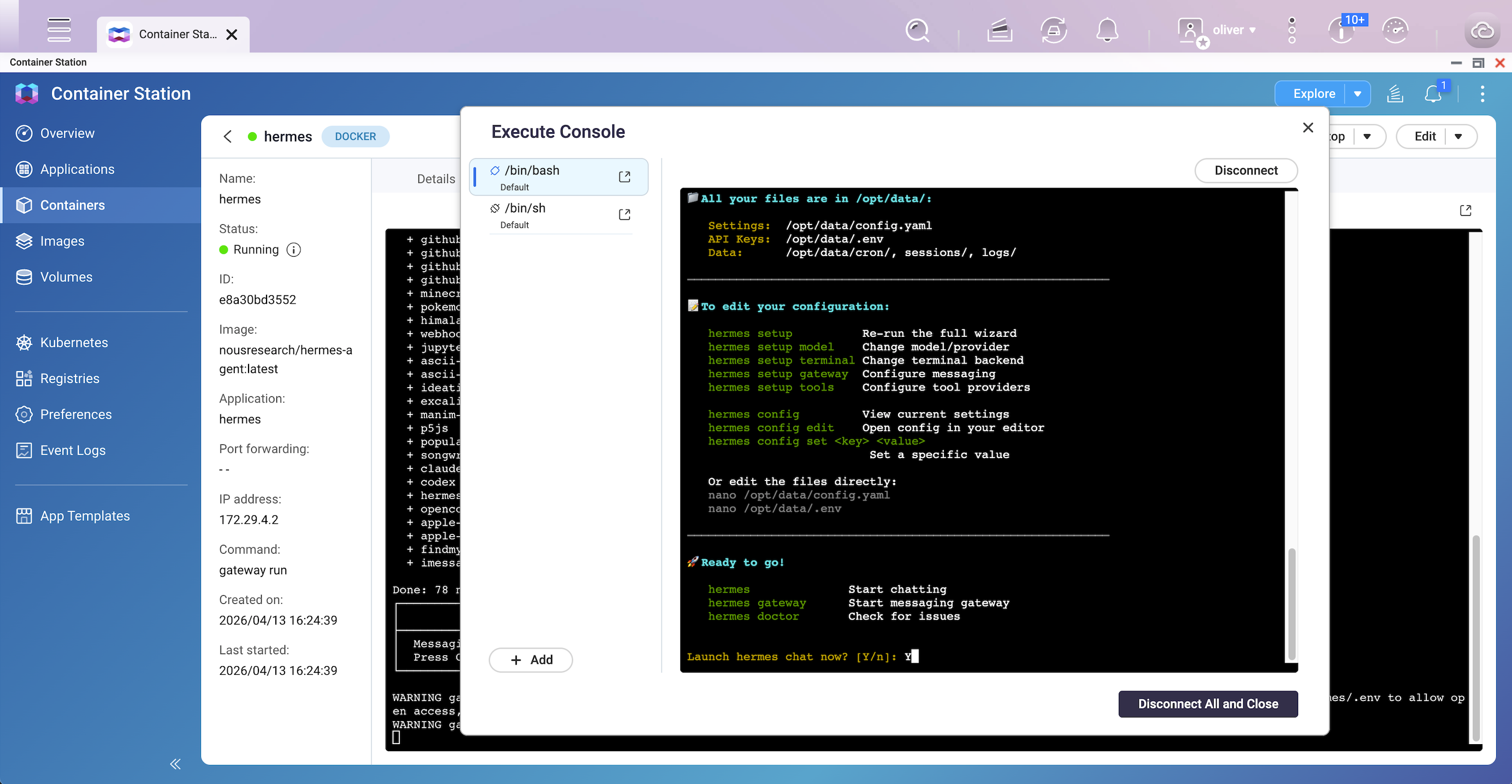
After the container is running, open an interactive shell session to complete first-time configuration. The setup wizard configures your LLM provider, API keys, and messaging platform tokens, writing all settings to the persistent data volume.
- In Container Station, select the hermes container.
- Click Execute and select /bin/bash (or /bin/sh if bash is unavailable) to open an interactive shell.
- In the shell, run:
hermes setup 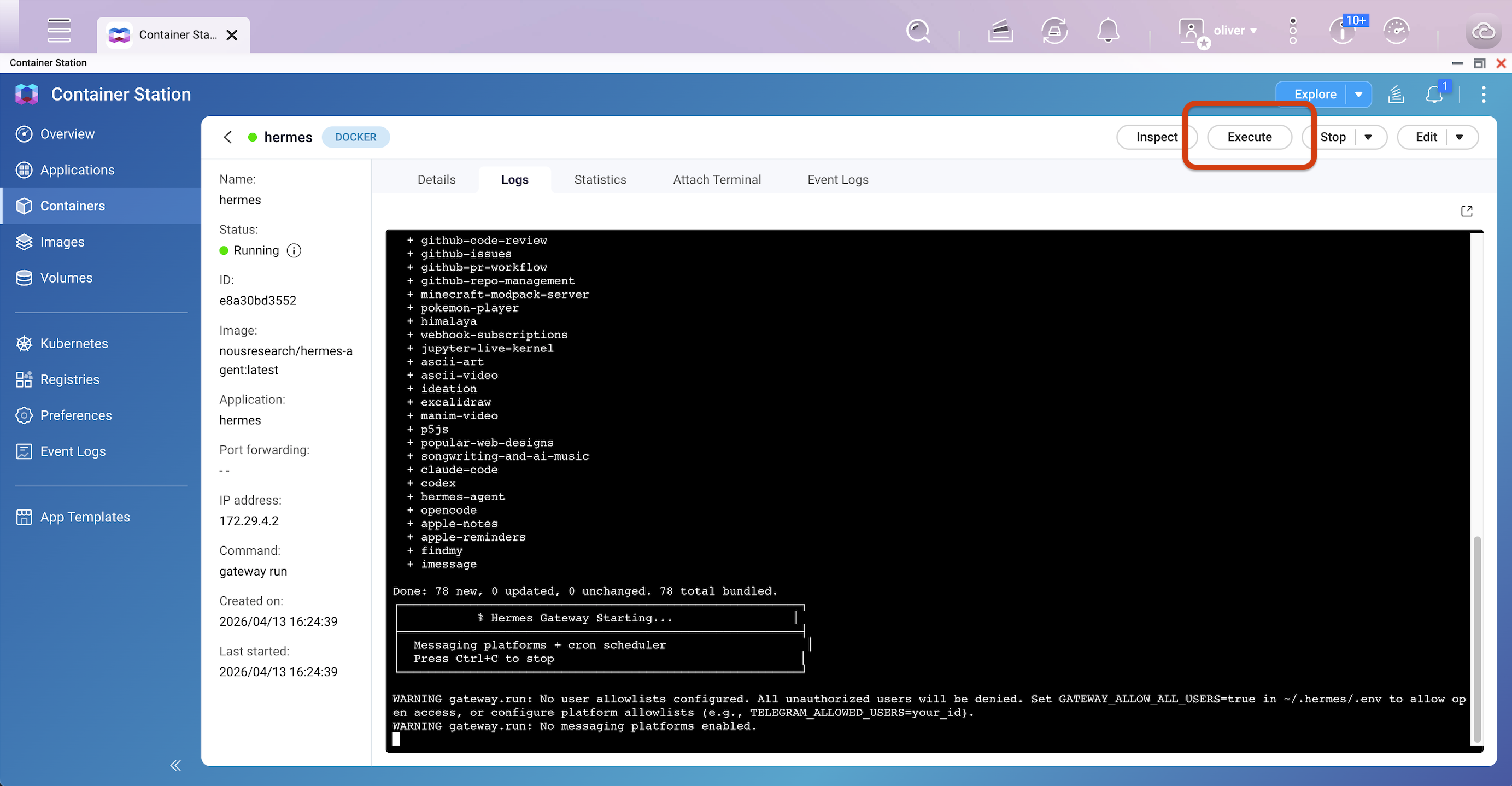
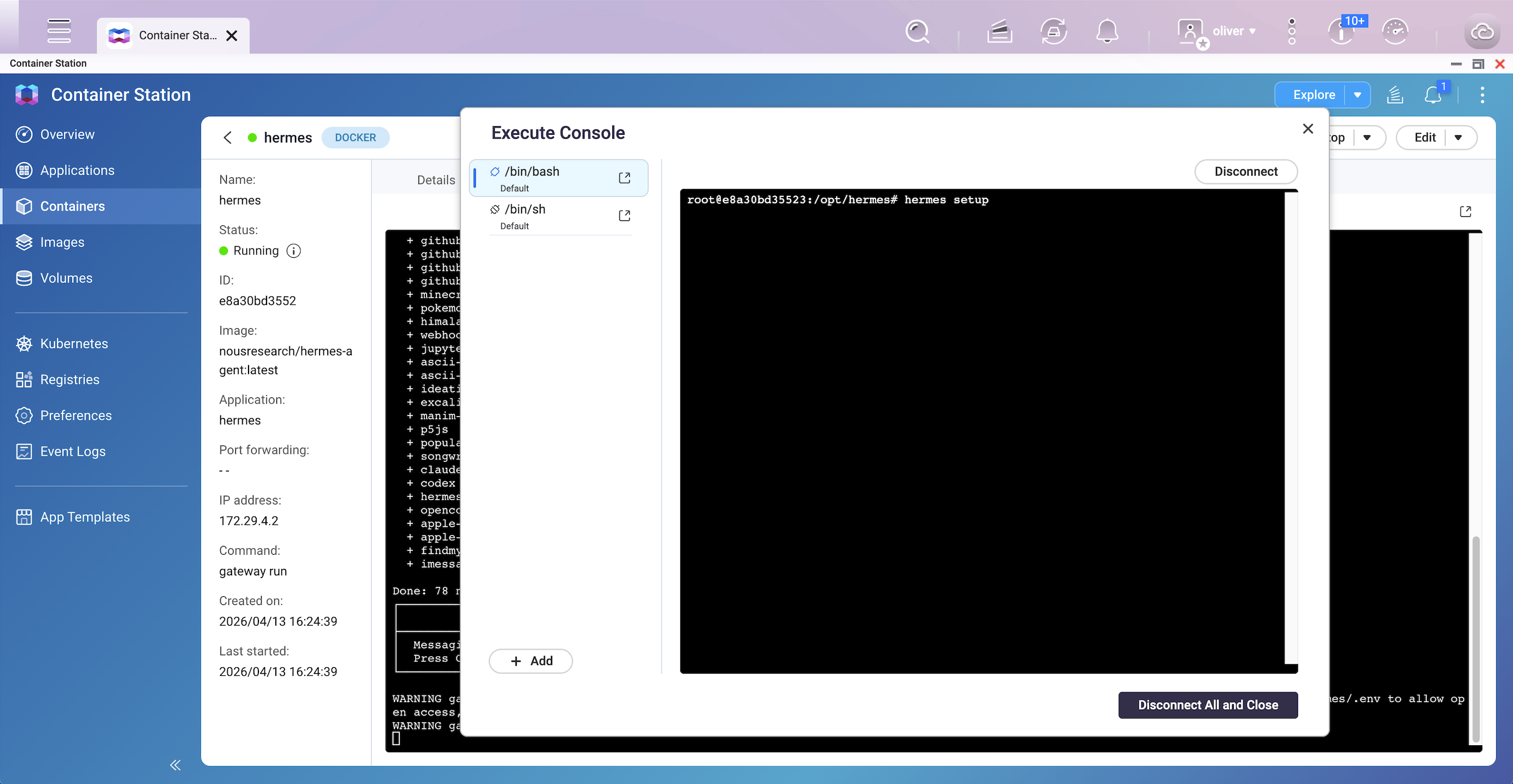
- Follow the on-screen prompts to configure:
- LLM provider and model (e.g., OpenAI, Anthropic, OpenAI Codex)
- API keys
- Messaging platform (e.g., Telegram bot token) — recommended at this stage
- The wizard writes your settings to
/opt/data/config.yaml and /opt/data/.env. This step only needs to be performed once. - After the wizard completes, type
exit to close the shell, then restart the container via Container Station to apply the configuration.
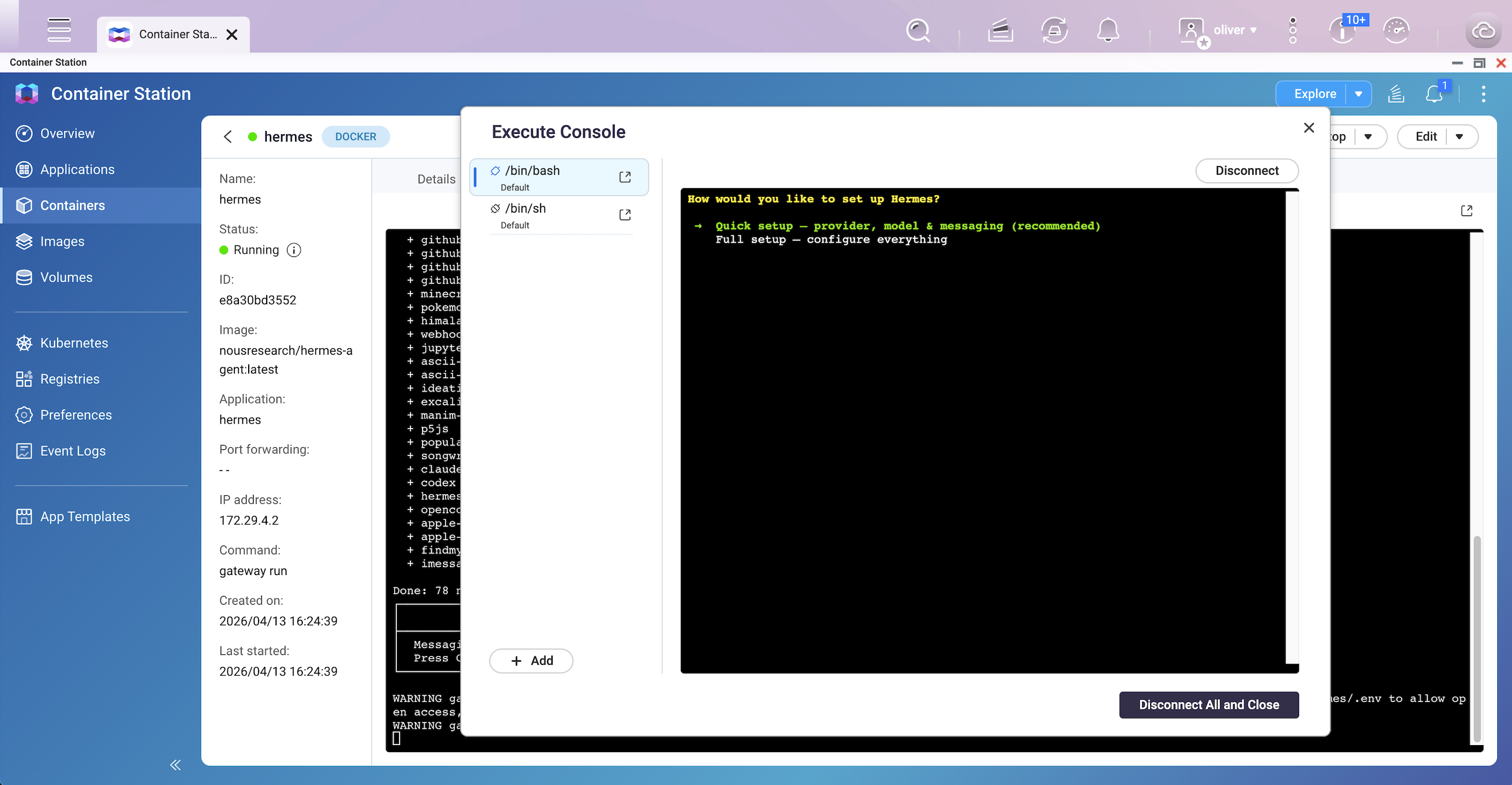
Step 3: Verify Gateway is Running
- In Container Station, select the hermes container and click Logs.
- Confirm the following lines appear in the output:
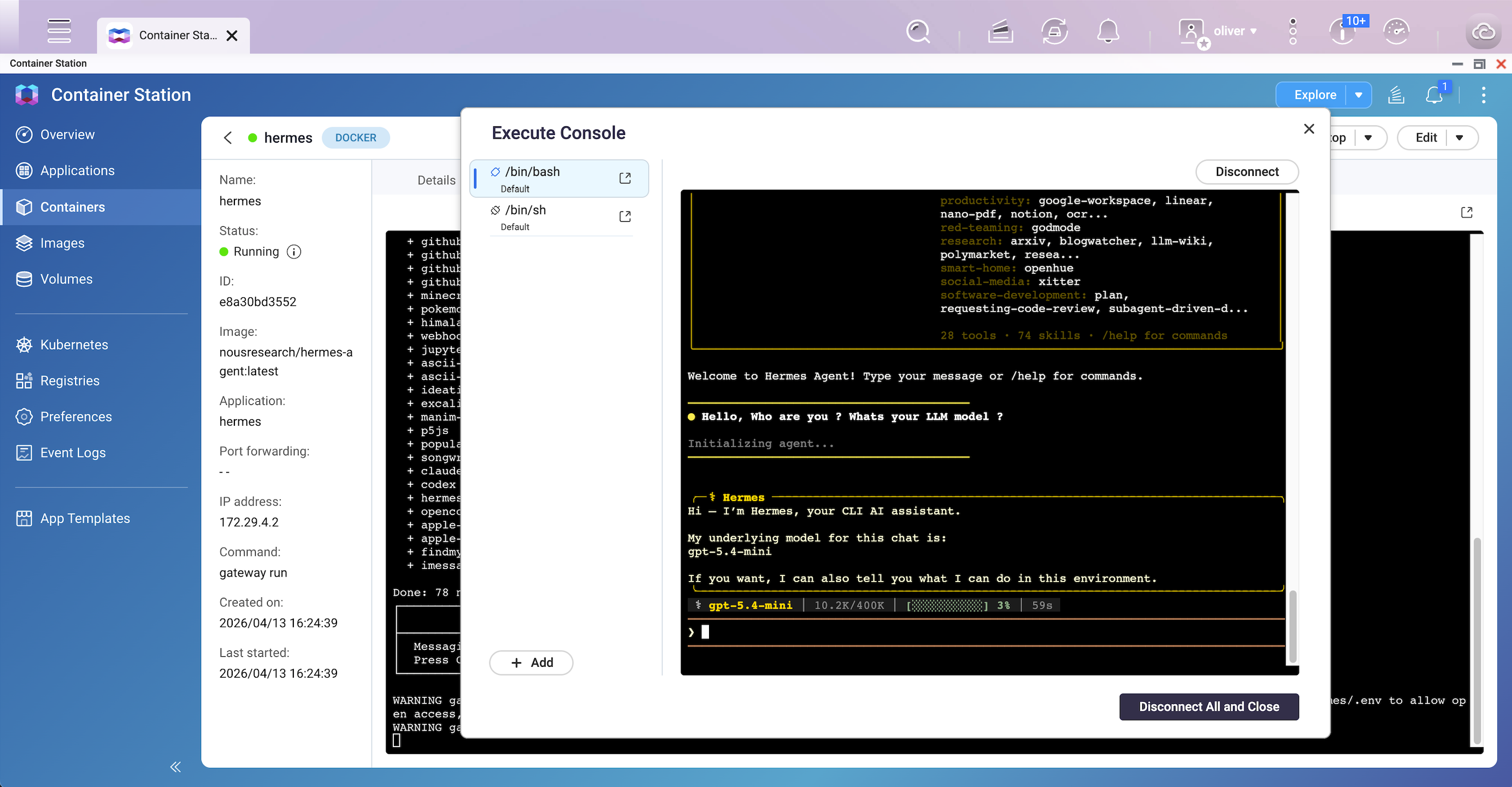
Hermes Gateway Starting... - Click Execute and select /bin/bash (or /bin/sh if bash is unavailable) to open an interactive shell.
- In the shell, run:
hermes - Then you can talk to it.
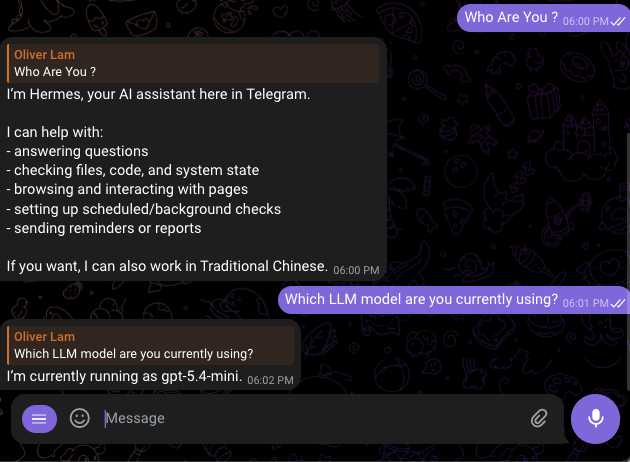
- If using Telegram, send a message to your configured bot to verify the connection.
Post-Deployment Configuration
Once your agent is running, use these methods to swap LLM providers, add new messaging platforms, or adjust agent settings for ongoing maintenance.
Method 1: Changing the LLM Provider or Model
Use the hermes model command to interactively switch providers or models at any time.
- In Container Station, select the hermes container.
- Click Execute and select /bin/bash (or /bin/sh ).
- In the terminal session, run:
hermes model - Follow the interactive prompts to select a new provider and model. The selection is saved to
config.yaml automatically.
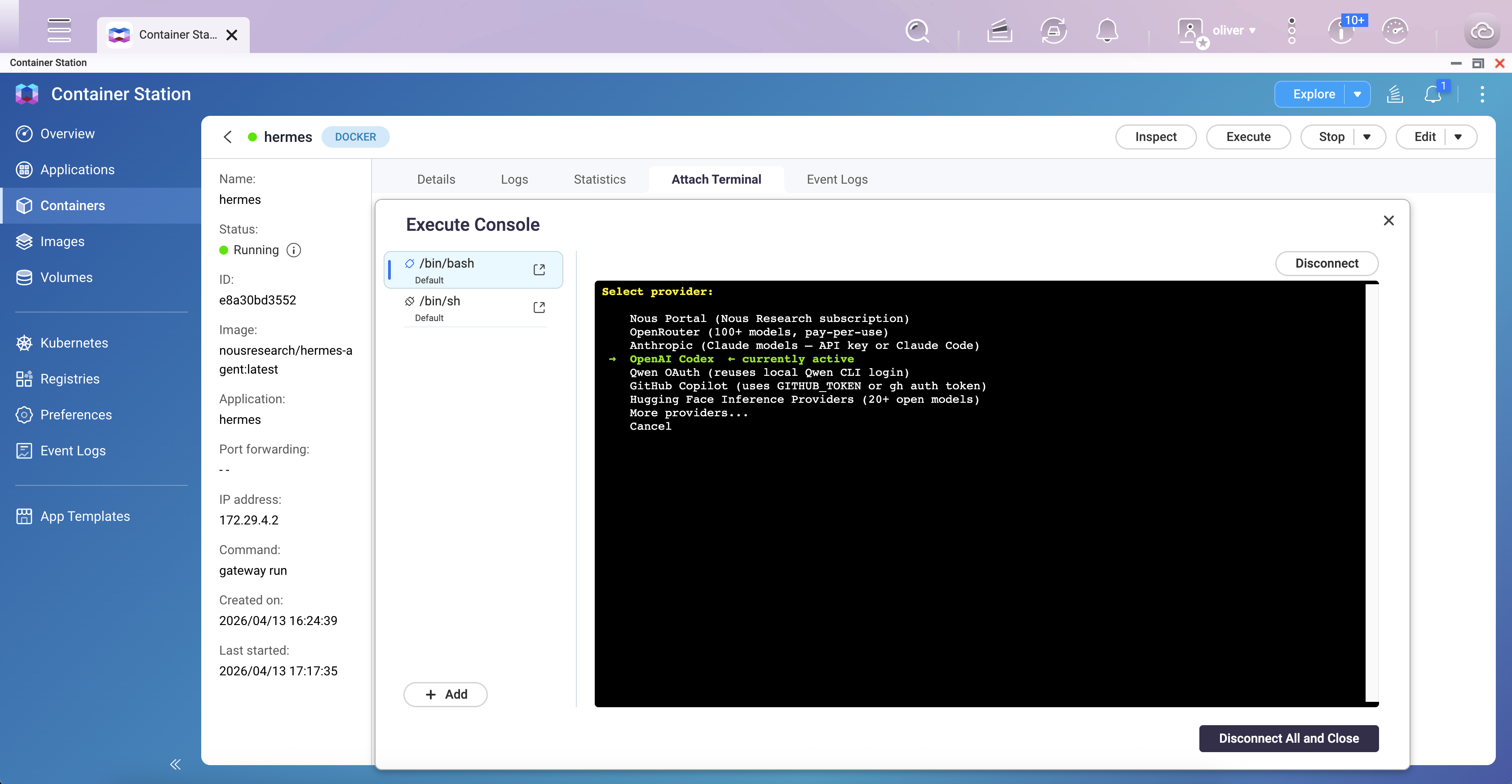
Supported providers include: anthropic, openai-codex, openai, openrouter, nous, deepseek, minimax, and others. For a full list, refer to the official CLI reference.
Method 2: Adding or Reconfiguring a Messaging Platform
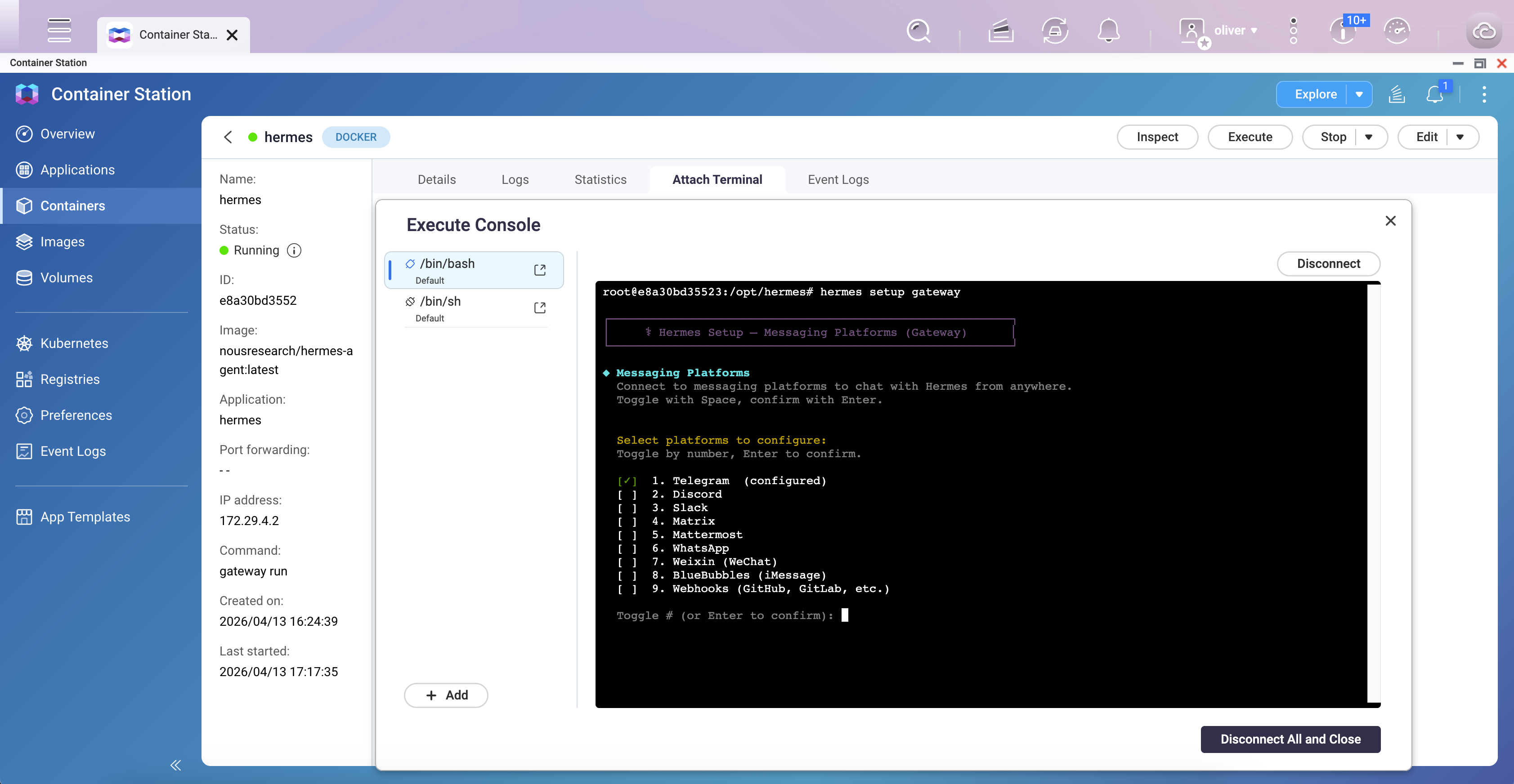
Use hermes setup gateway to add or update messaging integrations (Telegram, Discord, Slack, WhatsApp, Signal, etc.) without re-running the full setup wizard.
- In Container Station, select the hermes container.
- Click Execute and select /bin/bash.
- Run:
hermes setup gateway - Follow the prompts to add or update your messaging platform credentials.
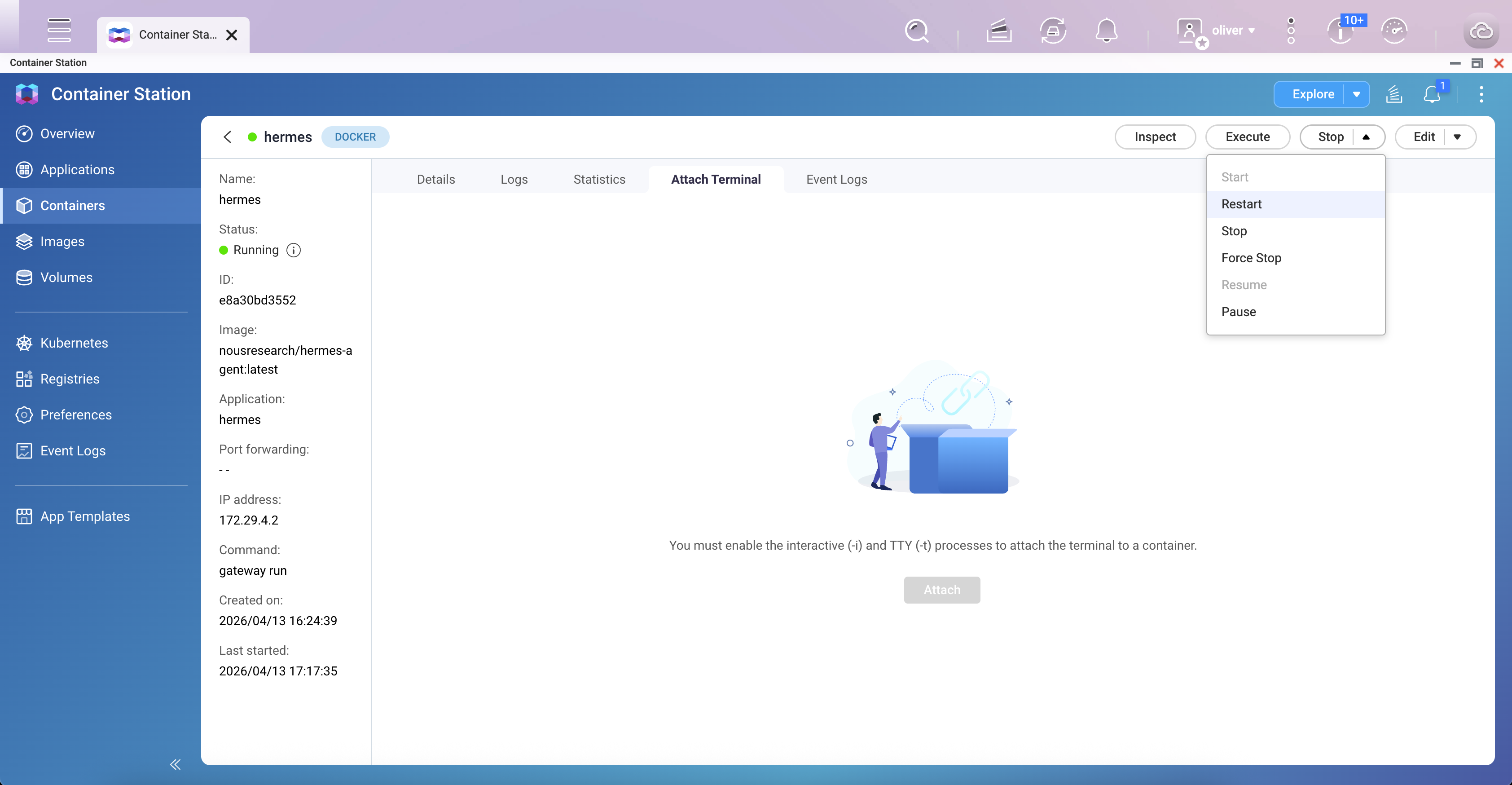
- Restart the container after completing the wizard:
exit
Then restart via Container Station — select the container and click Restart.
Method 3: Re-running the Full Setup Wizard
To reconfigure any part of the setup (model, terminal backend, tools, gateway, agent personality), run the full wizard or a specific section:
- Open a shell in the container via Container Station Execute.
- Run the full wizard:
hermes setup - Or run a specific section only:
hermes setup model — LLM provider and modelhermes setup gateway — Messaging platform configurationhermes setup tools — Enable or disable toolshermes setup terminal — Terminal backend (local, Docker sandbox, SSH)hermes setup agent — Agent identity and personality (SOUL.md)
- Restart the container after making changes.
Result
After completing this guide, Hermes Agent will be running as a persistent gateway on your QNAP NAS. It will be accessible via your configured messaging platform (e.g., Telegram), retain memory across sessions, and be configurable at any time through Container Station's Execute shell without modifying the Docker Compose file.
보안 및 위험 고려 사항
Hermes Agent는 로컬 파일에 접근하고 명령을 실행하며, 구성에 따라 API 키나 토큰과 같은 자격 증명을 사용할 수 있는 강력한 자동화 도구입니다. 따라서 사용자는 이를 신중하게 구성하고 사용에 대한 모든 책임을 져야 합니다.
- 액세스 제어: Hermes Agent나 서비스 포트를 공용 인터넷에 직접 노출하지 마십시오. 원격 액세스가 필요한 경우 VPN, IP 허용 목록, 또는 강력한 인증 메커니즘을 사용하십시오.
- 타사 확장자:신뢰할 수 있는 출처에서만 스킬이나 확장자를 설치하십시오. 보안 연구에 따르면 악성 확장자가 데이터를 도용하거나 자격 증명을 훔치려 할 수 있습니다.
- 격리 및 권한: Hermes Agent를Container Station와 같은 격리된 환경에서 실행하고 불필요한 시스템 또는 루트 권한을 부여하지 마십시오.
- 자격 증명 보호: API 키와 토큰을 신중하게 보호하고 노출이 의심될 경우 이를 교체하십시오.
적용되는 제품
이 가이드는Container Station 3.x 이상을 실행하고Docker지원이 활성화된 QNAP x86 NAS 장치(INTEL / AMD 플랫폼)에 적용됩니다.
시나리오
Hermes Agent는 Nous Research에서 개발한 오픈 소스, 자체 호스팅 AI 에이전트입니다. 지속적으로 실행되며, 세션 간 메모리를 유지하고, 일정 관리를 지원하며, Telegram 및 Discord와 같은 메시징 플랫폼과 통합됩니다. 이 가이드는Container Station를 통해 QNAP NAS에 Hermes Agent를 배포하고Docker Compose를 사용하여 지속적인 사용을 위한 구성을 다룹니다.
필수 조건
- QNAP x86 NAS 장치(예: INTEL / AMD CPU 플랫폼)
- Container Station 3.x 이상 설치 및 실행
- 최소 하나의 LLM API 키(Anthropic, OpenAI, 또는 OpenAI Codex)
- 선택 사항: Telegram 메시징 게이트웨이를 사용하는 경우 Telegram Bot 토큰
절차
초기 배포 및 설정
Hermes Agent 컨테이너를 시작하고 필수 API 키 및 메시징 통합을 처음으로 구성하기 위한 다음 단계를 따르십시오.
1단계: Container Station에서Docker Compose를 통해 배포
첫 실행 시, Compose 파일에 볼륨 경로가 선언되면Container Station이 자동으로hermes-data폴더를 생성합니다. 사전 폴더 생성이나 SSH 접근이 필요하지 않습니다. 또는, File Station를 통해 사전에 폴더를 생성할 수 있습니다.
- QNAP 웹 인터페이스에서Container Station을 엽니다.
- 응용 프로그램으로 이동하고생성을 클릭합니다.
- 응용 프로그램 생성 을 선택하고 다음의Docker Compose YAML을 붙여넣습니다:
version: "3.8"

services:
  hermes:
    image: nousresearch/hermes-agent:latest
    container_name: hermes
    restart: unless-stopped
    command: gateway run
    volumes:
      - /share/Container/hermes-data:/opt/data
- 생성을 클릭합니다. Container Station이 이미지를 가져오고 컨테이너를 시작합니다.
hermes-data폴더는/share/Container/hermes-data에 자동으로 생성됩니다. - 컨테이너목록을 확인하여 컨테이너가 실행 중인지 확인합니다. 상태는실행 중으로 표시되어야 합니다.
참고: 모든 자격 증명은 2단계의 설정 마법사에 의해 관리되며 데이터 볼륨에 저장됩니다.
2단계: 초기 설정 마법사 실행
컨테이너가 실행된 후, 대화형 셸 세션을 열어 첫 번째 구성을 완료합니다. 설정 마법사는 LLM 공급자, API 키 및 메시징 플랫폼 토큰을 구성하고 모든 설정을 지속 데이터 볼륨에 기록합니다.
- Container Station에서hermes컨테이너를 선택합니다.
- 실행을 클릭하고/bin/bash (또는 bash가 없으면/bin/sh)을 선택하여 대화형 셸을 엽니다.
- 셸에서 실행합니다:
hermes setup
- 화면의 메시지에 따라 구성합니다:
- LLM 공급자 및 모델(예: OpenAI, Anthropic, OpenAI Codex)
- API 키
- 메시징 플랫폼(예: Telegram 봇 토큰) — 이 단계에서 권장됨
- 마법사가 설정을
/opt/data/config.yaml및/opt/data/.env에 기록합니다. 이 단계는 한 번만 수행하면 됩니다. - 마법사가 완료되면
exit를 입력하여 셸을 닫고, 구성을 적용하기 위해Container Station를 통해 컨테이너를 다시 시작합니다.
3단계: 게이트웨이가 실행 중인지 확인
- Container Station에서hermes컨테이너를 선택하고Logs를 클릭합니다.
- 출력에 다음 줄이 나타나는지 확인합니다:
Hermes Gateway Starting... - Execute를 클릭하고/bin/bash (또는 bash가 없으면/bin/sh)를 선택하여 대화형 셸을 엽니다.
- 셸에서 실행합니다:
hermes - 그런 다음 대화할 수 있습니다.
- Telegram을 사용하는 경우, 구성된 봇에 메시지를 보내 연결을 확인합니다.
배포 후 구성
에이전트가 실행되면 LLM 공급자를 교체하거나 새로운 메시징 플랫폼을 추가하거나에이전트 설정을 조정하여 지속적인 유지 관리를 수행합니다.
방법 1: LLM 공급자 또는 모델 변경
hermes model명령을 사용하여 언제든지 공급자나 모델을 대화형으로 전환합니다.
- Container Station에서hermes컨테이너를 선택합니다.
- Execute를 클릭하고/bin/bash (또는/bin/sh )를 선택합니다.
- 터미널 세션에서 실행합니다:
hermes model - 대화형 메시지에 따라 새 공급자와 모델을 선택합니다. 선택 사항은
config.yaml에 자동으로 저장됩니다.
지원되는 제공업체에는anthropic, openai-codex, openai, openrouter, nous, deepseek, minimax등이 포함됩니다. 전체 목록은공식 CLI 참조을 참조하세요.
방법 2: 메시징 플랫폼 추가 또는 재구성
hermes setup gateway을 사용하여 전체 설정 마법사를 다시 실행하지 않고도 메시징 통합(Telegram, Discord, Slack, WhatsApp, Signal 등)을 추가하거나 업데이트합니다.
- Container Station에서hermes컨테이너를 선택합니다.
- Execute를 클릭하고/bin/bash를 선택합니다.
- 실행:
hermes setup gateway - 메시징 플랫폼 자격 증명을 추가하거나 업데이트하려면 지침을 따르세요.
- 마법사를 완료한 후 컨테이너를 재시작합니다:
exit
그런 다음Container Station을 통해 재시작합니다 — 컨테이너를 선택하고Restart를 클릭합니다.
방법 3: 전체 설정 마법사 다시 실행
설정의 일부(모델, 터미널 백엔드, 도구, 게이트웨이, 에이전트 성격)를 재구성하려면 전체 마법사 또는 특정 섹션을 실행합니다:
- Container Station Execute를 통해 컨테이너에서 셸을 엽니다.
- 전체 마법사 실행:
hermes setup - 또는 특정 섹션만 실행:
hermes setup model — LLM 제공업체 및 모델hermes setup gateway — 메시징 플랫폼 구성hermes setup tools — 도구 활성화 또는 비활성화hermes setup terminal — 터미널 백엔드(로컬, Docker샌드박스, SSH)hermes setup agent — 에이전트 정체성과 성격(SOUL.md)
- 변경 사항을 적용한 후 컨테이너를 재시작합니다.
결과
이 가이드를 완료하면 Hermes Agent가 QNAP NAS에서 지속적인 게이트웨이로 실행됩니다. 구성된 메시징 플랫폼(예: Telegram)을 통해 액세스할 수 있으며, 세션 간 메모리를 유지하고Container Station의 Execute 셸을 통해 언제든지 구성할 수 있으며Docker Compose 파일을 수정하지 않아도 됩니다.


