


How to automount samba share after macOS reboots
最終更新日:
2022-06-24
Applicable Products:
- macOS
Follow the steps below to mount the network share automatically after macOS boots up.
- In macOS, go to System Preference > Users & Groups > Login Items, press + (Add)
Finder Windows opens.

- In macOS Finder, go to Locations > Network and navigate to the QNAP NAS
- Click "Connect As..." then Sign in the account, the shared folders should appears
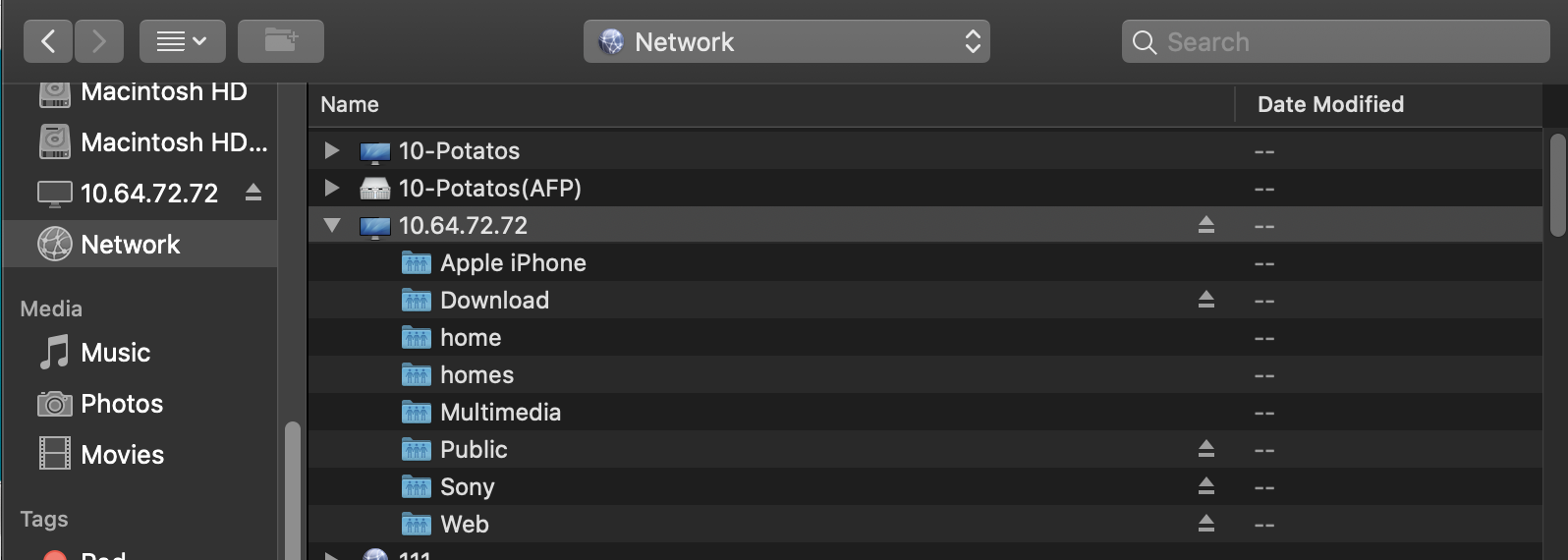
- Select the shared folder you want to mount and Click "Add"
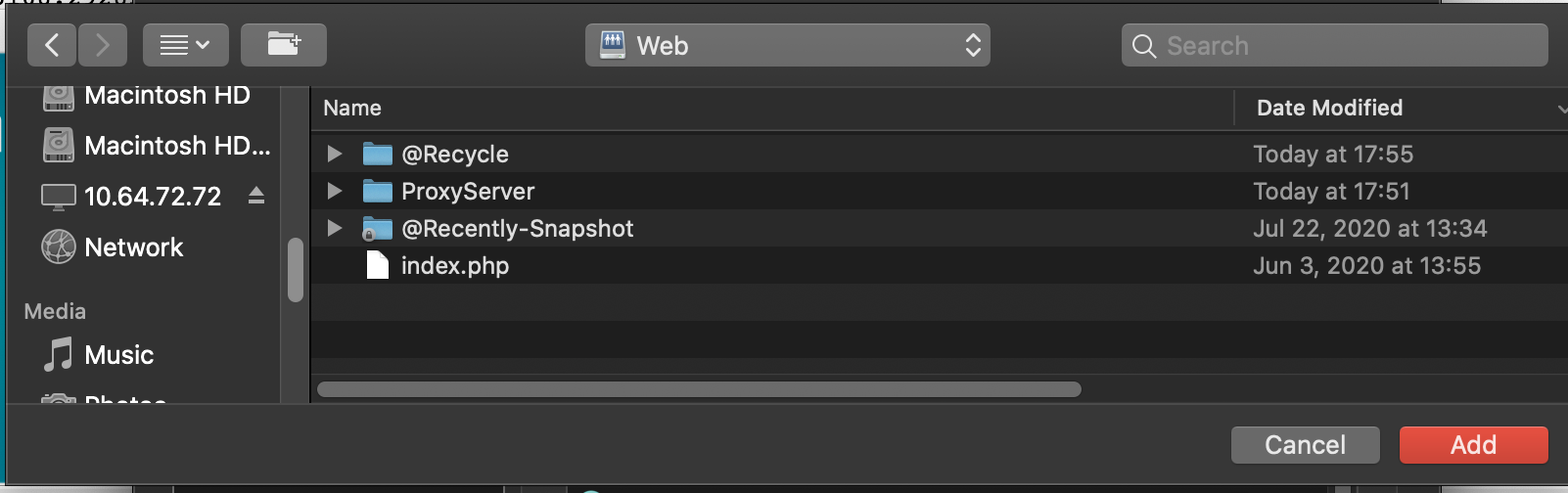
- The network share is listed in login item.

- Next time macOS reboots, the shared folder will be automatically mounted.


