


Why is Multimedia Console not generating thumbnails?
Applicable Products
Multimedia Console
Diagnosis
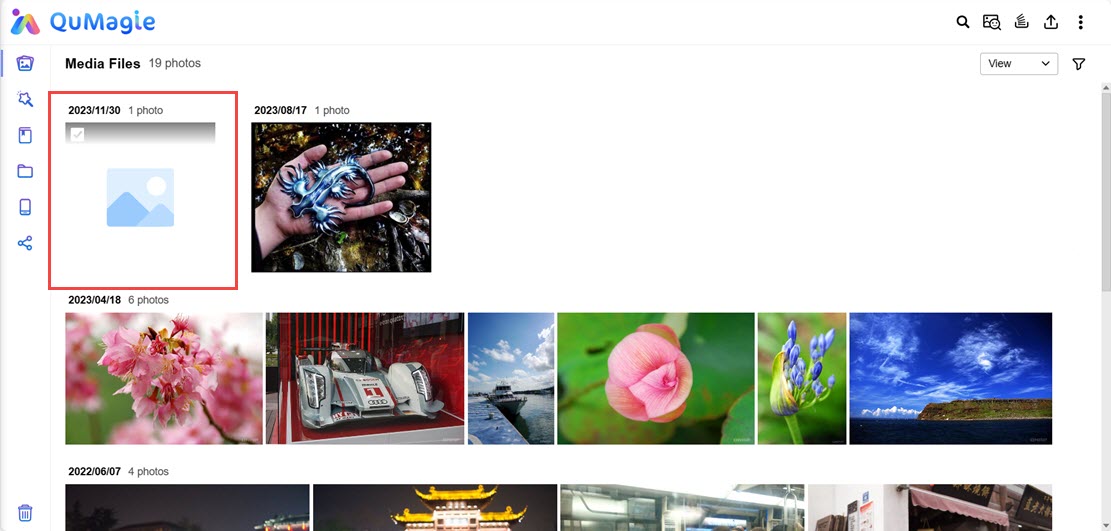
Many multimedia or file management apps use thumbnails generated by Multimedia Console to display image/video files. If Multimedia Console is unable to generate a thumbnail for an image/video, the image/video may be displayed with a default generic thumbnail:
Missing thumbnails in QuMagie
Solutions
Multimedia Console may fail to a generate thumbnail for an image/video for one or more of the following reasons:
The file format of the image/video is not supported
If your file has a format or codec that is not supported on your system, then Multimedia Console will be unable to generate a thumbnail.
The file format of the image/video requires a license
Certain media file formats require a CAYIN MediaSign Player license. If you do not have the required license activated, then Multimedia Console will be unable to generate a thumbnail. For details on how to purchase and activate licenses, see "Licenses" in the QTS User Guide or QuTS hero User Guide.
Thumbnail generation may be disabled or configured incorrectly in Multimedia Console
To ensure thumbnail generation is enabled and correctly configured in Multimedia Console, do the following:
- Open Multimedia Console.
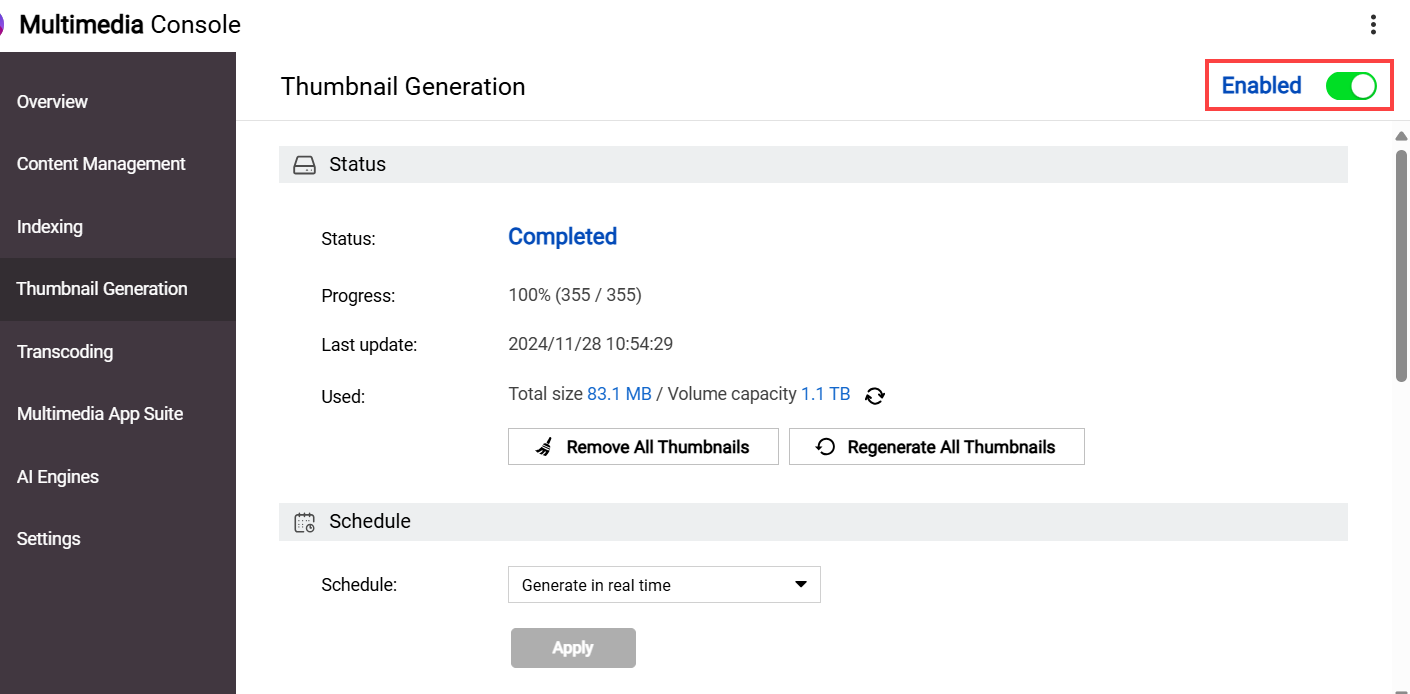
- Go to Thumbnail Generation.
- Ensure that Thumbnail Generation toggle is enabled.
- Ensure that the Status of thumbnail generation is Completed.
After uploading/creating new images, Multimedia Console will begin generating thumbnails based on your thumbnail generation settings. If the thumbnail generation status is not Completed, wait until the status is Completed, and then look at your image/video.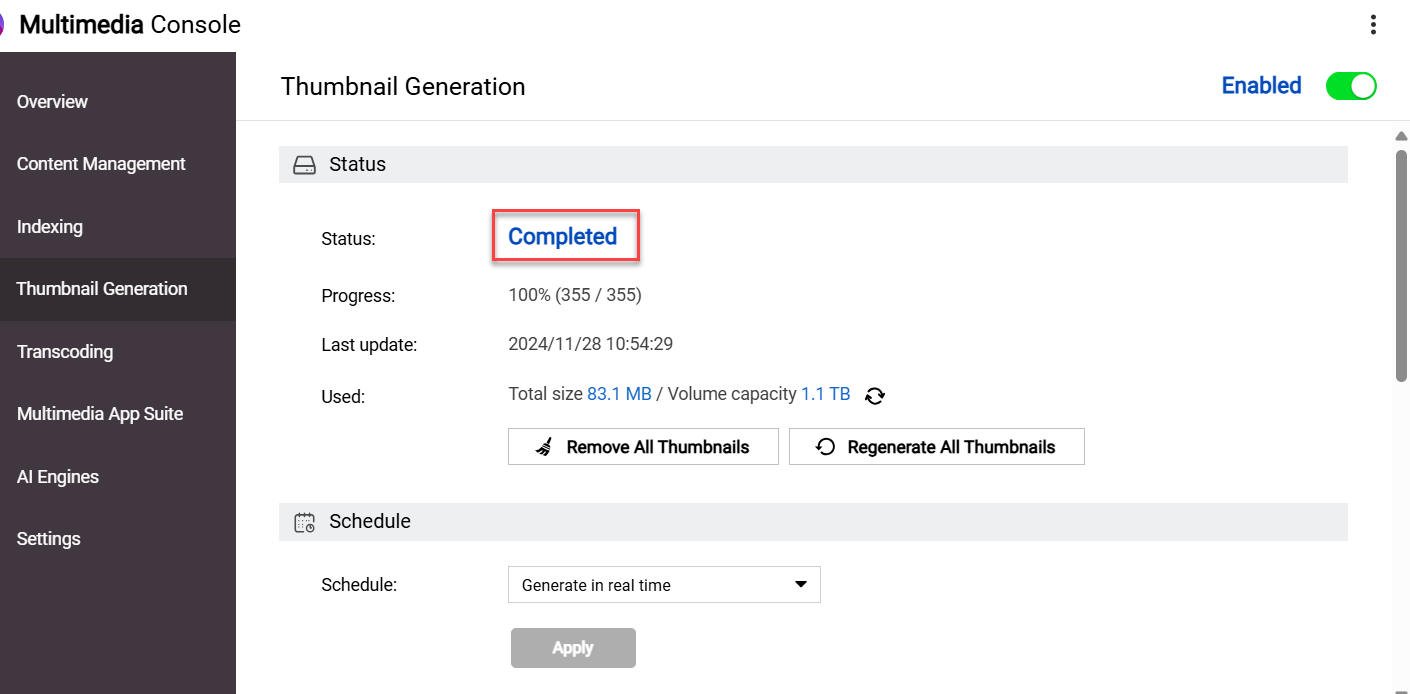
- Scroll down to Advanced settings and check that image/video is not being excluded from thumbnail generation.
- Ensure that Thumbnail Generation toggle is enabled.
The image/video file isn't indexed yet
For many multimedia and file management apps to display images/videos the image/video files must be indexed by your system. Indexing is a process of analyzing and storing media files so that they can be more efficiently used by multimedia apps. To ensure that your images/videos have been indexed, do the following:
- Open Multimedia Console.
- Go to Indexing.
- Under Settings, locate the Index field.
If your system is still indexing files, the Index field will be "Indexing...":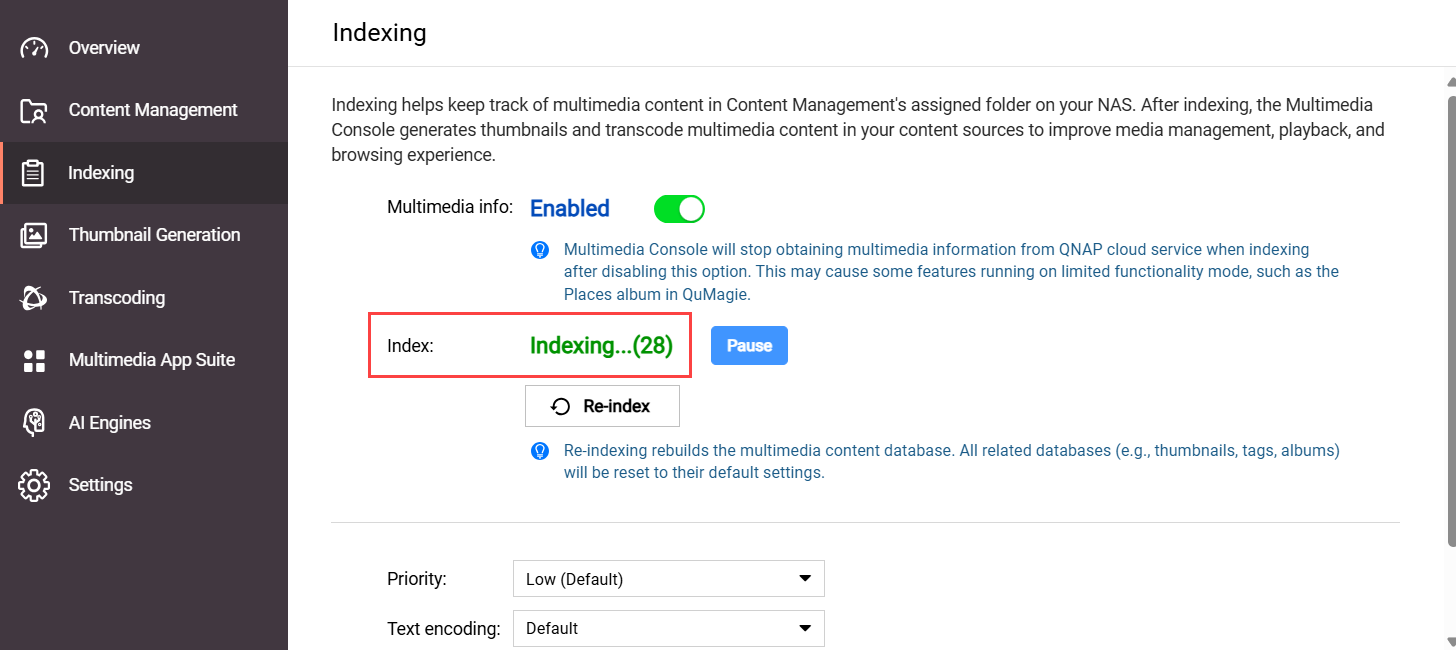 If your system has finished indexing files, the Index field will be "Completed":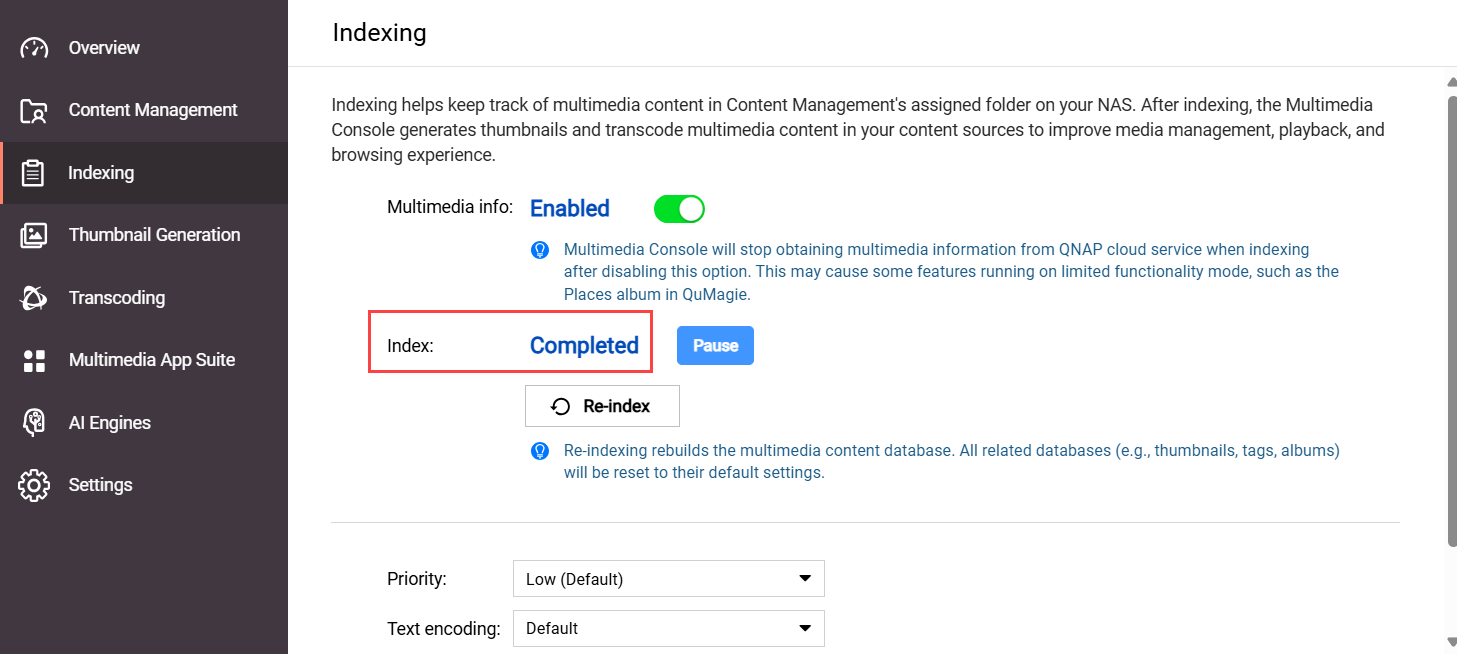
- If your system is still indexing files, wait until the indexing finishes, and then check your image/video.
The system file index has been corrupted
Some apps may not be able to display images/videos in your content source folders, or display their thumbnails correctly, if the system media index (also sometimes called the "Multimedia Console index" or "index database") has become corrupted. For various reasons, the system media index may become corrupted. There is no way to confirm if the system file index is corrupted or not, but you can re-index the system file index and see if that resolves your issue:
- Open Multimedia Console.
- Go to Indexing.
- Under Settings, click Re-index.
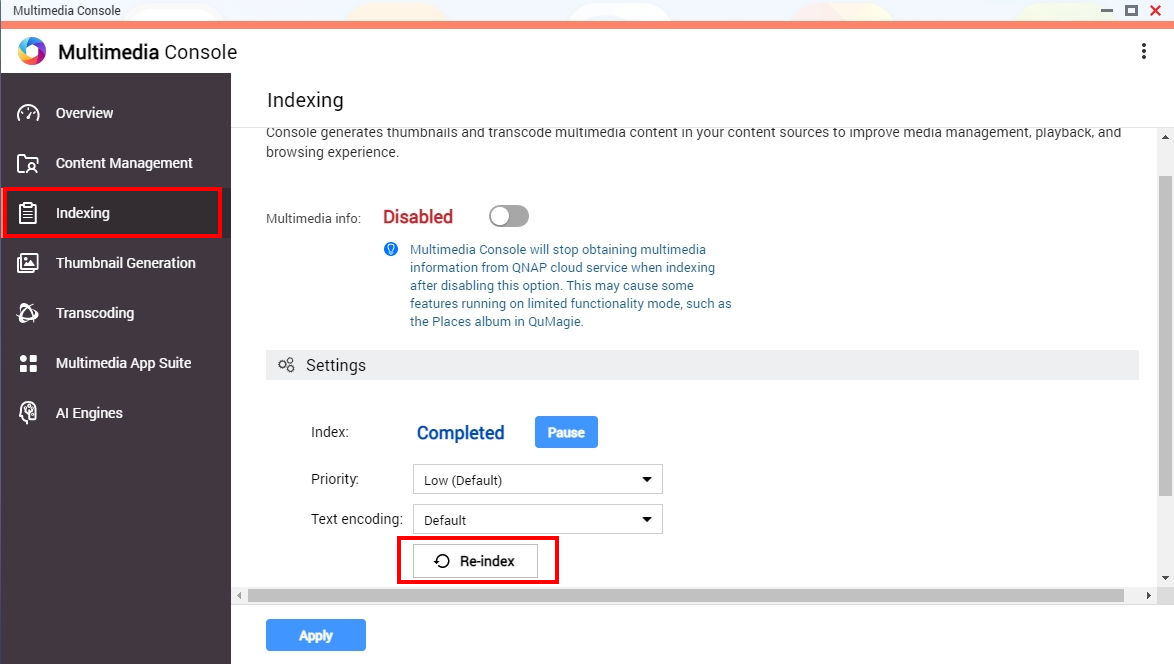 Your system will re-index all media files in your content source folders. This may take some time. After the indexing is complete, you can check your image/video.
Your image/video file is above the maximum supported size
Multimedia Console will not generate a thumbnail for an image/video if any of the following apply:
- The width x height of the image/video is greater than 500,000,000 pixels.
- Your NAS device has 2058 MB of total RAM or less and the width x height of the image/video is greater than 240,000,000 pixels.
- Your NAS device has 1024 MB of total RAM or less and the width x height of the image/video is greater than 51,000,000 pixels.
- The file size of the image/video is greater than 1/8 of your NAS device's total RAM.
- For TAS files, if the file is greater than 60 MB.
If Multimedia Console still cannot generate a thumbnail for your image/video, you can content QNAP support for further assistance.


