


How do I restore files to my Windows PC or server with HDP Backup Explorer?
Applicable Products
HDP for PC/VM, HDP PC Agent
Starting from version 2.3.1, the product previously known as HDP has been renamed to HDP for PC/VM.
Starting from version 1.3.0, the product previously known as NetBak PC Agent has been renamed to HDP PC Agent.
Introducing HDP Backup Explorer
HDP for PC/VM Backup Explorer allows you to manually restore individual files and folders to your Windows PC or Windows server.
HDP Backup Explorer can restore individual files and folders, but to restore your entire Windows PC/server system or individual volumes, use HDP PC Agent. For details, see How do I backup and restore my Windows PC or server with HDP PC Agent?
1. Open HDP Backup Explorer
You can open HDP Backup Explorer via HDP for PC/VM or HDP PC Agent
Open HDP Backup Explorer via HDP for PC/VM
- Log into your NAS with an administrator account
- Open HDP for PC/VM.
- Go to Backup.
- Locate the backup job for your PC/server.
- Click
 .
. - Click Backup Explorer.
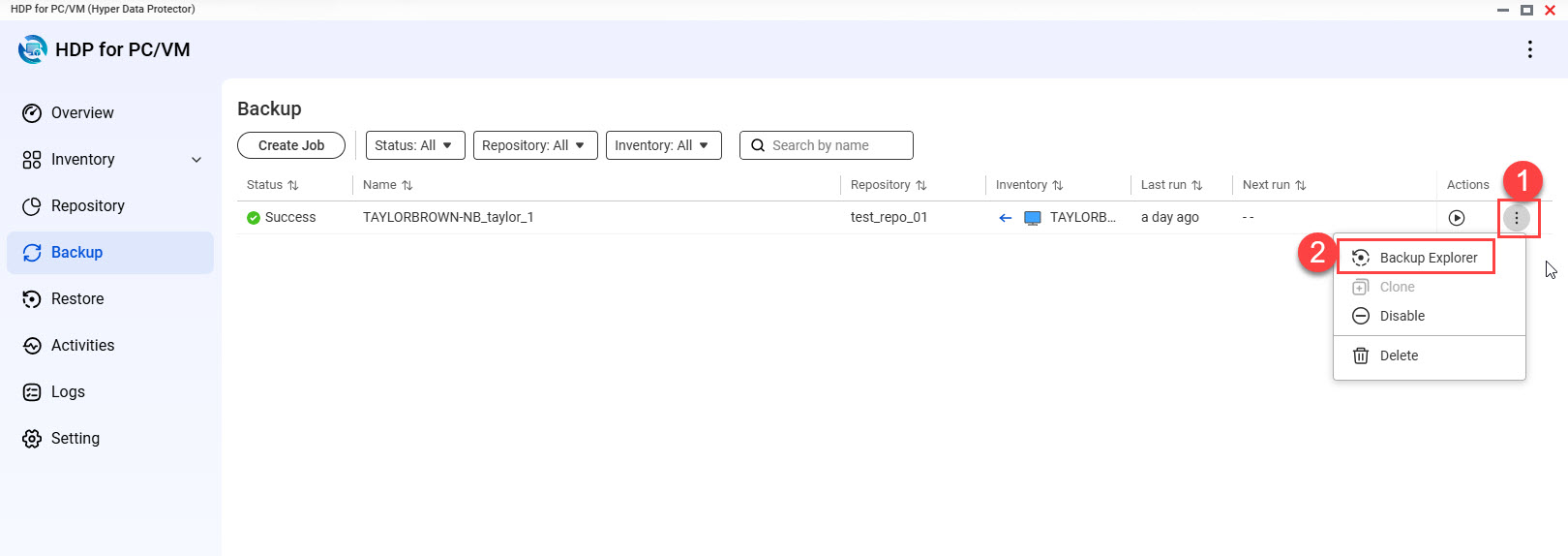
Open HDP Backup Explorer via HDP PC Agent
- Open HDP PC Agent on your Windows PC/server.
- Click
 .
. - Click Backup Explorer.
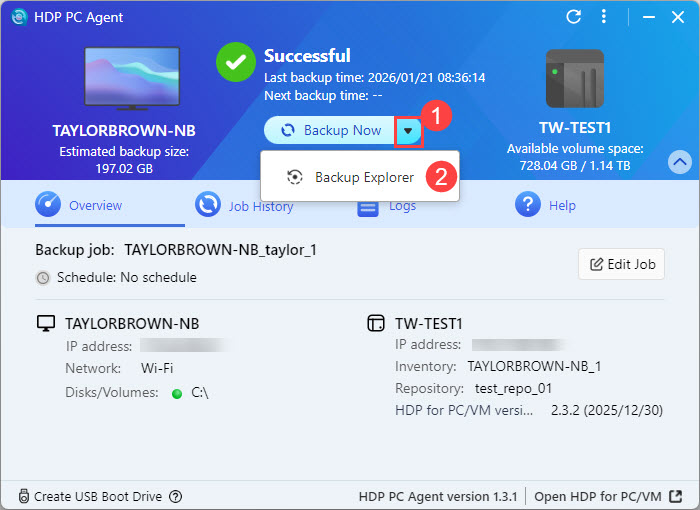
2. Restore a file or folder with HDP Backup Explorer
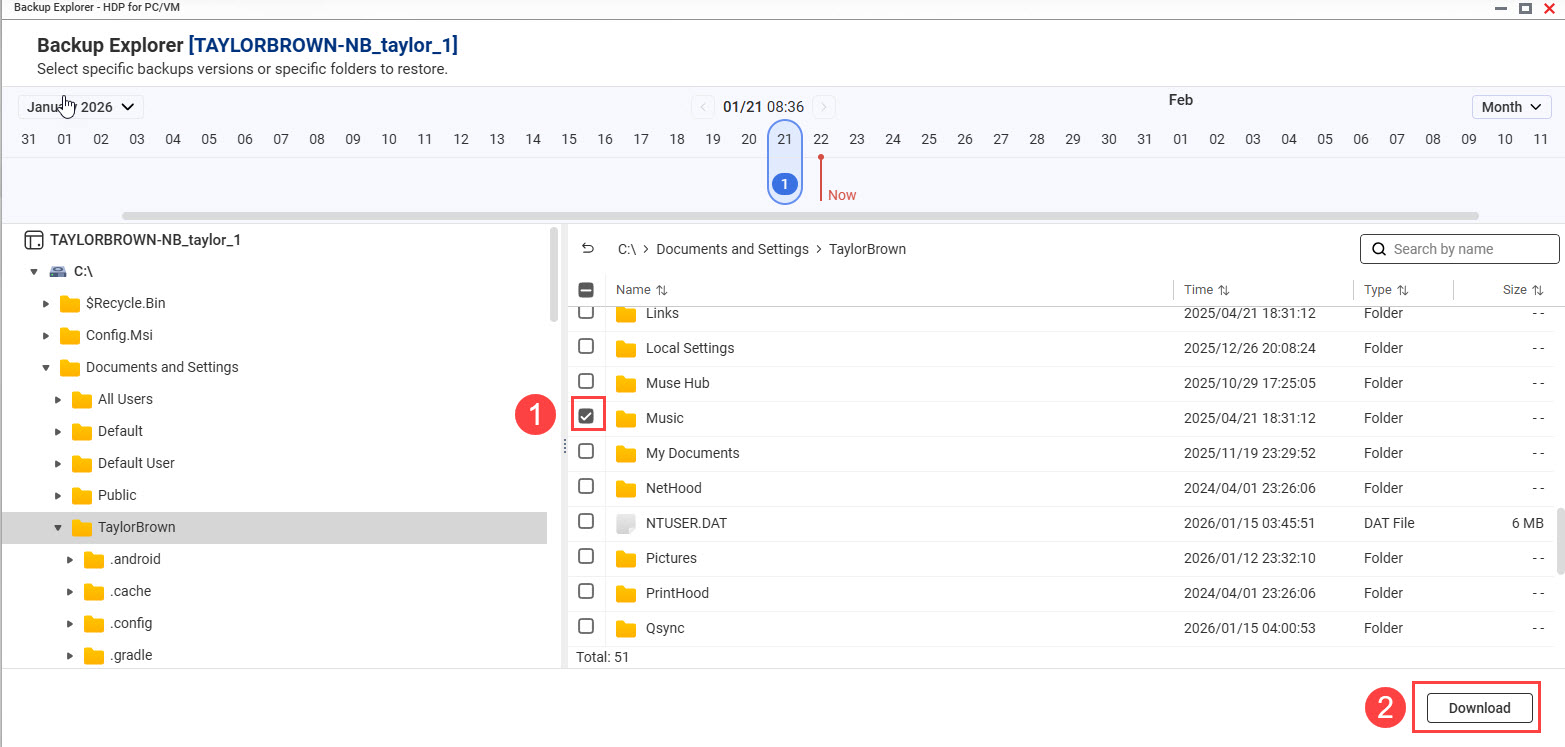
On the main page, HDP Backup Explorer displays a backup timeline showing all backups performed in chronological order, and the contents of each backup. To restore files or folders to your Windows PC/server, perform the following steps:
- Select a backup version.
- Click Month and select the timeline display units.
- Open the date picker and select the year and month.
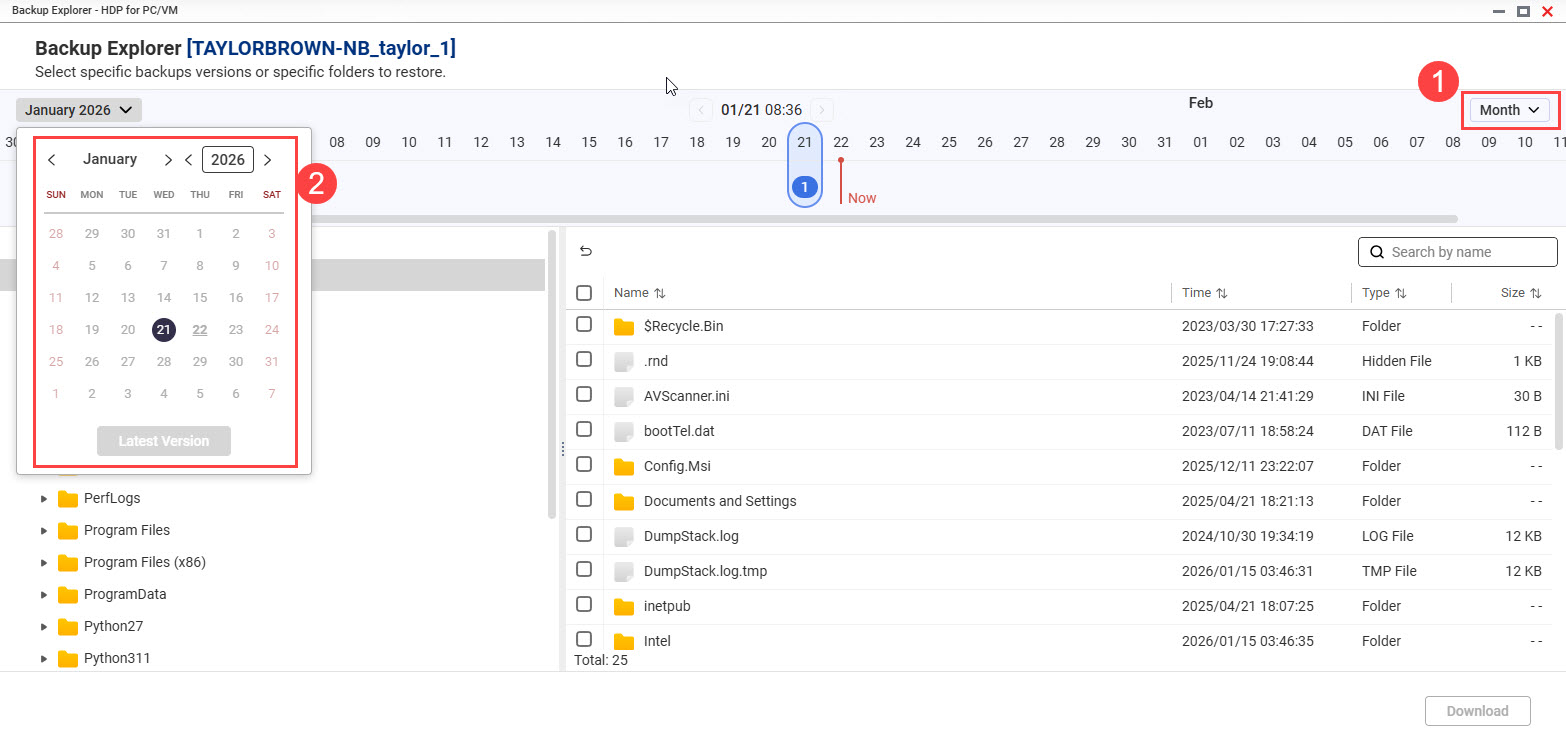
- Scroll the timeline left or right to locate the backup version.TipPress and hold SHIFT and scroll your mouse wheel to scroll left and right on the backup timeline.
- Click the backup.
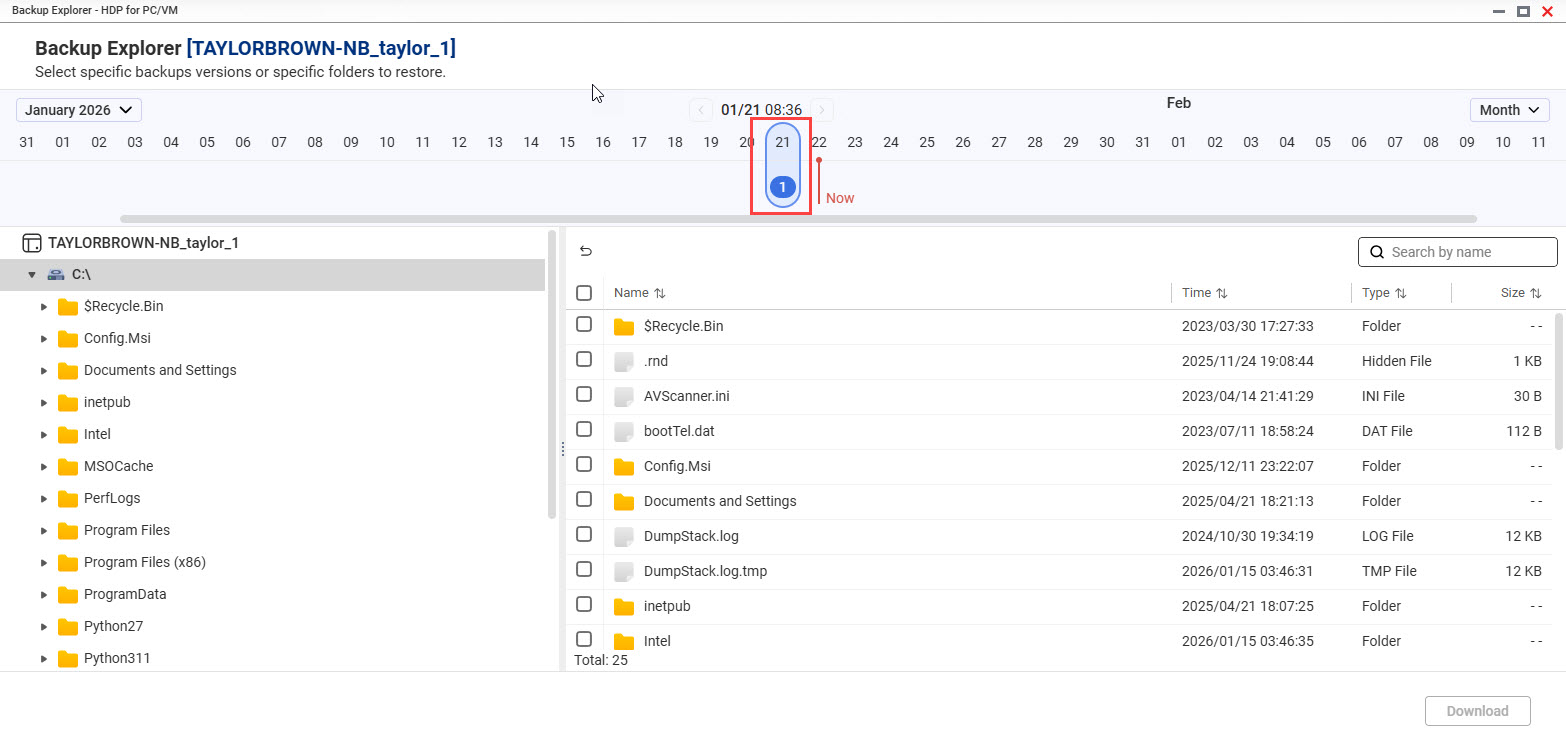
- Backup Explorer displays all files and folders that were backed up.
- Select the files and folders.
- Click Download.
- Replace your original files and folders with files and folders just downloaded.
Further Reading
Using HDP for PC/VM to Back Up Hypervisors to a QNAP NAS
How to Back Up and Import HDP Repositories to a Remote QNAP NAS


