


How can I recover files encrypted by ransomware using snapshots?
Applicable Products:
All QTS NAS models with snapshot functionality
Scenario
My files have been encrypted by ransomware, but I regularly create local snapshots. How can I recover my files and reorganize the NAS environment afterward?
Best Practice
1. If there are valid snapshots on the NAS, proceed with the following steps. If you do not have valid snapshots, it is generally impossible to decrypt the ransomware-encrypted files. Please refer to this guide for more details.
2. To prevent further attacks before file recovery or after recovery is completed, disconnect the NAS from the internet. For example, remove the default gateway or directly connect the computer to the NAS using a network cable (a standard Ethernet cable is sufficient) without connecting to other networks.
3. Restore from a snapshot:
(1) Open the Snapshot Manager and confirm that the files in the snapshot are not encrypted. For example, the file extensions in the snapshot should appear normal:
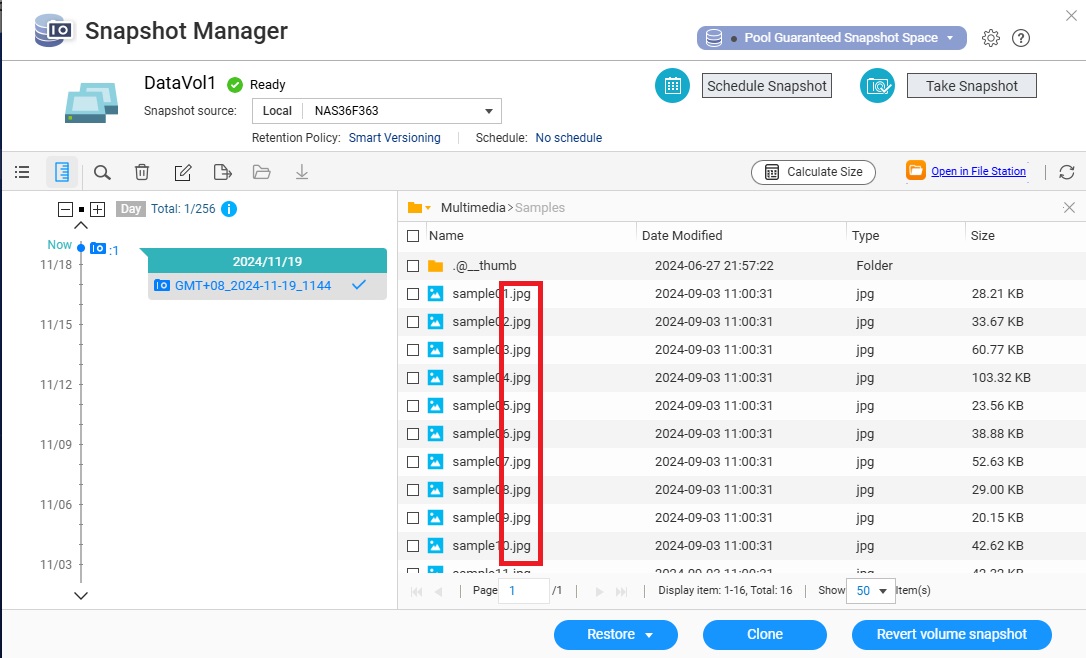
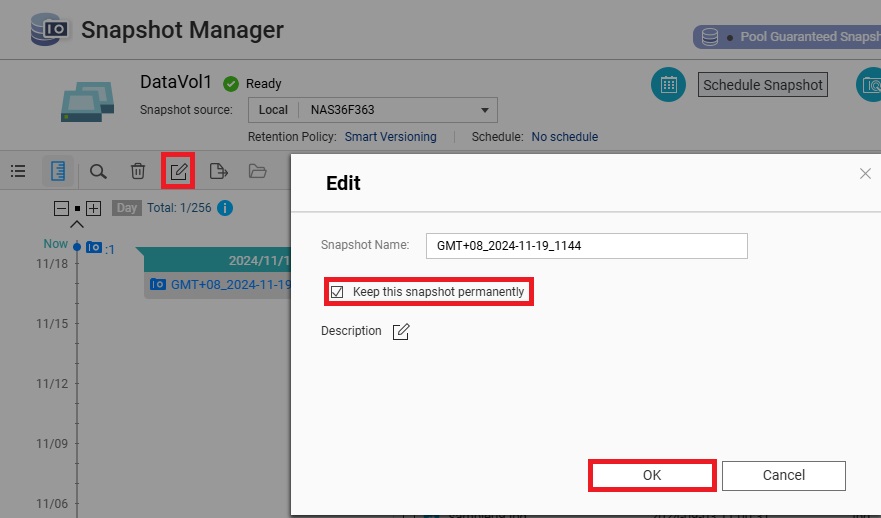
(2) For the useful snapshot, temporarily set its retention policy to [Permanent] to prevent it from being automatically deleted after the retention period:
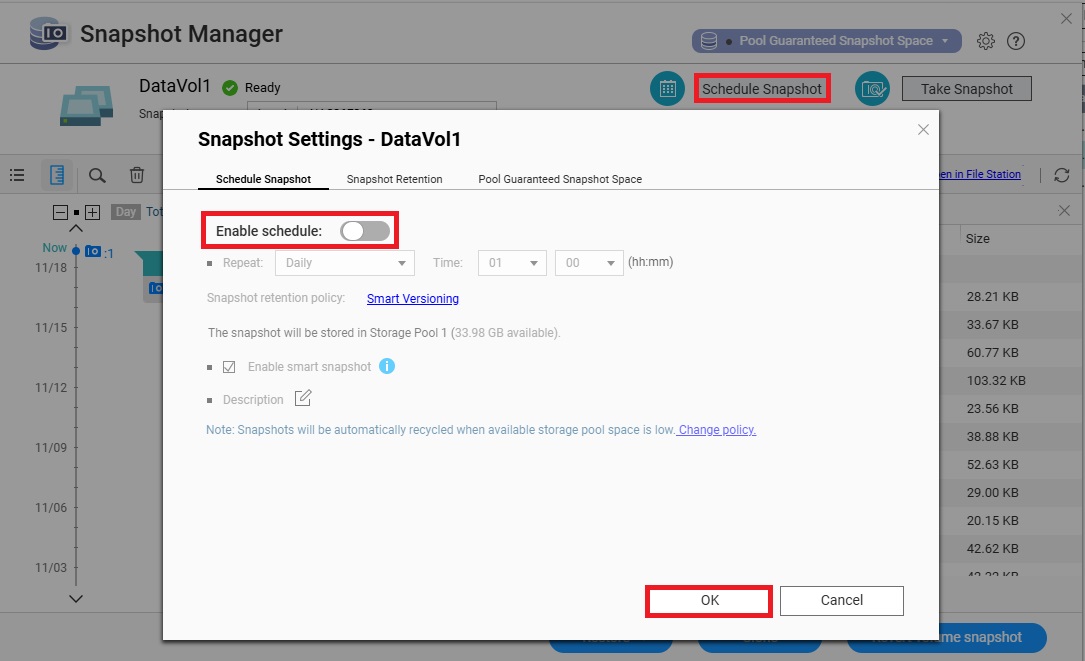
(3) Disable the snapshot schedule to prevent new snapshots from being generated and consuming the storage pool space before backups are completed:
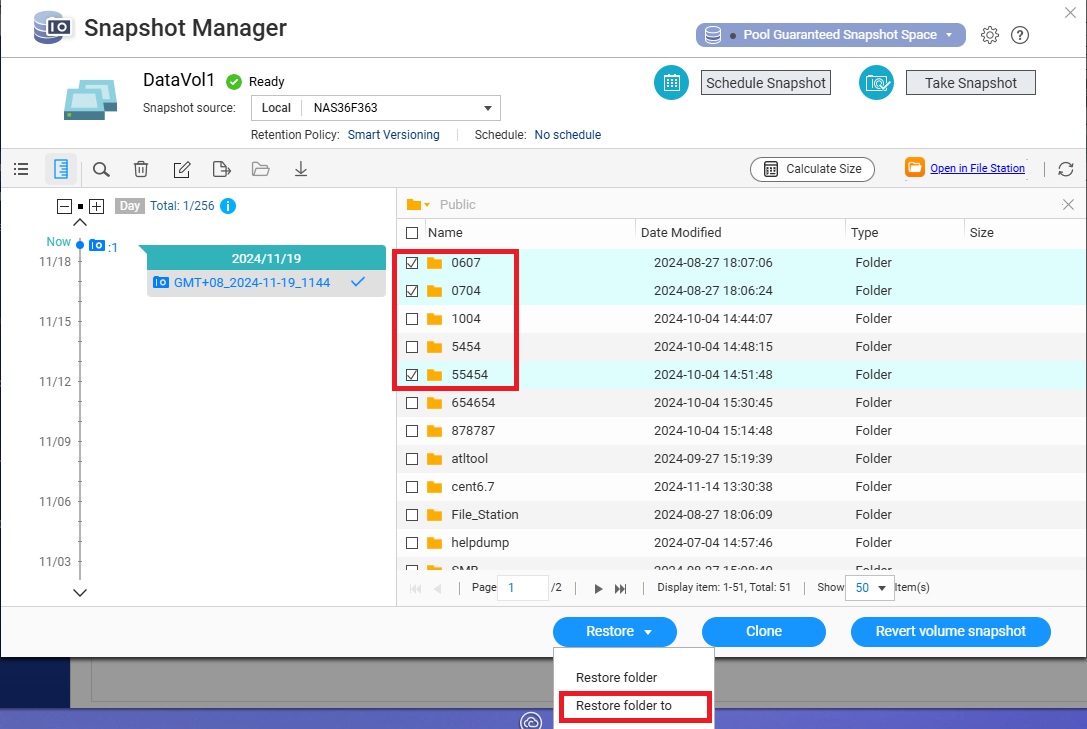
(4.1) Based on the current data volume stored on the NAS, connect a USB external hard drive with greater capacity than the data volume to the NAS. Select the folder(s) you want to restore, click [Restore] > [Restore Folder to], and choose the path of the external hard drive in the new window:
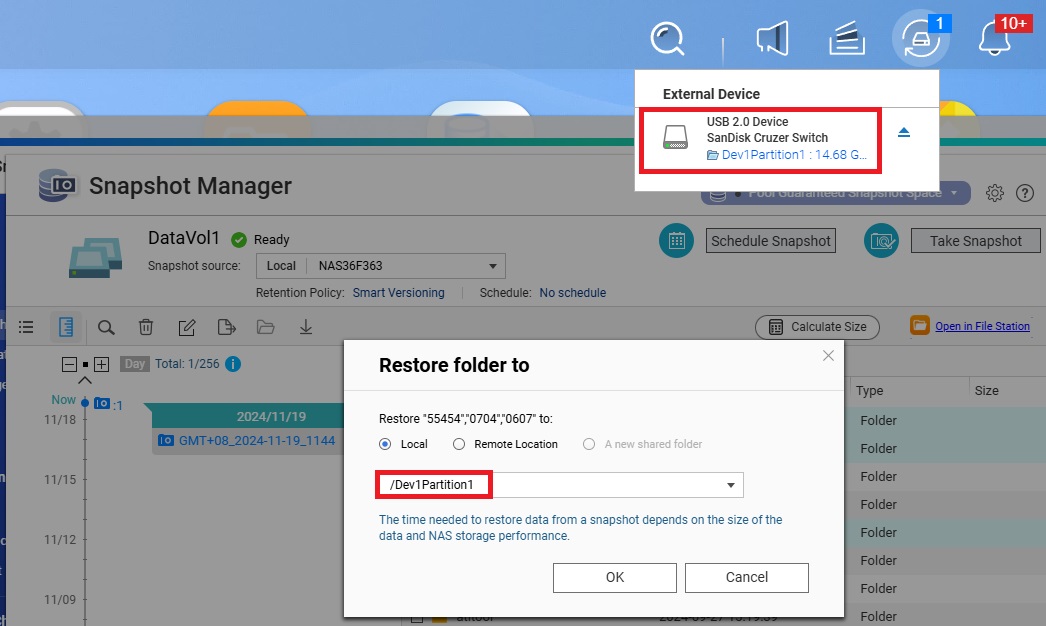
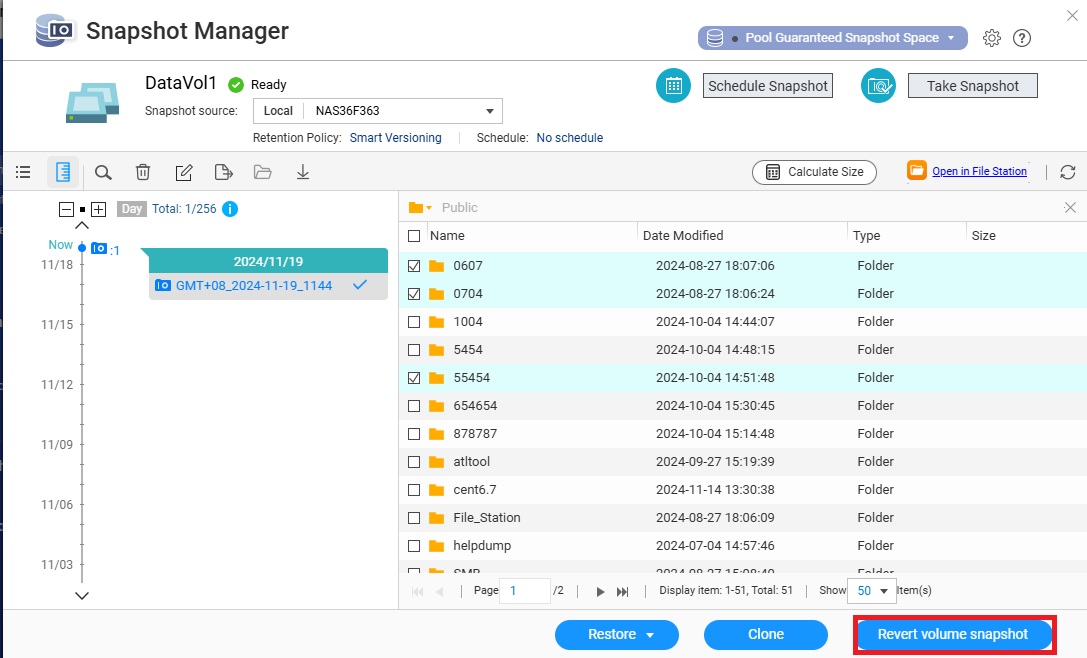
(4.2) If the data volume on the NAS is large and no external hard drive is currently available, use the [Restore Volume Snapshot] option. Be aware that all changes to files made after the snapshot date will be lost. Before proceeding, back up any files created or modified after the snapshot date (focus on non-encrypted files).
After restoring the volume snapshot, restart the NAS and update the firmware to the latest version. Then, locate backup media to back up your files. You can also use HBS3 for this purpose. Refer to this guide for assistance.
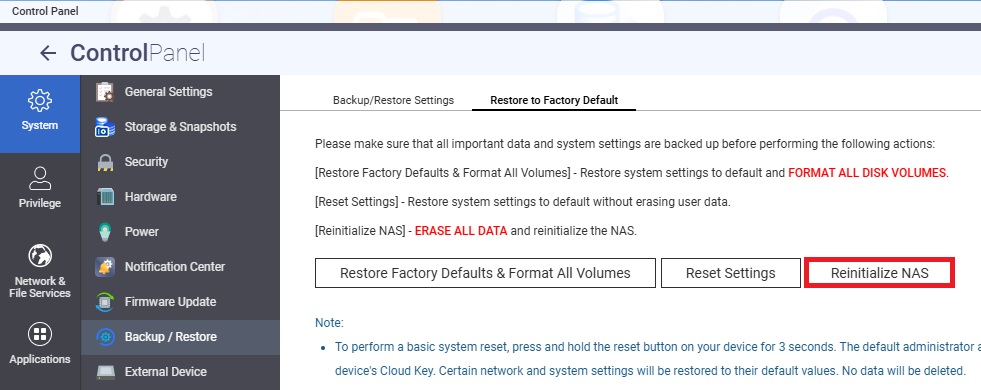
4. Once the files are backed up, it is recommended to reinitialize the NAS that was attacked by ransomware and update it to the latest version:
5. Refer to this guide to enhance the security of your NAS.
6. After completing the adjustments, transfer the files back to the NAS using HBS3 or File Station.


