


How to create a RAID50 / RAID60 storage pool in QES NAS?
To create a RAID50 / RAID60 storage pool in QES NAS, please follow the steps below:
-
Go to Storage Manager > Storage space page.
-
Select New Storage Pool in Create menu to start the pool creation.

-
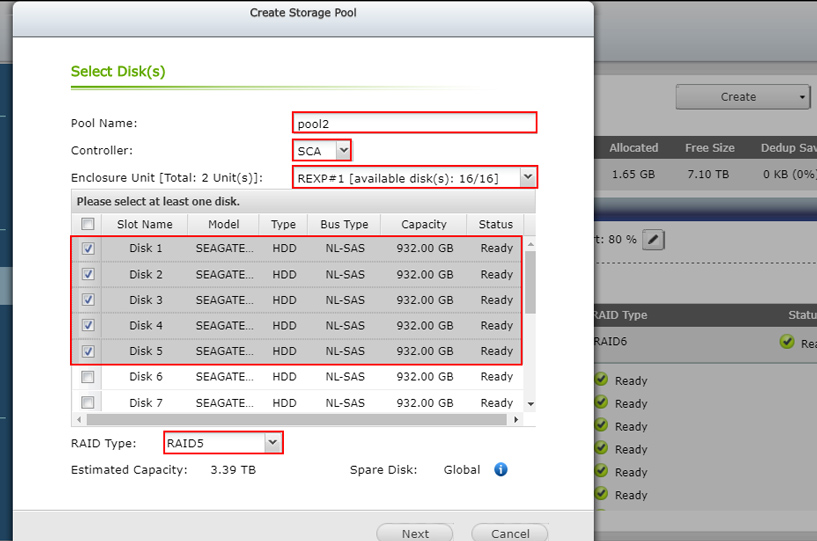
Enter and select below options to create the pool.
Pool Name: Enter pool name here.
Controller: Select the pool owner. (this option only exists in dual-controller NAS)
Enclosure Unit: You are allowed to select disks in the NAS or expansion enclosure.
Disks Lists: Select minimum required disks for each RAID type here.
RAID Type: Select RAID type here.
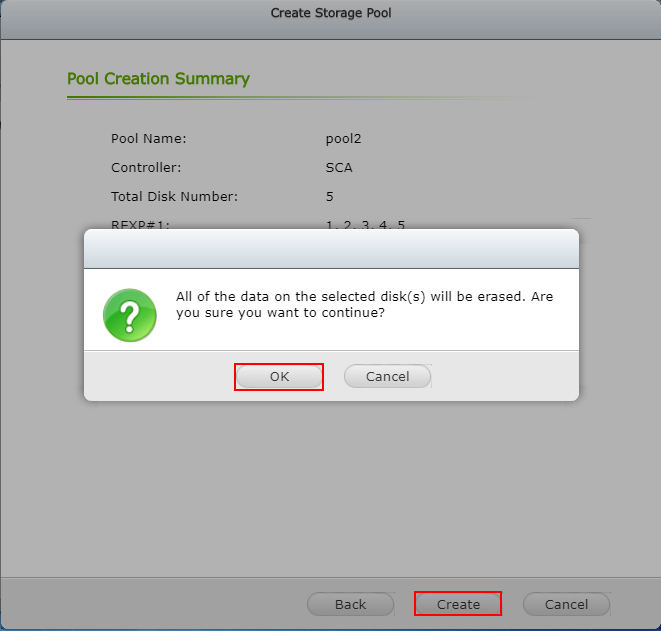
And click Next button to view Pool Creation Summary.
Click Create button and then click OK to confirm.
A RAID 5 pool is created.

-
Go to Storage Manager >> Storage space page and select the pool you just created.
-
Select Expand Pool in Actions menu to perform the pool expansion.

-
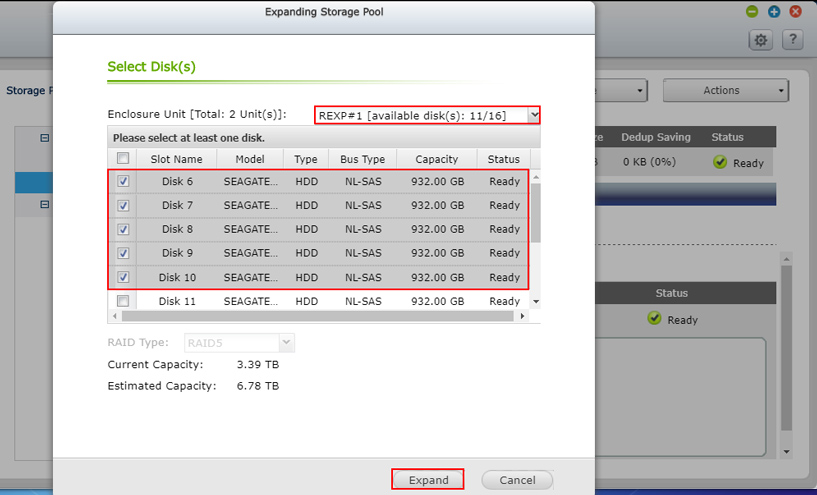
Select these options to expand pool.
Enclosure Unit: You are allowed to select disks in the NAS or expansion enclosure.
Disks Lists: Select same amount of disks of previous pool you created. (Ex: 5 disks)
And click Expand button to expand the pool.
A RAID50 pool is created.
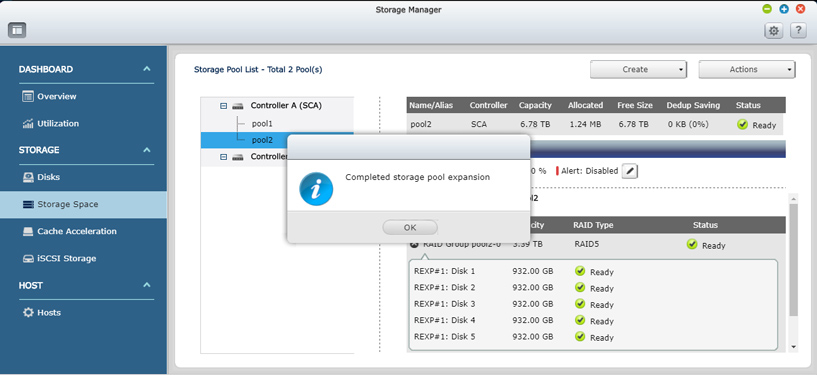
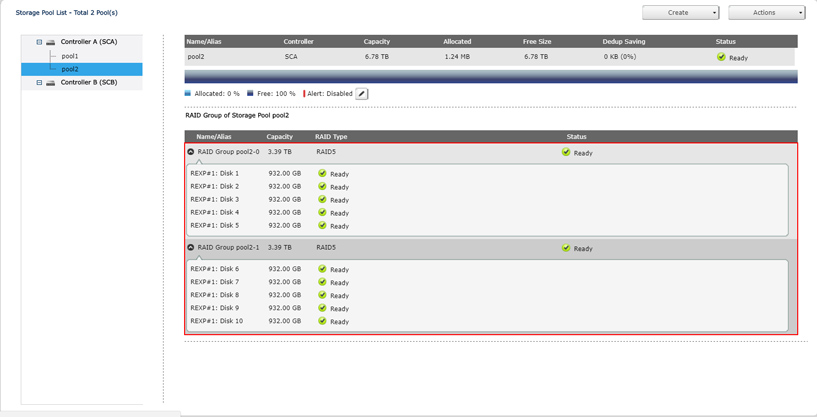
To create a RAID60 pool, you can repeat same steps but choosing RAID6 type to proceed it.
還有疑問?
在 QNAP 官方社群提問,獲得 QNAP 官方與熱心用戶的第一手建議。


