


How to access a Remote Desktop using RDP in QRM+
QRM+ provides multiple methods for using remote desktop functionality to access different devices:
- Windows devices: RDP or VNC remote desktop
- Linux devices: VNC remote desktop or SSH connection (an SSH client program is not required)
- IPMI devices: KVM over IP remote computer management program
Follow these steps to access a remote desktop using RDP in QRM+:
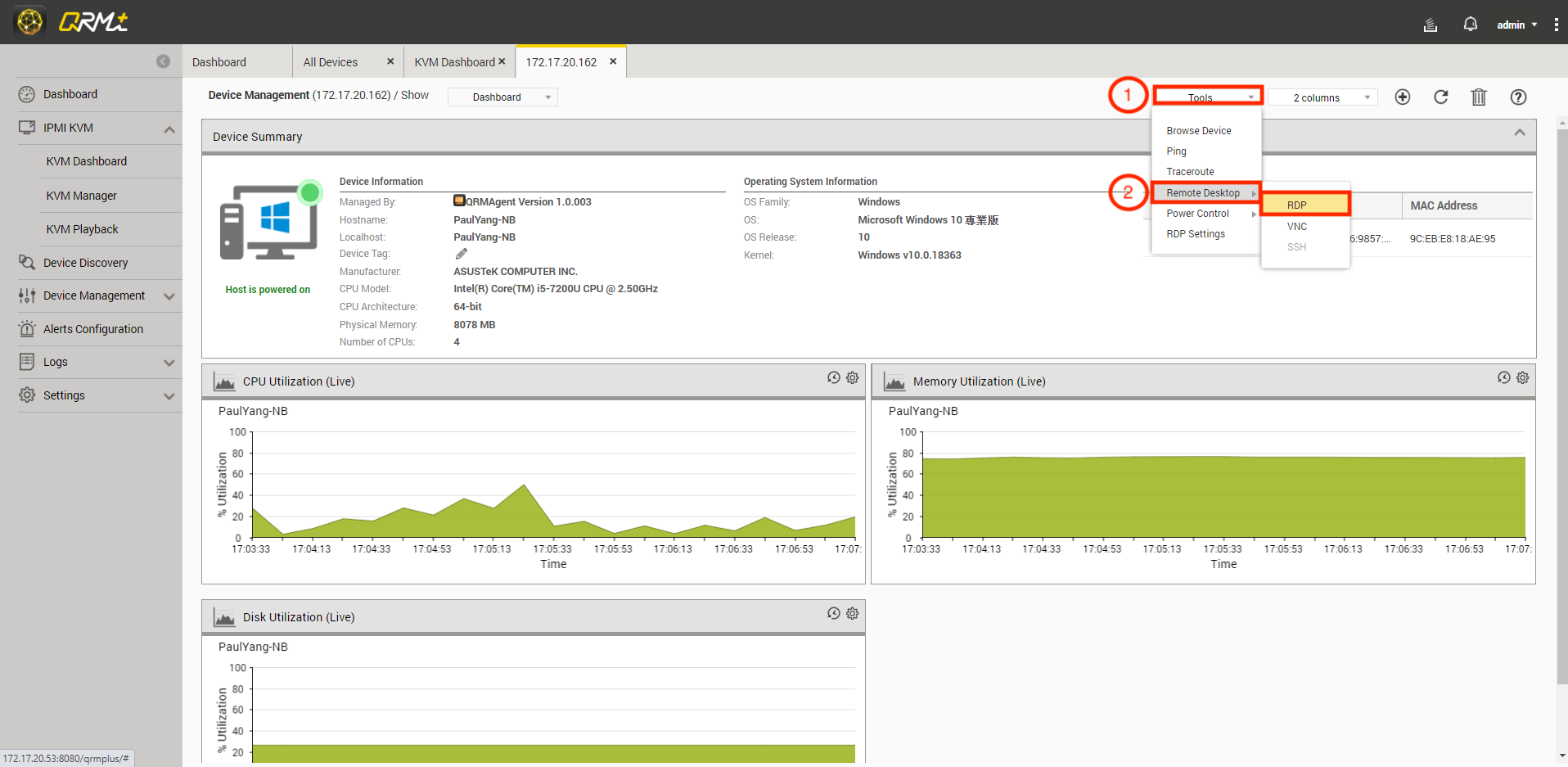
Step 1: Open a device in QRMAgent and click "Tools".
Step 2: Select "Remote Desktop" > "RDP".
Step 3: Enter the User Name and Password for the remote device in the Security Check.
Step 4: Click "Apply".

Step 5: The browser will open a new page. If the connection is successful, the remote desktop will be displayed. If the connection fails, an error message will be displayed and the user can try to reconnect.

QRM+ can setup RDP Remote Desktop in the windows device
Setup steps:
Step 1: Open a device in QRMAgent and click "Tools".
Step 2: Select "RDP settings".

QRM+ will read the device configuration for the selected devices.

Step 3: Choose the types of remote desktop connections to allow.

Bạn vẫn cần hỗ trợ?
Hãy đăng câu hỏi của bạn trong Cộng đồng QNAP. Nhân viên QNAP và những người dùng giàu kinh nghiệm sẽ trả lời.


