


Why isn't my QXG-10G2TB expansion card listed in Network & Virtual Switch?
Last modified date:
2024-03-21
Applicable Products
QTS, Network & Virtual Switch, TS-AI642 NAS, QXG-10G2TB
Scenario
You have correctly installed a QXG-10G2TB network expansion card on your TS-AI642 NAS. After a restart, it isn't listed in the Network & Virtual Switch app.
Solution
This issue is usually caused by outdated firmware on your QXG-10G2TB expansion card. To resolve this issue, you just need to update the firmware on the card.
- Open an SSH connection to your NAS.
- Verify that the card is installed correctly.
- Run the following command to list all currently connected devices:
sudo lspci -tvvv - Verify that the QXG-10G2TB network card is installed on the NAS.
If something like the following isn't listed, check that the card is correctly installed in the NAS.
- Run the following command to list all currently connected devices:
- Verify the PCIe switch firmware version of the QXG-10G2TB network card.
- Run the following command to check the firmware version.
sudo 218xfwdl -S - Verify that the firmware version isn't 22 06 30 40 74 00.

- Note the Switch ID for later use.
- Run the following command to check the firmware version.
- Update the switch firmware.
- Download the current firmware for the QXG-10G2TB from here.
- Upload the firmware to a shared folder on your NAS.
- In the SSH terminal window, use the following command to update the QXG-10G2TB firmware.
218xfwdl -B <strong>$Switch_ID</strong> -U <strong>$path/to/firmware</strong>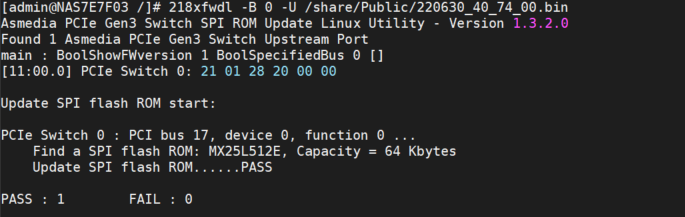
The expansion card firmware installs.
- Verify that the card is recognized.
- Restart the NAS.
- Sign in to QTS.
- Open Network & Virtual Switch.
- Go to Network > Interfaces.
- Verify that the QXG-10G2TB is listed as an available interface.

Bạn vẫn cần hỗ trợ?
Hãy đăng câu hỏi của bạn trong Cộng đồng QNAP. Nhân viên QNAP và những người dùng giàu kinh nghiệm sẽ trả lời.


