Applicable Products
- Qfinder Pro (Windows) 7.13.3.0521 (and earlier versions) updating to 7.14.0.0626
Scenario
This issue can occur when you use the Live Update feature in Qfinder Pro (Windows) 7.13.3.0521 (or earlier versions) to update to 7.14.0.0626.

The background update process (QfinderUpdateMonitor) may not complete successfully and can block further update attempts.
When this issue happens, you may see the following symptoms:
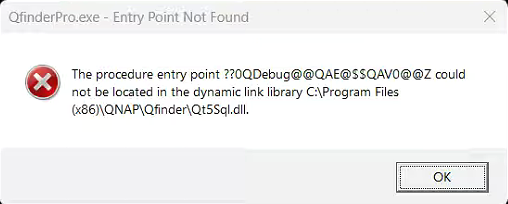
- An error dialog appears: QfinderPro.exe - Entry Point Not Found — "The procedure entry point ??0QDebug@@QAE@$$QAV0@@Z could not be located in the dynamic link library
C:\Program Files (x86)\QNAP\Qfinder\Qt5Sql.dll."

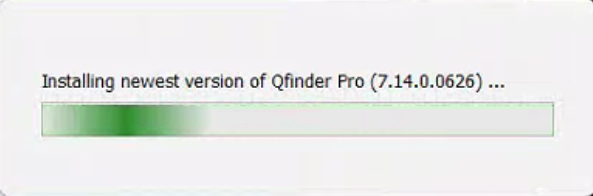
- The progress bar (Installing newest version of Qfinder Pro...) remains stuck and never completes.

- The
QfinderUpdateMonitor background process keeps running and blocks further update attempts.
Solution
Step 1: Close the error message
Close the Entry Point Not Found dialog or other error messages that appear during the update.
Tip
If you have already restarted Windows, the QfinderUpdateMonitor process has already been terminated during the reboot. In that case, you can skip Step 2 and go directly to Step 3 to manually download and install the latest version.
Step 2: End the QfinderUpdateMonitor process in Task Manager
- Right-click the Windows taskbar and select Task Manager (or press Ctrl+Shift+Esc).
- In the Processes tab, type Qfinder in the search box to filter the list.
- Locate QfinderUpdateMonitor under Background processes.
- Right-click QfinderUpdateMonitor and select End task.


After you end the task, the Installing newest version of Qfinder Pro... progress bar closes, and the QfinderUpdateMonitor process disappears from the list.
Step 3: Manually download the latest version
Go to the QNAP download page and download the latest Qfinder Pro (Windows) installer:
QNAPQfinderProWindows-7.14.0.0626.msi
Step 4: Reinstall Qfinder Pro
After the download completes, run the .msi installer and follow the on-screen instructions to reinstall Qfinder Pro.
Tip
Always end the QfinderUpdateMonitor process in Task Manager before manually reinstalling Qfinder Pro. Otherwise, the remaining process may conflict with the new installation.
After reinstalling, open Qfinder Pro and go to Help > About to confirm that the version information now shows 7.14.0.0626 or later.
Further reading
적용되는 제품
- Qfinder Pro (Windows) 7.13.3.0521 (and earlier versions) updating to 7.14.0.0626
시나리오
이 문제는Qfinder Pro (Windows) 7.13.3.0521(또는 이전 버전)에서 7.14.0.0626으로 업데이트할 때 Live Update 기능을 사용할 경우 발생할 수 있습니다.
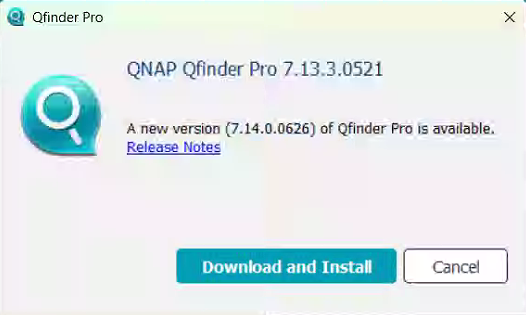
백그라운드 업데이트 프로세스(QfinderUpdateMonitor)가 성공적으로 완료되지 않을 수 있으며, 추가 업데이트 시도를 차단할 수 있습니다.
이 문제가 발생하면 다음과 같은 증상이 나타날 수 있습니다:
- 오류 대화 상자가 나타납니다: QfinderPro.exe - Entry Point Not Found — "The procedure entry point ??0QDebug@@QAE@$$QAV0@@Z could not be located in the dynamic link library
C:\Program Files (x86)\QNAP\Qfinder\Qt5Sql.dll."
- 진행률 막대(Qfinder Pro의 최신 버전 설치 중...)가 멈추고 완료되지 않습니다.
QfinderUpdateMonitor백그라운드 프로세스가 계속 실행되어 추가 업데이트 시도를 차단합니다.
해결책
1단계: 오류 메시지 닫기
Entry Point Not Found대화 상자 또는 업데이트 중에 나타나는 다른 오류 메시지를 닫습니다.
팁
Windows를 이미 재시작한 경우, QfinderUpdateMonitor프로세스는 재부팅 중에 이미 종료되었습니다. 이 경우 2단계를 건너뛰고 3단계로 직접 이동하여 최신 버전을 수동으로 다운로드 및 설치할 수 있습니다.
2단계: 작업 관리자에서 QfinderUpdateMonitor 프로세스 종료
- Windows 작업 표시줄을 마우스 오른쪽 버튼으로 클릭하고작업 관리자를 선택합니다(또는Ctrl+Shift+Esc를 누릅니다).
- 프로세스탭에서 검색 상자에Qfinder를 입력하여 목록을 필터링합니다.
- 백그라운드 프로세스에서QfinderUpdateMonitor를 찾습니다.
- QfinderUpdateMonitor를 마우스 오른쪽 버튼으로 클릭하고작업 끝내기를 선택합니다.
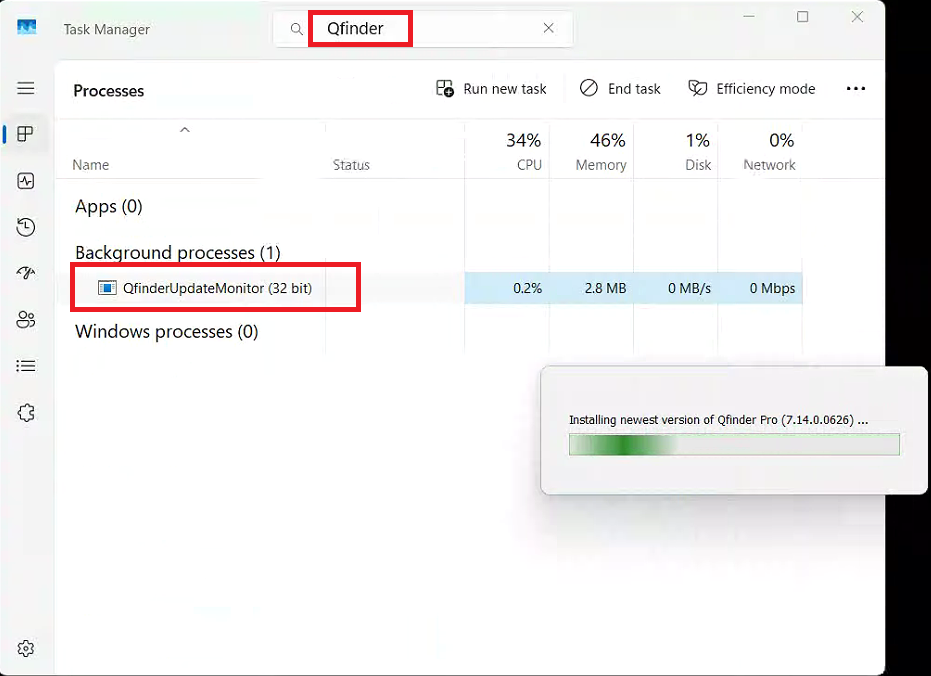
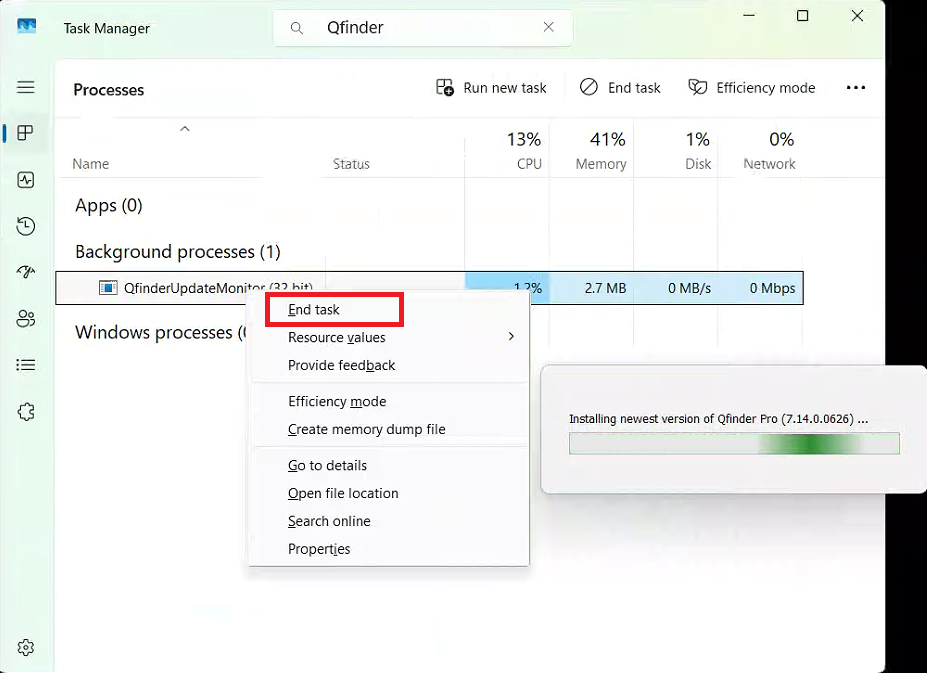
작업을 끝내면최신 버전 설치 중Qfinder Pro...진행 표시줄이 닫히고QfinderUpdateMonitor프로세스가 목록에서 사라집니다.
3단계: 최신 버전을 수동으로 다운로드
QNAP 다운로드 페이지로 이동하여 최신Qfinder Pro(Windows) 설치 프로그램을 다운로드합니다:
QNAPQfinderProWindows-7.14.0.0626.msi
Qfinder Pro재설치 4단계
다운로드가 완료되면.msi설치 프로그램을 실행하고 화면의 지침에 따라Qfinder Pro를 재설치합니다.
팁
Qfinder Pro를 수동으로 재설치하기 전에 항상 작업 관리자에서QfinderUpdateMonitor프로세스를 종료하십시오. 그렇지 않으면 남아 있는 프로세스가 새 설치와 충돌할 수 있습니다.
재설치 후Qfinder Pro를 열고도움말 > 정보로 이동하여 버전 정보가7.14.0.0626이상으로 표시되는지 확인합니다.
추가 읽기