Applicable Products
- Qfinder Pro (Windows) 7.13.3.0521 (and earlier versions) updating to 7.14.0.0626
Scenario
This issue can occur when you use the Live Update feature in Qfinder Pro (Windows) 7.13.3.0521 (or earlier versions) to update to 7.14.0.0626.

The background update process (QfinderUpdateMonitor) may not complete successfully and can block further update attempts.
When this issue happens, you may see the following symptoms:
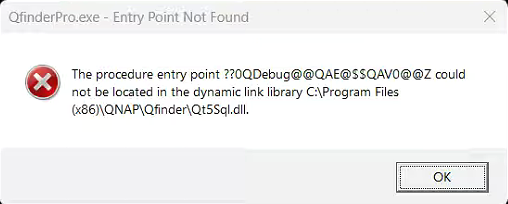
- An error dialog appears: QfinderPro.exe - Entry Point Not Found — "The procedure entry point ??0QDebug@@QAE@$$QAV0@@Z could not be located in the dynamic link library
C:\Program Files (x86)\QNAP\Qfinder\Qt5Sql.dll."

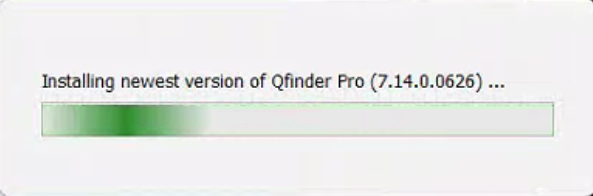
- The progress bar (Installing newest version of Qfinder Pro...) remains stuck and never completes.

- The
QfinderUpdateMonitor background process keeps running and blocks further update attempts.
Solution
Step 1: Close the error message
Close the Entry Point Not Found dialog or other error messages that appear during the update.
Tip
If you have already restarted Windows, the QfinderUpdateMonitor process has already been terminated during the reboot. In that case, you can skip Step 2 and go directly to Step 3 to manually download and install the latest version.
Step 2: End the QfinderUpdateMonitor process in Task Manager
- Right-click the Windows taskbar and select Task Manager (or press Ctrl+Shift+Esc).
- In the Processes tab, type Qfinder in the search box to filter the list.
- Locate QfinderUpdateMonitor under Background processes.
- Right-click QfinderUpdateMonitor and select End task.


After you end the task, the Installing newest version of Qfinder Pro... progress bar closes, and the QfinderUpdateMonitor process disappears from the list.
Step 3: Manually download the latest version
Go to the QNAP download page and download the latest Qfinder Pro (Windows) installer:
QNAPQfinderProWindows-7.14.0.0626.msi
Step 4: Reinstall Qfinder Pro
After the download completes, run the .msi installer and follow the on-screen instructions to reinstall Qfinder Pro.
Tip
Always end the QfinderUpdateMonitor process in Task Manager before manually reinstalling Qfinder Pro. Otherwise, the remaining process may conflict with the new installation.
After reinstalling, open Qfinder Pro and go to Help > About to confirm that the version information now shows 7.14.0.0626 or later.
Further reading
対象製品
- Qfinder Pro (Windows) 7.13.3.0521 (and earlier versions) updating to 7.14.0.0626
シナリオ
この問題は、Qfinder Pro (Windows) 7.13.3.0521(またはそれ以前のバージョン)でライブアップデート機能を使用して 7.14.0.0626 に更新する際に発生する可能性があります。
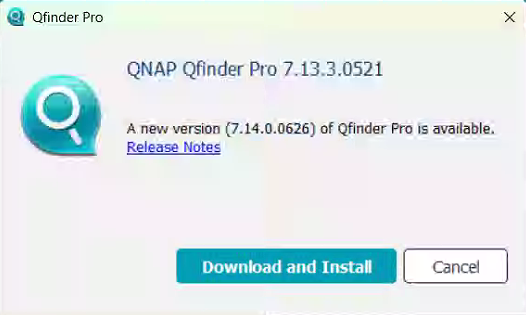
バックグラウンド更新プロセス (QfinderUpdateMonitor) が正常に完了せず、さらに更新を試みることができなくなることがあります。
この問題が発生すると、次の症状が見られることがあります:
- エラーダイアログが表示されます: QfinderPro.exe - エントリーポイントが見つかりません — "プロシージャエントリポイント ??0QDebug@@QAE@$$QAV0@@Z がダイナミックリンクライブラリ
C:\Program Files (x86)\QNAP\Qfinder\Qt5Sql.dllに見つかりませんでした。"
- 進行状況バー (最新バージョンの Qfinder Pro をインストール中...)が固まって進行しません。
QfinderUpdateMonitorバックグラウンドプロセスが実行され続け、さらに更新を試みることができません。
解決策
ステップ 1: エラーメッセージを閉じる
更新中に表示されるエントリーポイントが見つかりませんダイアログやその他のエラーメッセージを閉じます。
ヒント
すでに Windows を再起動している場合、QfinderUpdateMonitorプロセスは再起動中に終了しています。その場合、ステップ 2 をスキップして、ステップ 3 に進み、最新バージョンを手動でダウンロードしてインストールしてください。
ステップ 2: タスクマネージャーで QfinderUpdateMonitor プロセスを終了する
- Windows タスクバーを右クリックし、タスクマネージャーを選択します(またはCtrl+Shift+Escを押します)。
- プロセスタブで、検索ボックスにQfinderと入力してリストをフィルタリングします。
- バックグラウンドプロセスの下にあるQfinderUpdateMonitorを探します。
- QfinderUpdateMonitorを右クリックして、タスクの終了を選択します。
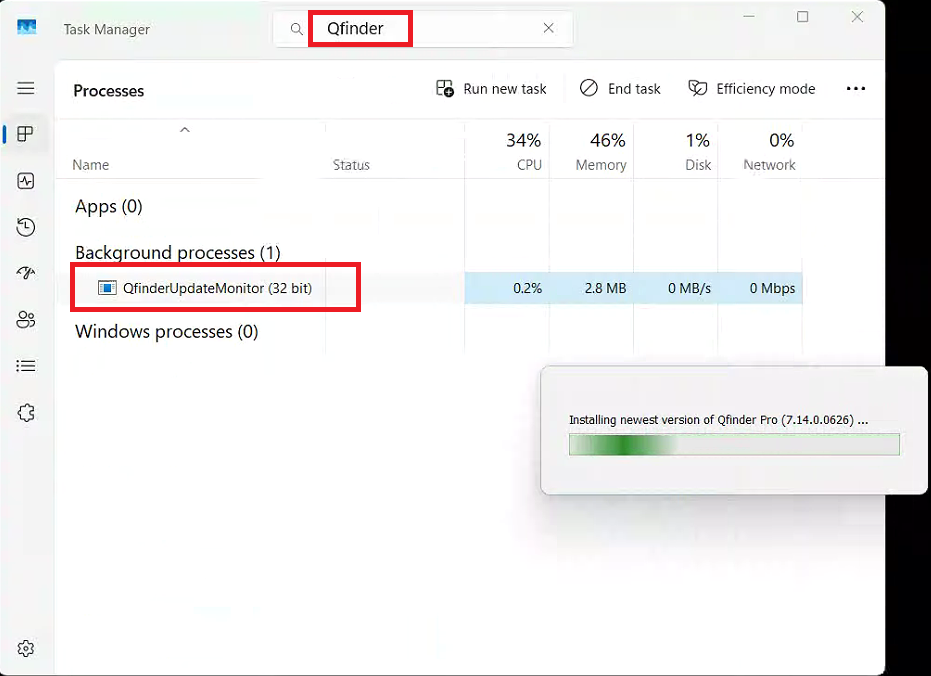
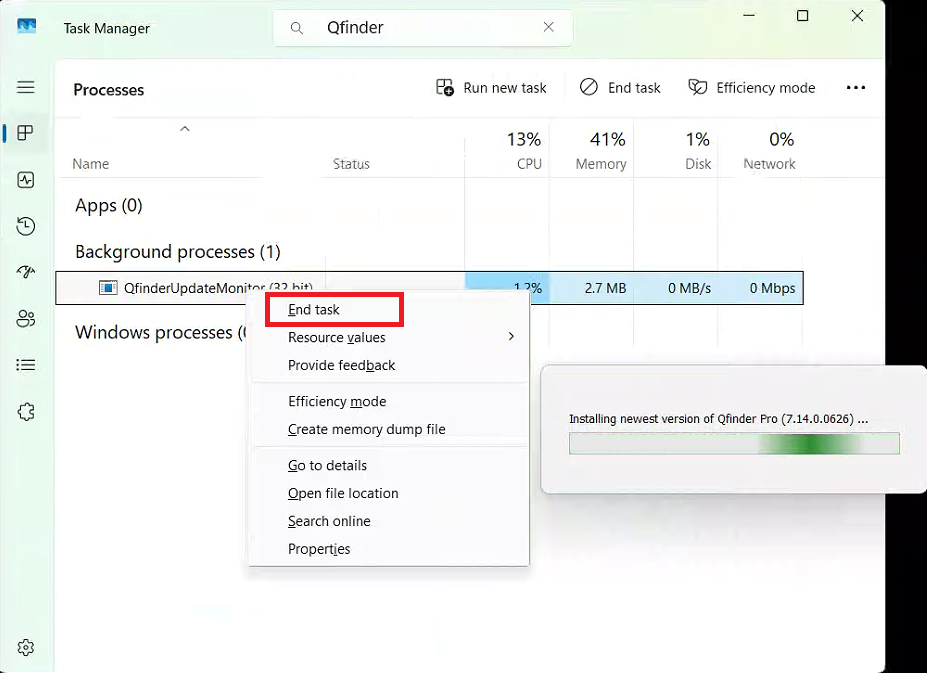
タスクを終了すると、最新バージョンの Qfinder Pro をインストール中...の進行バーが閉じ、QfinderUpdateMonitorプロセスがリストから消えます。
ステップ 3: 最新バージョンを手動でダウンロード
QNAP ダウンロードページにアクセスして、最新の Qfinder Pro (Windows) インストーラーをダウンロードします:
QNAPQfinderProWindows-7.14.0.0626.msi
ステップ 4: Qfinder Pro を再インストール
ダウンロードが完了したら、.msiインストーラーを実行し、画面の指示に従って Qfinder Pro を再インストールします。
ヒント
手動で Qfinder Pro を再インストールする前に、必ずタスクマネージャーでQfinderUpdateMonitorプロセスを終了してください。そうしないと、残っているプロセスが新しいインストールと競合する可能性があります。
再インストール後、Qfinder Pro を開き、ヘルプ > バージョン情報に移動して、バージョン情報が7.14.0.0626以降であることを確認します。
さらに読む