Applicable Products
- All QNAP NAS models running QTS or QuTS hero system
- QTS 4.3.6 (or later), including QTS 5.x and QTS 6.x
- QuTS hero 4.5.0 (or later), including QuTS hero 5.x and QuTS hero 6.x
Overview
iPerf3 is an open-source network performance testing tool that measures TCP/UDP bandwidth, latency, and packet loss between two devices.
Installing iPerf3 on a QNAP NAS allows the NAS to act directly as a test endpoint (server or client), which is useful in the following scenarios:
- Verify network throughput: Confirm whether the actual transfer
speed between the NAS and a computer, switch, or other device meets
expectations (e.g., 1GbE, 10GbE).
- Diagnose network performance issues: When NAS access speed is
unexpectedly slow, use iPerf3 to determine whether the bottleneck
is at the network layer or the storage layer.
- Evaluate the impact of network configuration changes: Compare
actual bandwidth before and after adjusting settings such as MTU,
Jumbo Frames, port bonding, or VLANs.
- Isolate hardware or cabling issues: Use point-to-point testing
to verify whether a network adapter, cable, or switch is functioning
correctly.
iPerf3 is not built into QTS or QuTS hero by default and must be installed separately.
Solution
iPerf3 can be installed on a QNAP NAS in either of two ways: as a container in Container Station, or using an Entware QPKG file.
Method 1: Run iPerf3 in Container Station
-
Open the App Center, then search for and install Container Station.
-
On first launch, complete the setup wizard and specify the storage location for container data.
-
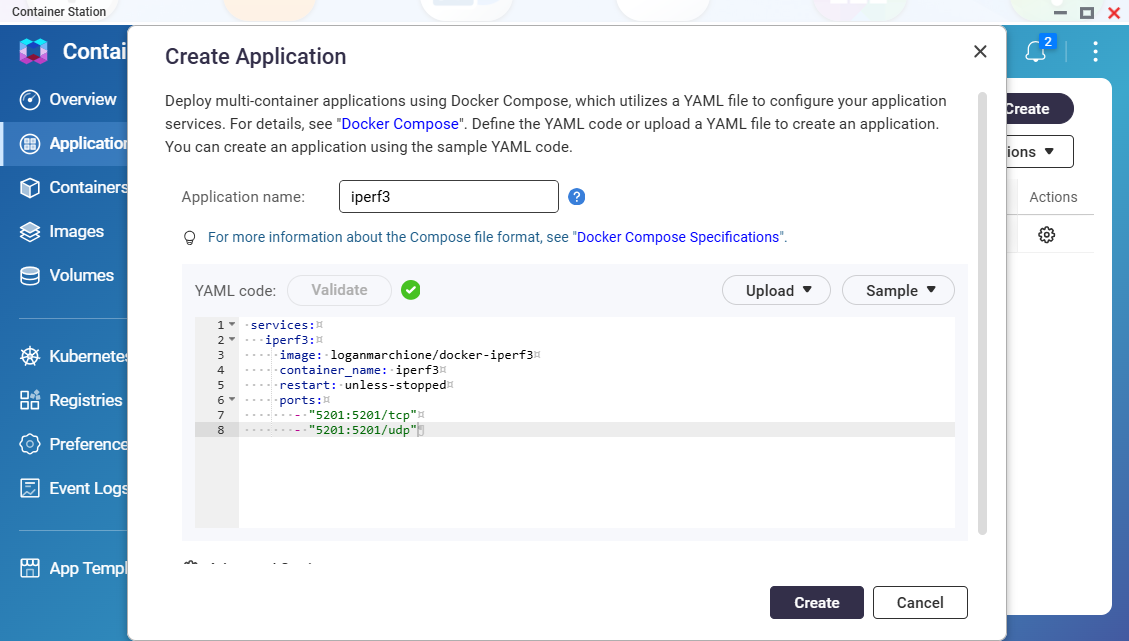
In Container Station, select Create > Create Application, then enter the following Docker Compose configuration:
services:
  iperf3:
    image: loganmarchione/docker-iperf3
    container_name: iperf3
    restart: unless-stopped
    ports:
      - "5201:5201/tcp"
      - "5201:5201/udp"
Refer to the documentation for the loganmarchione/docker-iperf3 image for its supported environment variables and parameters. To have the NAS act as the iPerf3 client rather than the server, or to use host network mode for more accurate results, adjust the configuration accordingly.
-
Click Validate to verify the correctness of the yaml code.
-
Click Create and wait for the image to be pulled and the container to start.
-
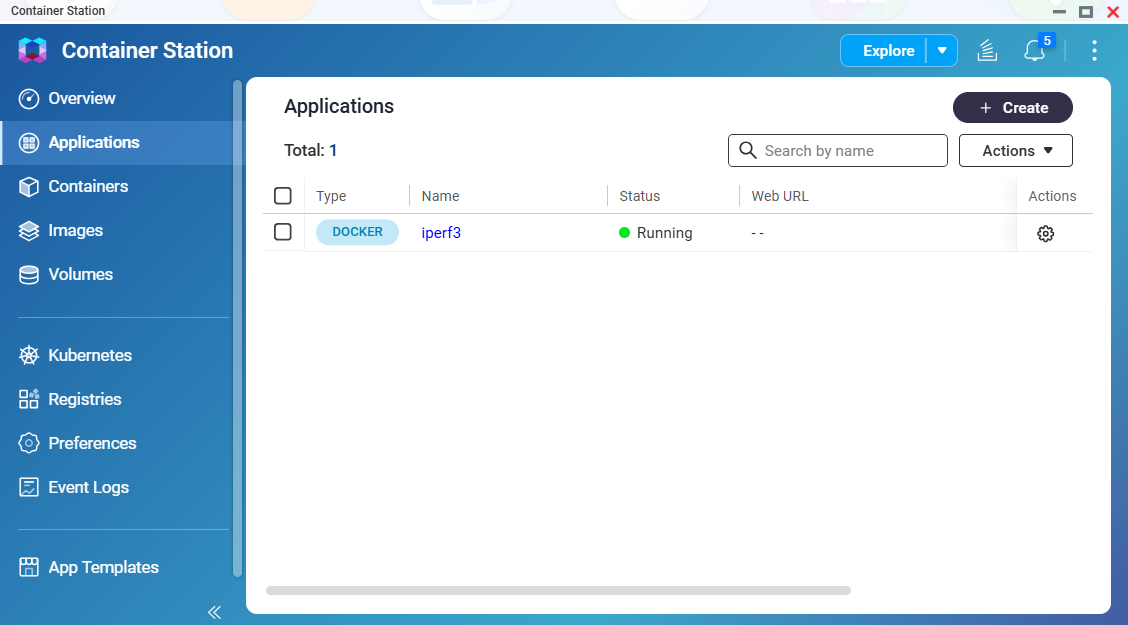
Confirm the container status is Running.
-
iPerf3 is now ready to use on your NAS.
If a firewall or security policy blocks port 5201, clients will report a refused connection. Confirm the port is not blocked under Control Panel > System > Security.
Method 2: Install iPerf3 using an Entware QPKG file
-
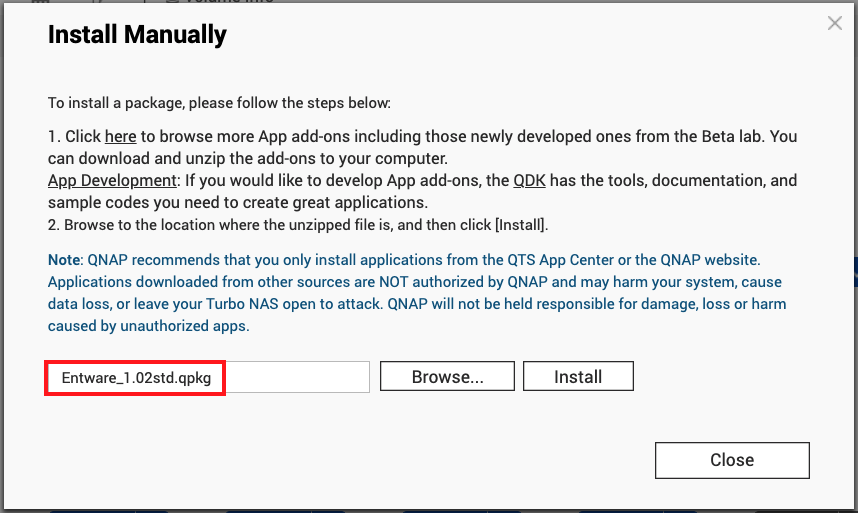
Download Entware_1.02std.qpkg from QNAP's download portal.
-
Install the QPKG file:
- Open the App Center
- Select Install Manually
- Click Browse and locate the downloaded QPKG file
- Click Install
- Accept the risk acknowledgment checkbox and confirm installation
- Verify that Entware-std 1.02 appears in the App Center
-
Access the NAS command line via an SSH connection.
-
Navigate to the Entware installation directory:
# cd /share/CACHEDEV1_DATA/.qpkg/Entware/bin
The volume name in this path varies by model and storage configuration, and differs on QuTS hero systems. If the directory does not exist, locate it with:
# ls -d /share/*/.qpkg/Entware/bin
-
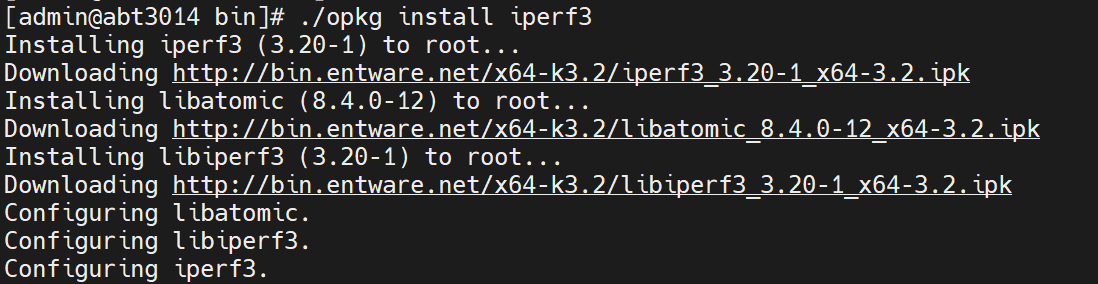
Execute the package installation command:
# ./opkg install iperf3
6. iPerf3 is now ready to use on your NAS.

対象製品
- All QNAP NAS models running QTS or QuTS hero system
- QTS 4.3.6 (or later), including QTS 5.x and QTS 6.x
- QuTS hero 4.5.0 (or later), including QuTS hero 5.x and QuTS hero 6.x
概要
iPerf3 は、オープンソースのネットワークパフォーマンステストツールで、2 つのデバイス間の TCP/UDP 帯域幅、レイテンシー、パケット損失を測定します。
QNAP NAS に iPerf3 をインストールすると、NAS が直接テストエンドポイント(サーバーまたはクライアント)として機能し、以下のシナリオで役立ちます。
- ネットワークスループットを確認する: NAS とコンピューター、スイッチ、または他のデバイス間の実際の転送
速度が期待通りであるか(例:1GbE、10GbE)を確認します
。
- ネットワークパフォーマンスの問題を診断する: NAS へのアクセス速度が
予想外に遅い場合、iPerf3 を使用してボトルネックがネットワーク層にあるのか
ストレージ層にあるのかを判断します。
- ネットワーク設定変更の影響を評価する: MTU、
ジャンボフレーム、ポートボンディング、または VLAN の設定を調整する前後で実際の帯域幅を比較します
。
- ハードウェアまたはケーブルの問題を特定する: ポイントツーポイントテストを使用して
ネットワークアダプター、ケーブル、またはスイッチが正しく機能しているかを確認します
。
iPerf3 は、QTS や QuTS hero にはデフォルトで組み込まれておらず、別途インストールする必要があります。
ソリューション
iPerf3 は、Container Station のコンテナとして、または Entware QPKG ファイルを使用して、QNAP NAS にインストールできます。
方法 1: Container Station で iPerf3 を実行する
-
App Centerを開き、Container Stationを検索してインストールします。
-
初回起動時にセットアップウィザードを完了し、コンテナデータのストレージの場所を指定します。
-
Container Station で作成 > アプリケーションを作成を選択し、次の Docker Compose 構成を入力します。
services:
  iperf3:
    image: loganmarchione/docker-iperf3
    container_name: iperf3
    restart: unless-stopped
    ports:
      - "5201:5201/tcp"
      - "5201:5201/udp"
サポートされている環境変数やパラメータについては、loganmarchione/docker-iperf3イメージのドキュメントを参照してください。NAS を iPerf3 サーバーではなくクライアントとして動作させる場合や、より正確な結果を得るためにホストネットワークモードを使用する場合は、構成を適宜調整してください。
-
yaml コードの正確性を確認するために Validate をクリックします。
-
作成をクリックし、イメージがプルされ、コンテナが開始されるのを待ちます。
-
コンテナのステータスが Running であることを確認します。
-
iPerf3 は、NAS で使用する準備が整いました。
ファイアウォールまたはセキュリティポリシーがポート 5201 をブロックしている場合、クライアントは接続拒否を報告します。コントロールパネル > システム > セキュリティでポートがブロックされていないことを確認してください。
方法 2: Entware QPKG ファイルを使用して iPerf3 をインストールする
-
QNAP のダウンロードポータルからEntware_1.02std.qpkgをダウンロードします。
-
QPKG ファイルをインストールします:
- App Centerを開きます
- 手動でインストールを選択します
- 参照をクリックし、ダウンロードした QPKG ファイルを見つけます
- インストール
をクリックします
- リスク承認のチェックボックスを受け入れ、インストールを確認します
- Entware-std 1.02が App Center に表示されることを確認します
-
SSH 接続を介して NAS のコマンドラインにアクセスします。
-
Entware のインストールディレクトリに移動します:
# cd /share/CACHEDEV1_DATA/.qpkg/Entware/bin
このパスのボリューム名はモデルやストレージの構成によって異なり、QuTS hero システムでは異なります。ディレクトリが存在しない場合は、次のコマンドで見つけます:
# ls -d /share/*/.qpkg/Entware/bin
-
パッケージインストールコマンドを実行します:
# ./opkg install iperf3
6. iPerf3 が NAS で使用可能になりました。


