


How can I share files with Qsync?
Applicable Products
Qsync Central, Qsync Client
Introducing Qsync
Qsync is a file synchronization service consisting of several different QNAP applications that allows you to synchronize files between your QNAP NAS device, computer, and mobile device. When files are synced with Qsync, changes on one device will be automatically synchronized in real-time with other devices ensuring that your team members automatically have access to the latest version of files. Additionally, Qsync also offers a variety of methods for quickly and securely sharing your synced files with others, making it easy to invite collaborators and new team members.
Qsync Requirements
NAS requirements:
- Qsync Central 4.5.0 and later
- QTS 5.2 or later
- QuTS hero h5.2.0 or later
- Qsync Central 4.4.0
- QTS 5.0.0 to 5.1
- QuTS hero h5.0.0 to h5.1
Computer requirements:
- Qsync Client
- Windows 8.1 or later
- Windows Server 2016 or later
- macOS 10.14 or later
- Ubuntu 18.04 and 20.04
How to share files in Qsync via email
Windows
- Locate the files you want to share.
- Sync the files with Qsync if they are not synced already.
For details on syncing files, see How to use Qsync to synchronize files between the NAS and my other devices? - Open the Qsync file sharing window.
- Open the Qsync home folder in File Explorer.
- Select the files you want to share.
- Right-click one of the selected files to open the file context menu.
- Click Show more options to open the advanced options.
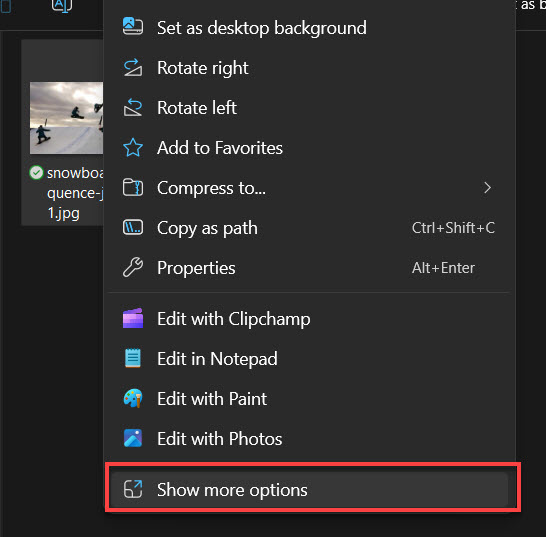
- Click Qsync > Share the link.
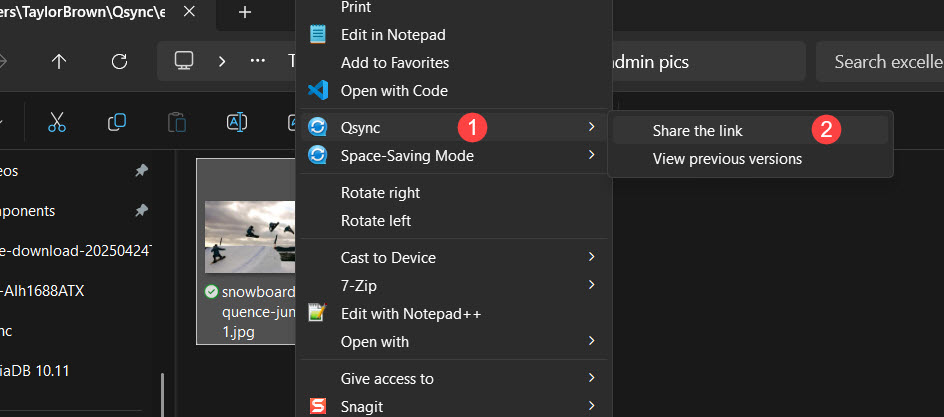 The Qsync file sharing window opens:
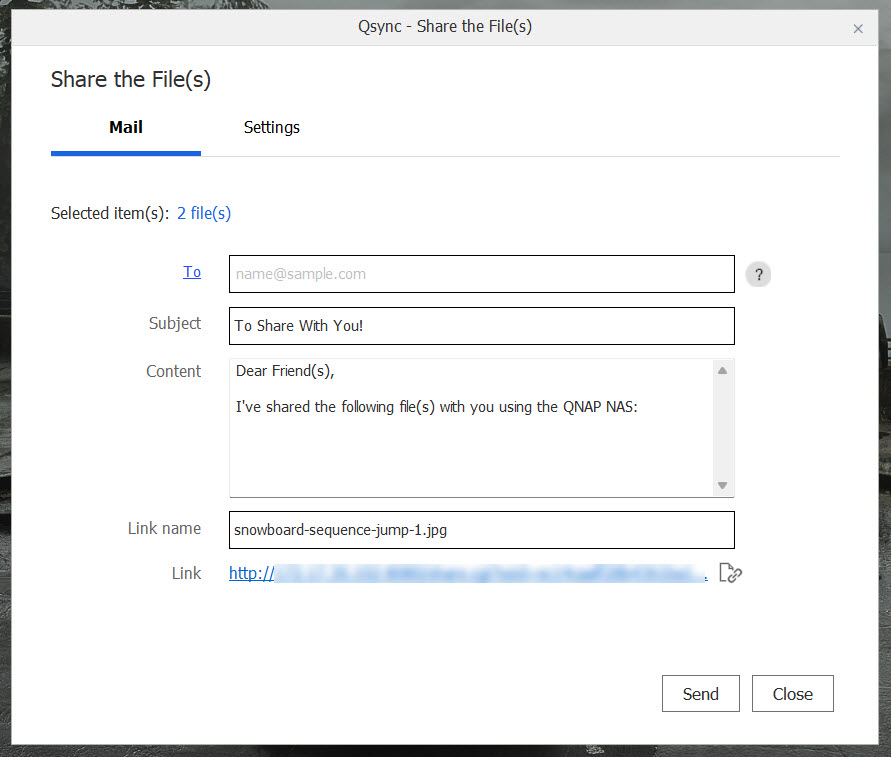 TipYou can click
 to copy the URL and share it immediately with users.
- Specify the email address of the recipient in the To field.
- Optional: Specify the Subject, Content, and Link name fields.
- Optional: Go to the Settings tab and specify additional settings.
- From the Mail tab, click Send.
Windows opens your default email application where you can finish sending the email containing the generated link for your shared files. The recipient of the email can open the link in their browser to access your shared files.
macOS
- Locate the files you want to share.
- Sync the files with Qsync if they are not synced already.
For details on syncing files, see How to use Qsync to synchronize files between the NAS and my other devices? - Open the Qsync file sharing menu.
- Open the Qsync home folder in Files.
- Select the files you want to share.
- Control-click one of the selected files to open the file context menu.
- Click Qsync > Share the link.
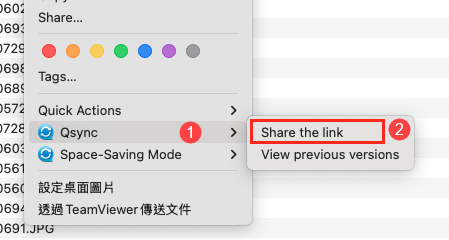 The Qsync file sharing window opens:
- Specify the email address of the recipient in the To field.
- Optional: Specify the Subject and Content fields.
- Optional: Select an option for the Domain name/IP field.
- Optional: Click Advanced and configure additional settings.
- Click Create.
A confirmation window appears:
- Review your email contents and click Send.
macOS opens your default email application where you can finish sending the email containing the generated link for your shared files. The recipient of the email can open the link in their browser to access your shared files.
How to share files in Qsync via share links
Windows
- Locate the files you want to share.
- Sync the files with Qsync if they are not synced already.
For details on syncing files, see How to use Qsync to synchronize files between the NAS and my other devices? - Open the Qsync file sharing window.
- Open the Qsync home folder in File Explorer.
- Select the files you want to share.
- Right-click one of the selected files to open the file context menu.
- Click Show more options to open the advanced options.
- Click Qsync > Share the link.The Qsync file sharing window opens:
- Go to the Settings tab.
- For Domain name/IP, select one of the following options:
- myQNAPcloud: Provides a link to the shared file or folder using the DDNS address set in myQNAPcloud.
- WAN IP address: Provides a link to the shared file or folder to other computers using a different network.
- LAN IP address: Provides a link to the shared file or folder to other computers using the same local network.
- SmartShare: Provides a SmartURL via myQNAPcloud Link to the shared file or folder (myQNAPcloud must be enabled on the NAS).TipSmartURLs are secure shareable links that can be shared to users outside of your local network. QNAP recommends using the SmartShare method when sharing files with other users.
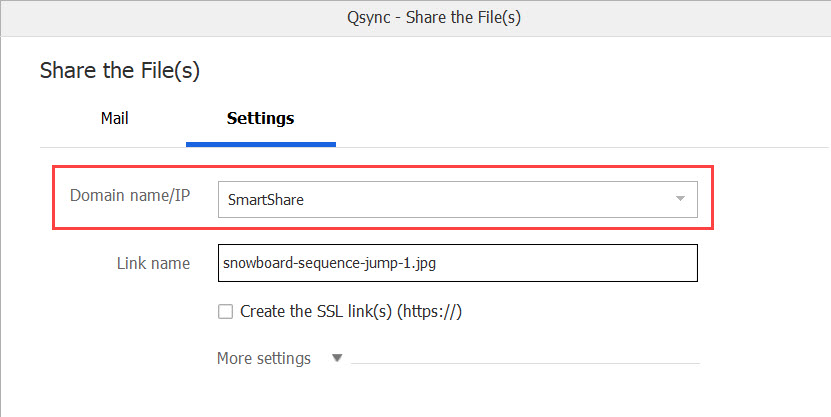
- Optional: Click More settings and configure additional settings.
- Click Apply.
A confirmation window appears: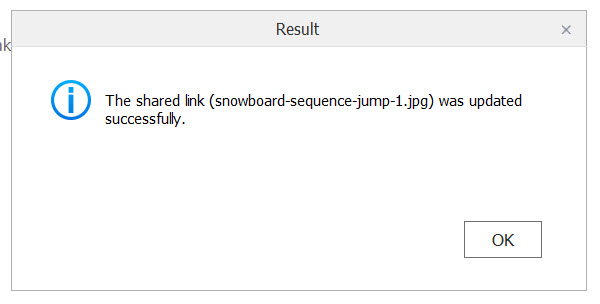
- Click OK.
- Go to the Mail tab.
- Click to copy the share link.
Your system copies the share link.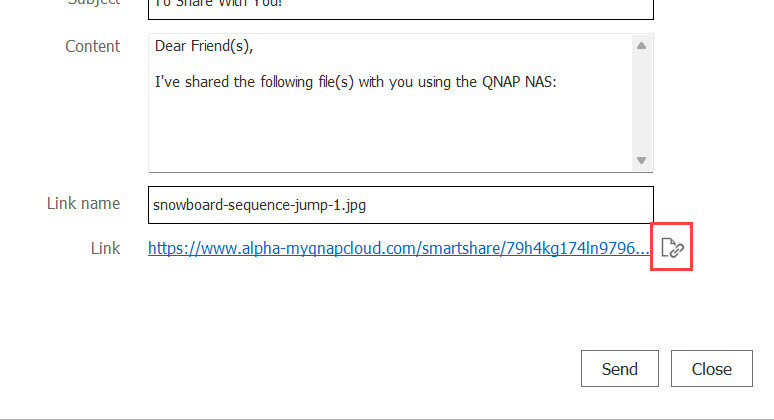
- You can now share the copied share link with other users using any means. The recipient of the share link can open the link in their browser to access your shared files.
macOS
- Locate the files you want to share.
- Sync the files with Qsync if they are not synced already.
For details on syncing files, see How to use Qsync to synchronize files between the NAS and my other devices? - Open the Qsync file sharing menu.
- Open the Qsync home folder in Files.
- Select the files you want to share.
- Control-click one of the selected files to open the file context menu.
- Click Qsync > Share the link.
The Qsync file sharing window opens:
- Go to the Link tab.
- For Domain name/IP, select one of the following options:
- myQNAPcloud: Provides a link to the shared file or folder using the DDNS address set in myQNAPcloud.
- WAN IP address: Provides a link to the shared file or folder to other computers using a different network.
- LAN IP address: Provides a link to the shared file or folder to other computers using the same local network.
- SmartShare: Provides a SmartURL via myQNAPcloud Link to the shared file or folder (myQNAPcloud must be enabled on the NAS).TipSmartURLs are secure shareable links that can be shared to users outside of your local network. QNAP recommends using the SmartShare method when sharing files with other users.
- Optional: Click Advanced and configure additional settings.
- Click Create.
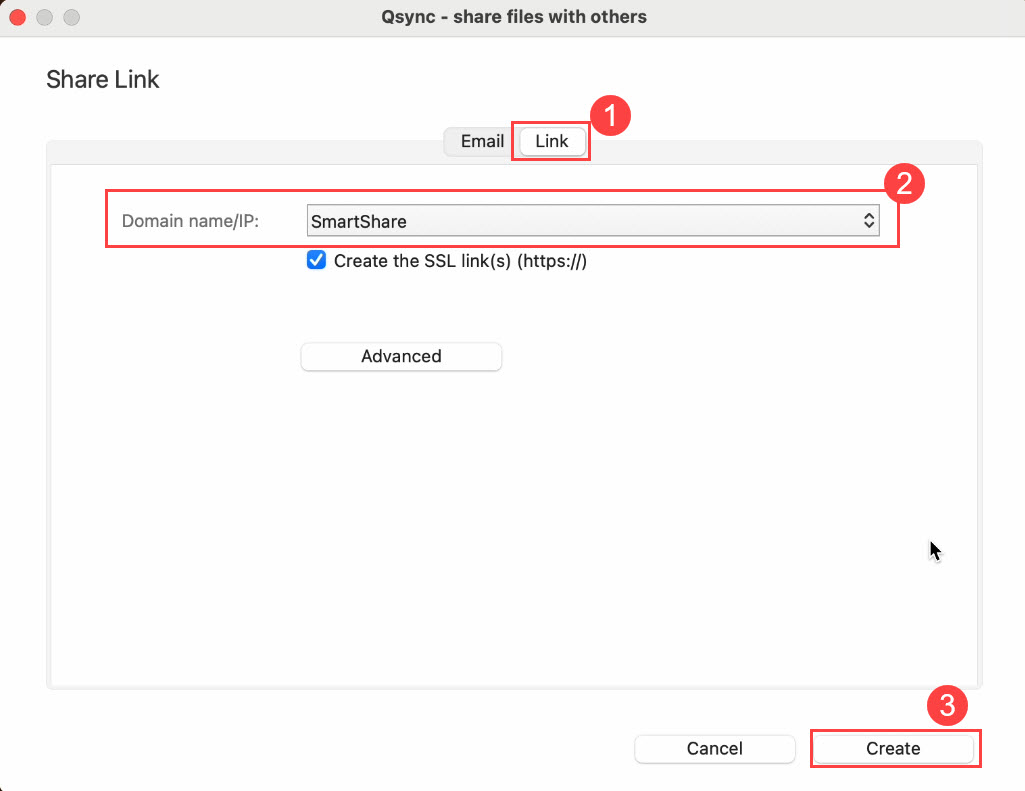 A window appears that displays the generated share link.
 - Click Copy to Clipboard.
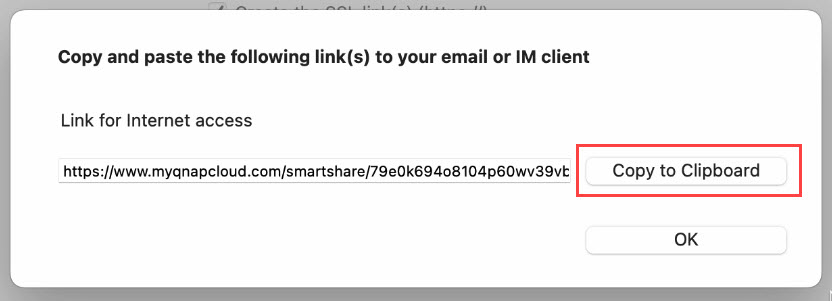
- You can now share the copied share link with other users using any means. The recipient of the share link can open the link in their browser to access your shared files.
How to share recent files quickly via the Qsync system tray icon
Windows
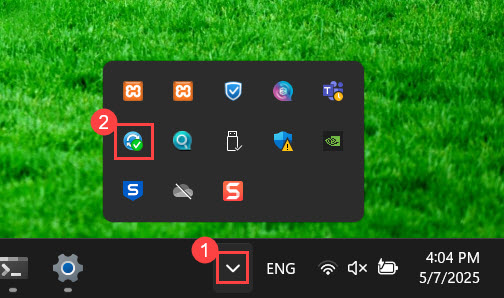
- Open the Hidden icon menu from the taskbar and click the Qsync icon.
- Click on the Recently changed files tab, locate your file, and click
 .
.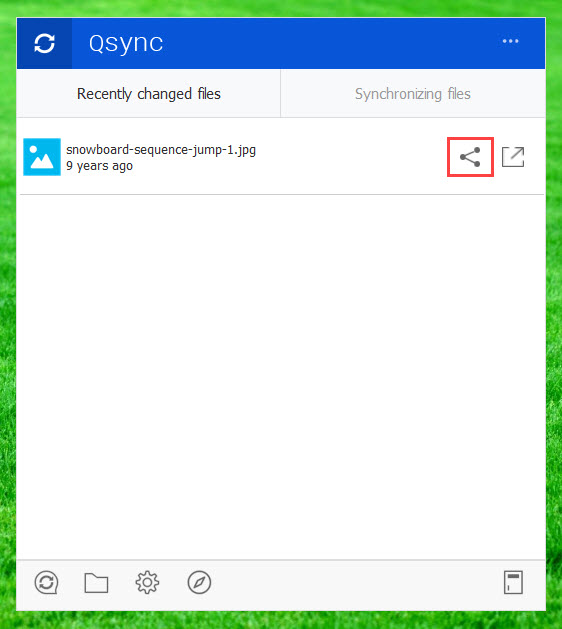 The Qsync file sharing window opens:
 - Share your file using one of the following methods:
macOS
- Click the Qsync icon on the macOS menu bar.
The Qsync window opens. - Click on the Recently changed files tab, locate your file, and click .
 The Qsync file sharing window opens:
 - Share your file using one of the following methods:
Further reading
How to use Qsync to synchronize files between the NAS and my other devices?


