


How to perform the file sync between QES and Linux
Applied models:
All NAS model with QES firmware
Applied firmware:
QES-2.0.0 or above
Scenarios:
1. How to use rsync to do the file sync from QES to Linux
2. How to use rsync to do the file sync from Linux to QES
Solution:
0. Setup Rsync Server
For CentOS, follow this link
https://www.server-world.info/en/note?os=CentOS_7&p=rsync
For Ubuntu, follow this link
https://www.server-world.info/en/note?os=Ubuntu_16.04&p=rsync
1. Rsync from QES to Linux
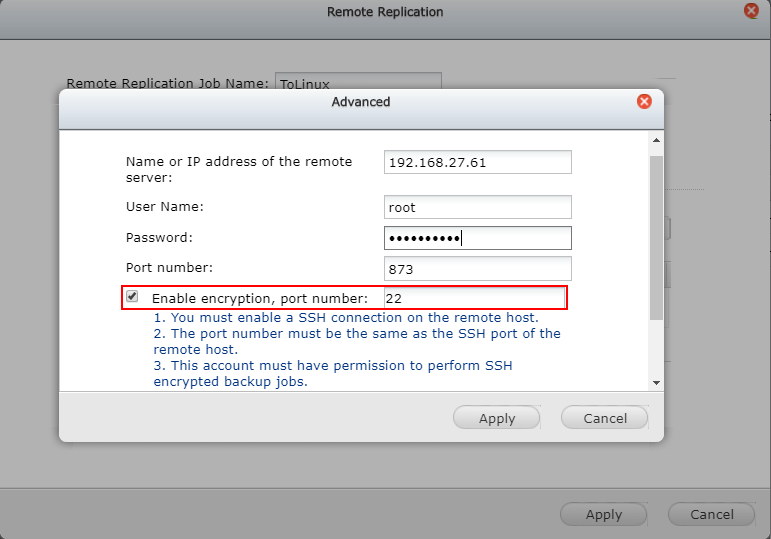
In Backup Station, create a new Replication Job. Enter the job name and remote Linux IP address, Rsync username and password and enable encryption and enter port number.
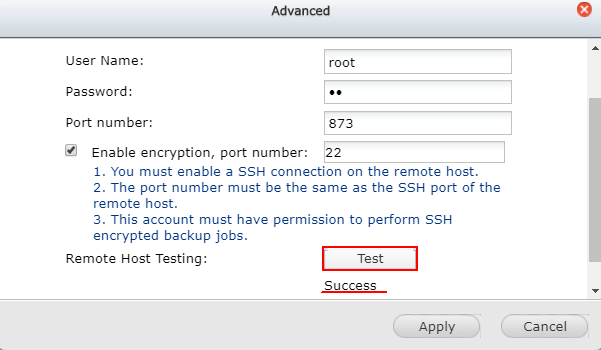
Click Test button to test the connection.
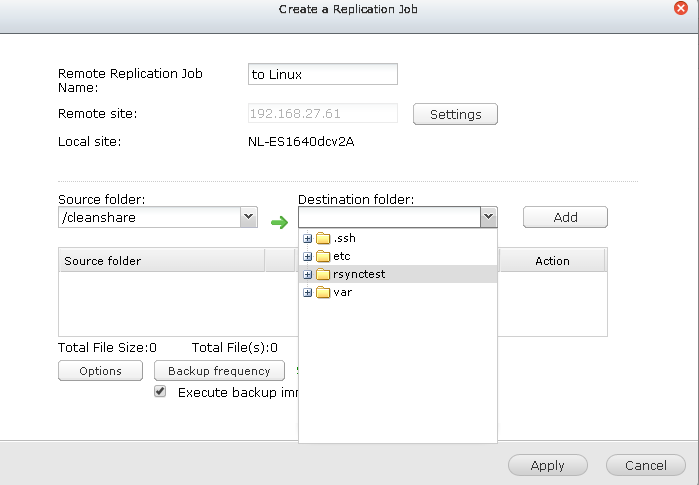
Then choose Linux destination folder for the data sync
2. Rsync from Linux to QES
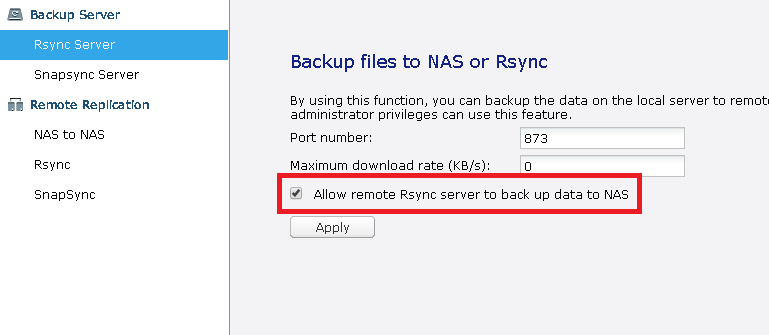
Check “Allow remote Rsync server to backup data to NAS” in Backup Station
In Linux, run the command below to use rsync via ssh protocol to sync files from Linux to the shared folder of QES NAS. Ex: to the shared folder, “share1”
# rsync -av /path/to/file -e ssh admin@192.168.27.21:/share/share1
Note: If QES admin account has been disabled, you can use a user account belongs to administrator group for the authentication.


