


How can I remove the default shared folders on my NAS?
Last modified date:
2026-09-09
Applicable Products
QTS 4.4.1 or later versions
Overview
Default shared folders are automatically created after system initialization. Follow the procedures below to remove all default shared folders except the "Public" shared folder, which is required for the system to run.
Important
Back up any important data in these folders before you proceed.
Procedure
After logging in to QTS as an administrator, follow the steps below to remove the "Multimedia," "Download," "Web," and "Home" shared folders.
To remove the "Multimedia" and "Download" shared folders:
- Open Control Panel and check the firmware version.
- If the firmware version is 5.0.0 or later:
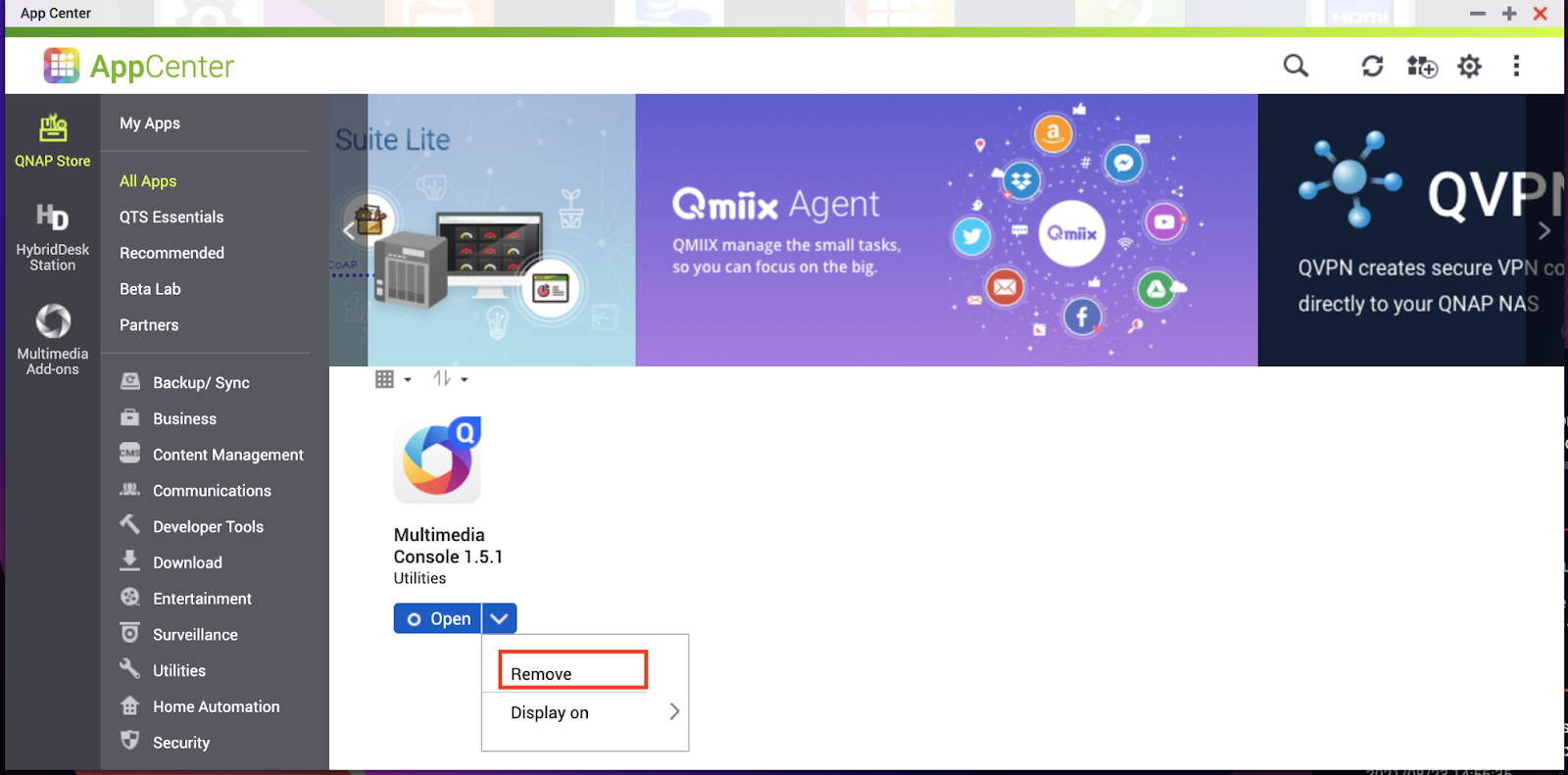
- Open App Center.
- Go to QNAP Store > All Apps.
- Find Multimedia Console, click the downward arrow, and select Remove.
- If the firmware version is between 4.4.x and 4.5.x:
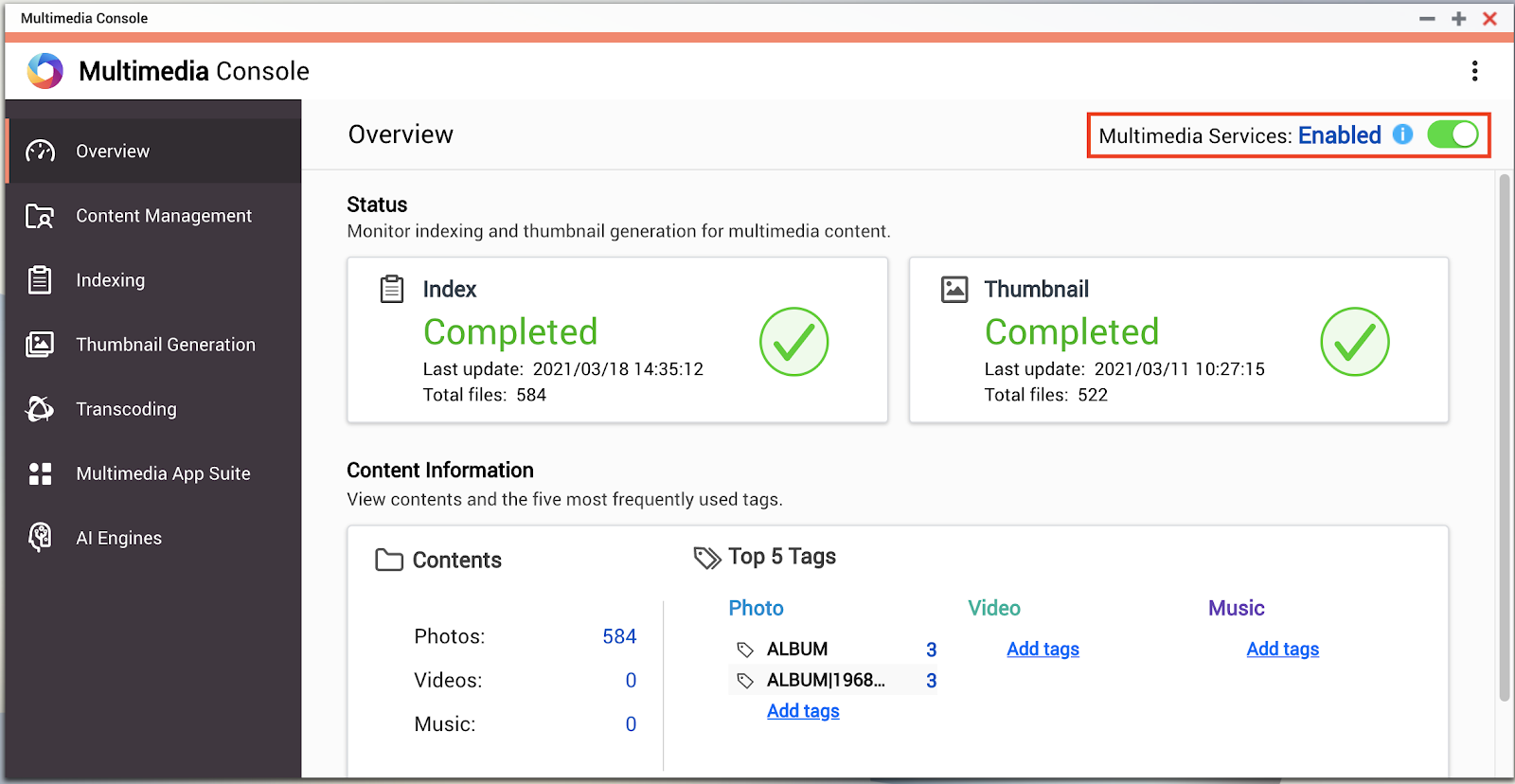
- Go to Control Panel > Application > Multimedia Console.
- Toggle the button in the top-right corner to disable Multimedia Services.
To remove the "Web" shared folder:
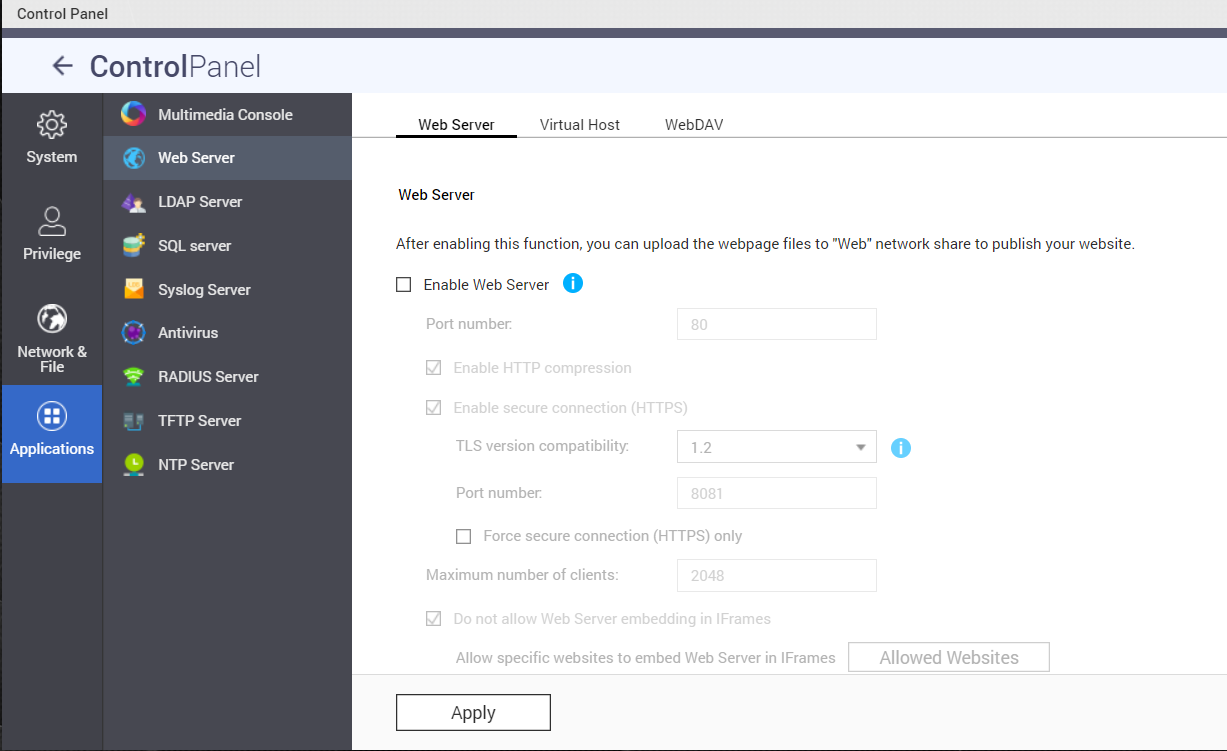
- Go to Control Panel > Applications > Web Server > Web Server.
- Deselect Enable Web Server, and click Apply.
- Go to Control Panel > Privilege > Shared Folders.
- Select the Web shared folder, and click Remove.
To remove the "Home" shared folder:
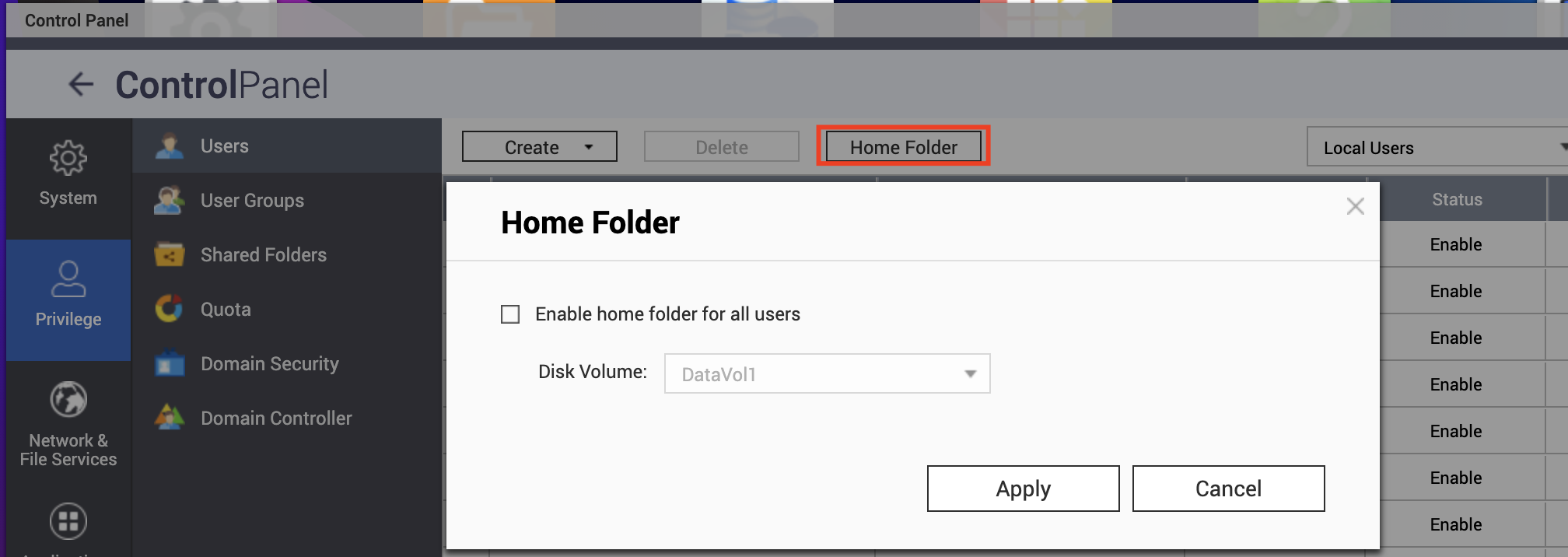
- Go to Control Panel > Privilege > Users > Home Folder.
- Deselect Enable home folders for all users, and click Apply.
To remove a generic shared folder:
- Go to Control Panel > Privilege > Shared Folders.
- Select the shared folder(s) you want to delete, and click Remove.
Still need help?
Post your question in QNAP Community. QNAP staff and experienced users will reply.


