


Why has my NAS suddenly or occasional slowed down after years of normal operation?
Applicable Products
All QNAP NAS models
Scenario
Your NAS has been operating normally for years. Recently, without significant changes in configuration or usage, its performance has become unstable or noticeably slower.
Root Cause
Alongside network and system workload factors, a sudden or occasion drop in performance is often related to declining hard drive health.
As hard drives age, physical degradation may occur on the disk surface, which can result in bad sectors. When the system encounters these problematic sectors, the drive may repeatedly retry read/write operations or attempt to recover and reallocate bad sectors to spare areas.
During this recovery and reallocation process, disk I/O operations can be temporarily blocked or delayed, causing the NAS to appear slow or unresponsive. As a result, users may experience intermittent performance degradation, such as slower file access, longer response times, or unstable read/write speed, even though the workload and environment remain unchanged.
These can be related to disk health indicators such as S.M.A.R.T. warnings. When hard drives have unstable or unreadable sectors, the system may repeatedly retry I/O operations, resulting in slower performance.
Solution
QNAP NAS devices provide disk health monitoring through S.M.A.R.T. (Self-Monitoring, Analysis, and Reporting Technology), which can alert you to potential disk issues before a complete failure occurs.
Step 1: Check S.M.A.R.T. disk health
- Open Storage & Snapshots in QTS or QuTS hero.
- Go to Disksand review the S.M.A.R.T. information for each disk. Pay close attention to these attributes:
- Reallocated Sector Count
- Current Pending Sector
- Uncorrectable Sector Count
Step 2: Interpret disk health indicators
- Reallocated Sector Count increases: Indicates that the drive is remapping bad sectors, which may signal ongoing degradation.
- Current Pending Sector > 0: Indicates there are sectors awaiting reallocation that may cause slowdowns due to repeated read attempts.
- Uncorrectable Sector Count > 0: Indicates that data cannot be recovered from these sectors, increasing the risk of data loss and significant slowdowns.
Example with S.M.A.R.T. screenshot
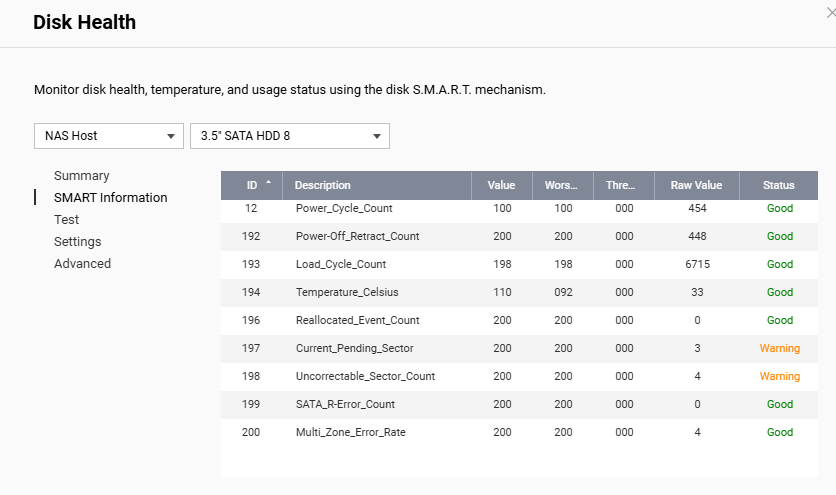
Key findings in this example:
- Current Pending Sector = 3 (Warning): Indicates that 3 sectors are currently unreadable. The system will repeatedly retry access, leading to slower file access, longer backup or sync times, and intermittent system latency.
- Uncorrectable Sector Count = 4 (Warning): Indicates that 4 sectors cannot be repaired, which may result in file read errors, application instability, or longer RAID rebuild times.
- Reallocated Event Count = 0: No reallocation has occurred yet, but the presence of pending and uncorrectable sectors strongly indicates that reallocation is imminent.
Step 3: Recommended actions
| Observation | Recommendation |
|---|---|
| Pending Sector detected | Back up your data as soon as possible. |
| Uncorrectable Sector detected | Avoid using the disk for long-term storage. |
| Pending + Uncorrectable present | Replace the disk at your earliest convenience. |
| Reallocated Sector Count increases | Replace the disk as soon as possible. An increasing count indicates progressive disk failure. |
| Performance already degraded | Prompt disk replacement can prevent further issues. |


